How to Disable Voice Access Auto Start in Windows 11

You disable Voice Access auto-start in Windows 11 through its startup application settings.
Voice Access is a Windows feature that allows you to control your PC entirely with your voice. This can be incredibly useful, but sometimes you might not want it launching every time you boot up your computer.
Starting with Windows 11 version 22H2, you can manage these startup applications to prevent Voice Access from consuming resources unnecessarily. Disabling its automatic start ensures it only runs when you actively choose to launch it.
This gives you more control over your system’s performance and keeps your background processes lean.
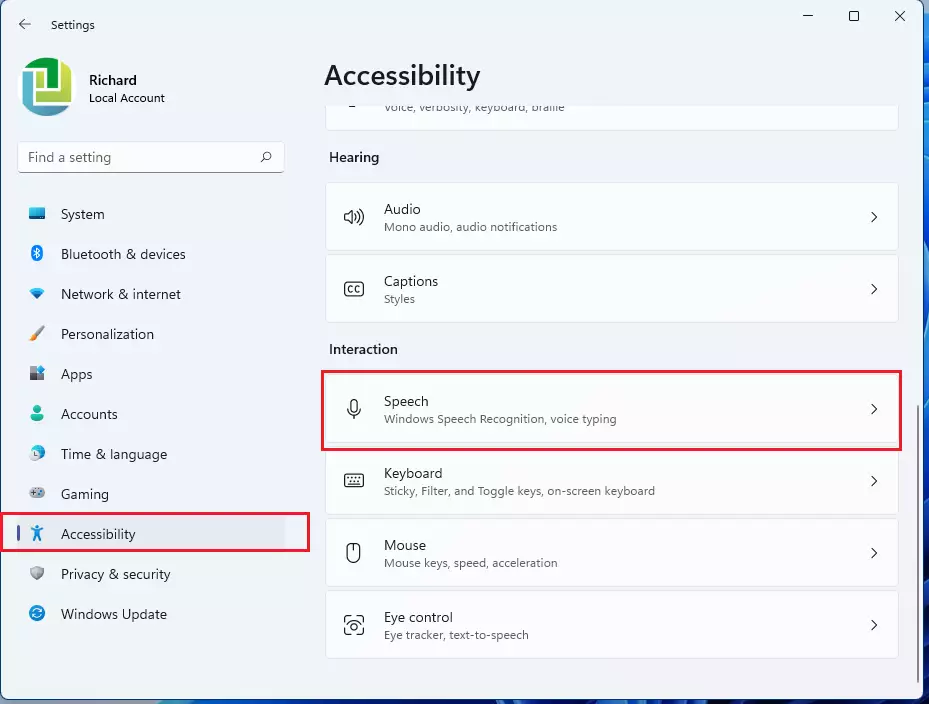
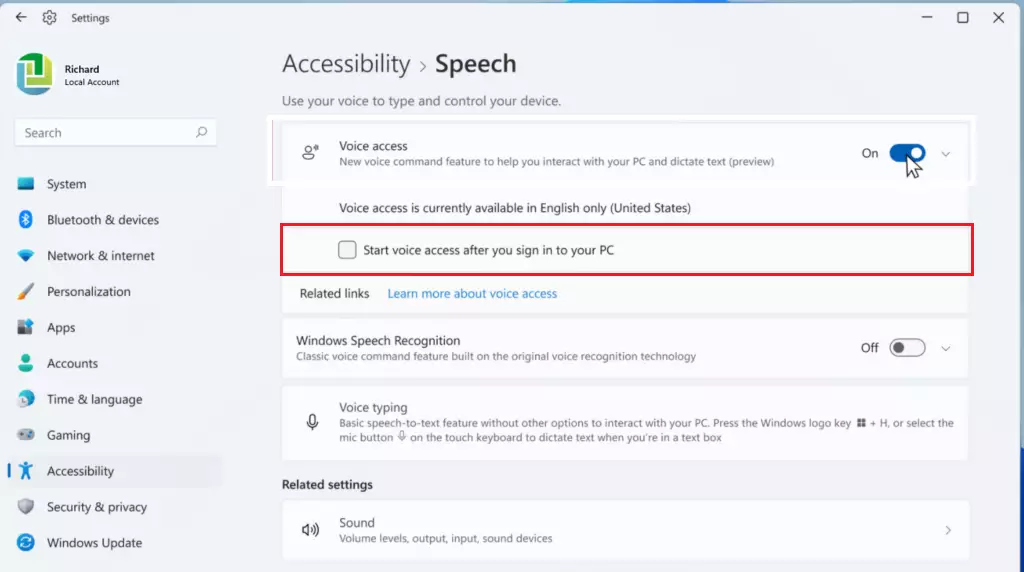
Go to Settings > Accessibility > Speech > Voice access and uncheck “Start voice access after you sign in to your PC”. You can also disable it in Task Manager under Startup apps.
Disable via Accessibility Settings
The best way to manage this is through the Windows 11 accessibility settings. This method is safe for everyone.
- Press Windows key + I to open Settings.
- Click Accessibility in the left sidebar.
- Select Speech.
- Click Voice access.
- Uncheck Start voice access after you sign in to your PC.
Disable via Task Manager
You can disable Voice Access from starting automatically using the Task Manager if it’s still running in the background.
- Press Ctrl+Shift+Esc to open Task Manager.
- Click the Startup apps tab on the left.
- Look for any entry related to Voice access or Speech Recognition.
- Right-click the item and select Disable.
For more details, see our guide on how to manage Windows 11 startup apps.
Advanced: Registry Editor
For advanced users, you can disable Voice Access auto-start by making a small change in the Windows Registry Editor.
- Press Windows key + R, type regedit, and press Enter.
- Navigate to:
HKEY_CURRENT_USER\Software\Microsoft\Windows\CurrentVersion\Explorer\Startup\Approved\Run - If you find a key related to Voice access, you can delete it or modify its value to prevent it from launching.
Summary
You’ve learned how to disable Voice Access startup using Settings, Task Manager, and the Registry, helping your computer run more efficiently.
How do I stop Voice Access from starting when I sign in to 🪟 Windows 11?
You can stop it by navigating to Settings > Accessibility > Speech > Voice access and unchecking the box labeled ‘Start voice access after you sign in to your PC’. This ensures the service remains inactive until you manually launch it from your app list.
Can I completely uninstall Voice Access from 🪟 Windows 11?
Voice access is a core feature of Windows 11 accessibility. While you cannot fully uninstall it like a standard app, you can effectively disable it by turning off the startup setting and ensuring it is not active in your background processes or startup folder.
Was this guide helpful?

About the Author
Richard
Tech Writer, IT Professional
Richard, a writer for Geek Rewind, is a tech enthusiast who loves breaking down complex IT topics into simple, easy-to-understand ideas. With years of hands-on experience in system administration and enterprise IT operations, he’s developed a knack for offering practical tips and solutions. Richard aims to make technology more accessible and actionable. He's deeply committed to the Geek Rewind community, always ready to answer questions and engage in discussions.



No comments yet — be the first to share your thoughts!