
This article explains how to stop or disable the Microsoft Edge browser from automatically creating a desktop shortcut in Windows 11.
The Microsoft Edge browser is the default browser in Windows 11. However, users can switch to their preferred or favorite browser anytime. Edge is based on Chromium, similar to Google Chrome and other Chromium-based browsers today.
Microsoft wants you to use their Edge browser over others, so every time Edge is updated, a shortcut will automatically be created on the desktop if there’s none already there.
Deleting or removing the shortcut from the desktop will automatically get recreated when Edge is updated again. You can stop that, and the steps below show you how.
Disable Edge from creating desktop shortcuts in Windows 11
The Microsoft Edge browser will automatically create a desktop shortcut, as described above. Even if you delete it, a new shortcut will be created the next time Edge is updated.
Here’s how to stop it.
First, open the Windows Registry and navigate to the folder key path listed below.
HKEY_LOCAL_MACHINESOFTWAREPoliciesMicrosoftEdgeUpdate
If you don’t see the EdgeUpdate folder key, right-click on the Microsoft parent key, then create the subkey (EdgeUpdate) folder.
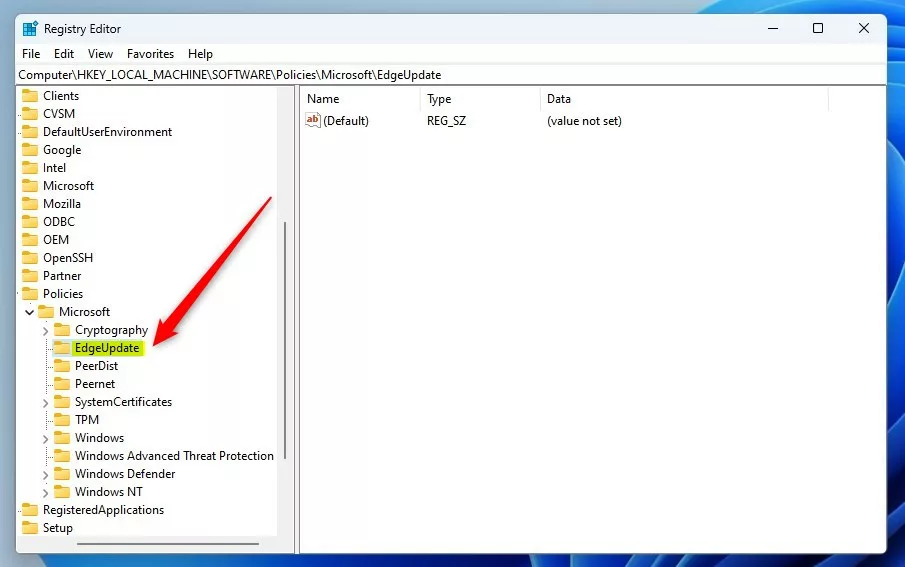
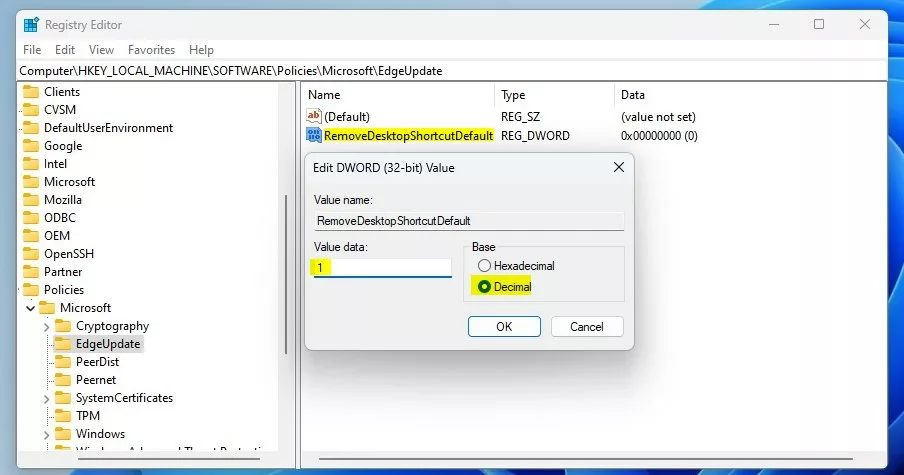
On the right pane of the EdgeUpdate folder key, right-click and select New -> DWORD (32-bit) Value. Next, type a new key named RemoveDesktopShortcutDefault.
Double-click the new value name (RemoveDesktopShortcutDefault) and enter the Value data of 1 to disable Edge from automatically creating desktop shortcuts.
A Value data of 0 will allow Edge to continue creating desktop shortcuts automatically every time.
That should do it. Restart your computer to apply the changes.
That should do it!
Conclusion:
- Microsoft Edge’s default behavior of automatically creating desktop shortcuts can be disabled through a simple modification in the Windows Registry.
- Modifying the registry entry effectively prevents Edge from recreating the desktop shortcut upon updates.
- Following the provided steps and restarting the computer will apply the changes, offering a solution to prevent the automatic creation of desktop shortcuts by Microsoft Edge.



Leave a Reply