

This article explains how to display or hide the scrollbar in the Terminal app on Windows 11.
Windows Terminal is a modern host application for the command-line shells, including Command Prompt, Windows PowerShell, and bash (via Windows Subsystem for Linux (WSL)).
There are many customizations one can make to the Terminal app in Windows. You can change the language, adjust the launch size, set the default profile, change the startup behavior, open the admin window, open Terminal automatically at startup, add copy selection to the clipboard automatically, automatically hide the Terminal window, hide the Terminal app in the notification area when minimized, keep the Terminal icon visible on the taskbar, launch at the center of the screen, and more.
The scrollbar in the Terminal app is a crucial element for navigating through long streams of text.
Adjusting the scrollbar visibility in the Terminal app can help enhance your productivity and make your interface more comfortable. Depending on your preferences or workflow, you may want to adjust the scrollbar’s visibility, which helps navigate long text streams.
Adjusting the Scrollbar visibility in the Terminal app
As mentioned above, users can customize the scrollbar visibility in the Windows Terminal app.
Here’s how to do that.
First, open the Windows Terminal app.
You can do that by clicking on the Start menu and searching for Terminal. Then, under “Best match,” select and open the Windows Terminal app.

When the Terminal app opens, click the down arrow button on the top bar and select Settings (Ctrl +,).

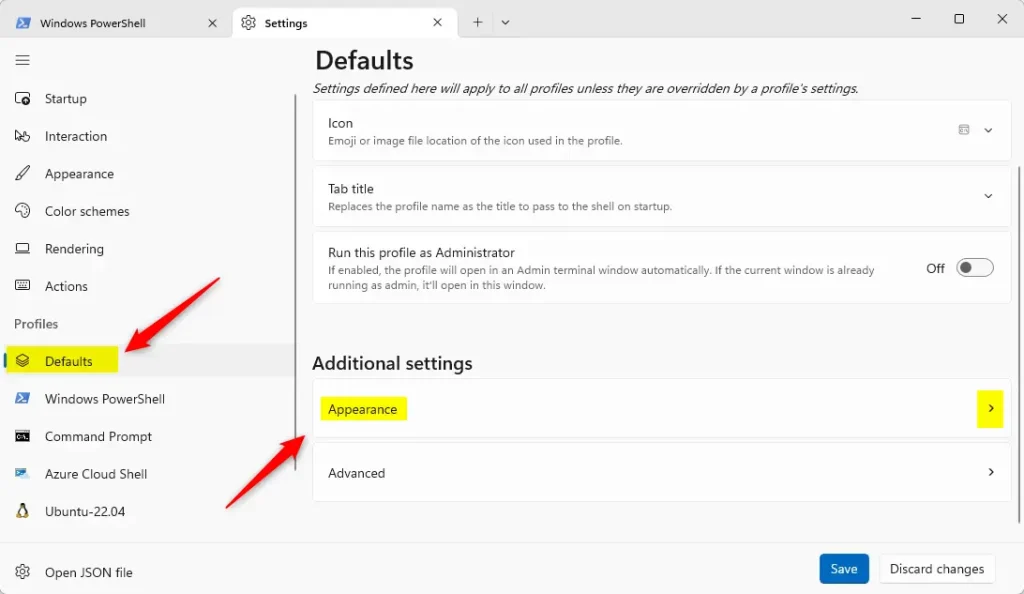
On the Settings window, click on the Defaults tab on the left under Profiles. Then, select the “Appearance” tile on the right to expand it.
Next, select the “Scrollbar visibility” tile under Window. Then, select one of the drop-down options as listed below:
- Visible – ( the default) – The scrollbar appears when you hover your mouse at the edge of the Window.
- Hidden – The scrollbar is hidden and not accessible.
- Always – The scrollbar is always visible.
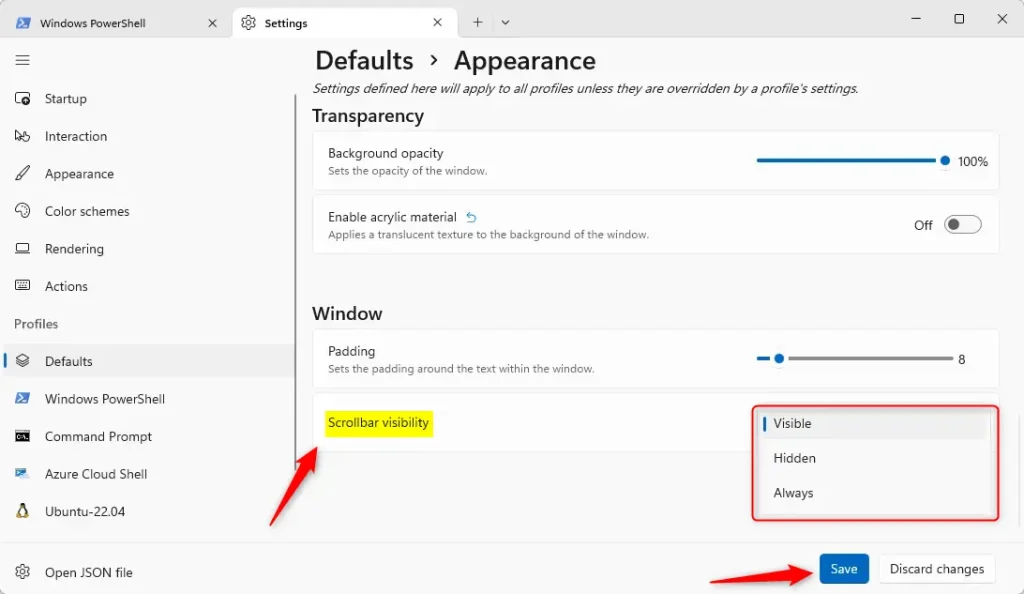
Click the Save button to apply your changes when you’re done.
That should do it!
Conclusion:
- Adjusting the scrollbar visibility in the Windows Terminal app can significantly enhance productivity and improve interface comfort.
- This customization can help navigate through long streams of text more effectively.
- By following the steps outlined in this article, users can easily modify scrollbar visibility based on their preferences and workflow.
- We hope this guide has helped customize your Windows Terminal experience. Please feel free to reach out through the comments form below if you have any questions or additional insights.



Leave a Reply Cancel reply