
Want to add a splash of color to your Start menu and taskbar in Windows 11? This simple guide will help you turn the accent color on or off, making your PC look just the way you like it.
What is Accent Color?
The accent color is a bright color that Windows uses to highlight parts of your screen, like the Start menu, taskbar, and window borders. You can choose from different color modes:
- Dark mode: A darker look, great for low light or night time.
- Light mode: A brighter look, perfect for daytime.
- Custom mode: Mix of both, letting you pick what parts are dark or light.
Note: You can only show accent colors on the Start menu and taskbar if you use Dark or Custom mode, not Light mode.
How to Turn On or Off Accent Color Using Settings
- Press Windows + I keys to open Settings.
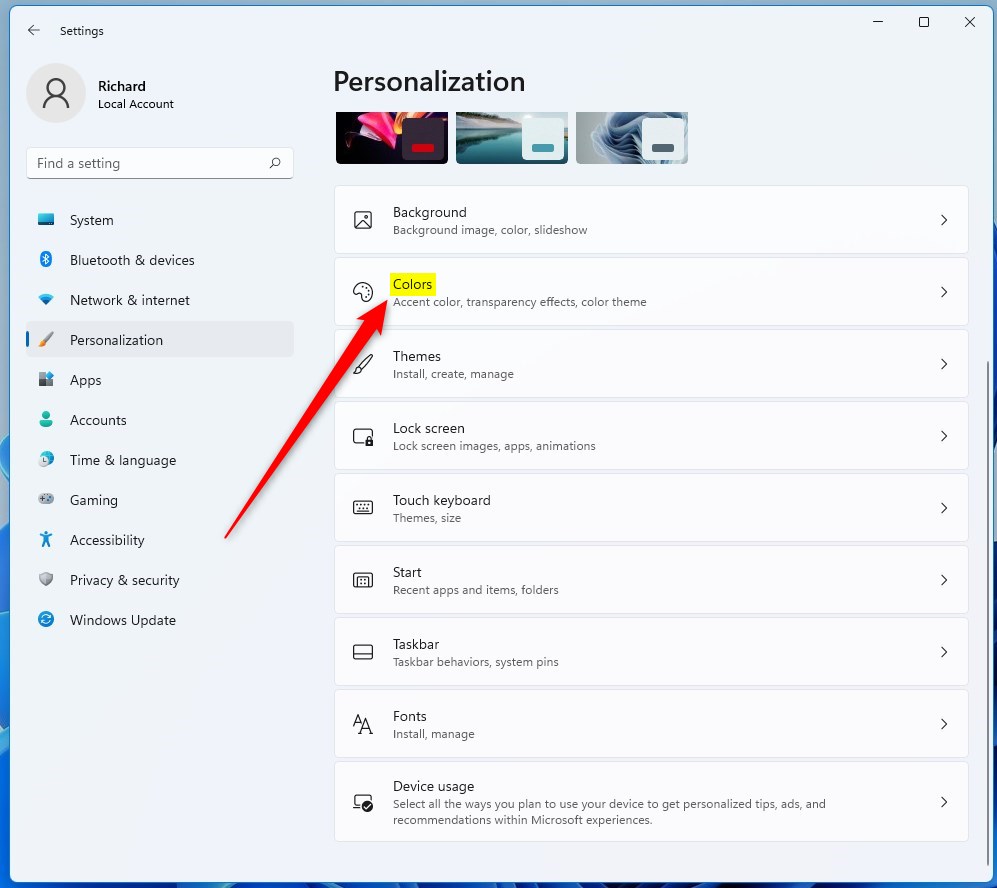
- Click on Personalization in the left menu.
- Click on Colors on the right side.
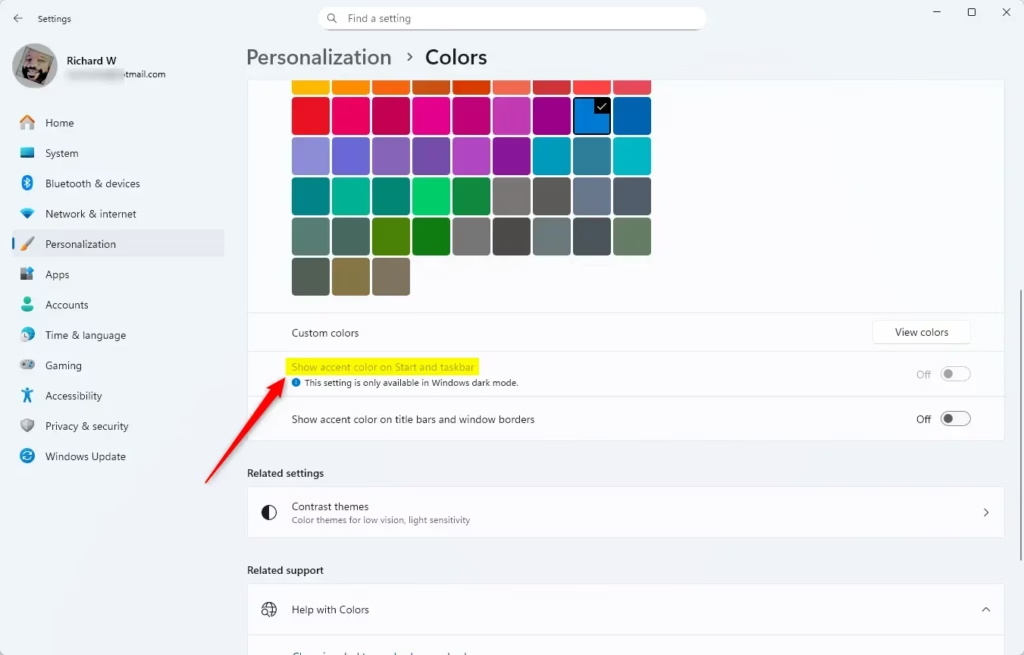
- Find the option called Show accent color on Start and taskbar.
- Turn it On or Off depending on what you want.
You can also open the Colors settings directly by clicking this link (it will open your Settings app): Open Colors Settings
Tip: If the option is greyed out, it’s probably because you have Light mode selected. Switch to Dark or Custom mode to use it.
How to Change Accent Color Using the Registry (Advanced)
If you feel comfortable editing your computer’s registry (a hidden control center), here’s how you can change the accent color settings manually.
Warning: Be careful when using the Registry Editor. Changing the wrong thing can cause problems. It’s a good idea to back up your registry first.
Open the Windows Terminal app as administrator and run the command below to make the changes using the command console.
Turn On Accent Color on Start Menu and Taskbar
reg add "HKEY_CURRENT_USERSoftwareMicrosoftWindowsCurrentVersionThemesPersonalize" /v ColorPrevalence /t REG_DWORD /d 1 /fTurn On Accent Color Only on Taskbar (Not Start Menu)
reg add "HKEY_CURRENT_USERSoftwareMicrosoftWindowsCurrentVersionThemesPersonalize" /v ColorPrevalence /t REG_DWORD /d 2 /f
Turn Off Accent Color (Default setting)
reg add "HKEY_CURRENT_USERSoftwareMicrosoftWindowsCurrentVersionThemesPersonalize" /v ColorPrevalence /t REG_DWORD /d 0 /f
Summary
- You can pick Dark, Light, or Custom modes for your Windows colors.
- The accent color can show on your Start menu and taskbar, but only if you use Dark or Custom mode.
- Change this setting easily in Settings or by using the Registry if you’re comfortable.
- Try different colors and modes to make your PC look just how you want it!
Enjoy a more colorful and personalized Windows 11 experience!
Leave a Reply