How to Share Files from Android to Windows 11

You share files from Android to Windows 11 using Microsoft’s Phone Link app.
Phone Link, formerly Your Phone, directly connects your Android device to your Windows 11 PC. This integration allows you to access your phone’s content, including files, photos, and messages, right from your desktop.
To achieve this seamless file transfer, both your Android phone and Windows 11 computer must be connected to the same Wi-Fi network. You’ll also need the “Link to Windows” app installed on your Android device, typically version 2.1.6 or later, to initiate the pairing process.
Use the Phone Link app on Windows 11 and the “Link to Windows” app on your Android phone. Ensure both devices are on the same Wi-Fi network, then select files on your phone and choose to link them to your PC.
Share Files from Android to 🪟 Windows 11 PC
You can easily share files from your Android phone to your Windows 11 PC using the Phone Link app, which connects your devices.
- Select one or more files you want to share on your linked Android phone with your connected Windows 11 PC.
Share button on Android phone for file sharing - Select the Link to Windows app on your mobile device.
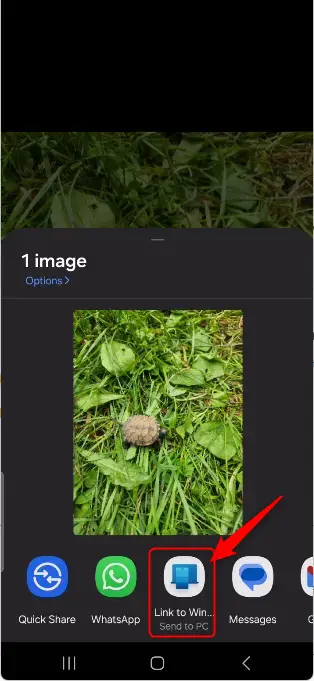
Link to Windows app icon for Android file sharing - If you don’t see the Link to Windows app immediately, click More (3 dots) and then click Link to Windows.
- Next, select the Windows 11 PC connected to your mobile device.
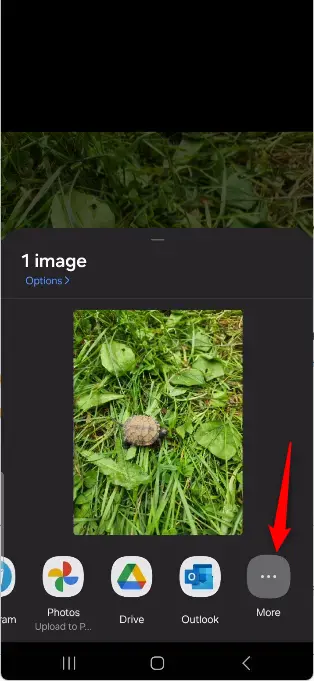
More options for Link to Windows app on Android 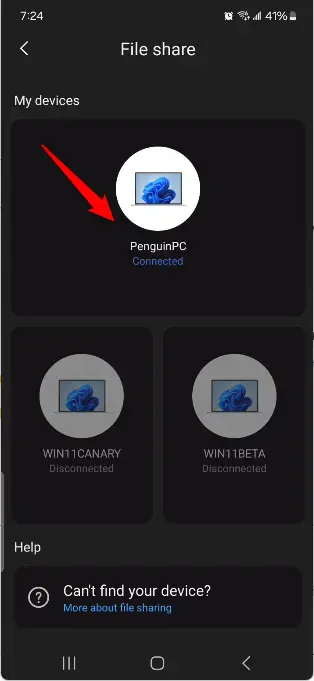
Connected Windows 11 PC displayed on Android device - You will get a File received notification from the Phone Link app on your connected Windows 11 PC. You can click on Open or Show in folder to view the file.
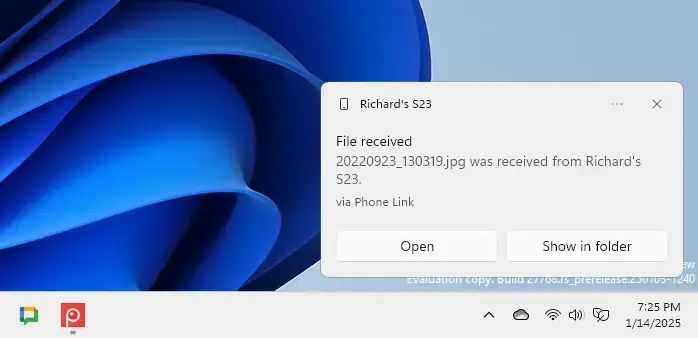
Windows 11 PC Phone Link app
All the files you received on your Windows PC from your mobile devices are stored in C:\Users\username\Downloads\Phone Link folder by default. You can change this location if you want.
Summary
Connecting your Android phone to your Windows 11 PC with the Phone Link app makes sharing files simple and convenient.
- Seamless Integration: Link your Android phone and Windows 11 PC for smooth file sharing.
- Convenience: Access your mobile apps and data directly from your PC, making multitasking easier.
- Notification System: Receive alerts on your PC whenever files are shared successfully.
- Customizable Storage: Files are stored in a default folder at
C:\Users\username\Downloads\Phone Link, which you can change as needed. - Enhanced Experience: Utilize your PC’s larger screen and keyboard for a more efficient workflow.
With these advantages, sharing files between your Android phone and Windows 11 PC has never been simpler!
Was this guide helpful?

About the Author
Richard
Tech Writer, IT Professional
Richard, a writer for Geek Rewind, is a tech enthusiast who loves breaking down complex IT topics into simple, easy-to-understand ideas. With years of hands-on experience in system administration and enterprise IT operations, he’s developed a knack for offering practical tips and solutions. Richard aims to make technology more accessible and actionable. He's deeply committed to the Geek Rewind community, always ready to answer questions and engage in discussions.



[…] allow you to access your mobile devices from your PC instantly. This feature comes in handy when transferring files, sending messages, or receiving notifications from your phone while working on your […]
[…] (also called Phone Link) lets you connect your phone to your PC. This helps you do things like transfer files, send text messages, and see phone notifications right on your […]
[…] (or Phone Link) lets you connect your mobile devices to your PC. This is useful when you want to transferring files, sending messages, or view phone alerts on your computer […]