Want to quickly send photos, documents, or other files from your Android phone to your Windows 11 computer? This easy guide will show you how to do it step-by-step!
What You Need
An Android phone with the Link to Windows app (often pre-installed on many phones)
A Windows 11 PC with the Phone Link app (already built into Windows 11)
Both devices connected to the same Wi-Fi network
What Is Phone Link?
Phone Link is a handy Windows 11 feature that connects your PC with your Android phone. It lets you share files, see your phone’s notifications, send texts, and more — all from your computer screen.
How to Share Files from Android to Windows 11
Make sure your phone and PC are linked: On your Windows 11 PC, open the Phone Link app. On your Android phone, open the Link to Windows app. Follow the on-screen prompts to connect the two devices if you haven’t done so already.
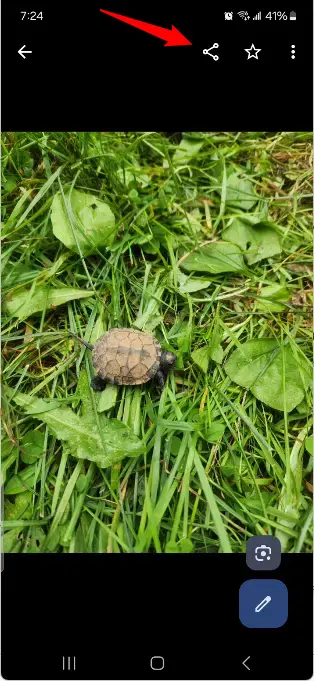
Choose the file(s) you want to share: On your Android phone, open the app where your file is saved (like Gallery for photos or Files for documents). Select one or more files you want to send.
Tap the Share button: Look for the Share icon (usually a icon). Tap it.
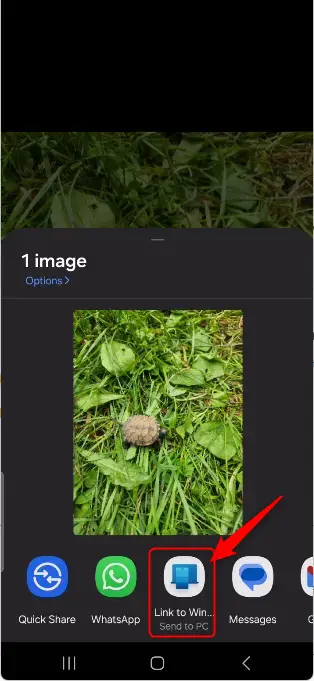
Select “Link to Windows”: In the sharing options, if you don’t see Link to Windows right away, tap More (three dots) to find it.
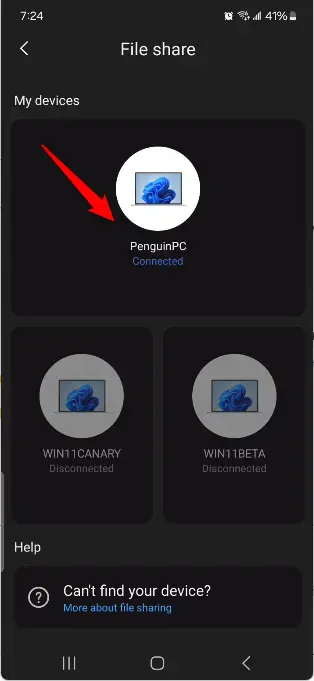
Choose your PC: From the list of connected devices, tap your Windows 11 PC’s name to send the file.
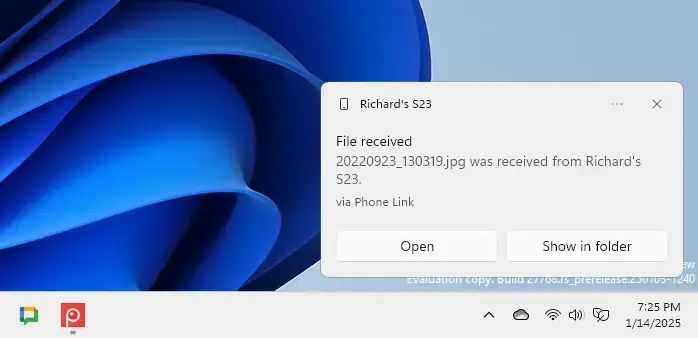
Check your PC for the file: On your Windows 11 PC, you will get a notification from the Phone Link app saying File received. Click Open or Show in folder to see your shared file.
Where are my files saved?
By default, all files you get from your phone are saved in this folder on your PC: C:Usersyour-usernameDownloadsPhone Link
If you want to change this folder, you can learn how here.
Summary
Easy to use: Link your Android phone and Windows 11 PC for quick file sharing.
Works over Wi-Fi: No cables needed, just make sure both devices are on the same network.
Get notifications: Your PC will tell you when files arrive.
Change where files save: You can pick a folder that works best for you.
More than just files: You can also see texts, notifications, and apps from your phone on your PC.
That’s it! Sharing files from your Android phone to your Windows 11 computer is now quick and simple.

Leave a Reply