
This easy guide will help you set up fingerprint sign-in on your Windows 11 computer. Fingerprint sign-in is part of Windows Hello, which lets you sign in quickly and safely using your fingerprint, face, or a PIN.
What You Need to Know First
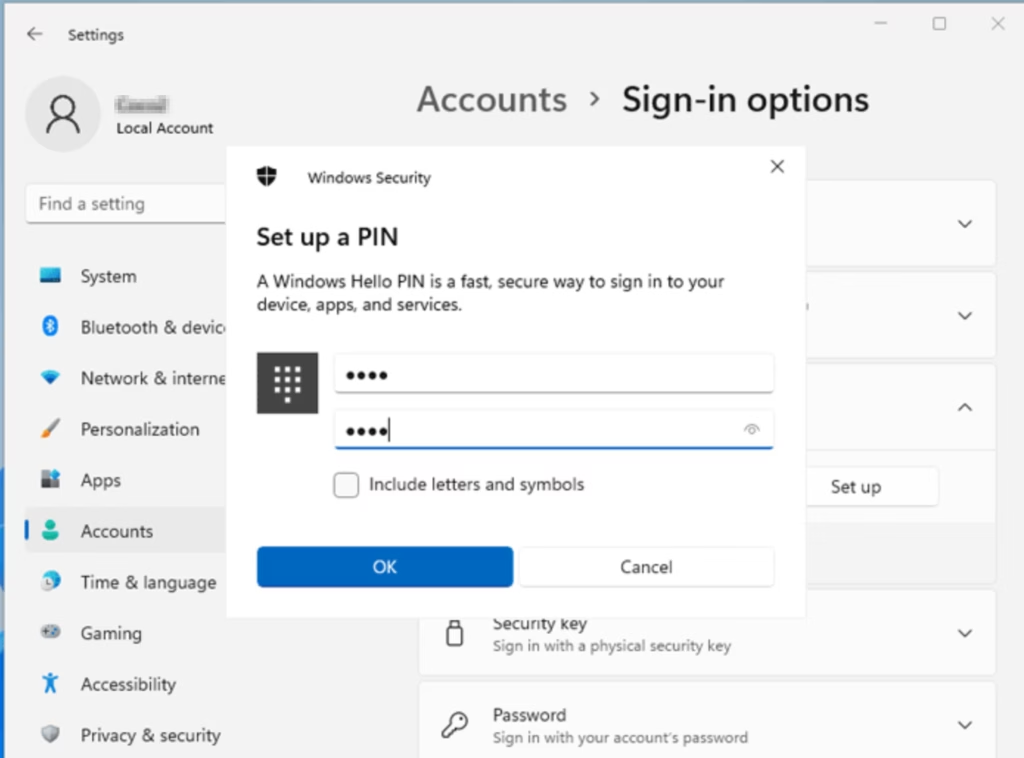
- You must have a PIN set up on your account before adding fingerprint sign-in.
- Your Windows 11 PC needs to have a fingerprint sensor built-in or a connected fingerprint reader.
- Using your fingerprint is faster and safer than typing passwords every time.
Step-by-Step: Set Up Fingerprint Sign-In
- Open Settings: Press the
Win + Ikeys on your keyboard to open the Settings app. - Go to Accounts: On the left side, click Accounts, then click Sign-in options on the right. Click here to open Sign-in options directly

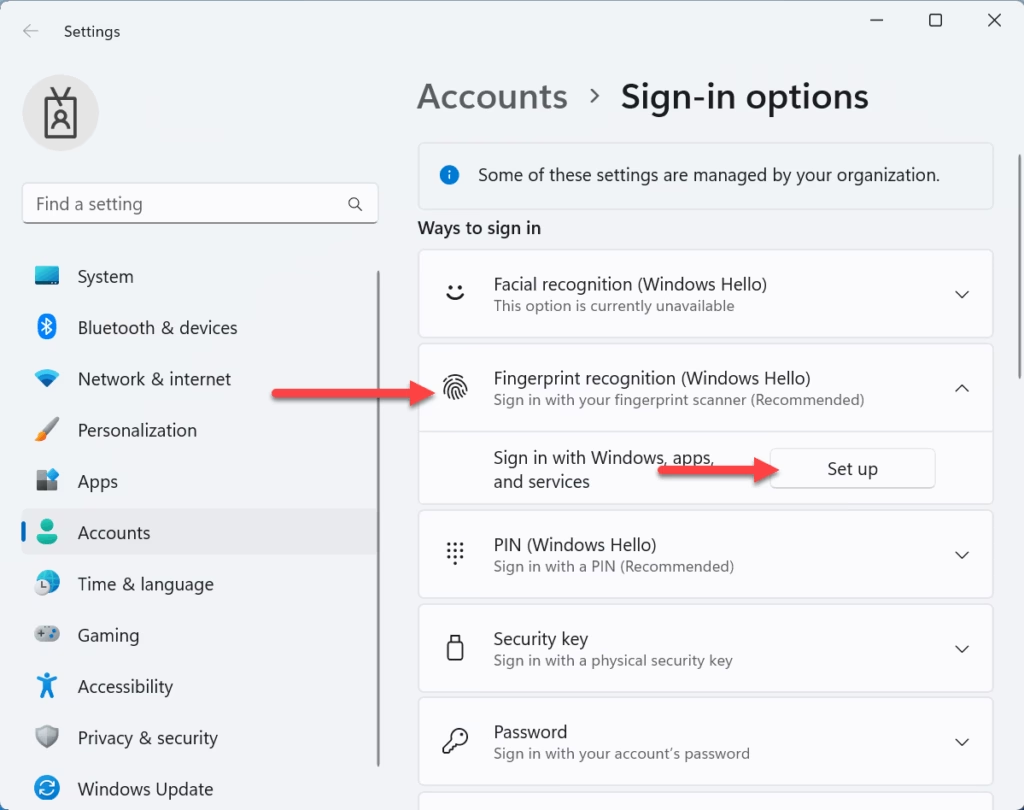
- Under Ways to sign in, find Fingerprint recognition (Windows Hello) and click to expand it.
- Click the Set up button next to Sign in with Windows, apps, and services.
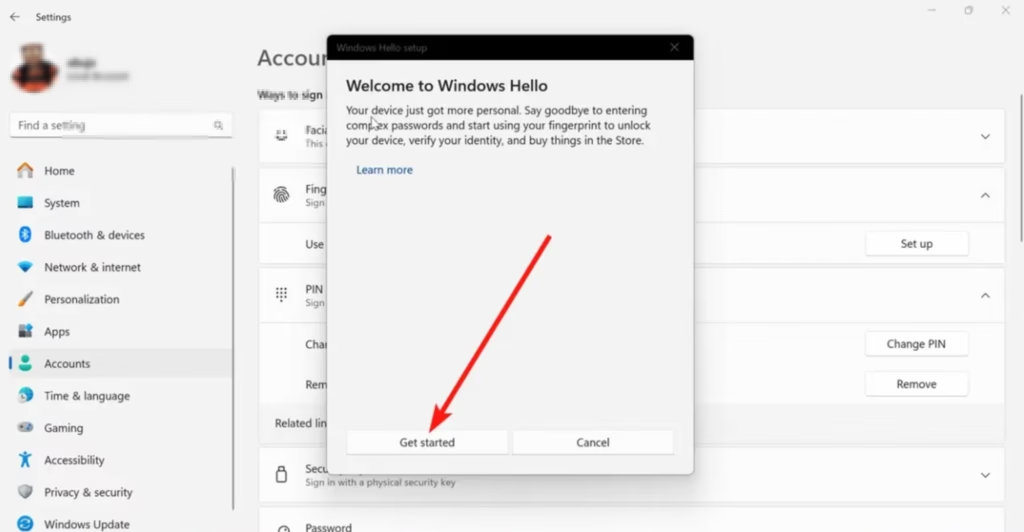
- Click Get started to begin the setup.
- Type your account PIN to confirm your identity.
- Now, place the finger you want to use on the fingerprint sensor. Follow the instructions on the screen.
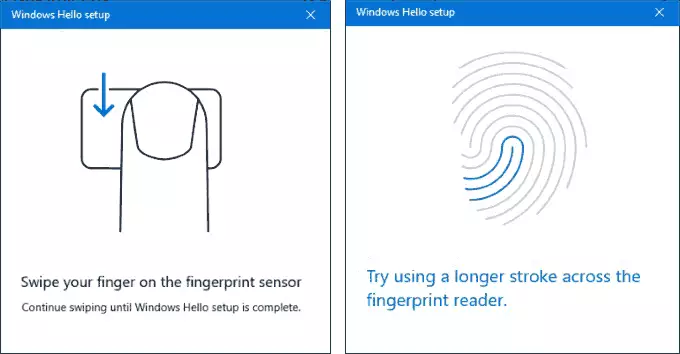
- After the first scan, click Next.
- Touch the fingerprint sensor again to complete the setup. Follow any more instructions until it says “All set”.
- Click Close to finish.
- You can now close the Settings app.
Why Use Fingerprint Sign-In?
- Quick and Easy: Just touch the sensor to sign in — no need to type passwords.
- Safe and Secure: Your fingerprint is unique and harder to steal than a password.
- Extra Protection: Your PIN is tied to your device and backed up by your Microsoft account, so you can recover it if needed.
- Works With Apps: Use your fingerprint to sign into apps and services on Windows.
Need More Help?
Learn about Windows Hello fingerprint authentication
Check Windows Hello device requirements
Fix problems with Windows Hello
Enjoy logging in faster and safer with your fingerprint on Windows 11!
Summary
Setting up fingerprint sign-in on Windows 11 is simple and makes your computer more secure. You just need a PIN already set up and a fingerprint sensor on your device. Open Settings, go to Accounts and Sign-in options, and follow the steps to scan your finger. Once you’re done, you can sign in quickly and safely with just a touch instead of typing a password every time.

Leave a Reply