How to Check Windows 11 AI Activity by Apps

This tutorial shows you how to check which apps have used text and image generation features in Windows 11 over the last 7 days.
Why Check This?
Text and image generation uses artificial intelligence technology built into Windows. This AI runs directly on your device. Checking this activity helps you see which apps are using these AI features. It gives you control over your device’s AI experience.
What You Need to Know
This feature works in Windows 11 build 2610.5074 (24H2) and later. You can see which third-party applications recently used Windows’ built-in AI models. You can also control which apps are allowed to use them.
How to See Recent AI Activity
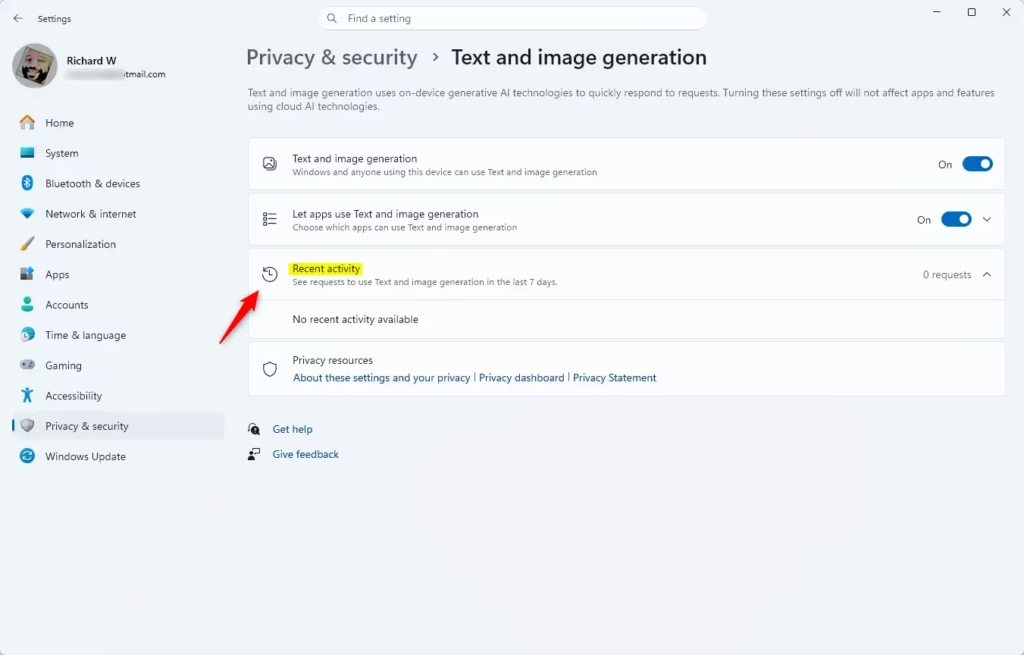
Windows 11 AI activity can be viewed directly in Settings under Privacy & security by navigating to Text and image generation, where you’ll find a Recent activity section displaying all apps that requested AI features within the last 7 days.- Open Settings by pressing
Win+Ion your keyboard. - Click Privacy & security on the left side. Open Text and image generation Settings
- Click Text and image generation on the right side. Look under “App permissions”.
- Look at the Recent activity section. You will see a list of apps that asked to use text and image generation in the last 7 days.
Summary
Checking your text and image generation activity in Windows 11 is simple. Just open Settings, go to Privacy & security, and select Text and image generation. You’ll see which apps used these AI features in the past week. This helps you stay in control of how artificial intelligence is used on your computer.
Frequently Asked Questions
Why Check This?
Can you turn AI off in 🪟 Windows 11?
Yes, you can manage or disable AI features in Windows 11. Navigate to Settings, select Privacy & security, and click on Text and image generation. From there, you can view app permissions and toggle off access for specific applications to prevent them from utilizing built-in AI models on your device.
What are the AI actions in 🪟 Windows 11?
AI actions in Windows 11 primarily involve text and image generation tasks performed by local models. These features allow third-party applications to leverage built-in AI capabilities for content creation. Users can monitor these specific interactions within the Privacy & security settings to see which apps have requested AI processing recently.
What is the 30% rule in AI?
The 30% rule in AI is a heuristic suggesting that AI should handle approximately 30% of a task's complexity to augment human productivity without replacing it. It emphasizes human-in-the-loop workflows, ensuring that AI acts as a supportive tool for efficiency rather than an autonomous replacement for critical human decision-making processes.
Does 🪟 Windows 11 have AI in it?
Yes, Windows 11 integrates AI technology directly into the operating system. This includes features like Copilot and local AI models that support text and image generation. Users can track how these built-in AI models are utilized by third-party applications through the Privacy & security settings menu in the Windows interface.
Was this guide helpful?

About the Author
Richard
Tech Writer, IT Professional
Richard, a writer for Geek Rewind, is a tech enthusiast who loves breaking down complex IT topics into simple, easy-to-understand ideas. With years of hands-on experience in system administration and enterprise IT operations, he’s developed a knack for offering practical tips and solutions. Richard aims to make technology more accessible and actionable. He's deeply committed to the Geek Rewind community, always ready to answer questions and engage in discussions.




No comments yet — be the first to share your thoughts!