How to Restore File Explorer Windows at Logon

You can restore all your open File Explorer windows automatically when you next log into Windows.
This feature allows Windows to remember every File Explorer tab and window you had open before signing out or restarting. When you log back in, all those windows reappear exactly as you left them, saving you time and effort.
You’ll find this “Restore previous folder windows at logon” setting within File Explorer’s Folder Options. This useful functionality is available in both Windows 10 and Windows 11.
Access File Explorer Folder Options, go to the View tab, and check the “Restore previous folder windows at logon” box. This setting automatically reopens your File Explorer windows when you sign back into Windows.
Why Use This Feature?
This feature saves you time. You won’t have to reopen all your folders after logging in. Everything will be exactly where you left it.
What Happens When You Enable It?
When you enable this setting, Windows will remember your open File Explorer windows and tabs. They’ll automatically reopen the next time you log in.
Method 1Use File Explorer Settings
You can restore previous folder windows at logon using File Explorer’s settings. Simply open Folder Options, go to the View tab, and check the box next to ‘Restore previous folder windows at logon’ to turn it on, or uncheck it to turn it off.
- Open File Explorer Folder Options.
- Click on the View tab at the top.
- Look for the box next to “Restore previous folder windows at logon”.
- Check the box to turn the feature on. Uncheck it to turn it off.
- Click OK to save your changes.
Method 2Use Windows Registry Editor
For advanced users, you can restore previous folder windows at logon by editing the Windows Registry. This involves opening the Registry Editor and changing a specific setting, but it’s crucial to back up your registry first or create a restore point.
⚠️ ADMIN PRIVILEGES REQUIRED: You need administrator access to edit the registry.
Before you make any changes, back up your registry or create a System Restore point to be safe.
- Open the Windows Registry (search for “regedit” in Windows).
- Navigate to this folder path:
Computer\HKEY_CURRENT_USER\Software\Microsoft\Windows\CurrentVersion\Explorer\Advanced - Right-click on Advanced and choose New > DWORD (32-bit) Value.
- Name the new entry
PersistBrowsers. - Double-click
PersistBrowsersand set the value to1to turn on the feature. Use0to turn it off.
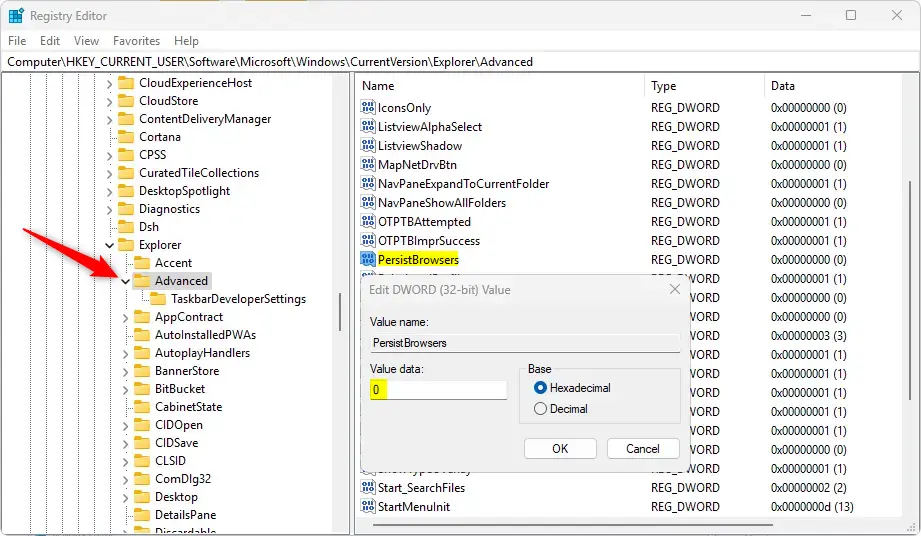
You may need to restart your computer for the changes to take effect.
Summary
Restoring previous folder windows at logon is a quick process with two main methods. You can easily use File Explorer’s settings or, for more advanced control, edit the Windows Registry, remembering to back up your system first.
- Easy method: Use the File Explorer Folder Options menu to enable or disable the feature in just a few clicks.
- Advanced method: Edit the Windows Registry to control this setting. Remember to back up your registry first.
- Always create a System Restore point before making registry changes for extra safety.
- Your computer may need to restart for changes to work properly.
- This feature helps you work faster by remembering where you left off.
Was this guide helpful?

About the Author
Richard
Tech Writer, IT Professional
Richard, a writer for Geek Rewind, is a tech enthusiast who loves breaking down complex IT topics into simple, easy-to-understand ideas. With years of hands-on experience in system administration and enterprise IT operations, he’s developed a knack for offering practical tips and solutions. Richard aims to make technology more accessible and actionable. He's deeply committed to the Geek Rewind community, always ready to answer questions and engage in discussions.



No comments yet — be the first to share your thoughts!