
If you want to change back all your default apps (like browsers, photo viewers, or music players) to the original Windows 11 apps, this guide will help you do it easily.
What is a default app? It’s the program Windows uses automatically to open certain files or links. For example, if you set Google Chrome as your default browser, all web links will open in Chrome.
Remember, the default apps you pick only affect your user account on your computer, not any other accounts.
How to Reset All Default Apps in Windows 11
Follow these simple steps to reset all your default apps back to the ones Microsoft recommends:
- Open the Settings app:
- Click the Start menu and select Settings, or
- Press Windows key + I on your keyboard to open Settings directly.
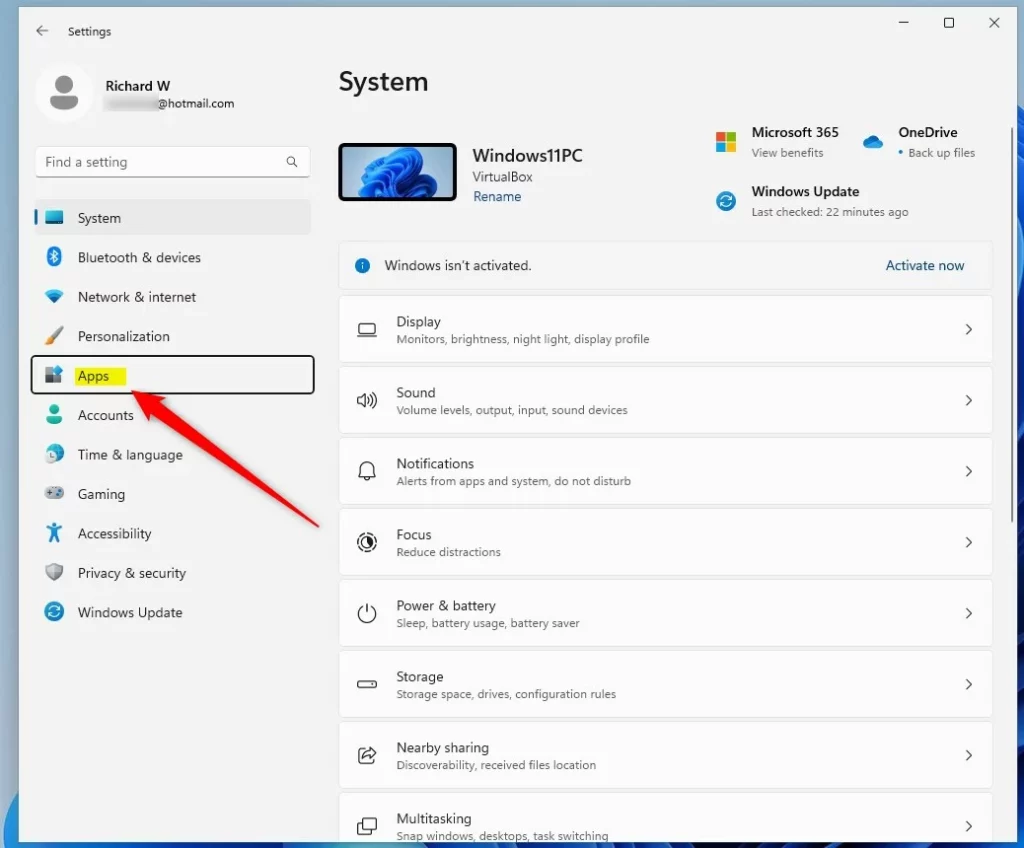
- In Settings, click Apps on the left side menu.
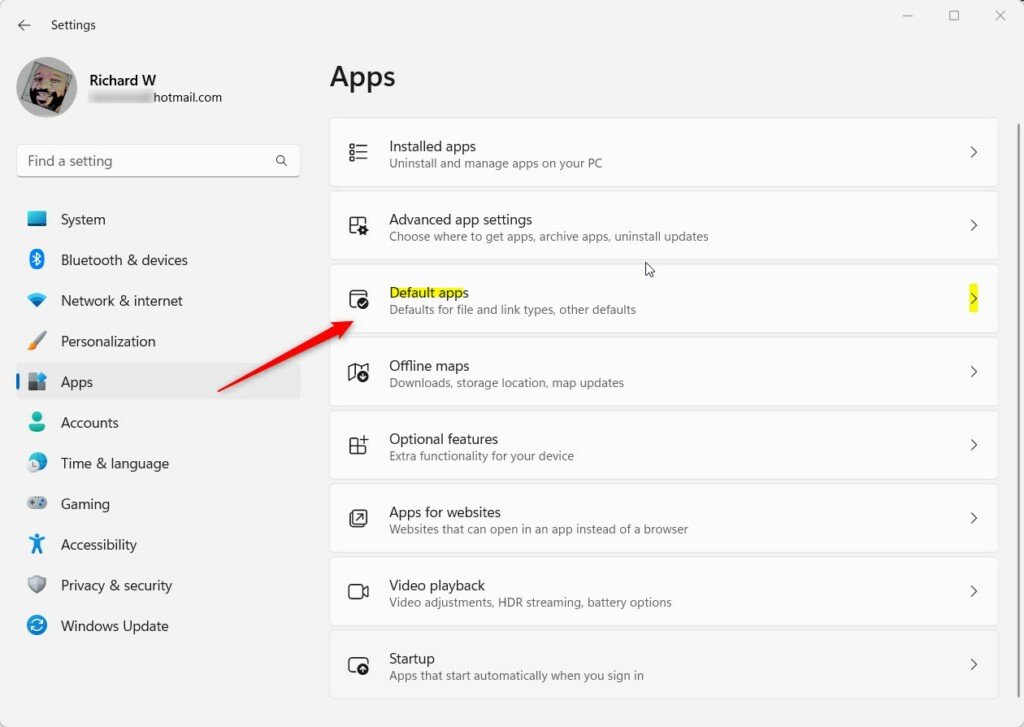
- On the right side, click Default apps.
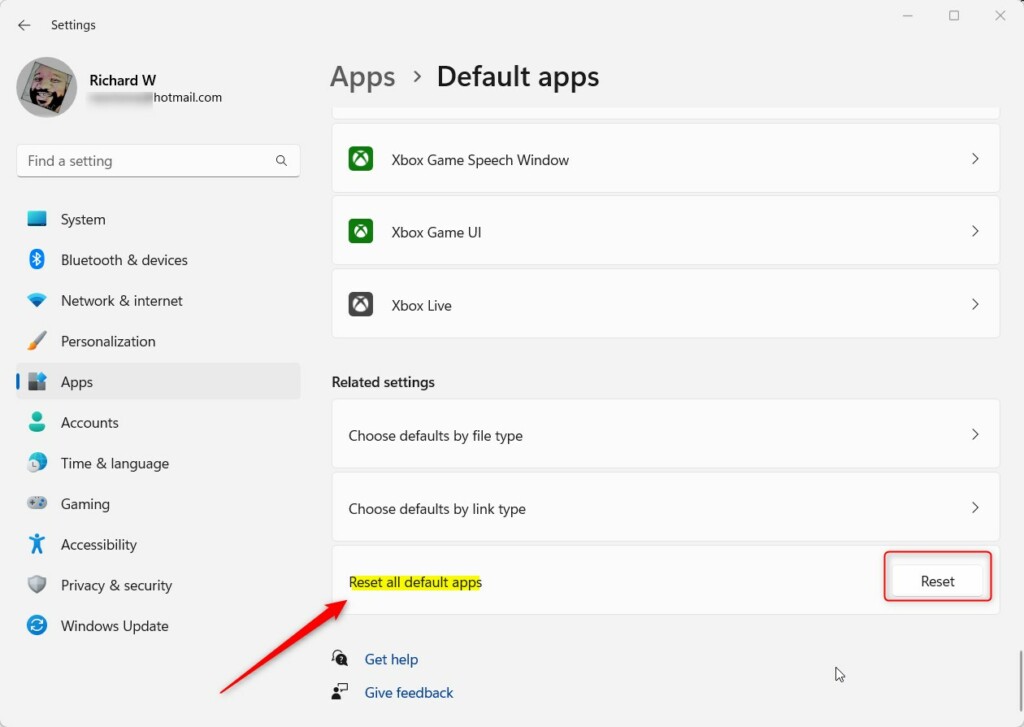
- Scroll down to the bottom of the page and find the button that says Reset all default apps. Click the Reset button.
- A small message will ask you to confirm if you want to reset to Microsoft’s default apps. Click OK.
Once done, you’ll see a checkmark next to the reset button to show that the process is complete.
Summary
- Default apps are the programs Windows uses automatically to open files or links based on your choice.
- Resetting default apps brings back the original Microsoft recommended apps for all file types.
- This reset only changes your account’s settings and does not affect other users on the PC.
- The process is quick and easy using the Windows 11 Settings app.
That’s all! Now your Windows 11 default apps are back to the way Microsoft intended.
For more tips on managing default apps, check out this guide on how to make Google Chrome your default browser in Windows 11.

Leave a Reply