How to Put Your Windows 11 PC to Sleep

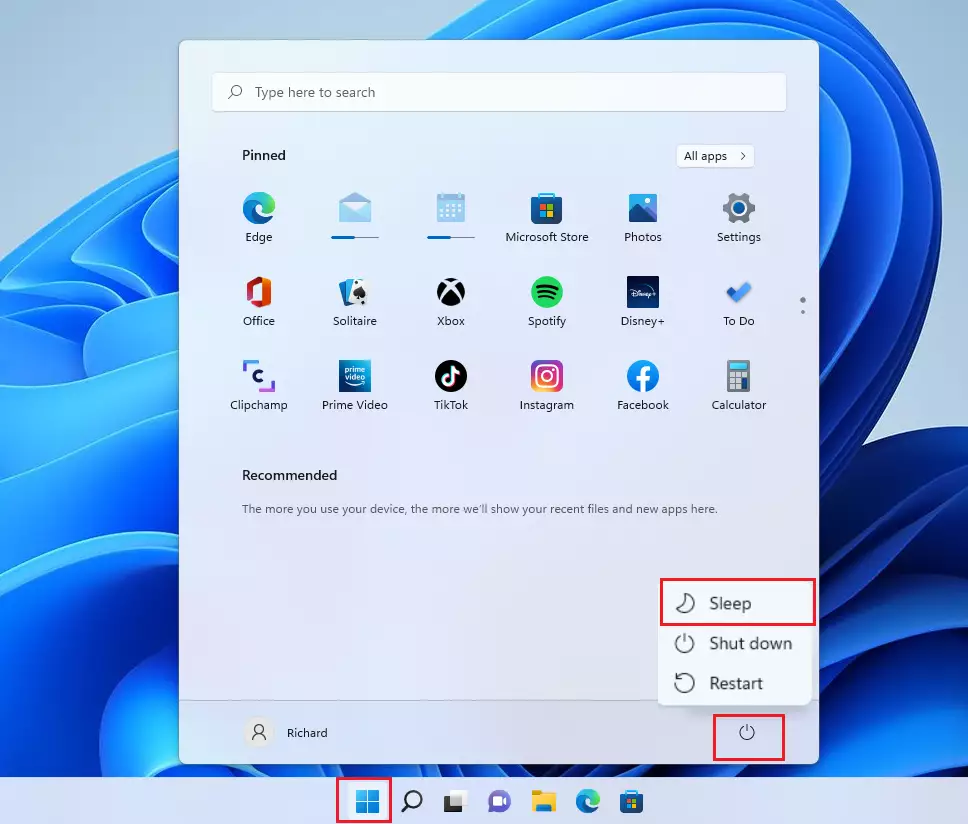
You put your Windows 11 PC to sleep by selecting the “Sleep” option from the power menu.
Sleep mode is a low-power state where your computer saves your current session to RAM and shuts down most components, retaining just enough power to wake up when you press a key or move the mouse.
This allows you to resume your work instantly without losing progress, making it perfect for short breaks instead of a full shutdown. Your PC wakes in seconds, with all your apps and files exactly as you left them.
Click the Start button, select the Power icon, and then click Sleep. Alternatively, you can press your PC’s physical power button. If the option is missing, update your graphics drivers in Device Manager or check your power plan settings in the Control Panel.
Understanding Sleep vs. Hibernate
Sleep mode keeps your open documents in your computer’s memory (RAM) so it can wake up instantly. Hibernate saves your open documents to your hard drive and then turns the computer completely off. Hibernation uses zero power, while sleep uses a tiny amount to keep your memory active.
How to Use the Power Button
On many computers, you can press the physical power button on your case or laptop to put it to sleep. If your device has a specific sleep button, you can use that as well.
How to Change What the Power Button Does
You can change your Windows 11 power button to put your PC to sleep by going through the Control Panel. This is a quick way to make sure your computer is ready to go when you need it, saving you time.
- Open the Control Panel and go to Hardware and Sound > Power Options.
- Click Choose what the power buttons do on the left side.
- Under When I press the power button, select Sleep from the dropdown menu.
- Click Save changes.
How to Use the Start Menu
The most common way to put your computer to sleep is through the Start menu.
- Click the Start button on your taskbar.
- Select the Power icon.
- Click Sleep.
Troubleshooting: Why is the Sleep Option Missing?
If the sleep option isn’t showing up on your Windows 11 PC, it’s often because your graphics driver needs an update or the sleep setting is turned off in your power plan, but don’t worry, it’s usually a simple fix.
Advanced Power Management with Powercfg
Windows has a handy tool called powercfg that lets you see exactly what might be stopping your PC from going to sleep, which is useful if you’re having trouble with it.
Summary
Putting your Windows 11 PC to sleep is a great way to save energy while keeping your tasks ready to go, and you have several easy options to do it, from the Start menu to keyboard shortcuts.
Why is the sleep option missing from my 🪟 Windows 11 power menu?
The sleep option often disappears if your graphics card drivers are outdated or if the power plan settings have been modified. Updating your drivers via Device Manager or resetting your power plan to default settings in the Control Panel usually restores the missing sleep option to your power menu.
Does putting my PC to sleep save more power than hibernation?
No, hibernation saves more power than sleep. Sleep keeps your data in active memory, which requires a small amount of electricity. Hibernation writes your data to the hard drive and shuts the system down entirely, meaning it consumes zero power while the computer is inactive.
How do I prevent my 🪟 Windows 11 PC from waking up automatically?
To stop automatic wake-ups, go to Power Options and select Change plan settings. Click Change advanced power settings, expand Sleep, and disable Allow wake timers. Additionally, check your mouse or network adapter settings in Device Manager to ensure they are not configured to wake the computer automatically.




No comments yet — be the first to share your thoughts!