How To Optimize Windows 11 For Gaming Performance

Many users find that their brand-new Windows 11 PC does not perform as well as expected when playing high-end titles. The reason is simple: Windows 11 comes with many background features that are meant to help with productivity, but they often steal power away from your graphics card and processor while you are in the middle of a game.
Why optimize Windows 11? Because your operating system is constantly doing things in the background like indexing files, checking for updates, and running telemetry services. These tasks compete for CPU cycles and memory.
What happens when you are done? Your computer will dedicate more resources to your game, which leads to higher frame rates, smoother gameplay, and less frustration.
Step 0: Create a System Restore Point
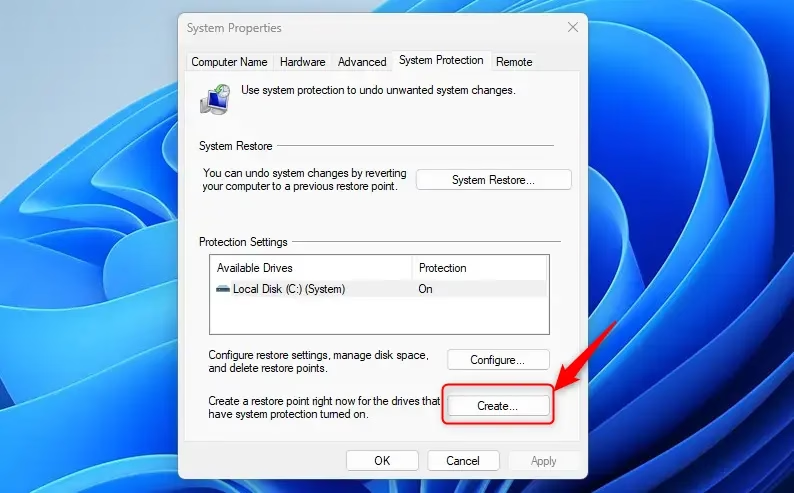
Before changing any settings, you must create a safety net. If something goes wrong, you can return to how things were.
- Press the Windows Key and type Create a restore point.
- Select the result and click Create.
- Give it a name like “Before Gaming Optimization” and click Create.
1. Enable Hardware-Accelerated GPU Scheduling
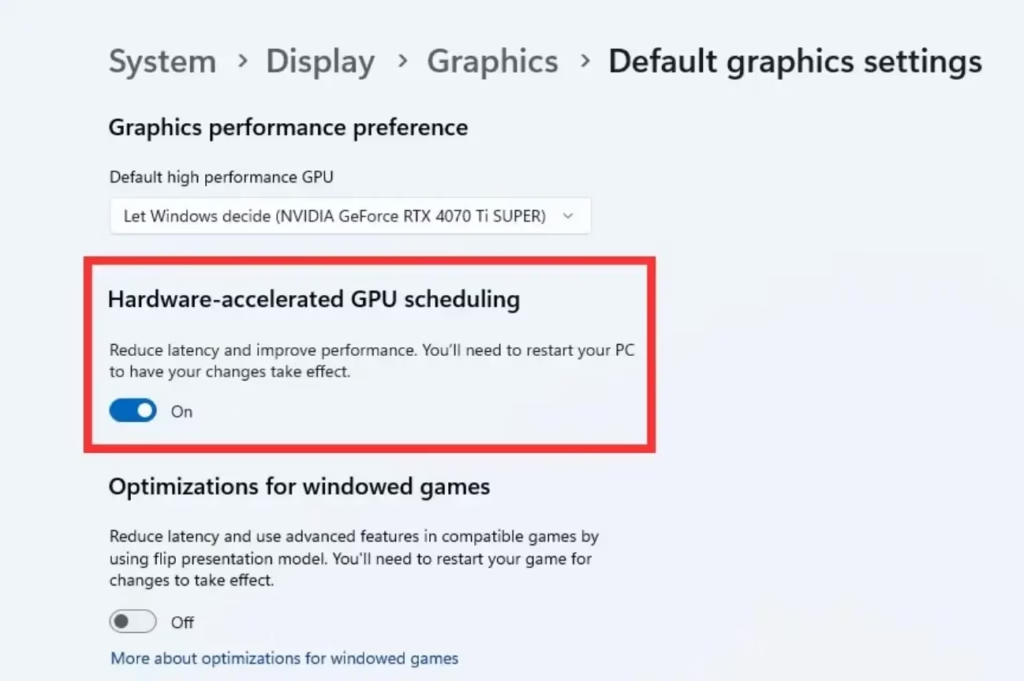
This feature allows your graphics card to manage its own memory, which can reduce input lag and improve frame time stability.
- Open Settings > System > Display > Graphics.
- Click Change default graphics settings.
- Toggle Hardware-accelerated GPU scheduling to On.
- Restart your PC to apply changes.
2. GPU-Specific Control Panel Settings
Your graphics card software has its own power settings that override Windows defaults.
- NVIDIA: Open NVIDIA Control Panel > Manage 3D settings. Set Power management mode to Prefer maximum performance.
- AMD: Open AMD Adrenalin Software > Performance > Tuning. Ensure the profile is set to Gaming.
3. Granular OS UI Settings
Turn off features that run in the background and use system resources.
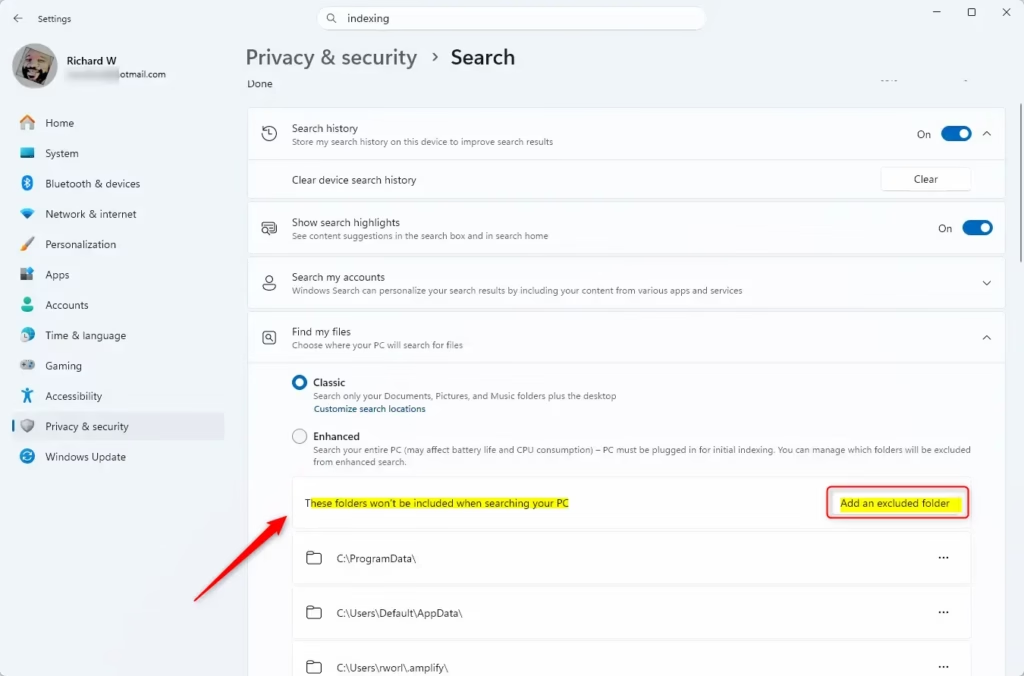
- Indexing: Search for Indexing Options, click Modify, and uncheck folders you do not need to search often.
- Notifications: Go to Settings > System > Notifications and turn off Do not disturb or disable specific app alerts.
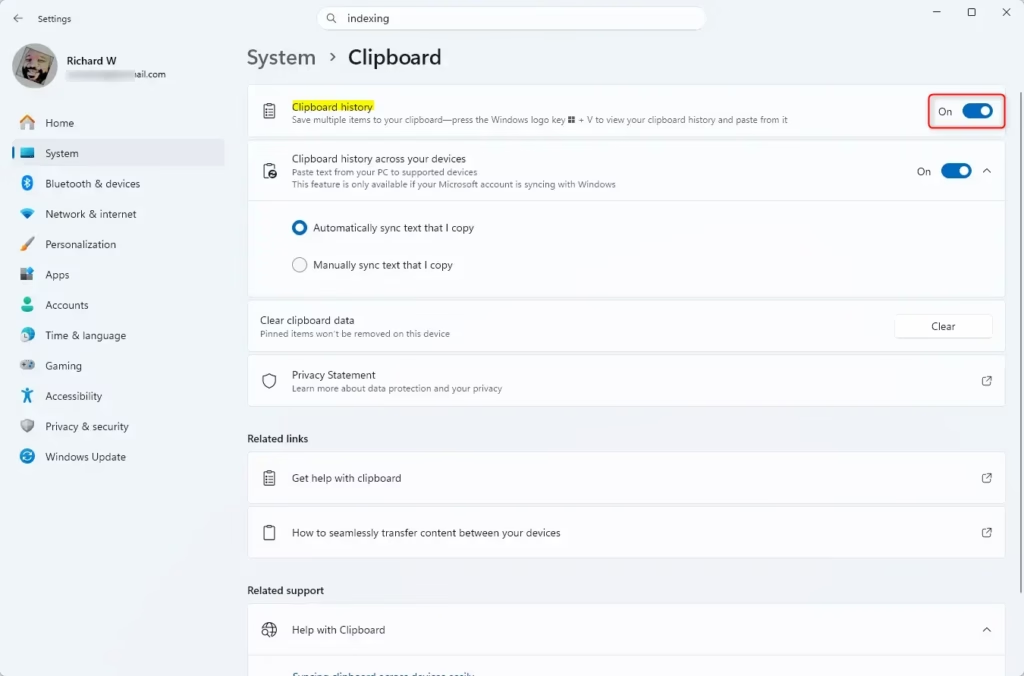
- Clipboard: Go to Settings > System > Clipboard and turn off Clipboard history if you do not use it.
4. Registry Edits for Gaming
Admin Privilege Required: Use these tweaks to stop background processes from stealing CPU cycles.
HKEY_LOCAL_MACHINE\SOFTWARE\Microsoft\Windows NT\CurrentVersion\Multimedia\SystemProfile
Change the NetworkThrottlingIndex to ffffffff and SystemResponsiveness to 0.
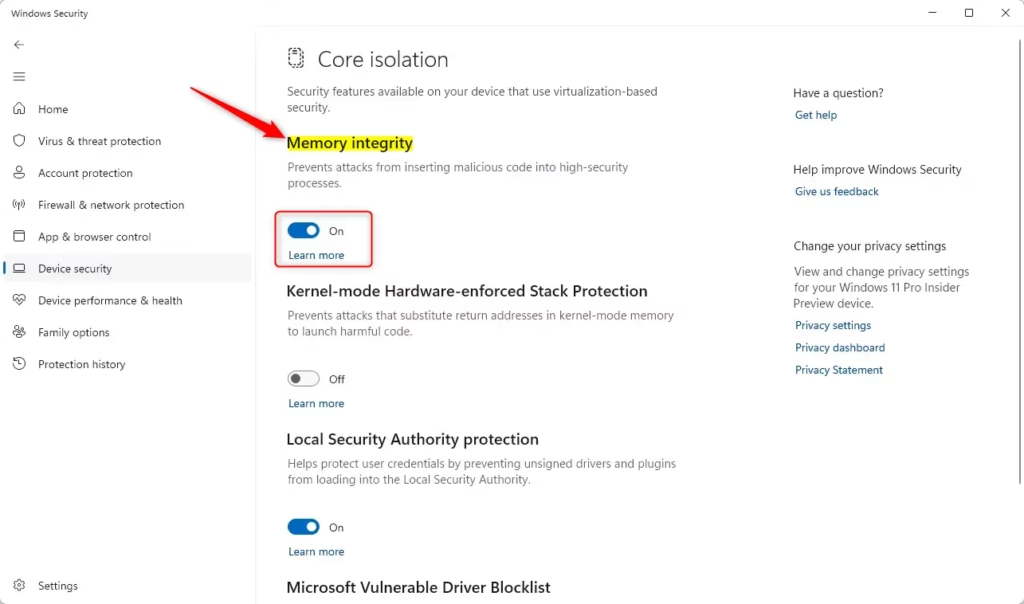
5. Disable Virtualization-Based Security (VBS)
Admin Privilege Required: VBS can lower gaming performance by 5-15%.
- Search for Core Isolation in the Windows search bar.
- Toggle Memory integrity to Off.
- Restart your computer.
Summary
Optimizing Windows 11 for gaming is about removing friction. By disabling background apps, turning off telemetry, managing your power mode, and ensuring your BIOS is configured correctly, you stop your operating system from fighting against your hardware. Always create a restore point before making deep changes to the registry or BIOS. Once you finish these steps, your PC will allocate more resources to the tasks that matter most—your games.
For more deep dives into system performance, check out our guide on Optimizing Windows 11 for Gaming or explore the Microsoft Windows Learning Center for official tips.
Does Hardware-Accelerated GPU Scheduling actually help?
Yes, it helps by offloading memory management tasks from the CPU to the GPU. This reduces system latency and can improve frame time stability in modern games. While the performance gain varies by hardware, it is generally recommended for gaming-focused Windows 11 setups to ensure smoother overall responsiveness.
What is the difference between ‘Balanced’ and ‘High Performance’ power plans?
The ‘Balanced’ plan adjusts CPU speed based on current demand to save energy. The ‘High Performance’ plan keeps the processor at higher clock speeds constantly. For gaming, ‘High Performance’ prevents micro-stuttering caused by the CPU downclocking during short periods of low activity, ensuring your hardware is ready for immediate action.
Was this guide helpful?




Leave a Reply Cancel reply