
Do you use Windows 11? You might like opening folders in new tabs. It’s just like how web browsers open new websites in tabs. This makes it easier to switch between folders without opening lots of windows.
What is File Explorer?
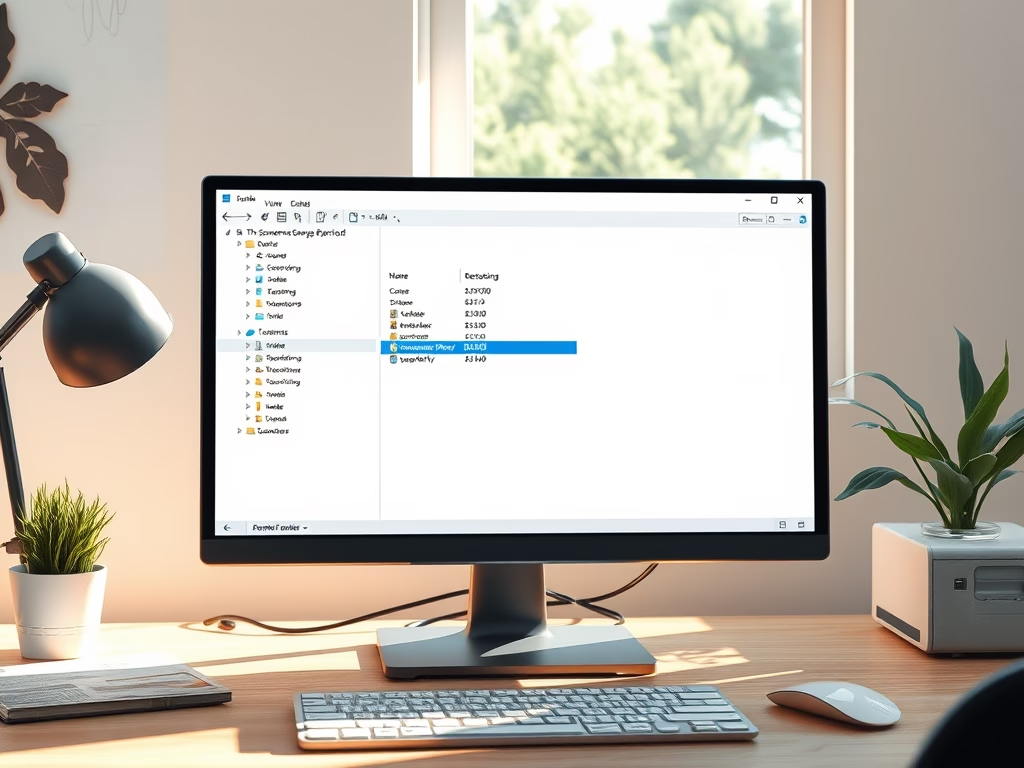
File Explorer is the program you use to find, move, copy, delete, and organize your files and folders on your computer.
Usually, when you open a folder, it opens in the same window. Or sometimes, folders open in new windows. But Windows 11 has a new feature (still being tested) that lets you open folders and folder links in new tabs inside the same File Explorer window.
How to Turn On the New Tabs Feature
This feature is hidden in Windows 11 beta versions. To use it, you need a small tool called ViVeTool. It helps turn on hidden features in Windows.
Steps to enable new tabs:
- Download and install ViVeTool. Follow this guide: How to use ViVeTool.
- 🔒 Requires admin privileges: Open Command Prompt as an administrator. Click the Start menu, type
cmd, right-click Command Prompt, and select Run as administrator. - In the Command Prompt window, type this command and press Enter:
vivetool /enable /id:48525682 - Restart your computer to apply the change.
Change Folder Settings to Open in New Tabs
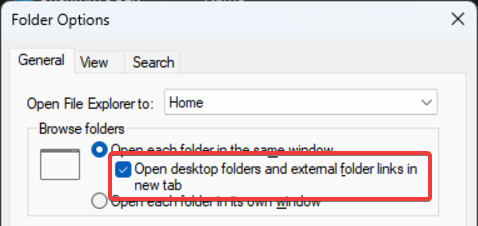
After enabling the feature, you can choose to open desktop folders and external folder links in new tabs:
- Open File Explorer.
- Click the three dots (More options) at the top right, then select Options.
- Under the General tab, find the Browse folders section.
- Select the option: Open desktop folders and external folder links in new tab.
- Click OK to save your settings.
Alternative: Use Windows Registry to Change Folder Behavior
If you prefer, you can turn this feature on or off using Windows Registry. But be careful—it’s best for advanced users.
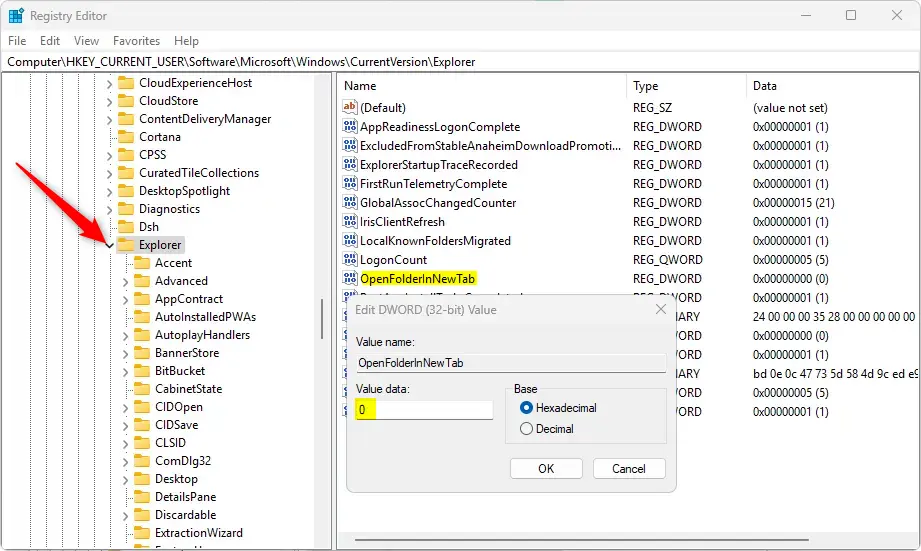
- 🔒 Requires admin privileges: Press Windows + R, type
regedit, and press Enter to open Registry Editor. - Go to this folder path:
Computer\HKEY_CURRENT_USER\Software\Microsoft\Windows\CurrentVersion\Explorer - Right-click on Explorer, choose New > DWORD (32-bit) Value, and name it
OpenFolderInNewTab. - Double-click the new
OpenFolderInNewTabvalue and set it to 1 to turn on the new tabs feature. - Set it to 0 if you want to turn it off later.
- Close Registry Editor and restart your PC.
Summary
- New feature: Open folders and links in tabs inside File Explorer.
- Requires ViVeTool: You need this tool to turn the feature on in Windows 11 beta.
- Easy to configure: Use Folder Options or the Registry to enable or disable it.
- Better file management: Keep your folders organized and switch between them faster.
- Helpful links: Check the guides above for detailed instructions.
Try this feature to make your file browsing easier and faster in Windows 11!
Leave a Reply