
Do you open the same files over and over? Windows 11 File Explorer has a Favorites feature that lets you save your most-used files in one easy-to-find place. No more digging through folders to find what you need. This guide shows you exactly how to add and remove files from your Favorites.
What is File Explorer?
File Explorer is the program on your Windows computer that helps you find and organize files and folders. You can use it to copy, move, delete, or rename your files easily.
Why Use Favorites?
Adding files to Favorites saves you time. Your most-used files appear right at the top of File Explorer. You don’t have to click through multiple folders anymore. Just open File Explorer and click Favorites. This is really helpful if you work with many files every day.
How to Add Files to Favorites
Follow these simple steps to add a file to your Favorites:
- Open File Explorer by clicking the folder icon on the taskbar. Or press the Windows key + E on your keyboard.
- Find the file you want to add. Browse through your folders until you see it.
- Click the file once to select it.
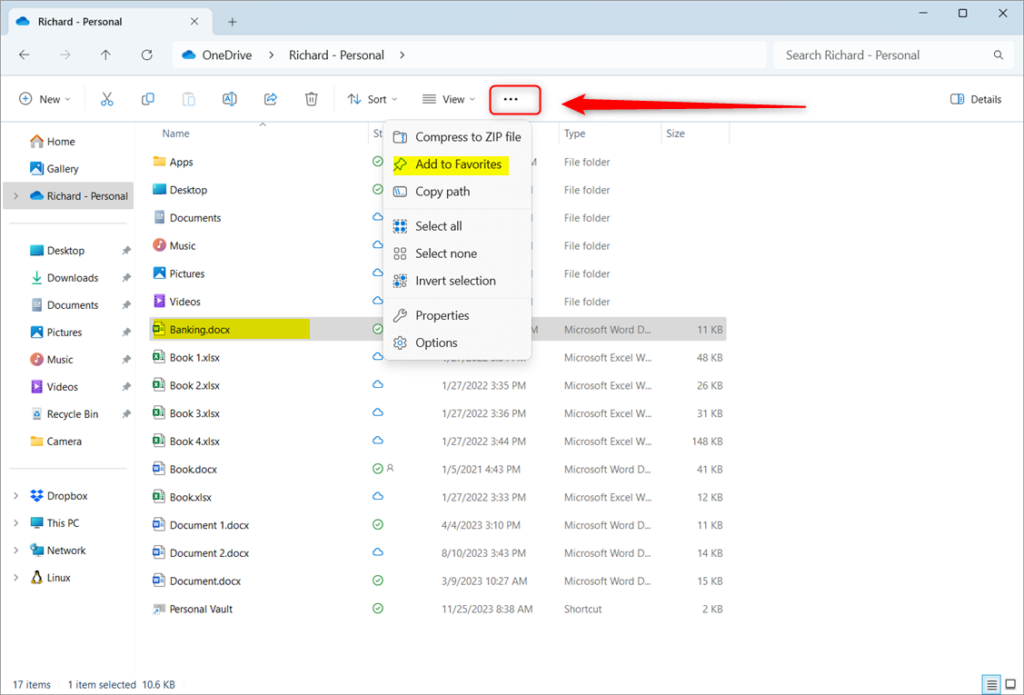
- Look at the top of File Explorer. Click the three dots (More options) on the command bar.
- Choose Add to Favorites from the menu.
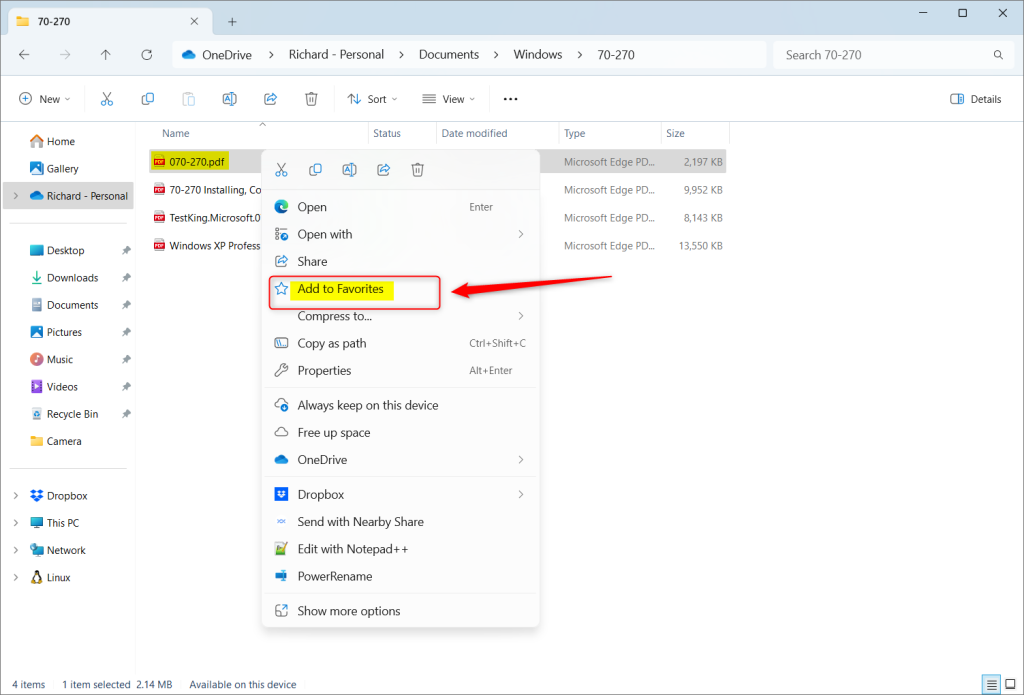
You can also right-click the file instead. Select Add to Favorites from the menu that appears.
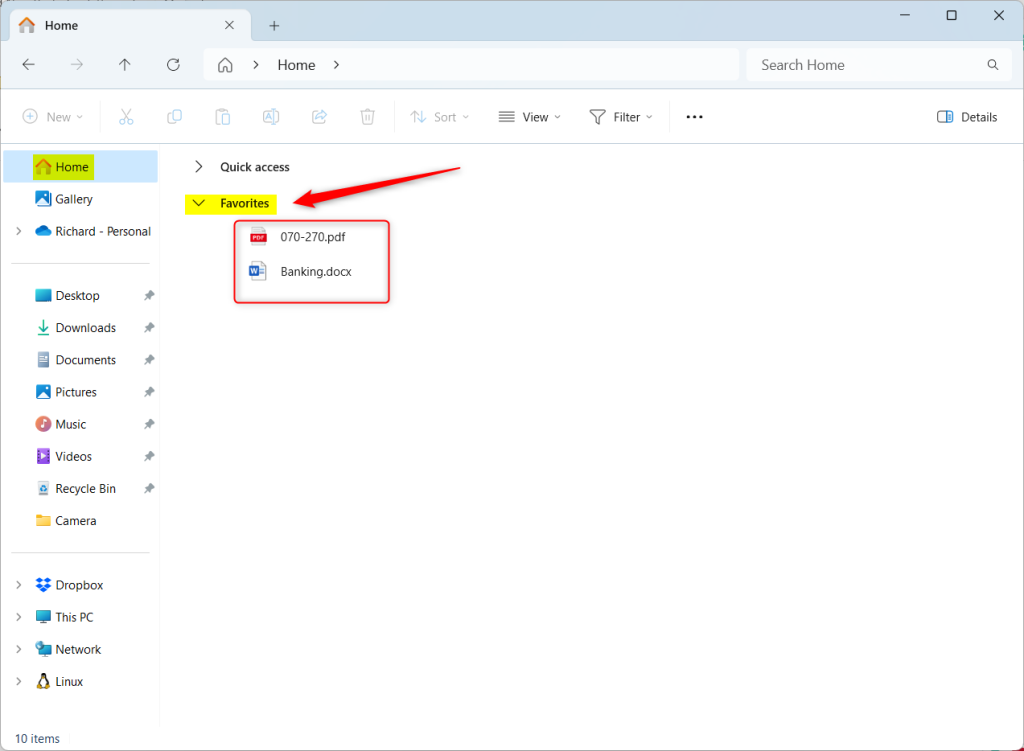
Once you add it, your favorite files show up in the Favorites section on the Home page. Now you can open them quickly whenever you need them.
How to Remove Files from Favorites
Keep your Favorites list clean by removing files you don’t use anymore:
- Open File Explorer and go to the Home page.
- Find the Favorites section on the left side. Click to expand it if needed.
- Right-click the file you want to remove.
- Select Remove from Favorites.
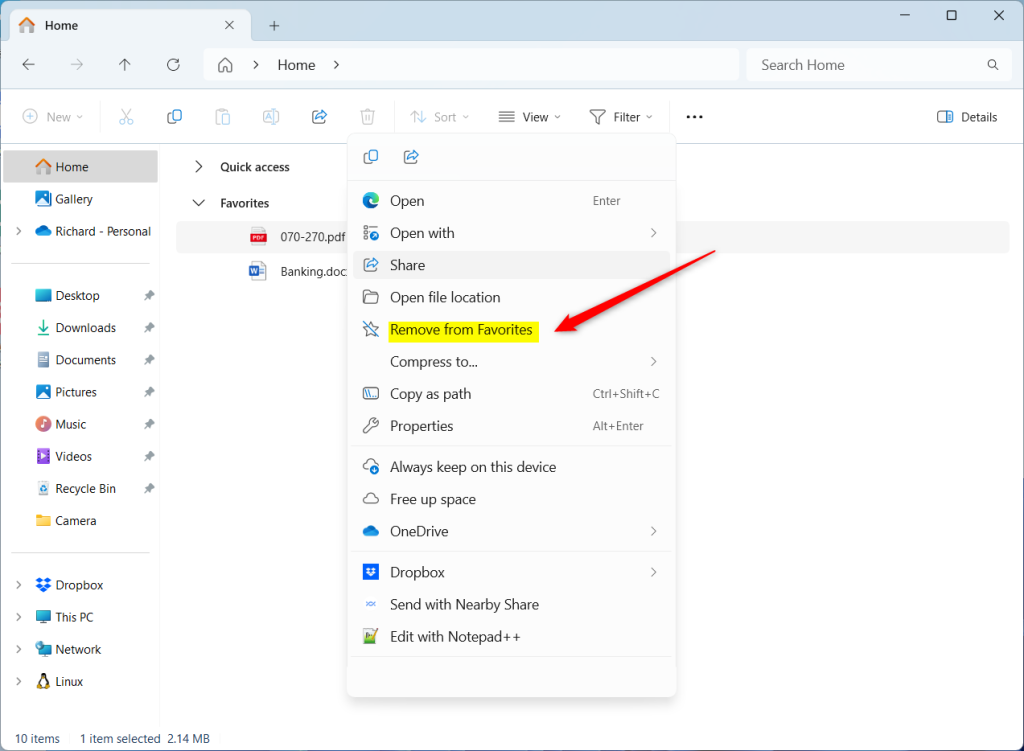
That’s all! The file is gone from your Favorites list.
Summary
- Why use Favorites? It saves time by putting your most-used files in one easy place.
- What happens when you add a file? It appears in your Favorites section so you can find it fast.
- What happens when you remove a file? It disappears from your Favorites list, keeping things neat and organized.
- Use this feature to work with your files faster and easier every day.


Leave a Reply