How to List Installed WSL Distros on Windows 11


Listing installed WSL (Windows Subsystem for Linux, a feature that runs Linux software directly on Windows 11) distributions takes one quick command in your terminal. You can also check from File Explorer if you prefer not to use the command line. Both methods are covered below.
Running `wsl -l -v` in Command Prompt or PowerShell shows every Linux system on your PC, along with its current version number and run state. The same command works in either shell and gives identical output.
Use the command wsl -l -v in Command Prompt or PowerShell to list installed WSL distros and their status. This command shows the name, state, and WSL version for each distribution. You can also find them by opening the Linux folder in File Explorer .
Check via File Explorer
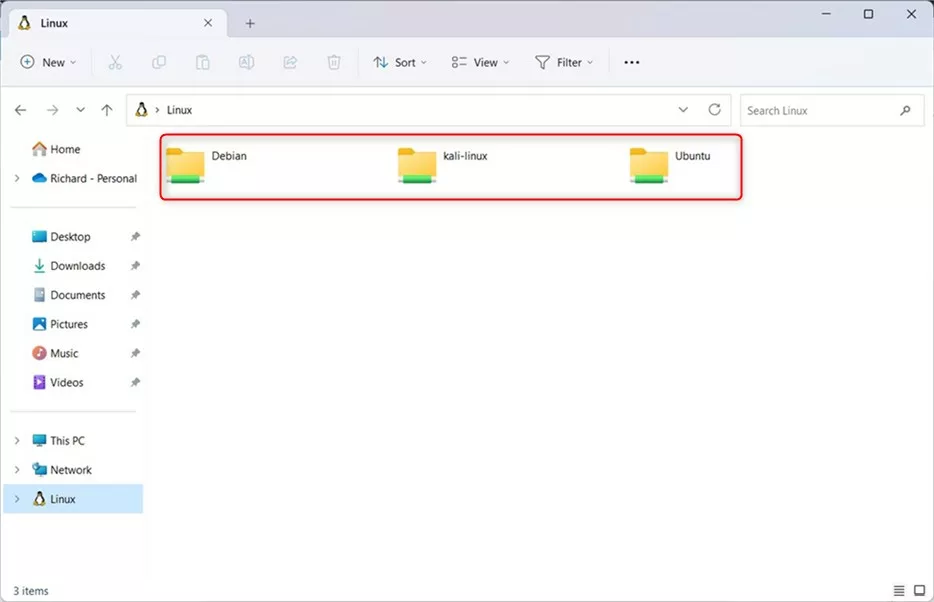
You can also list your WSL distros without the command line, using the built-in File Explorer . It shows a dedicated folder for every installed Linux environment in the left-hand navigation pane, so you can see what you have installed at a glance.
This method only shows names. It does not show the run state or the WSL version, so use the terminal method later in this guide when you need those details.
- Open File Explorer on your computer.
- Look at the menu on the left side of the window.
- Click on the Linux folder.
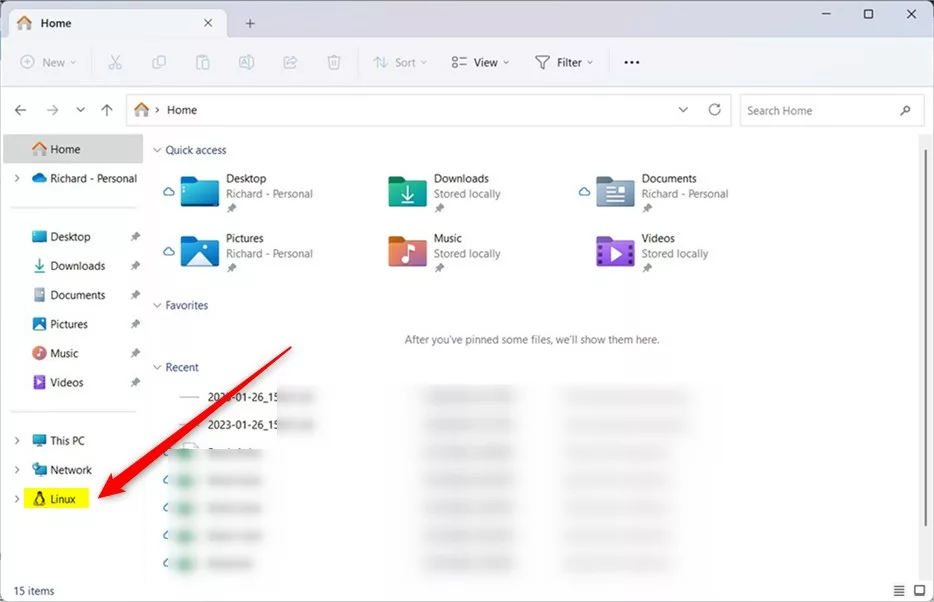
- Open File Explorer . Press the Win+E, or click its icon on the taskbar .
- Look at the left-hand navigation pane and scroll down if needed. You should see an entry named Linux.
- Click Linux. The right-hand pane now shows one folder for every Linux environment installed on your machine.
If the Linux entry is missing, WSL is probably not installed, or no distribution has been installed yet. Opening a distro’s folder may start that distribution in the background, so a distro showing as running afterwards is normal.
Check via Terminal
If you prefer commands, the Terminal app gives you more detail about your Linux setup. Basic listing commands do not need admin privileges, though some management tasks might.
- Open the Start menu and type Terminal. On Windows 11 22H2 and later you can also right-click Start and choose Terminal.
- Click the result to open it. Terminal gives you access to both Command Prompt and Windows PowerShell, and either one works for these commands.
- Wait for the prompt to appear. You are now ready to type the commands below.
Understanding wsl --list vs wsl --list --verbose
Different command flags show different amounts of information. A basic listing command gives you a simple list of names. Adding the verbose flag, as in `wsl -l -v`, also shows whether each environment is currently running and which WSL version it uses.
wsl -l -v
Expected Output:
You should see a table with three columns: the distribution name, its state, and its version. The state is usually Running or Stopped, and the version is 1 or 2. Each installed distro gets its own row.
The list above covers only what is already installed. To discover which Linux distributions are available to install from the Microsoft Store, use the `winget search <distro-name>` command. Typing `winget search ubuntu`, for instance, lists all available Ubuntu versions.
wsl --list --online
Identifying the Default Distro
The distribution marked with an asterisk (*) in the list is your default. This is the one that launches automatically when you type `wsl` in your terminal.
Troubleshooting Missing Distros
If a distribution fails to appear, work through these checks in order:
- Confirm that the WSL feature is enabled. Run `wsl --status` to check. If Windows does not recognize the wsl command at all, WSL is not installed.
- Make sure the distribution actually finished installing. A distro that was downloaded but never launched for first-time setup may not be registered yet.
- If you still have problems, check that your PowerShell execution policy allows scripts to run. Open an admin terminal, right-click it, choose Run as administrator, and run `Set-ExecutionPolicy RemoteSigned`.
The execution policy only affects PowerShell scripts, so it is rarely the cause of a missing distro. Try the first two checks before changing it. If you do change it, accept the confirmation prompt when asked, and note that the new policy stays in effect until you change it again.
Summary
To review your WSL distributions on Windows 11, check the Linux folder in File Explorer for a quick name list. For names, run state and version in one view, run the `wsl -l -v` command in your terminal.
How do I list available distributions that are not yet installed?
Have a question about this guide?
Answered by AI from this guide. Good questions may be added to this page — please don't include personal details.
Did this guide fix your problem?

About the Author
Richard
Tech Writer, IT Professional
Richard is a writer at Geek Rewind who turns complex IT tasks into clear, step-by-step guides. He draws on years of hands-on experience in system administration and enterprise IT operations, focusing on Windows, Linux and WordPress: the problems people actually run into, and the fixes that work. His server and WordPress guides come from systems he runs himself. Richard builds and maintains the platform behind Geek Rewind, from its Ubuntu servers and Nginx configuration to its custom WordPress plugins. Many new tutorials start with readers' questions, and he's always glad to answer them in the comments.
[…] When the Windows Terminal app opens, run the commands below to list the currently installed distros. […]