

This article explains how to list all your device’s Windows Automatic Maintenance (WAM) tasks in Windows 11.
Windows Automatic Maintenance (WAM) is a feature that combines various background tasks and performs them all at once at a scheduled time, usually 2 AM by default.
WAM is enabled by default, and Microsoft recommends that it remain that way. Maintenance includes keeping the Windows operating system (OS) and applications up-to-date, checking security, and running scans for malware.
This setting can be configured in the Control Panel under System and Security > Security and Maintenance > Automatic Maintenance.
It is recommended that your Windows device run these tasks daily at the default time (2 AM). However, if your device isn’t available during that time, you can schedule a different time for the tasks to run.
List all Windows Automatic Maintenance (WAM) tasks for your device
As mentioned above, Windows has built-in automatic maintenance tasks that must run daily. These include keeping the Windows operating system (OS) and applications up-to-date, checking security, and running scans for malware.
If you want to find or list all the tasks, use the steps below.
Step 1: Open PowerShell as Administrator
⚠️ Admin Required
First, open the Windows Terminal app.
Step 2: Run the command to list WAM tasks
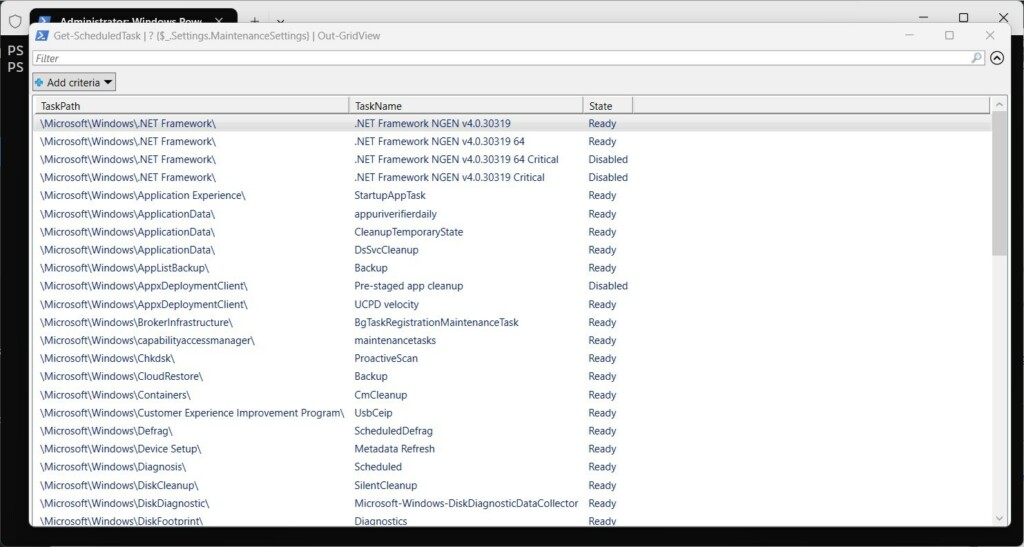
Then copy and paste the command below and press the Enter key.
Get-ScheduledTask | ? {$_.Settings.MaintenanceSettings} | Out-GridView %%SC0%%A pop-up window will open with a list of all your device’s Windows Automatic Maintenance (WAM) tasks.
Step 3 (Optional): Save the tasks list to a text file
You can write the tasks list into a text file (WAM.txt) on your desktop.
Get-ScheduledTask | ? {$_.Settings.MaintenanceSettings} | Format-Table -AutoSize | Out-file -FilePath "$Env:userprofile\Desktop\WAM.txt" %%SC1%%That should do it!
Summary
What is Windows Automatic Maintenance? It’s a built-in Windows 11 feature that runs important tasks automatically. These tasks keep your system updated, check for security issues, and scan for malware.
Why would you want to list these tasks? Listing WAM tasks helps you see what maintenance your computer is running and when. This is useful if you want to understand what’s happening in the background or if you need to adjust when these tasks run.
What happens when you follow these steps? You’ll see a complete list of all automatic maintenance tasks on your computer. You can view them on screen or save them to a text file for later reference.
Key points to remember:
- Windows Automatic Maintenance runs daily by default at 2 AM.
- It keeps your system updated, secure, and running smoothly.
- You need administrator privileges to view these tasks.
- It’s best to leave WAM enabled unless you have a specific reason to disable it.
Reference:
Please use the comments section below if you have questions or want to share your thoughts about this topic.

Leave a Reply