
When you print something on Windows 11, your printed documents usually disappear from the printer’s queue once printing finishes.
What if you want to keep a copy of what you’ve printed? You can turn on the “Keep printed documents” option. This is helpful if you often print the same documents again or want to check what you’ve printed.
Why Use This Feature?
Keeping printed documents in your queue helps you:
- Print the same document again without finding the file
- Keep a backup of what you’ve sent to the printer
- Check your print history
Method 1: Using the Settings App
This is the easiest way to turn this feature on or off.
- Open the Settings app by clicking the Start menu and selecting Settings. Or press
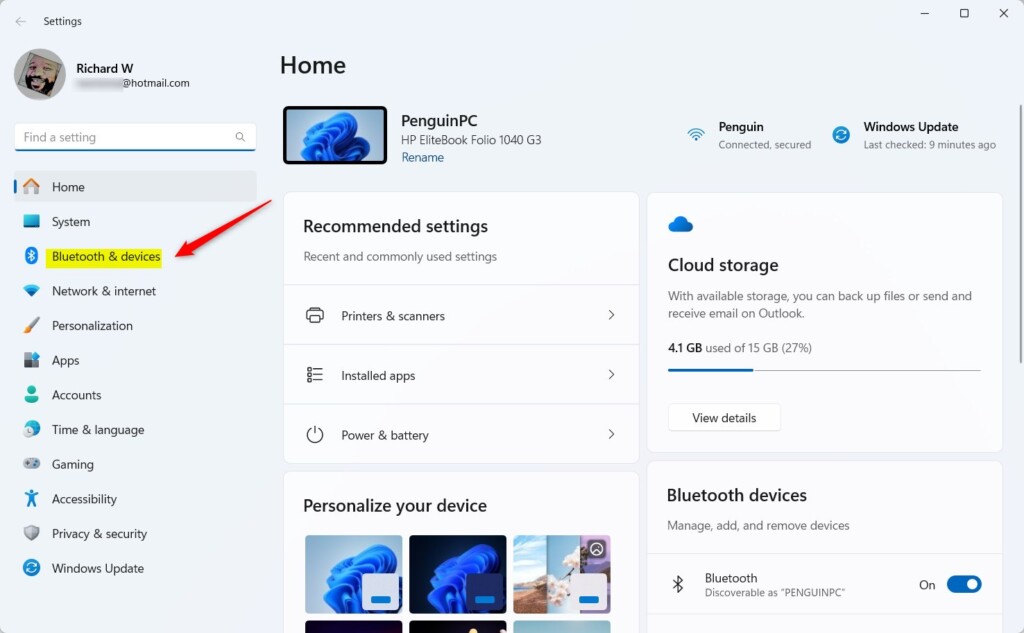
Windows key + Ion your keyboard. - In the Settings window, click on Bluetooth & devices on the left side.
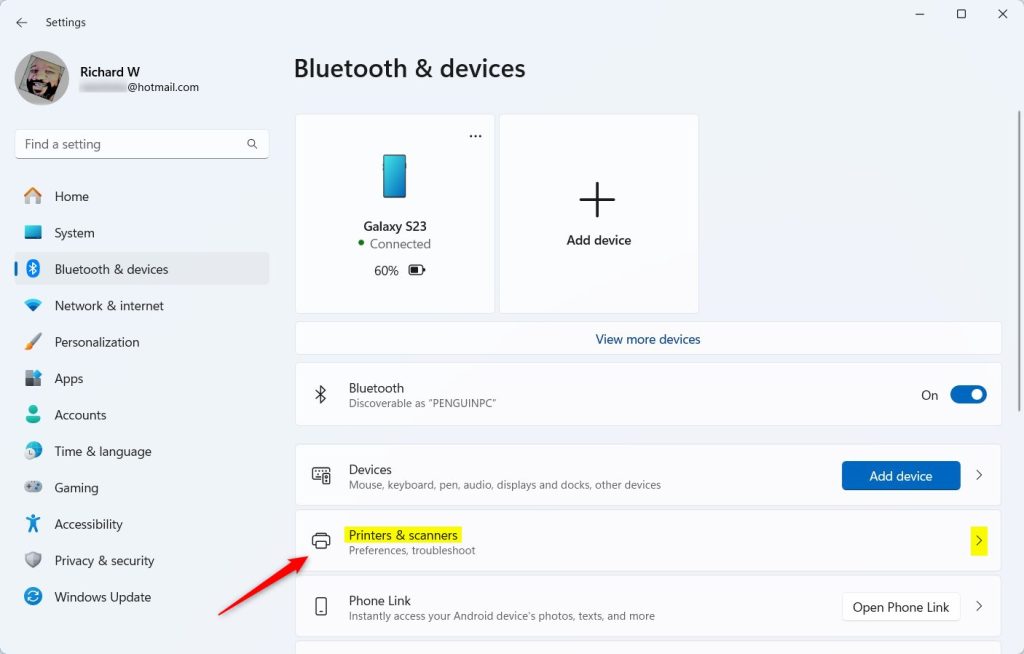
- On the right side, click on Printers & scanners.
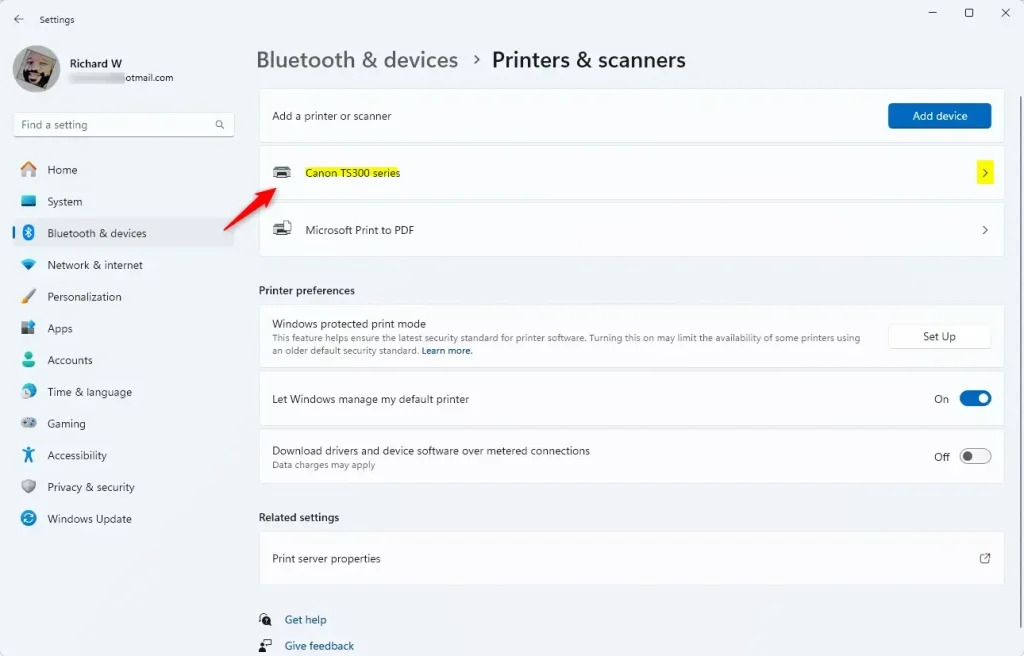
- Select the printer you want to change from the list.
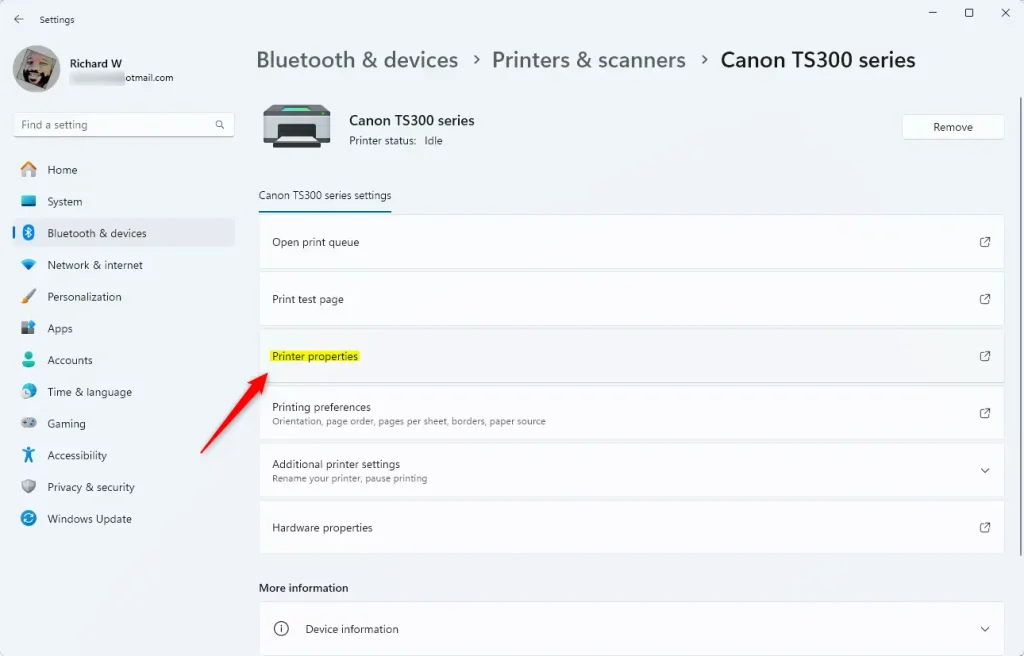
- Click on Printer properties.
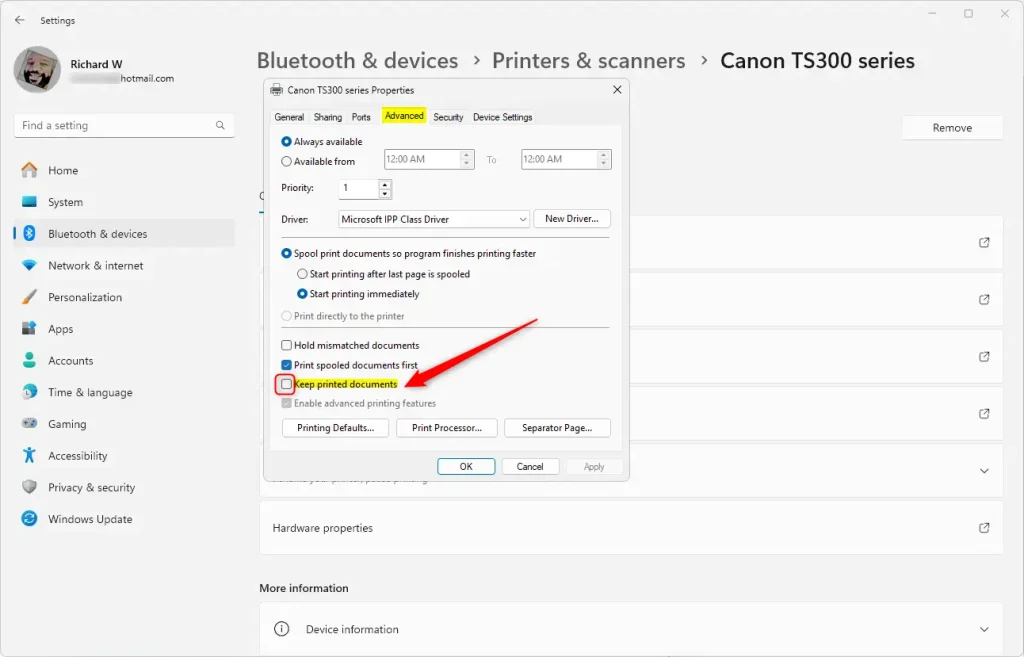
- In the new window, click on the Advanced tab.
- Check the box for Keep printed documents to turn it on. Uncheck it to turn it off.
- Click OK or Apply to save your changes. Then close the Settings app.
Method 2: Using Print Management
Here’s another way to make this change using the Print Management tool:
- Press
Windows key + Rto open the Run window. - Type
printmanagement.mscand press Enter. This opens Print Management. ⚠️ Admin privileges may be required - In the left panel, expand Custom Filters and click on All Printers.
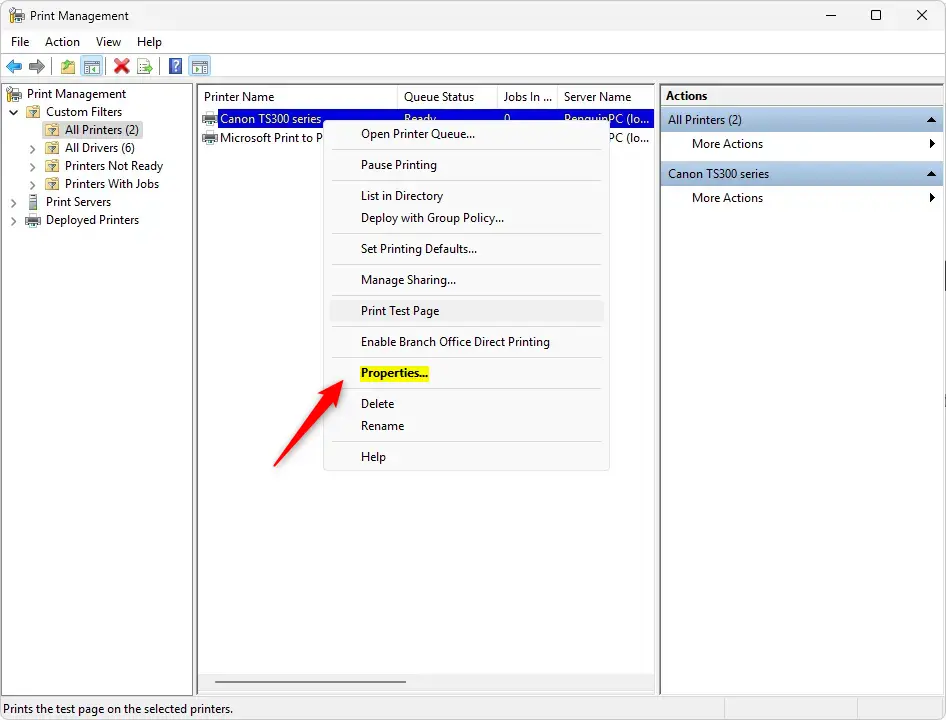
- Find your printer in the list. Right-click it and select Properties.
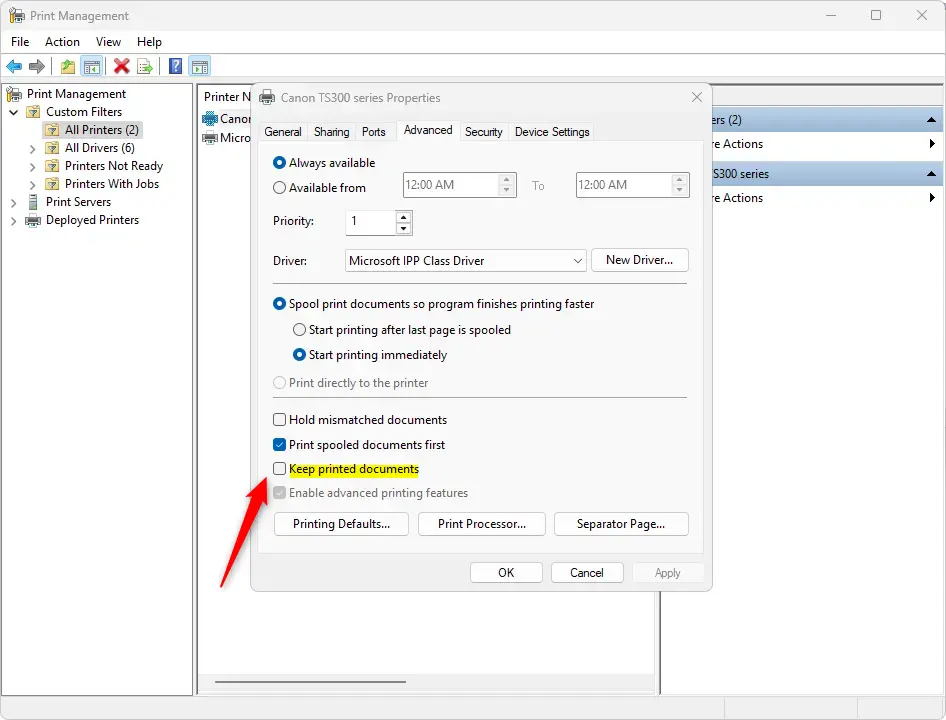
- Go to the Advanced tab.
- Check or uncheck the box for Keep printed documents.
- Click OK and close Print Management.
Summary
The “Keep printed documents” feature saves a copy of your printed files in the print queue. This is useful if you need to print the same document multiple times or want a backup of what you’ve sent to the printer.
You can turn this feature on or off easily through either the Settings app or Print Management. Just visit your printer’s properties and go to the Advanced tab to change the setting.
Now you know how to keep your printed documents in the queue on Windows 11. This can help you print more efficiently and keep track of your print jobs!



Leave a Reply