
Having trouble seeing things on your computer screen? Windows 11 has a helpful tool called Magnifier. It zooms in on parts of your screen to make everything bigger and easier to read.
One great feature is Invert Colors. This flips the colors on your screen to their opposites. Black becomes white. White becomes black. This helps text become easier to read and reduces eye strain. It’s especially helpful if you work in a dark room or have light sensitivity.
Why Use Invert Colors?
Inverted colors can make text pop off the screen. Your eyes get less tired when looking at the display. Many people find it more comfortable to use their computer this way.
Using Keyboard Shortcuts (Quickest Method)
This is the fastest way to turn invert colors on or off:
- Turn on Magnifier by pressing
Windows key + Plus (+). - While Magnifier is on, press
Ctrl + Alt + Ito invert colors. - Press
Ctrl + Alt + Iagain to switch back to normal colors.
What happens? Your screen colors flip instantly. No menus to open. No settings to find.
Using the Settings App (Easiest Method)
If you prefer using menus instead of keyboard shortcuts, follow these steps:
- Open the Settings app. Click the Start menu and then click Settings. Or press
Windows key + I. - Click Accessibility on the left side.
- Find and click Magnifier on the right side.
- Look for the Invert colors switch under the Appearance section.
- Turn it On or Off as you prefer.
- Close the Settings app when finished.


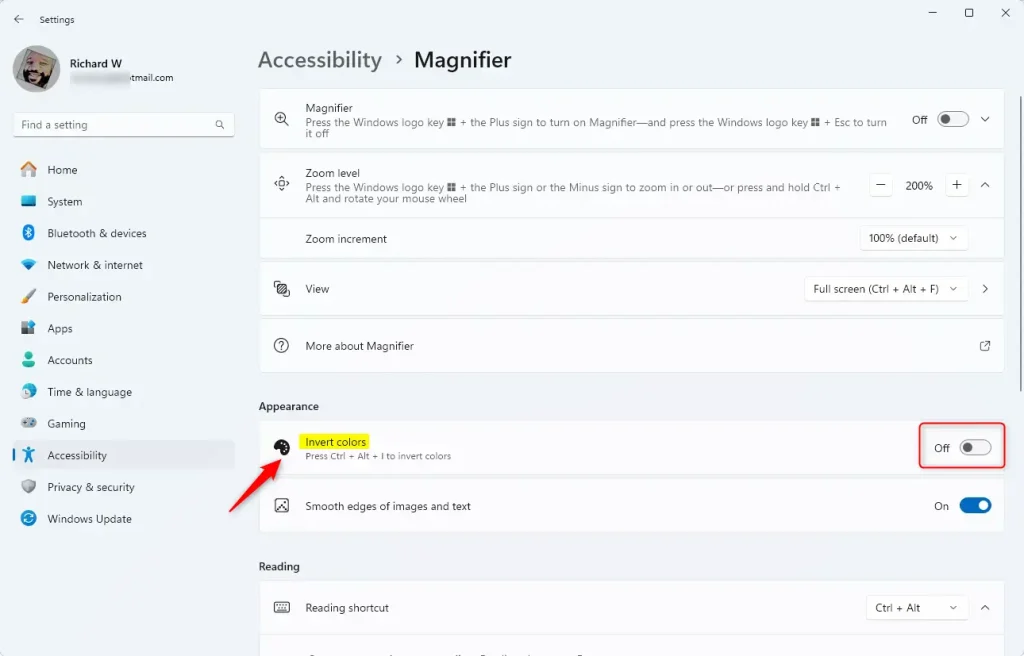
What happens? Your screen colors flip or return to normal. The change takes effect right away.
Using the Registry Editor (Advanced Users Only)
⚠️ FLAG: This method requires admin privileges.
If you feel comfortable working inside Windows system files, you can also control invert colors through the Registry. Be careful—wrong changes can cause computer problems.
Important: Before you start, back up your registry or create a System Restore point so you can undo changes if needed.
- Open the Registry Editor. Search for
regeditin the Start menu and pressEnter. - Go to this folder path:
Computer\HKEY_CURRENT_USER\Software\Microsoft\ScreenMagnifier - Right-click on ScreenMagnifier. Choose New > DWORD (32-bit) Value. Name it
Invert. - Double-click the new
Invertentry. Set its value to:1to turn invert colors ON0to turn invert colors OFF
- Close the Registry Editor and restart your computer for changes to take effect.
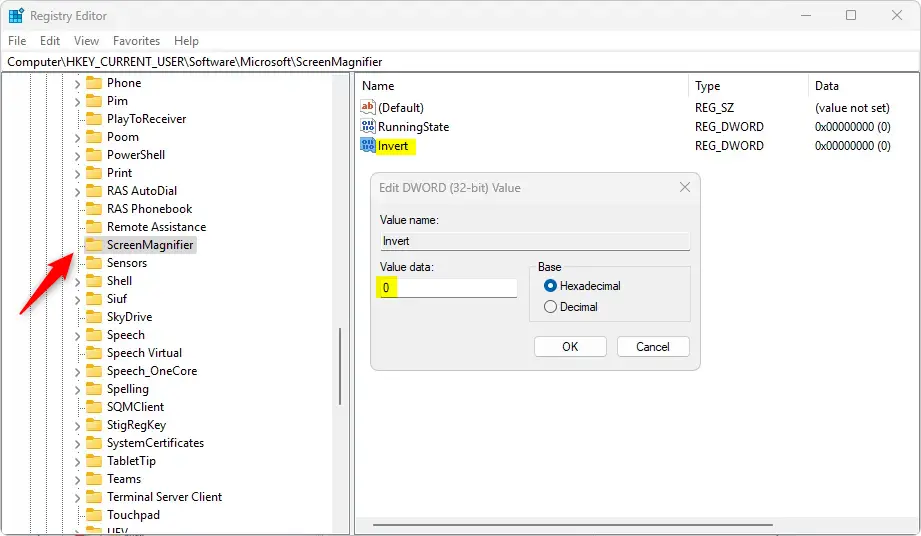
What happens? Your computer stores your color preference permanently. Even after restarting, your choice stays the same.
Summary
- What is Magnifier? A Windows 11 tool that zooms in on your screen to help you see better.
- What is Invert Colors? A feature that flips colors (black to white, white to black) to make reading easier and reduce eye strain.
- How to turn it on or off? You have three options:
- Keyboard shortcut: Press
Ctrl + Alt + Iwhen Magnifier is on (quickest) - Settings app: Go to Accessibility > Magnifier > Invert colors (easiest)
- Registry Editor: Edit the
Invertvalue inHKEY_CURRENT_USER\Software\Microsoft\ScreenMagnifier(advanced)
- Keyboard shortcut: Press
- Why use these options? They make your computer more comfortable and easier to use.
For more help, visit the official Microsoft Magnifier support page.
Frequently Asked Questions
Why Use Invert Colors?
What is Magnifier?
What is Invert Colors?
”How
Why use these options?



Leave a Reply