How to install Sublime Text 4 on Ubuntu 24.04


Sublime Text 4 on Ubuntu 24.04 installs by adding the official software repository and running a quick terminal command. This fast, lightweight text editor helps you write code and edit text documents without slowing down your computer.
Version 4.0.0 brings faster hardware-accelerated graphics and smarter auto-complete features to speed up your work. Getting the app straight from the source gives you automatic updates and security fixes.
Install Sublime Text 4 on Ubuntu 24.04 by first updating your system and installing prerequisites. Then, add the Sublime Text repository GPG key and the repository itself, followed by running `sudo apt install sublime-text`.
Update and install prerequisites
Before installing Sublime Text 4, you should update and install packages that will help you install Sublime Text 4.
To do that, run the command below.
sudo apt update && sudo apt upgrade
sudo apt install software-properties-common apt-transport-https curl ca-certificates
Add Sublime Text Repository GPG key
curl -fSsL https://download.sublimetext.com/sublimehq-pub.gpg | gpg --dearmor | sudo tee /usr/share/keyrings/sublimehq-pub.gpg > /dev/null
Add Sublime Text Repository
echo 'deb [signed-by=/usr/share/keyrings/sublimehq-pub.gpg] https://download.sublimetext.com/ apt/stable/' | sudo tee -a /etc/apt/sources.list.d/sublime-text.list
Install Sublime Text
To install Sublime Text Ubuntu 24.04, open your terminal and run the apt package commands to add the official repository and set up the app. This method gets the latest version of the text editor on your system quickly, letting you open and use it from your desktop applications menu right after the setup finishes.
sudo apt update
sudo apt install sublime-text
Once installed, you can open the Sublime Text application using the command below.
subl
Or click the Applications button on your desktop and search for the Subline Text app.
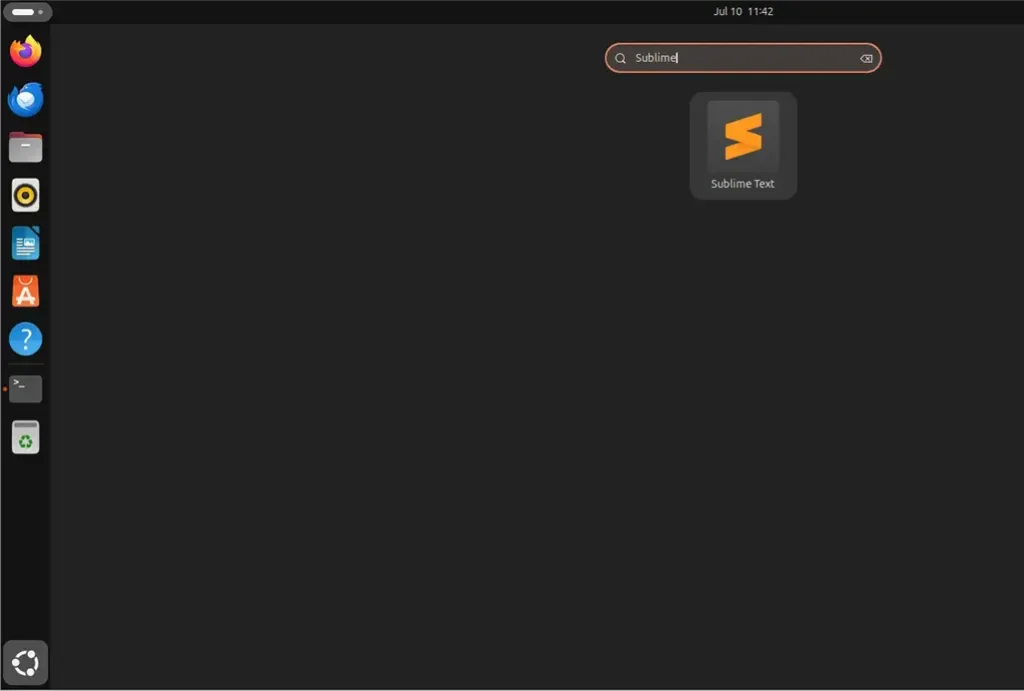
Install Sublime 4
You can uninstall Sublime Text Ubuntu by removing the application package and its associated repository files through the terminal. This complete removal process deletes the program along with its security key and software source, ensuring no leftover configuration files remain on your computer after you finish.
- Uninstall Subline Text
- Delete repository file
- Delete repository GPG key
sudo apt remove sublime-text
sudo rm /etc/apt/sources.list.d/sublime-text.list
sudo rm /usr/share/keyrings/sublimehq.gpg
That should do it!
Conclusion:
- Sublime Text 4 is a powerful and highly customizable text editor designed to improve coding and general text editing productivity.
- Its new features and enhancements, such as GPU Rendering, Tab Multi-Select, and Context-aware Auto Complete, make it a valuable tool for developers.
- The clean interface and extensive package ecosystem contribute to its popularity among users across Windows, Mac, and Linux platforms.
- Installing Sublime Text 4 on Ubuntu 24.04 involves updating the system, adding the repository GPG key, adding the repository, and then installing the application. Users can also easily uninstall it if needed. Sublime Text 4 is a versatile and efficient text editor for various programming languages and markup formats.
Is Sublime Text available on Linux?
Yes, Sublime Text is definitely available on Linux, and it's a great tool for coding. You can install it on Ubuntu and then use it to open projects, quickly find files with fuzzy search, and search for code across your entire project.
How to launch Sublime Text from terminal?
So now since it's in the bin folder. I can just run Sublime. And now Sublime can launch.
Was this guide helpful?

About the Author
Richard
Tech Writer, IT Professional
Richard, a writer for Geek Rewind, is a tech enthusiast who loves breaking down complex IT topics into simple, easy-to-understand ideas. With years of hands-on experience in system administration and enterprise IT operations, he’s developed a knack for offering practical tips and solutions. Richard aims to make technology more accessible and actionable. He's deeply committed to the Geek Rewind community, always ready to answer questions and engage in discussions.




No comments yet — be the first to share your thoughts!