Install Angular CLI on Ubuntu: A Step-by-Step Guide

Angular CLI (a tool for building and testing web apps) lets you create, build, and test applications directly on Ubuntu version 17.
You need this tool to set up your workspace before writing any code on your computer. Open your terminal to get started with the setup steps.
Install Angular CLI on Ubuntu by first installing Node.js with NVM, then running npm install -g @angular/cli. Verify the installation with ng version.
How to install and use Angular CLI on Ubuntu Linux
To install Angular CLI on Ubuntu, you need to use NVM (Node Version Manager) to set up Node.js without permission errors. Open your terminal and run the official installation script to download NVM onto your user account, then use it to get the right Node.js version before installing the Angular toolset globally.
“`bash curl -o- https://raw.githubusercontent.com/nvm-sh/nvm/v0.40.1/install.sh | bash “`
After installing NVM, refresh your profile so the terminal recognizes the new command: `source ~/.bashrc`
Next, install the latest Long Term Support (LTS) version of Node.js. LTS releases offer maximum stability for production environments. For 2026, this targets version 22: `nvm install 22`
Verify your installation by checking the versions of Node and NPM:
```bash node -v ```
```bash npm -v ```
Now, install the Angular CLI globally using NPM:
```bash npm install -g @angular/cli ```
Modern Angular Development
Creating a new Angular project on Ubuntu is done by running the ng new command in your terminal. Modern versions of Angular use fast tools like Esbuild and default to standalone components instead of the older NgModules architecture to help you build web apps quickly.
Modern Angular projects now default to standalone components. This approach eliminates the older NgModules architecture, keeping codebases cleaner and more manageable.
Check your version to confirm everything is ready:
```bash ng version ```

Running your project
Running your Angular project locally requires you to open your project folder in the terminal and start the development server. Type cd followed by your project name to switch folders, run the ng serve command to start the local server, and then open your web browser to view the app.
```bash cd my-first-project ```
```bash ng serve ```
Open your web browser and go to http://localhost:4200/ to view the running app.
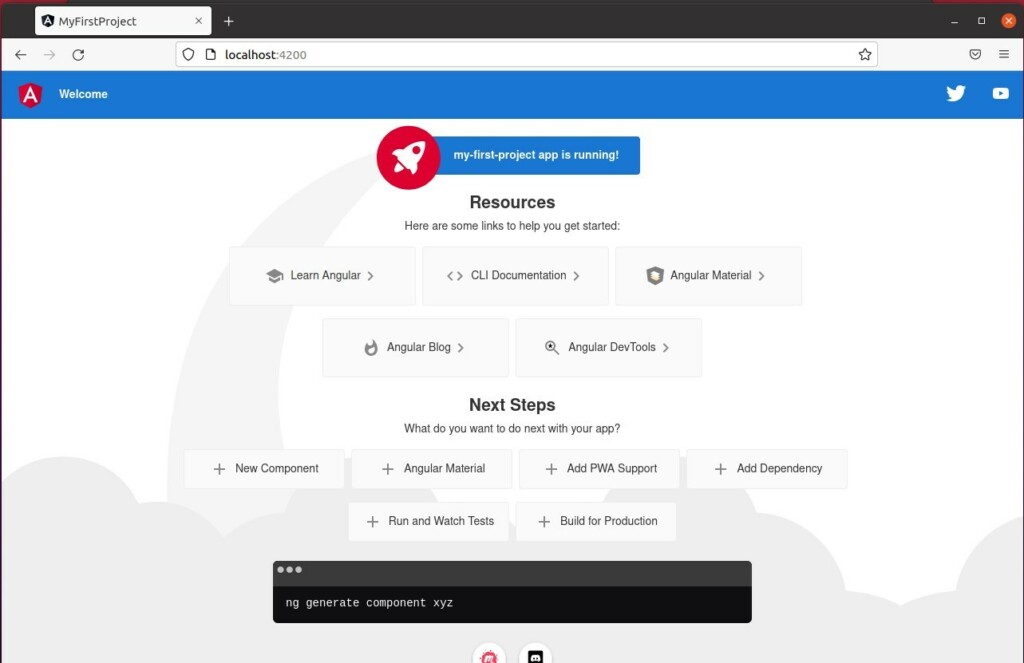
The `ng serve` command monitors project files continuously. Every file save triggers an automatic browser refresh.
Conclusion
Completing these steps sets up a modern development environment running NVM and the latest Angular tools. Developers gain the setup needed for building fast web applications on Ubuntu.
Release notes and version history remain available for review here: https://github.com/angular/angular-cli/releases
What is npm install Angular CLI?
Running 'npm install @angular/cli' downloads all necessary Angular packages and dependencies required by the project.
Was this guide helpful?

About the Author
Richard
Tech Writer, IT Professional
Richard, a writer for Geek Rewind, is a tech enthusiast who loves breaking down complex IT topics into simple, easy-to-understand ideas. With years of hands-on experience in system administration and enterprise IT operations, he’s developed a knack for offering practical tips and solutions. Richard aims to make technology more accessible and actionable. He's deeply committed to the Geek Rewind community, always ready to answer questions and engage in discussions.

No comments yet — be the first to share your thoughts!