How To Fix Microsoft Edge High CPU Usage On Windows 11

Modern browsers are complex. Edge uses the Chromium engine, which is fast but demanding. When you have many tabs open, run heavy extensions, or visit poorly optimized websites, your CPU works overtime. Sometimes, background processes or corrupted cache files cause the browser to get stuck in a loop. This consumes resources even when you are not actively using the browser.
What Happens When You Fix High CPU Usage?
When you lower your CPU usage, your fans will quiet down. Your mouse will move smoothly without stuttering, and websites will load faster. By managing your browser settings, you extend the life of your hardware and keep your computer cool and efficient.
Step 1: Identify the Culprit with the Edge Browser Task Manager
Edge has its own built-in task manager. It shows exactly which tab or extension is eating your resources.
- Open Microsoft Edge.
- Press Shift + Esc to open the Browser Task Manager.
- Look at the CPU column to see which process is using the most power.
- Select the offending item and click End process.
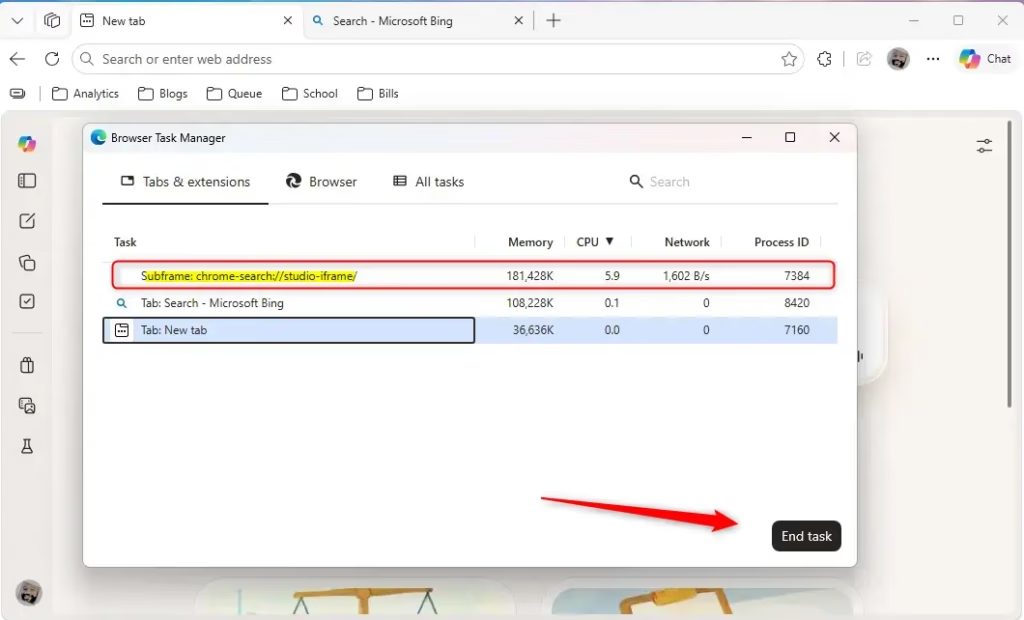
Why do this? This helps you find if a specific website is broken or if an extension is poorly written.
Step 2: Use Advanced Diagnostic Tools
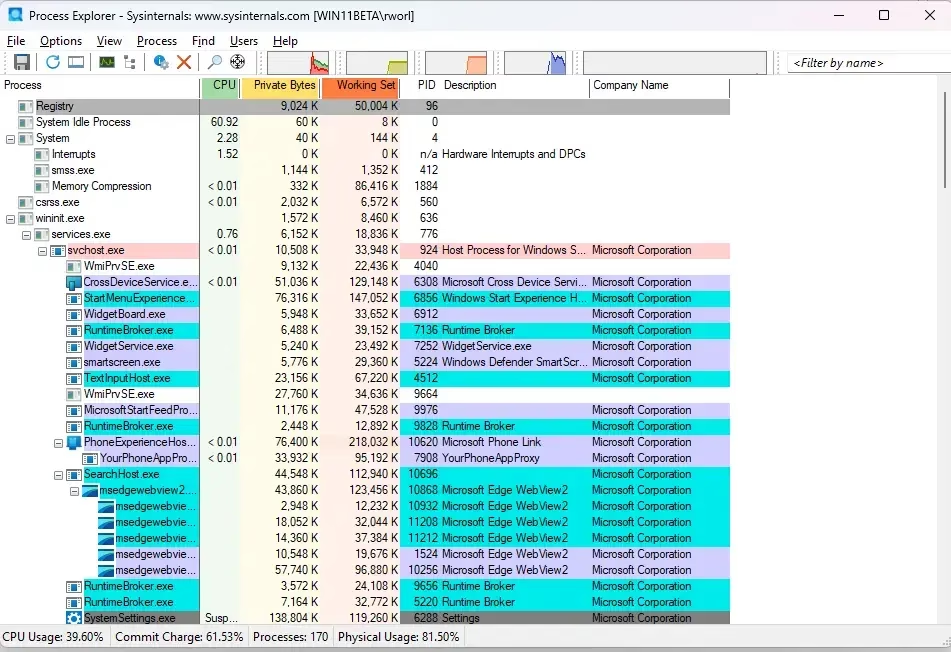
If Edge still feels slow, use professional tools to see what is happening under the hood. Download Process Explorer from the official Microsoft Sysinternals site. It provides a deeper look than the standard Task Manager. You can also use Resource Monitor (search for it in the Start menu) to see if Edge is fighting with other programs for CPU priority.
Step 3: Disable Unused Extensions
Extensions run in the background. If you have ten installed but only use two, the others are stealing your CPU cycles.
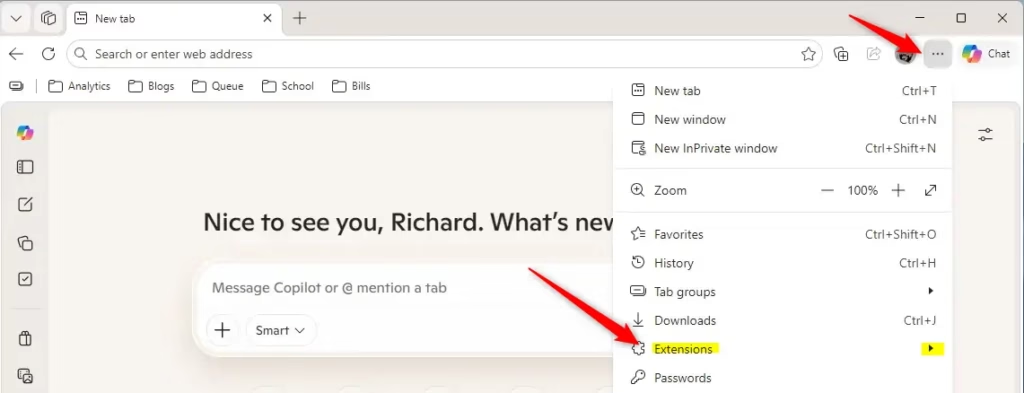
- Click the three-dot menu in the top-right corner.
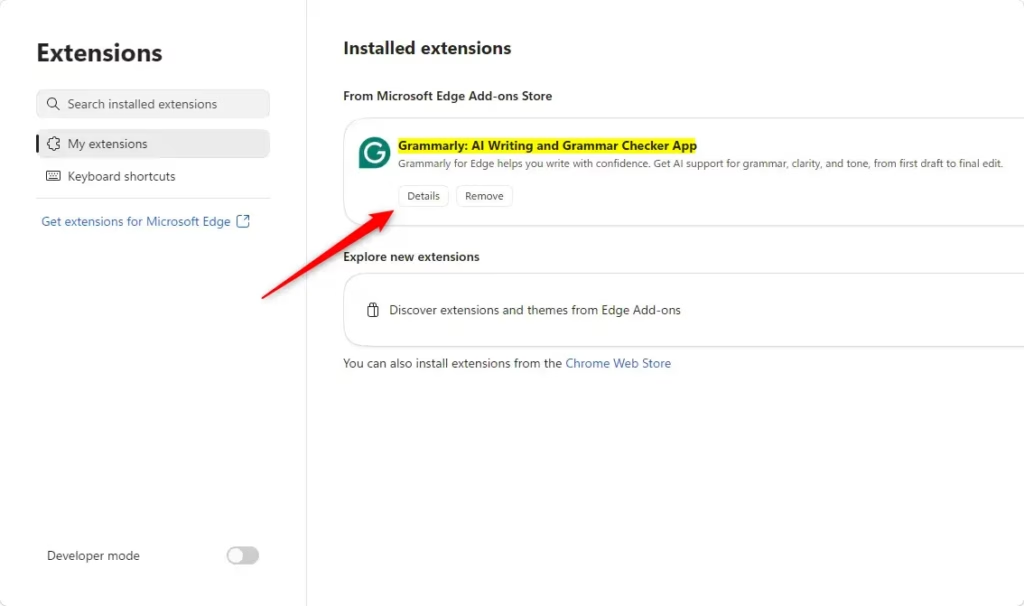
- Select Extensions and then Manage extensions.
- Toggle off or remove any extensions you do not use daily.
Step 4: Clear Browser Cache and Data
If cache files get corrupted, the browser spends extra effort trying to read them. This leads to high CPU usage.
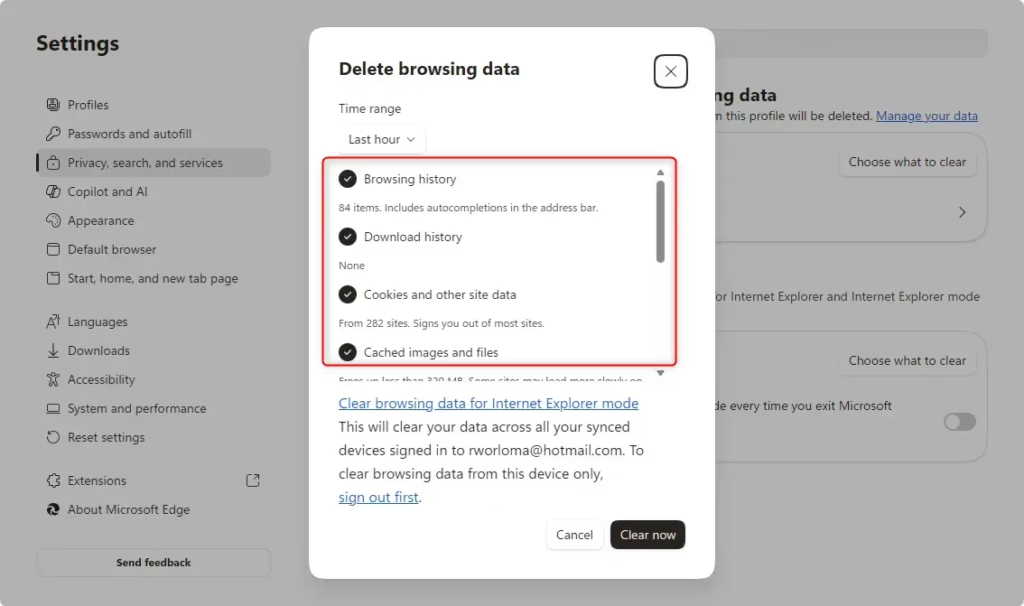
- Press Ctrl + Shift + Delete in Edge.
- Set the Time range to All time.
- Check Cached images and files and Cookies.
- Click Clear now.
Step 5: Enable Efficiency Mode (Admin Privileges Required)
Note: You may need to be an Administrator to change system-wide power settings.
- Open Windows Settings.
- Go to System > Power & battery.
- Ensure Efficiency mode is enabled for Microsoft Edge.
Step 6: Manage ‘Zombie’ Processes
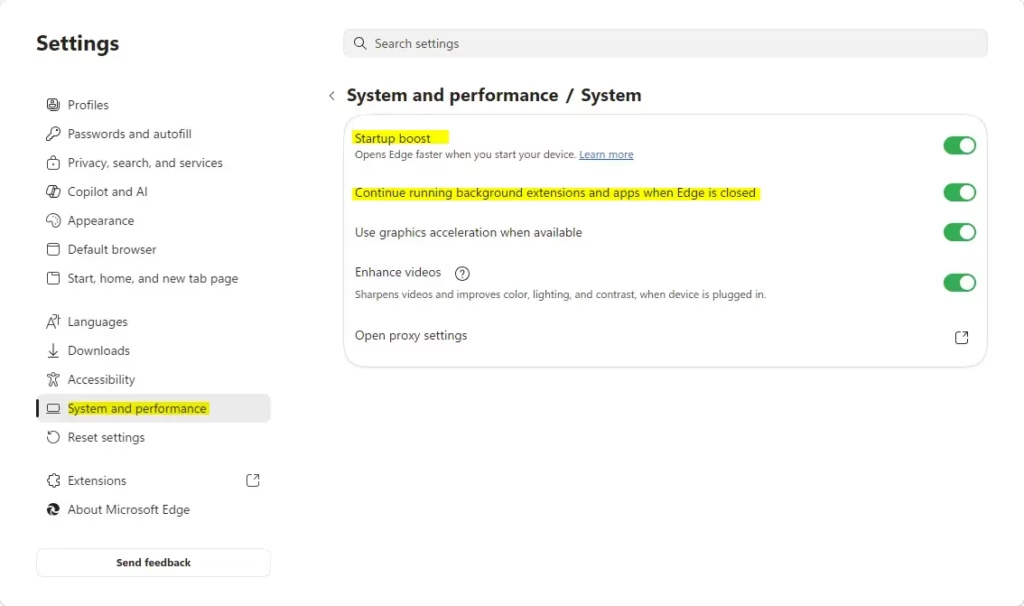
Sometimes Edge leaves ‘zombie’ processes running after you close the window. To stop this, go to Settings > System and performance and turn off Startup boost and Continue running background extensions and apps when Microsoft Edge is closed.
Step 7: Registry Tweaks for Advanced Power Management (Admin Privileges Required)
- Press Win + R, type
regedit, and press Enter. - Navigate to
HKEY_LOCAL_MACHINE\SOFTWARE\Policies\Microsoft\Edge. - If you see
BackgroundModeEnabled, set it to 0.
Summary
High CPU usage in Edge is usually caused by too many extensions, old cache files, or background processes. By using the Browser Task Manager, clearing your cache, and disabling background features, you can reclaim your computer’s speed. Keep your Windows 11 system updated to avoid compatibility bugs.
How do I distinguish between Edge CPU usage and Windows System Interrupts?
Use the Resource Monitor or Process Explorer. If the high CPU usage is labeled as ‘System Interrupts’, it is likely a hardware driver issue rather than a browser problem. If the process is ‘msedge.exe’, the browser is the cause. This helps you isolate the source of the performance drain effectively.
Does disabling hardware acceleration impact 4K video streaming quality?
Disabling hardware acceleration forces your CPU to handle video decoding instead of your graphics card. While it may not change the resolution, you might notice higher CPU usage and potential stuttering during 4K playback. Only disable this if you are experiencing crashes or severe system-wide lag during browsing.
How can I tell if a specific extension is causing a memory leak?
Open the Edge Browser Task Manager (Shift + Esc). Monitor the ‘Memory’ column over time. If a specific extension shows a steadily increasing memory footprint that does not stabilize, it is likely suffering from a memory leak. You should disable or remove that extension to restore system responsiveness.
Was this guide helpful?





Leave a Reply Cancel reply