
Your computer’s motherboard is the main piece inside your PC. It connects all the important parts like the CPU, RAM, and your video card. Sometimes, you might need to know what motherboard you have. Why? You might want to upgrade parts or fix problems.
Instead of opening your PC case to check, Windows 11 has easy ways to find this information right on your screen.
How to See Motherboard Details in Windows 11
Here are two simple ways you can check your motherboard info quickly:
Method 1: Using the System Information App
- Click the Start button (Windows icon) on the taskbar. Or press the Windows key on your keyboard.
- Type System Information in the search box.
- Click the app when it appears.
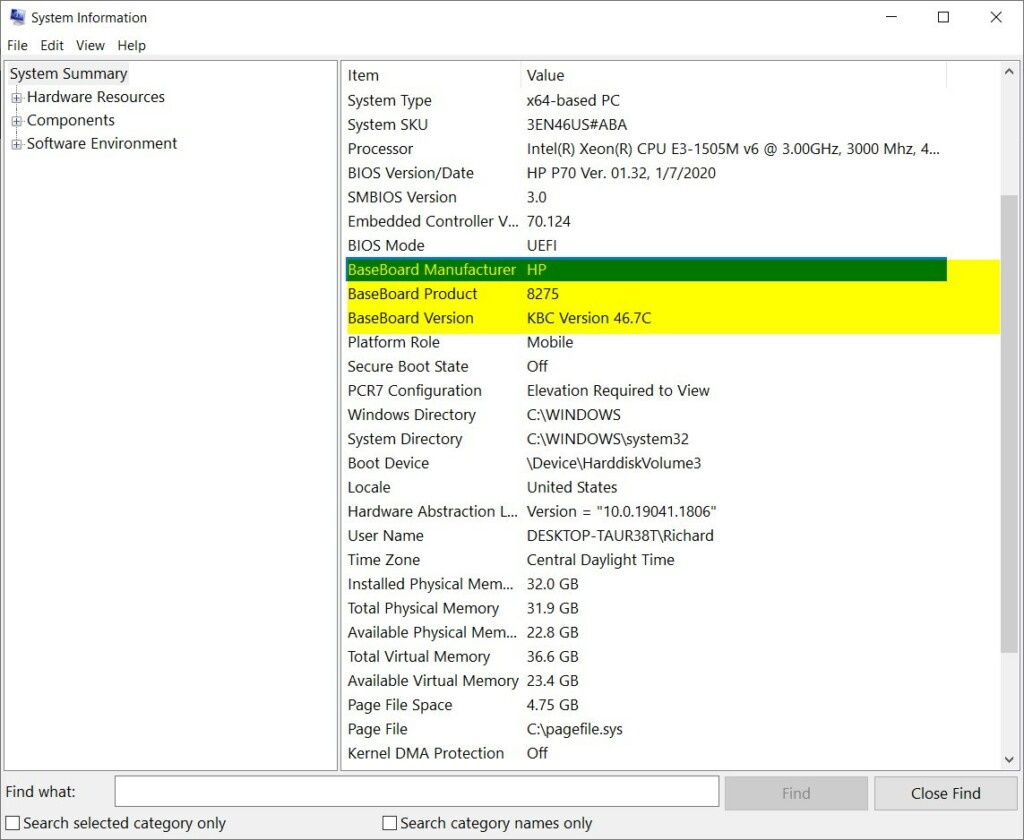
- In the System Information window, make sure System Summary is selected on the left side.
- Look for the BaseBoard information on the right side. You will see:
- BaseBoard Manufacturer – The company that made your motherboard
- BaseBoard Product – The model name or number
- BaseBoard Version – The version of your motherboard
Here’s what it looks like:
Method 2: Using Command Prompt or PowerShell
You can also get your motherboard details by typing a command. Here’s how:
- Right-click the Start button.
- Choose Windows Terminal.
- When the terminal opens, make sure you are in the Command Prompt tab. Click the down arrow next to the plus tab to switch if needed.
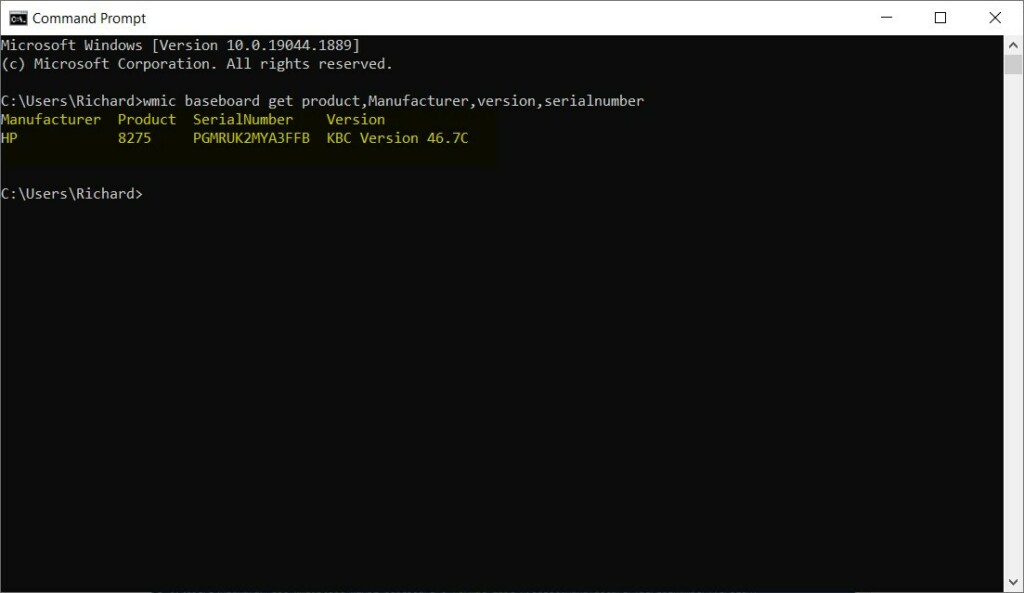
- Type this command and press Enter:
wmic baseboard get product,Manufacturer,version,serialnumber
You will see your motherboard’s manufacturer, model, version, and serial number.
If you prefer PowerShell (another way to enter commands), do this:
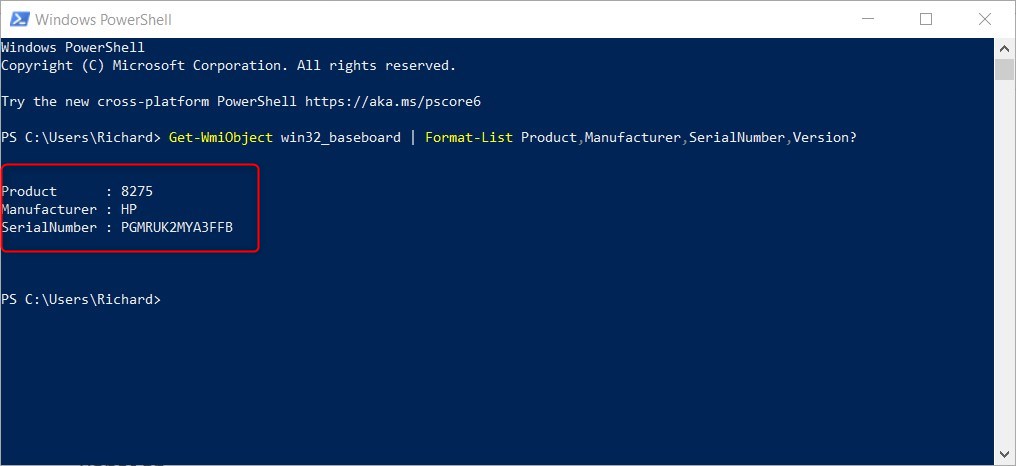
- Type this command and press Enter:
Get-WmiObject win32_baseboard | Format-List Product,Manufacturer,SerialNumber,Version
Here is an example of the result:
Summary
Knowing your motherboard details helps when upgrading or fixing your PC. Windows 11 makes it easy to find this information without opening your computer. You can check motherboard details using the System Information app or by typing commands in Command Prompt or PowerShell. Both methods give you the same information quickly and safely.


Leave a Reply