
If you use a printer on your network, sometimes you need to know its IP address. This is a special number that helps your computer find and talk to the printer.
Each printer on your home or office network has its own IP address. Knowing this number can help you set up the printer, fix problems, or find it if there are many printers around.
If your Windows 11 computer is connected to a printer and you want to find out its IP address, just follow the easy steps below!
Method 1: Find the Printer IP Address Using File Explorer
Follow these steps:
- Open File Explorer by clicking the folder icon on your taskbar, or press Windows key + E on your keyboard.
- On the left side, look for and click on Network. You may need to wait a moment for your devices to show up.
- Under the list of devices, find the printer you want to check.
- Right-click on the printer’s name and select Properties.
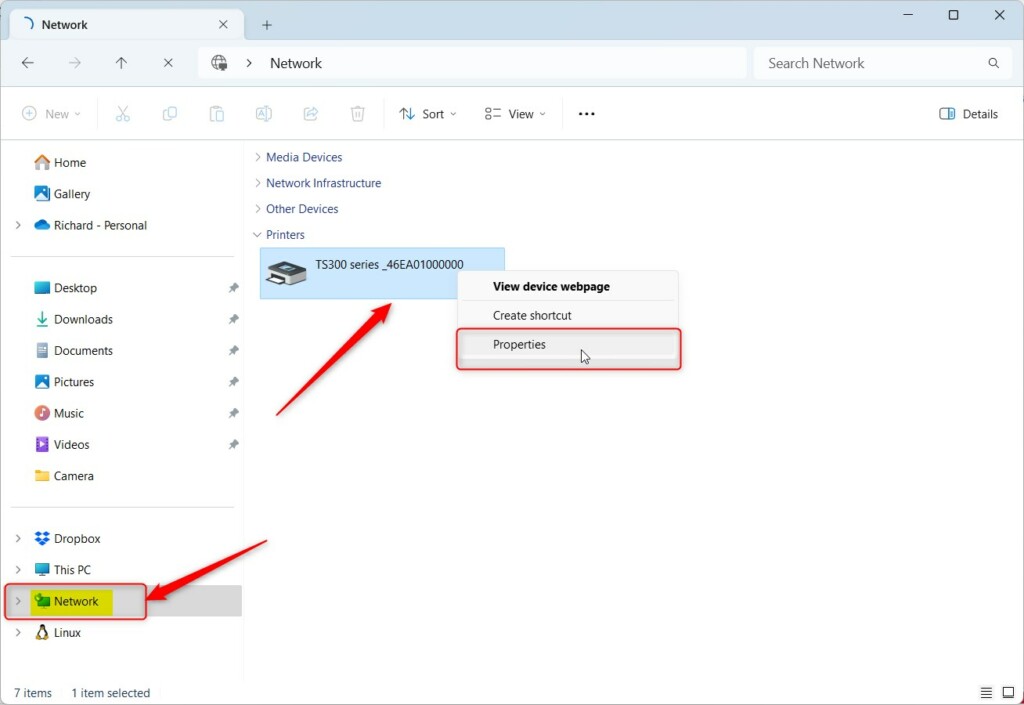 Right-click your printer and choose Properties
In the Properties window, look for the IP address listed. This is the number your printer uses on the network.
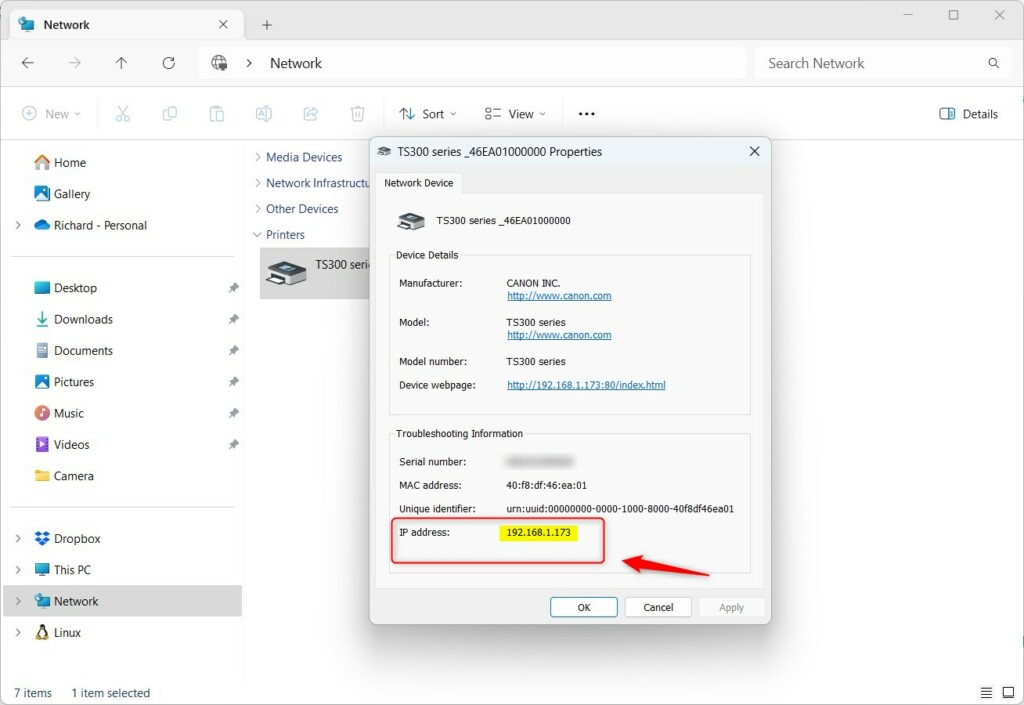 Find the printer’s IP address here
Method 2: Find the Printer IP Address Using Windows 11 Settings
You can also find the IP address from the Settings app:
- Click the Start button and select Settings (gear icon).
- Choose Bluetooth & devices from the left menu.
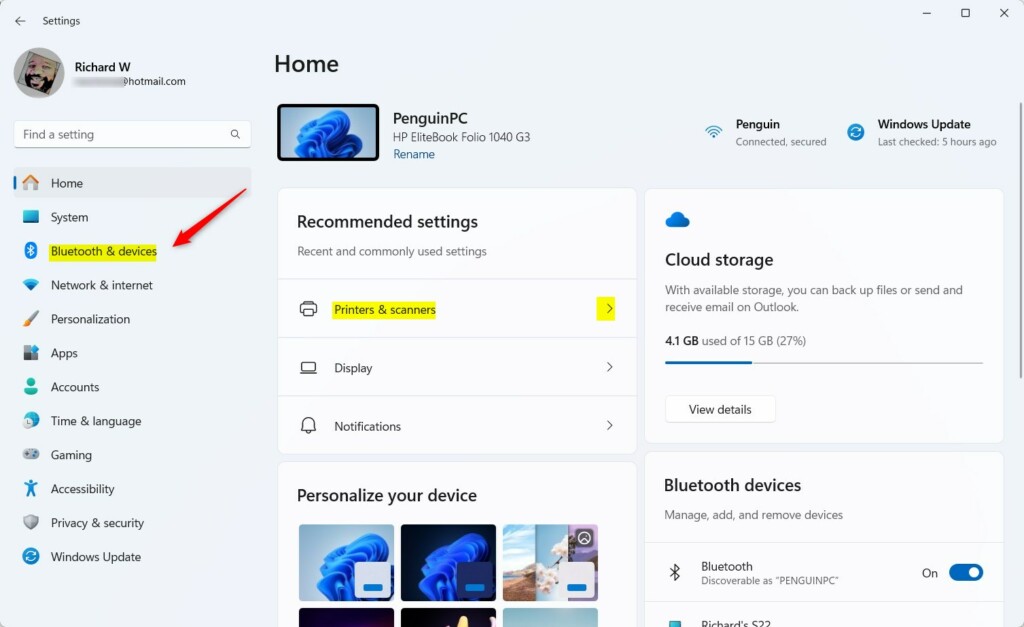 Open Bluetooth & devices in Settings
- Click on Printers & scanners.
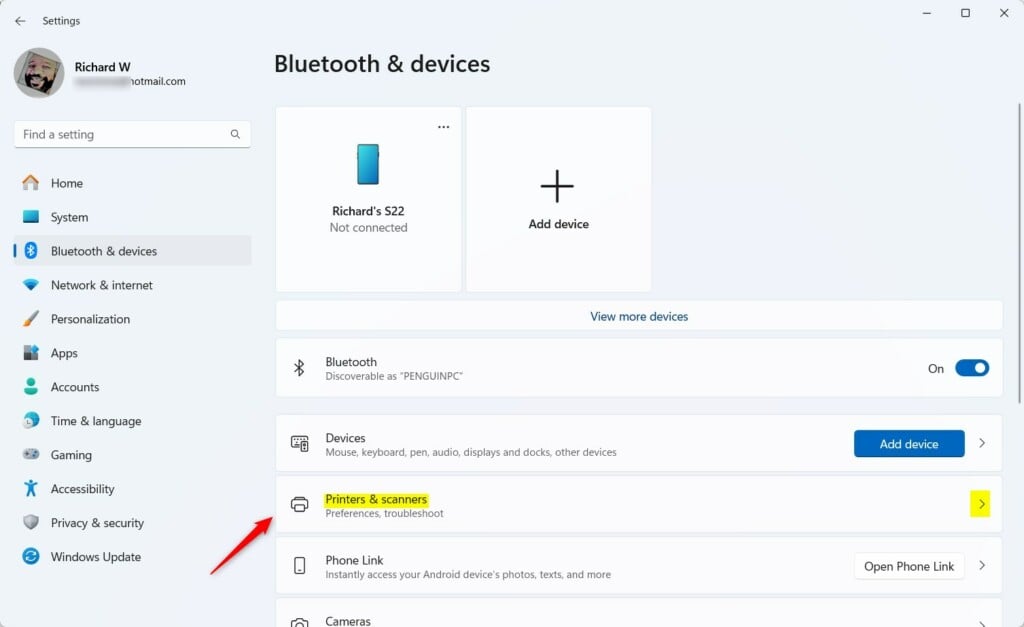 Click Printers & scanners
- Select the printer you want to check.
- Click on Device information or More information if available.
- Look for the IP address in the details shown.
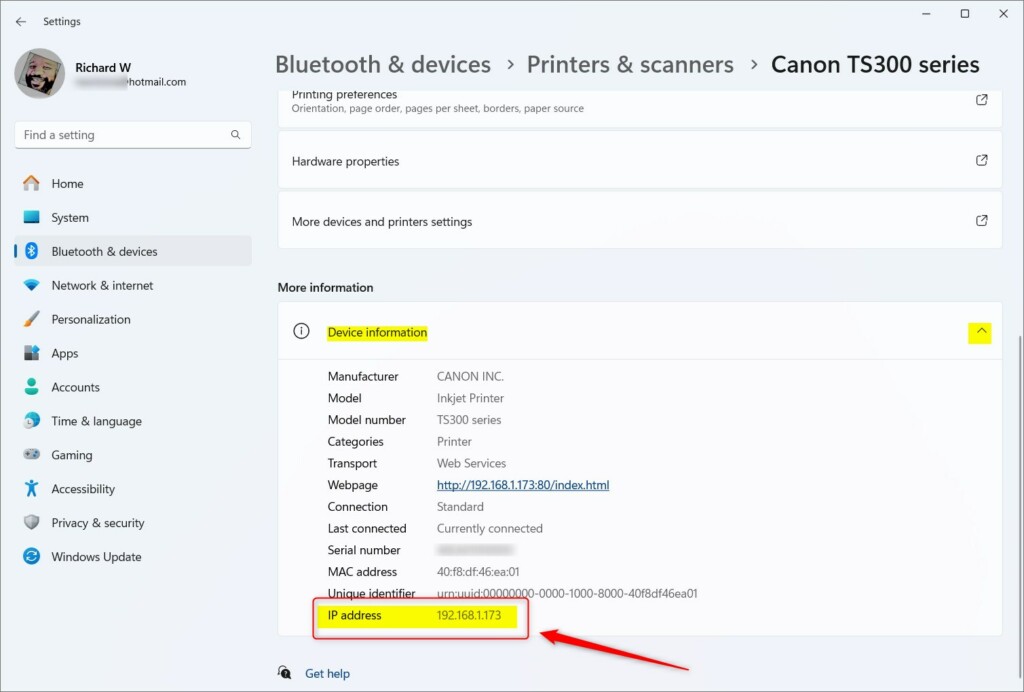 Find the printer IP address in device details
Why Knowing Your Printer’s IP Address is Helpful
- If your printer isn’t working right, knowing its IP address helps you fix it.
- When setting up a new printer, the IP address is often needed.
- In offices with many printers, the IP address helps you find the exact one you want.
Summary
Finding a printer’s IP address in Windows 11 is simple and useful. You can use either File Explorer or the Settings app to get this information. Once you know the IP address, you can easily set up, troubleshoot, or manage your printer on your network.
Need help adding a printer? Check out this easy guide: How to Add a Wireless Printer on Windows 11.



Leave a Reply