
What is Voice Typing?
Windows 11 has a helpful feature called Voice Typing. It lets you type by speaking into your microphone. Your computer listens to what you say and turns it into text on your screen.
Voice typing uses online speech technology powered by Microsoft’s Azure Speech Services. This technology understands your voice and converts it to words. You can even use voice commands. For example, you can say “delete that” to erase text or “select that” to highlight words.
Learn more about voice typing here: How to Use Voice Typing on Windows 11
Why Use a Profanity Filter?
When you speak, you might say words that are not polite. Windows 11 now lets you control whether these words appear in your text or get hidden. Here’s why you might want to use the profanity filter:
- Keep things clean: Avoid accidentally typing offensive words in public or work settings.
- Customize your experience: Choose whether you want full freedom of speech or filtered text.
- Better accessibility: Makes voice typing more comfortable for everyone.
- Easy to change: Turning the filter on or off is quick and simple.
How to Turn On or Off the Profanity Filter
Follow these simple steps to control the profanity filter when using voice typing:
- Start Voice Typing: Press the
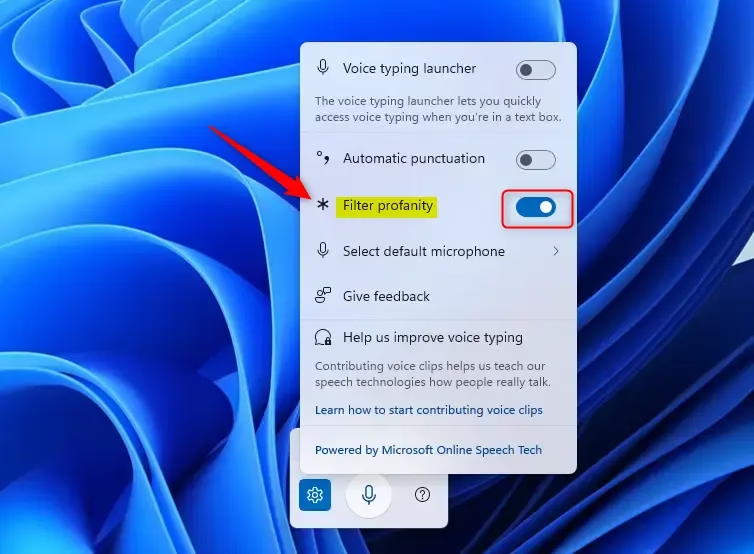
Windows key + Hon your keyboard. The voice typing toolbar will open on your screen. - Open Settings: Click the gear icon on the voice typing toolbar.
- Find Profanity Filter: Look for the option labeled “Profanity filter” in the settings menu.
- Toggle the Filter: Turn the profanity filter on to hide bad words with asterisks (****). Turn it off to type all words exactly as you say them.
Note: This feature started rolling out with Windows 11 Insider Preview Build 22635.5305. Make sure your Windows is up to date to see this option.
Learn More
For more information about this update, visit the official Microsoft blog: Microsoft Windows Insider Blog
Summary
Windows 11’s Voice Typing is a smart way to type by speaking into your microphone. The new profanity filter gives you control over how your words appear. You can choose to hide bad words or show them exactly as you say them. The settings are easy to change, so you can adjust the filter whenever you want. This feature is great for people who prefer talking over typing and want more control over their typing experience.


Leave a Reply