How to Use Snipping Tool’s Text Actions in Windows 11

Windows 11’s Snipping Tool lets you extract text directly from your screenshots using its Text Actions feature.
Text Actions leverages Optical Character Recognition (OCR) technology to transform images of text into editable digital characters.
This incredible functionality, available since Windows 11 version 22H2, means you can finally grab text from anything you see on your screen.
You can copy text from photos, PDFs displayed on your monitor, or even image files, directly into any application you choose.
Open Snipping Tool and take a screenshot. Click Text Actions, then Copy all text or select specific text and choose Copy text. The extracted text is added to your clipboard, ready to paste elsewhere.
Why use Text Actions?
So, why bother with Text Actions? It’s a real time-saver. Instead of painstakingly typing out text from a screenshot, the app handles it for you. This is perfect for grabbing data from websites, error messages, or even documents where you can’t select text directly.
What happens when you use it?
Once you’ve extracted text, it’s automatically copied to your computer’s clipboard. You can then paste it into any program, like Notepad or Microsoft Word, using Ctrl+V.
Version Requirements
Your Windows 11 Snipping Tool needs to be version 11.2308.33.0 or newer to use its text extraction feature.
How to copy text from screenshots
You can easily copy text from screenshots in Windows 11 using the Snipping Tool’s text extraction feature.
- Open the Snipping Tool app.
- Take a screenshot of the image that contains the text you need.
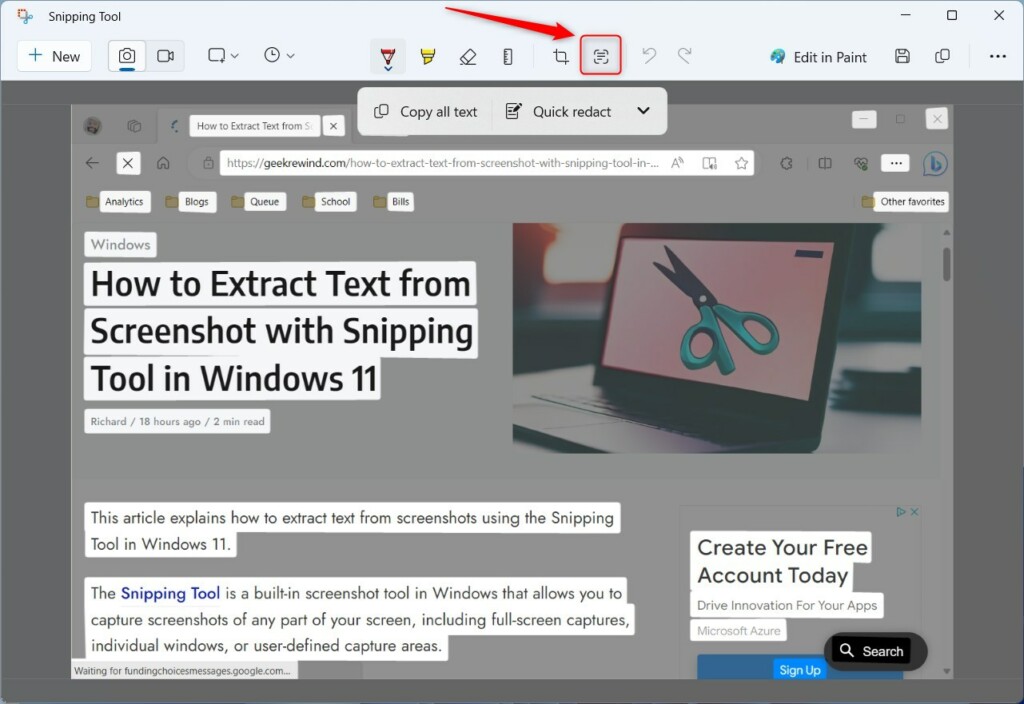
- Click the Text Actions button in the toolbar. This will highlight all the text found in the image.
- To grab all the text at once, click the Copy all text button.
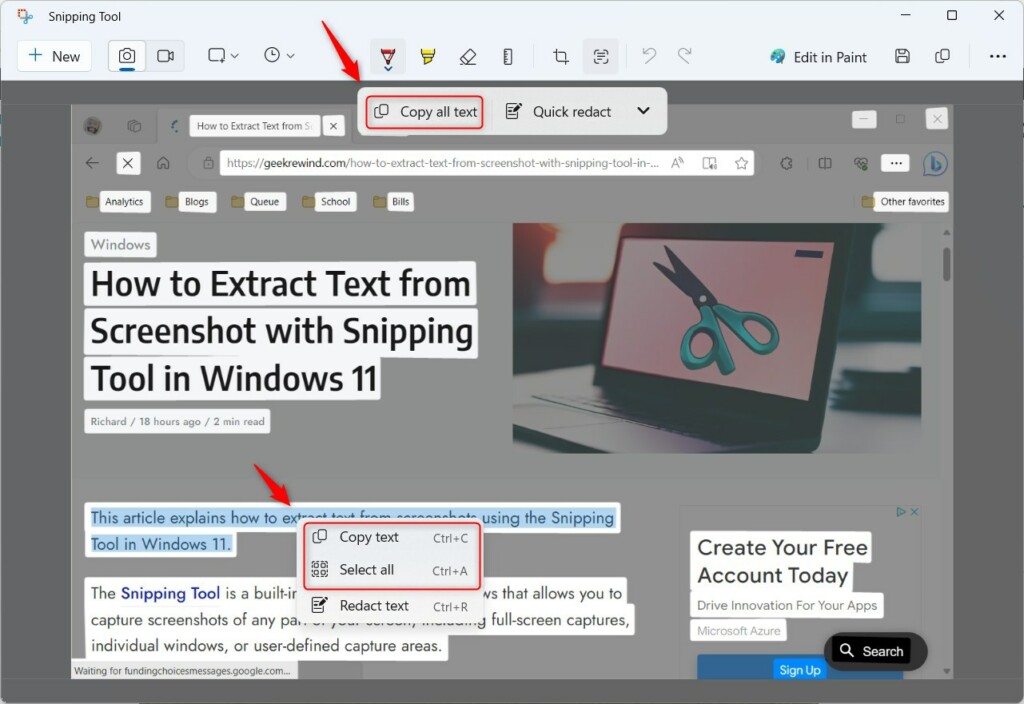
- If you only want a specific part, use your mouse to highlight just that text. Right-click the highlighted area and select Copy text.
Summary
The Snipping Tool’s text extraction feature makes it easy to turn image text into digital words, saving you typing time.
Why can’t I see the Text Actions button in Snipping Tool?
If the button is missing, your Snipping Tool version is likely outdated. Head over to the Microsoft Store to update the app to version 11.2308.33.0 or newer. Ensure your Windows 11 is fully updated through the Settings menu to maintain compatibility with the latest screen capture features.
Is text extraction in Snipping Tool secure?
Yes, the text extraction process happens locally on your device. Microsoft does not upload your screenshots to the cloud for processing. For added security, use the Quick Redact feature to remove sensitive personal information like phone numbers or email addresses from your images before sharing them with others.
Was this guide helpful?

About the Author
Richard
Tech Writer, IT Professional
Richard, a writer for Geek Rewind, is a tech enthusiast who loves breaking down complex IT topics into simple, easy-to-understand ideas. With years of hands-on experience in system administration and enterprise IT operations, he’s developed a knack for offering practical tips and solutions. Richard aims to make technology more accessible and actionable. He's deeply committed to the Geek Rewind community, always ready to answer questions and engage in discussions.



No comments yet — be the first to share your thoughts!