How to Enforce BitLocker Encryption on Removable Drives

This guide shows simple steps to make sure your removable drives (like USB sticks) use a specific type of encrypt-thumb-drives-with-password-in-windows-11/" class="sal-link" rel="noopener" target="_blank" data-sal-id="22677">bitlocker-encryption-type-on-fixed-data-drives-in-windows-11/" class="sal-link" rel="noopener" target="_blank" data-sal-id="17093">BitLocker encryption on Windows 11. BitLocker helps keep your data safe by encrypting it so only you or authorized people can see it.
Want to learn more about BitLocker? Check out this beginner-friendly BitLocker guide.
What is BitLocker Encryption on Removable Drives?
BitLocker lets you protect your data on external drives (like USB flash drives or external hard drives). When you turn it on, you can choose how the drive is encrypted:
- Full Encryption: Encrypts the entire drive, even the empty space. This takes longer but is very secure.
- Used Space Only Encryption: Encrypts only the parts of the drive where you have saved files. This is faster but encrypts less data.
By default, when you turn on BitLocker for a removable drive, Windows asks you which encryption type you want.
How to Enforce One Encryption Type Using Group Policy
If you want to force your computer to always use one type of encryption (so users don’t get asked), you can use the Local Group Policy Editor.
- Press the Start button, type
Edit group policy, and open the Local Group Policy Editor. - Go to this folder path:
Computer Configuration > Administrative Templates > Windows Components > BitLocker Drive Encryption > Removable Data Drives - On the right side, double-click
Enforce drive encryption type on removable data drives. - Choose one of these options:
- Not Configured (or Disabled): Windows will ask you which encryption type to use every time.
- Enabled: You pick one encryption type below, and Windows will not ask users anymore.
- Select
Full encryptionto always encrypt the whole drive. - Select
Used space only encryptionto encrypt only the used space. - Disabled: Same as Not Configured; user chooses encryption type.
- Click
OKto save. - Restart your PC to apply the change.
How to Enforce Encryption Type Using the Windows Registry
If you prefer, you can also set this policy using the Windows Registry Editor. Be careful — changing the registry can affect your system. It’s a good idea to back up the registry first.
- ⚠️ Admin privileges required: Press Start, type
regedit, and open the Registry Editor (run as administrator). - Navigate to this key:
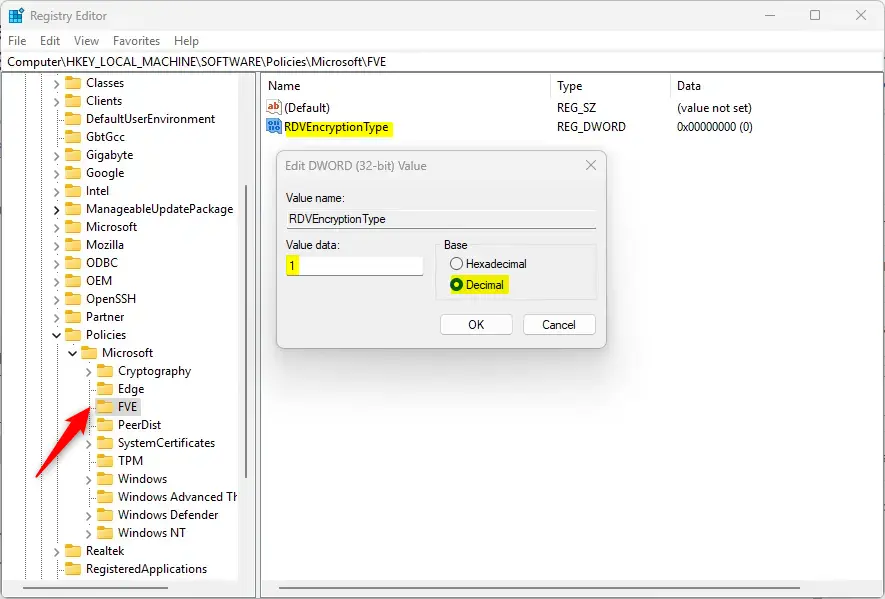
HKEY_LOCAL_MACHINE\SOFTWARE\Policies\Microsoft\FVE - Look for a value named
RDVEncryptionType. If it doesn’t exist, create it:- Right-click in the right pane →
New→DWORD (32-bit) Value
- Right-click in the right pane →
- Name it
RDVEncryptionType - Double-click
RDVEncryptionTypeand set its value data to:1to enforce Full encryption
2to enforce Used space only encryption- Click
OKand close the Registry Editor. - Restart your computer to apply the change.
If you want to go back to normal (where Windows asks which encryption type to use), just delete the RDVEncryptionType value you created.
Summary
- BitLocker protects your data on removable drives by encrypting it.
- You can choose between full encryption or encrypting only used space.
- You can force a specific encryption type so users won’t be asked every time by using Group Policy or the Registry Editor.
- These steps help keep your data safer with the encryption method you prefer.
For more help on BitLocker, visit this easy BitLocker setup guide.
Was this guide helpful?

About the Author
Richard
Tech Writer, IT Professional
Richard, a writer for Geek Rewind, is a tech enthusiast who loves breaking down complex IT topics into simple, easy-to-understand ideas. With years of hands-on experience in system administration and enterprise IT operations, he’s developed a knack for offering practical tips and solutions. Richard aims to make technology more accessible and actionable. He's deeply committed to the Geek Rewind community, always ready to answer questions and engage in discussions.




No comments yet — be the first to share your thoughts!