How to Enable or Disable Visual Search in Microsoft Edge

Microsoft Edge Microsoft Edge browser is the web browser built into Windows 11. You can switch to their preferred or favorite browser if you prefer to use a different program. Edge uses the same technology as Google Chrome.
Edge includes a feature called Visual Search. It shows a small icon in the corner of images when you hover your mouse over them. Clicking this icon lets you search for similar images or more details about the picture.
Why use Visual Search? It helps you quickly learn about an image, find similar products, or explore related topics without leaving the webpage.
What happens when done? Once you finish these steps, you will either see or hide the search icon whenever you hover over photos on websites.
Method 1: Using Browser Settings
This is the easiest way to change your settings.
- Open Microsoft Edge. Microsoft Edge browser
- Click the three horizontal dots in the top right corner or press Alt+F.

- Select Settings from the menu.
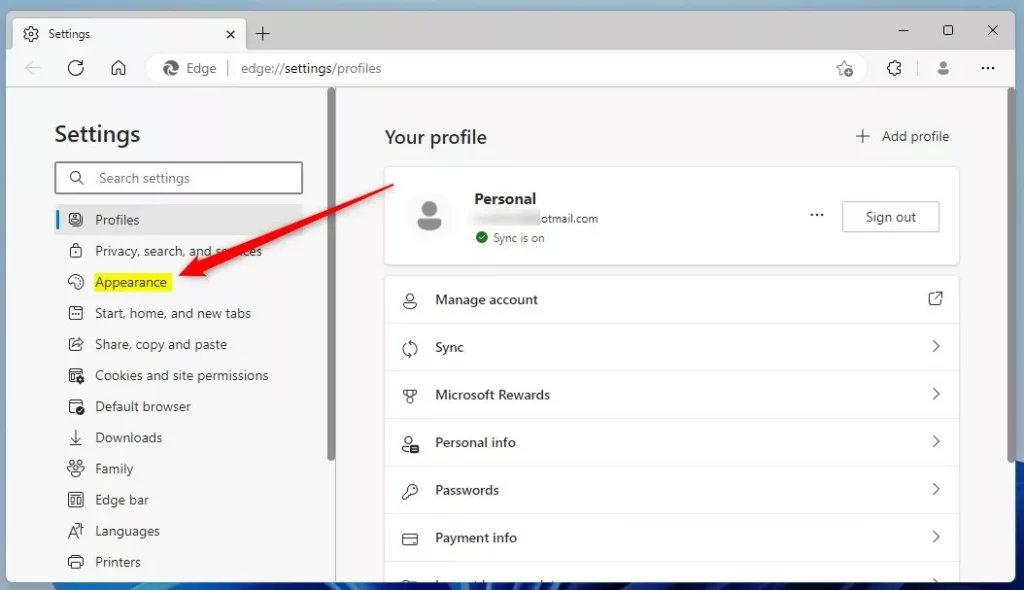
- Click Appearance on the left side of the screen.
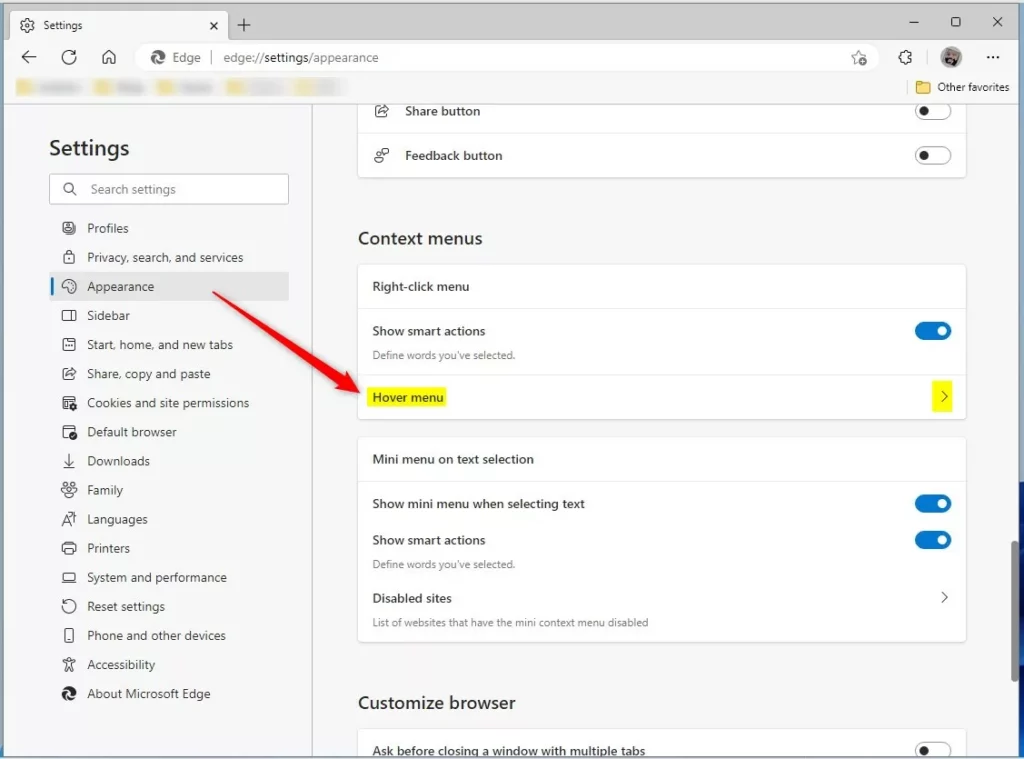
- Find the Hover menu section and click it to see more options.
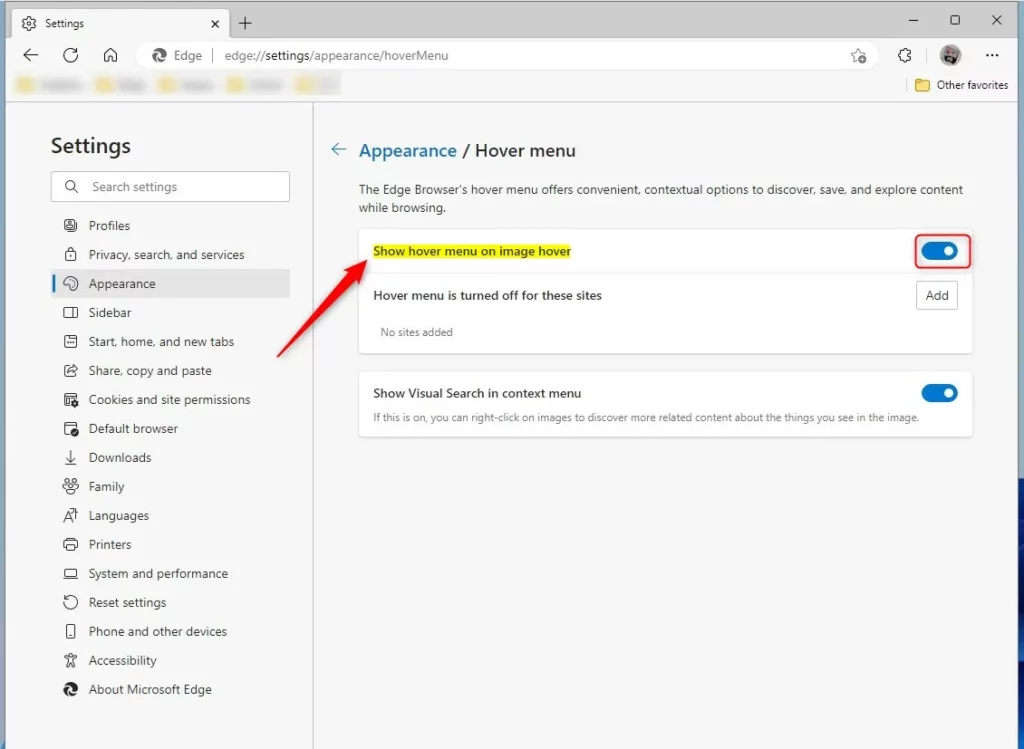
- Look for Show hover menu on image hover.
- To turn it ON, click the switch so it turns blue.
- To turn it OFF, click the switch so it turns gray.
-
Method 2: Using the Windows Registry
⚠️ Admin Privileges Required: You must have administrator access to your computer to perform these steps.
Only use this method if you are comfortable changing advanced system settings.
- Open the Windows Registry by typing
regeditin the Windows search bar and pressing Enter. - Go to this path:
HKEY_LOCAL_MACHINE\SOFTWARE\Policies\Microsoft\Edge - If you do not see a folder named Edge, right-click the Microsoft folder, select New, then Key, and name it
Edge. 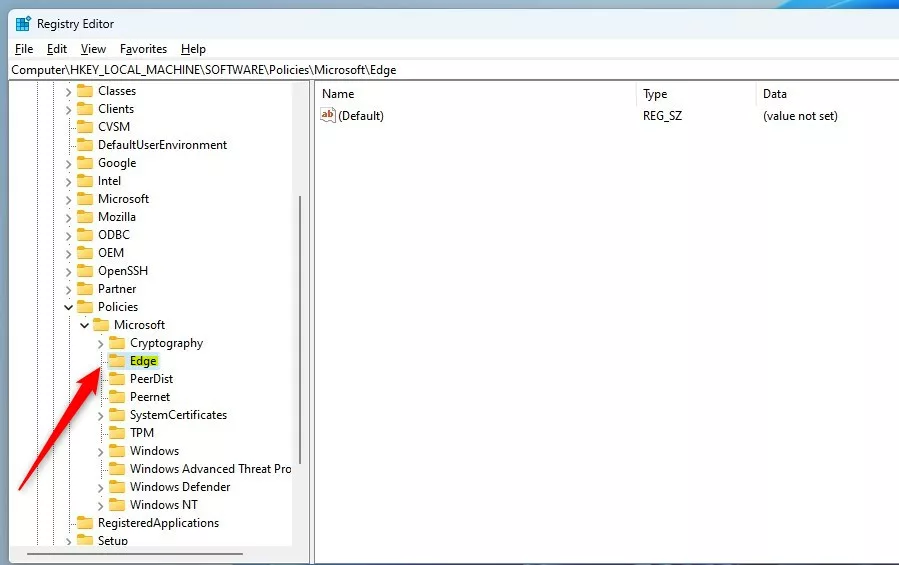
- Right-click the empty space on the right side. Select New, then DWORD (32-bit) Value.
- Name the new item
VisualSearchEnabled. - Double-click
VisualSearchEnabled. - Set the Base to Decimal and change the Value data:
- To turn it ON, type
1. - To turn it OFF, type
0.
- To turn it ON, type
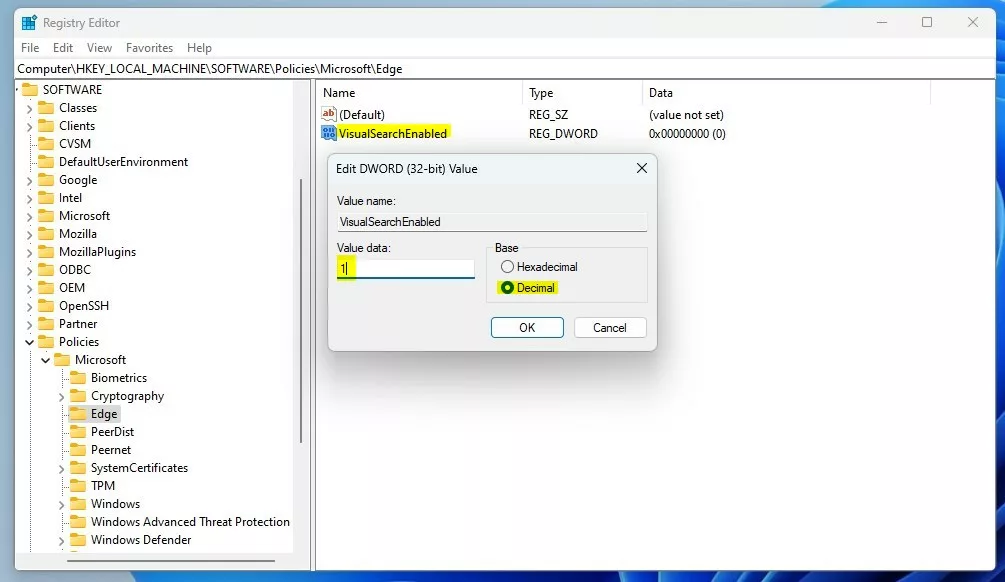
- Click OK and restart your computer.
Summary
Visual Search makes it easy to research images online. You can manage this feature through the Edge settings menu for a quick fix, or through the Windows Registry for a more permanent system-wide change. Choose the method that best fits your comfort level with computer settings.
Was this guide helpful?




Leave a Reply Cancel reply