

This article describes steps to enable or disable Title bar window shake or “Aero Shake” Windows 11.
First introduced in Windows 7, Title bar window shake allows users to grab and shake a title bar to minimize all other windows in the background.
It is easy if you haven’t used the Title bar window shake before. You grab the app’s window, which you want to keep open, by selecting its title bar and pressing the left mouse button.
While holding the app’s windows, shake the mouse, and all other windows will be minimized in the background. Then, hold down the same window and shake again to restore all the minimized windows in the background.
Turn on or off Title bar share (Aero shake) in Windows 11
As mentioned above, you can quickly minimize all other app windows simply by holding the window you want to keep open and shaking your mouse to close all other windows.
Shake again to restore windows that were minimized.
Here’s how to enable or disable it in Windows 11.
First, open the Windows Settings app.
You can access the Settings app by clicking on the Start menu and selecting Settings. You can also press the keyboard shortcut (Windows key + I) to launch the Settings app.

When the Settings app opens, click the System button on the left.
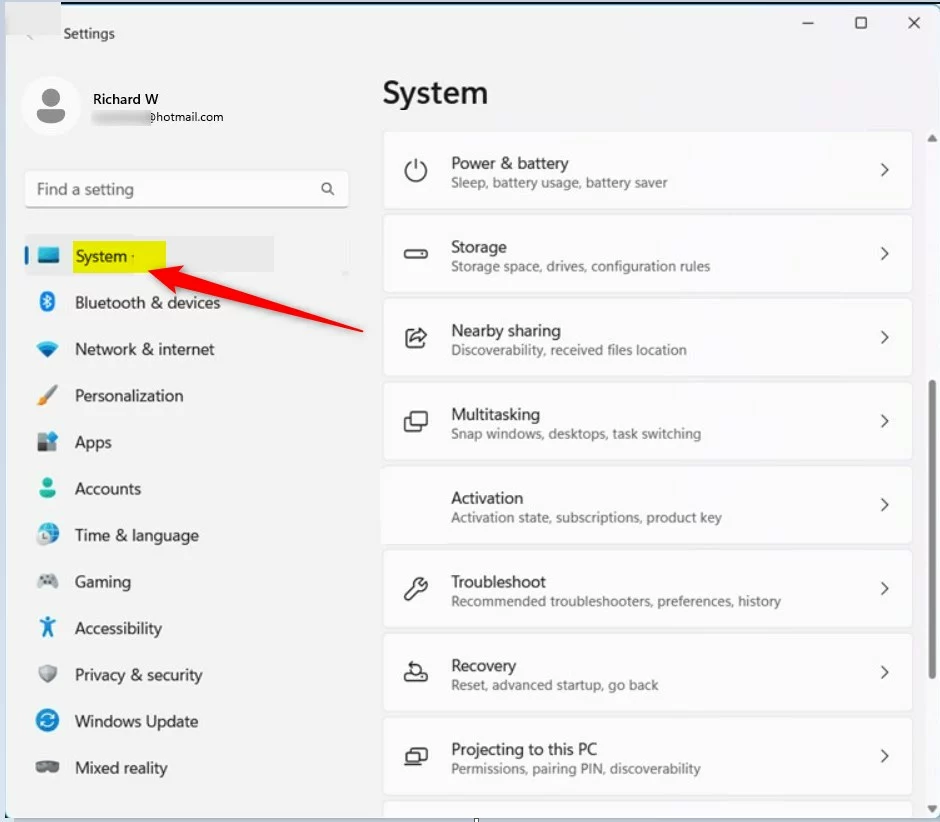
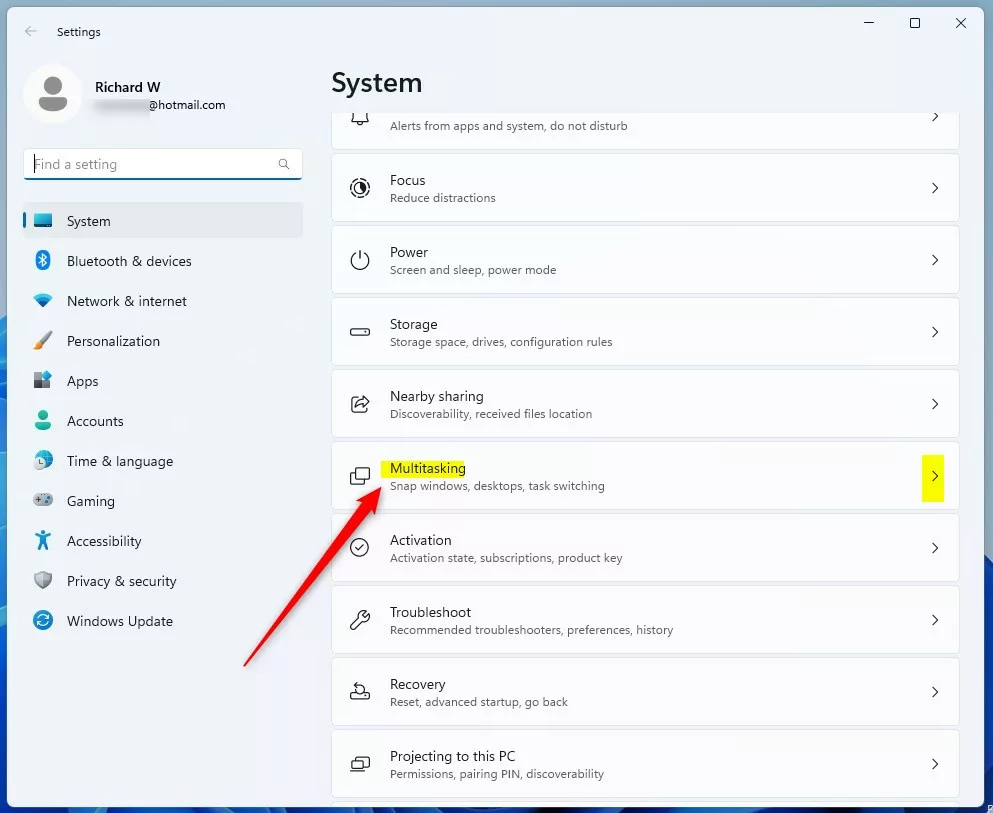
On the right, click the Multitasking tile to expand.
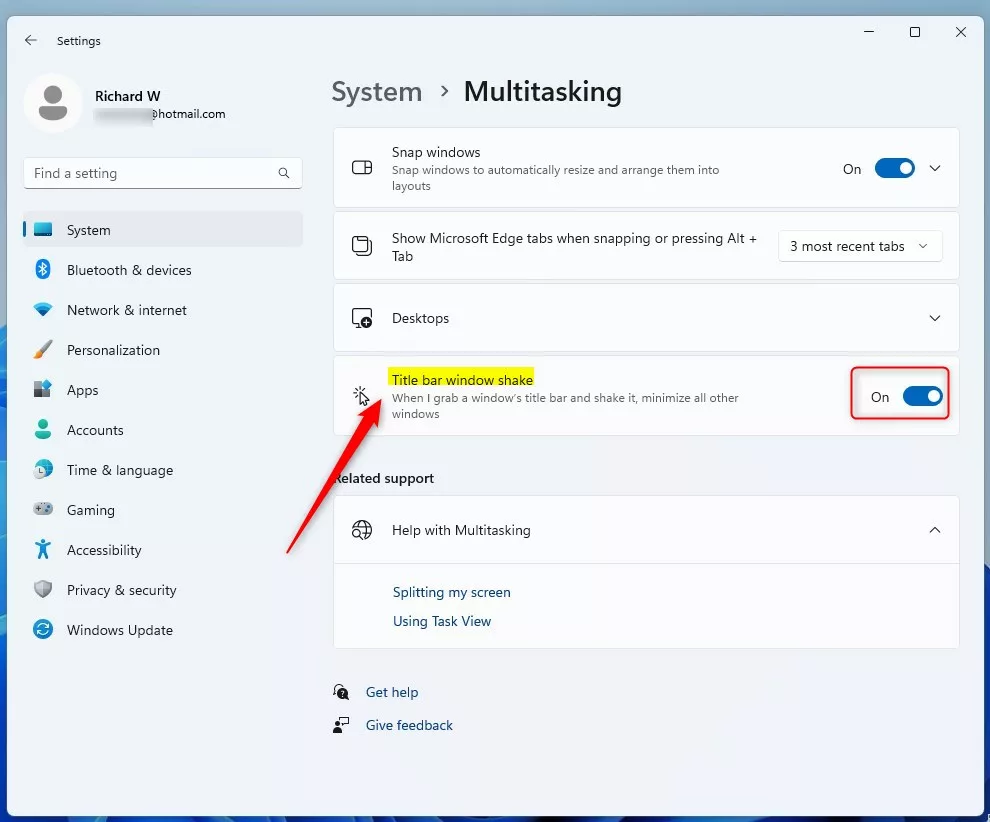
On the System -> Multitasking settings pane, toggle the button on the “Title bar window shakes” tile to the on position to enable.
To disable, toggle the button back to the Off position to disable.
That’s it!
Conclusion:
- This article details the steps to enable or disable the Title bar window shake feature, also known as Aero Shake, in Windows 11.
- Following the instructions, users can easily toggle the Title bar window shake setting on or off, according to their preference and needs.
- The process involves accessing the Windows Settings app, navigating to the System and Multitasking section, and toggling the Title bar window shake button to enable or disable this feature.
- We hope this guide has been helpful and welcome any feedback or additional insights from our readers.



Leave a Reply