How to Enable or Disable Edge Mini Menu


The Edge Mini Menu is a pop-up toolbar that appears on your screen whenever you highlight text in Microsoft Edge, letting you search, copy, or read selected words right away. This quick-access feature comes turned on by default in all recent versions of the browser to speed up everyday web tasks.
You can turn off the Mini Menu in your settings if the floating box gets in your way while you read web pages. Microsoft builds this tool directly into the browser settings, so you do not need any extra add-ons to change it.
Enable or disable the Edge Mini Menu by navigating to Settings Appearance and toggling “Show mini menu when selecting text.” Alternatively, use the Registry Editor at 🗝️HKEY_LOCAL_MACHINE\
Turn on or off the Microsoft Edge Mini menu when selecting text on the web page
You can control the Microsoft Edge Mini menu by opening your browser settings and toggling the feature on or off under appearance options. This stops the small pop-up menu from showing up every time you highlight text on a web page, giving you a cleaner reading experience.
Here’s how to control it.
First, open the Microsoft Edge browser.
Then, click the Settings and more button (Alt+F) – those are the three horizontal dots in the top right corner – and select Settings.

Next, click on Appearance in the left-hand panel.
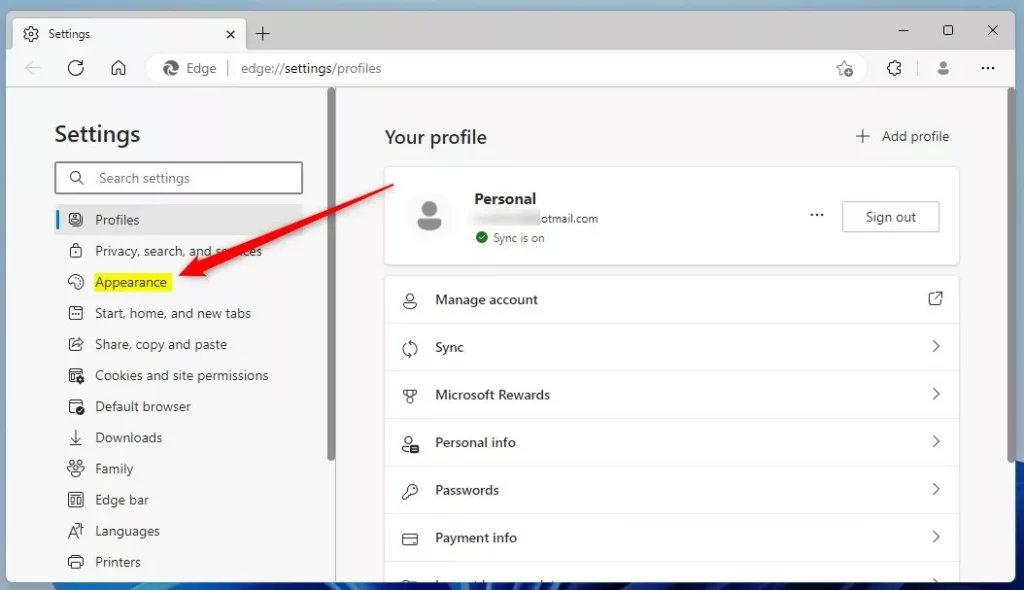
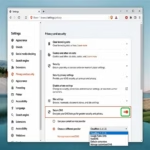
On the Appearance settings page, look under Context menus. Select the "Show mini menu when selecting text" option, and toggle the switch to the On position to enable it.
Toggle the switch back to the Off position to disable the feature.
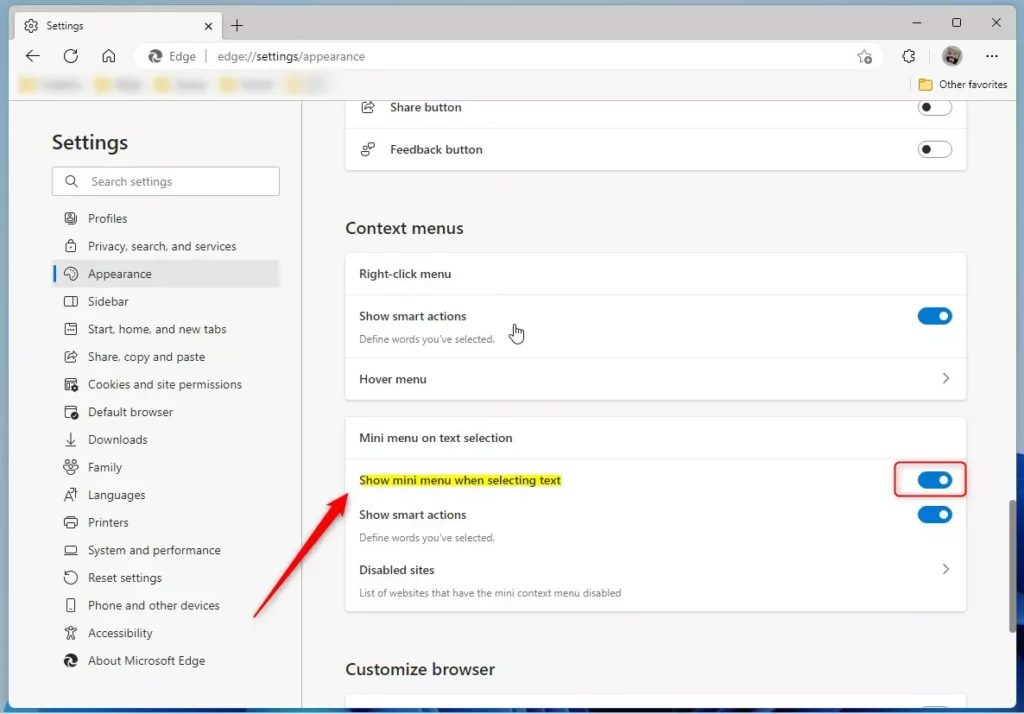
Changes take effect immediately. Restarting Microsoft Edge helps ensure the update applies correctly.
Turn on or off the Mini menu in Edge via the Windows Registry Editor
You can turn the Microsoft Edge Mini menu on or off using the Registry Editor (an advanced database for system settings) by creating a policy key in HKEY_LOCAL_MACHINE\SOFTWARE\Policies\Microsoft\Edge. This method lets you force the setting on your computer or across a network if you cannot change it through regular browser settings.
Open the Registry Editor (an advanced database for system settings) and navigate to the following path.
HKEY_LOCAL_MACHINE\SOFTWARE\Policies\Microsoft\Edge
If you don't see the Edge folder key, right-click the Microsoft parent key and create a new subkey named Edge.
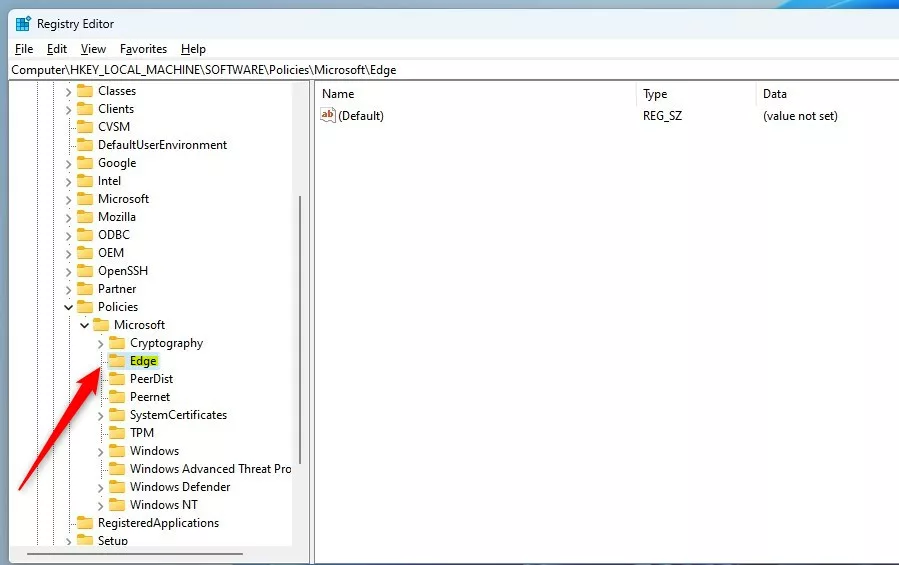
In the right pane of the Edge folder key, right-click and select New - DWORD (32-bit) Value. Name the new item QuickSearchShowMiniMenu.
Double-click the new item you created (QuickSearchShowMiniMenu). Ensure the 'Base' is set to 'Decimal', then change the 'Value data':
- To turn this feature on. Type 1.
- To turn this feature off. Type 0.
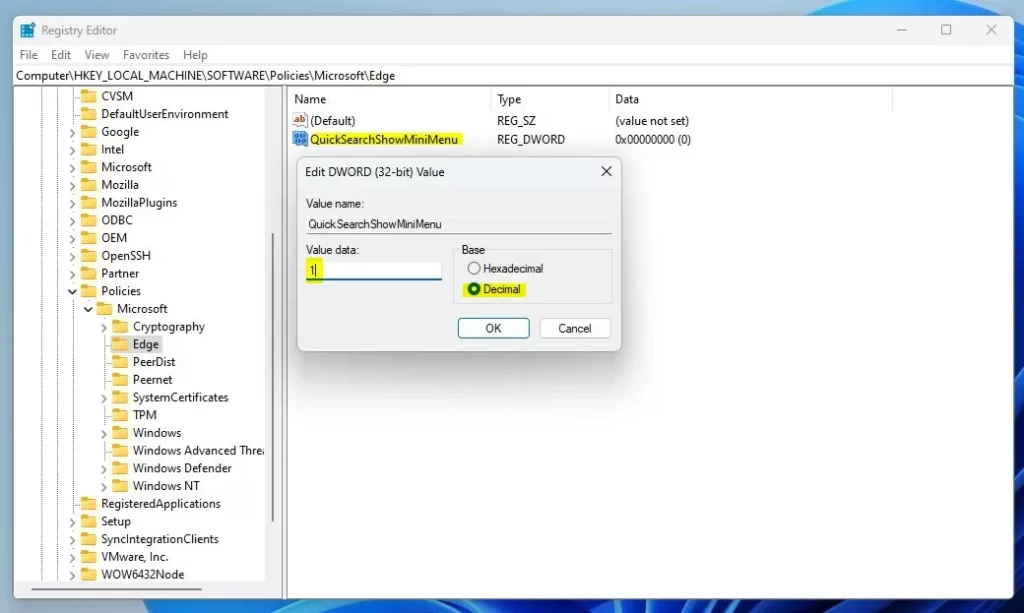
These changes will take effect after restarting.
These changes will take effect after restarting your computer.
Conclusion:
- Enabling or disabling the Mini menu in the Microsoft Edge browser can enhance user experience and productivity.
- Users have the flexibility to manage the Mini menu feature either through the browser settings or the Windows Registry Editor.
- Following these steps can help users customize their browsing experience based on their preferences and workflow.
Customizing the Mini menu helps tailor the browser interface to match your daily workflow.
Was this guide helpful?
100% of readers found this helpful (1 votes)

About the Author
Richard
Tech Writer, IT Professional
Richard, a writer for Geek Rewind, is a tech enthusiast who loves breaking down complex IT topics into simple, easy-to-understand ideas. With years of hands-on experience in system administration and enterprise IT operations, he’s developed a knack for offering practical tips and solutions. Richard aims to make technology more accessible and actionable. He's deeply committed to the Geek Rewind community, always ready to answer questions and engage in discussions.

No comments yet — be the first to share your thoughts!