How to Enable or Disable Text and Image Generation for Apps in Windows 11

Want to control how apps use Windows 11’s AI features for generating text and images? Here’s how to enable or disable that capability, giving you more say over which applications tap into your PC’s local AI power.
This Windows 11 feature lets apps use your computer’s built-in artificial intelligence. It can speed up tasks like creating images or summarizing text right on your device. You decide which apps get access to this power, offering granular control over your PC’s AI functions.
For example, if you disable this setting, apps like Paint or Notepad won’t be able to generate images or text using your local AI hardware. However, this change won’t impact apps relying on cloud-based AI services, ensuring their functionality remains unaffected.
Go to Settings > Privacy & security > Text and image generation. Toggle “Let apps use Text and image generation” on or off for your account, or manage individual app permissions. You can also control this system-wide via Registry Editor or Group Policy Editor.
Option 1Turn Text and Image Generation On or Off for Everyone in Settings
You can turn text and image generation on or off for all users on your Windows 11 PC using the Settings app, but you’ll need administrator rights to do this.
- Open Settings by pressing
Win+I. - Click Privacy & security on the left side. Then click Text and image generation on the right side under “App permissions”.
- Turn On (this is the default) or Off for text and image generation.
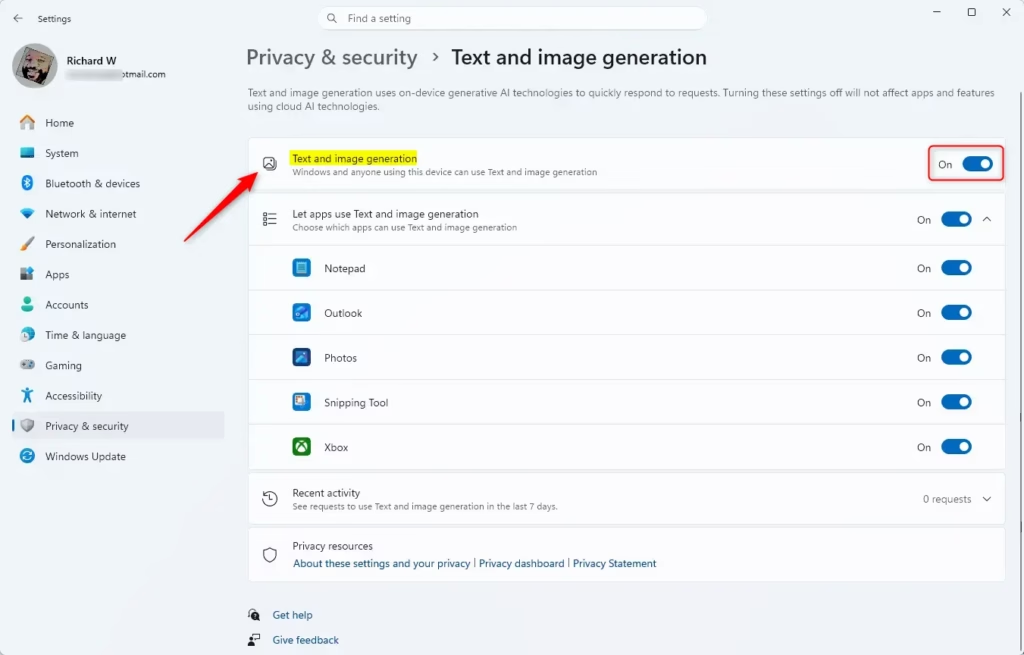
- Close Settings when you’re done.
Option 2Turn Text and Image Generation On or Off for Everyone Using Registry
⚠️ Note: You need administrator privileges for this option.
Open the Windows Terminal app and run the commands below.
Turn On Text and Image Generation for Everyone
This is the default setting.
reg add "HKEY_LOCAL_MACHINE\SOFTWARE\Microsoft\Windows\CurrentVersion\CapabilityAccessManager\ConsentStore\systemAIModels" /v Value /t REG_SZ /d Allow /f
Turn Off Text and Image Generation for Everyone
reg add "HKEY_LOCAL_MACHINE\SOFTWARE\Microsoft\Windows\CurrentVersion\CapabilityAccessManager\ConsentStore\systemAIModels" /v Value /t REG_SZ /d Deny /f
Option 3Turn On or Off Let Apps Use Text and Image Generation for Your Account in Settings
- Open Settings by pressing
Win+I. - Click Privacy & security on the left side. Then click Text and image generation on the right side under “App permissions”.
To control whether apps can use text and image generation just for your account in Windows 11, open Settings and go to Privacy & security.
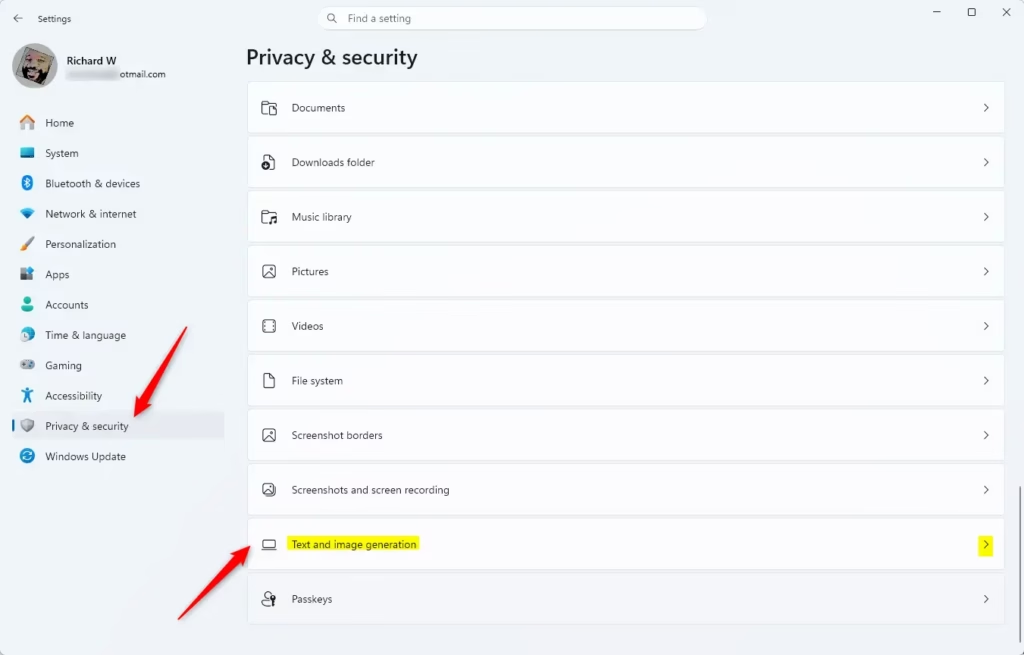
- Turn On (this is the default) or Off for “Let apps use Text and image generation”.
If you turn off “Let apps use Text and image generation,” Option Five will be turned off and grayed out.
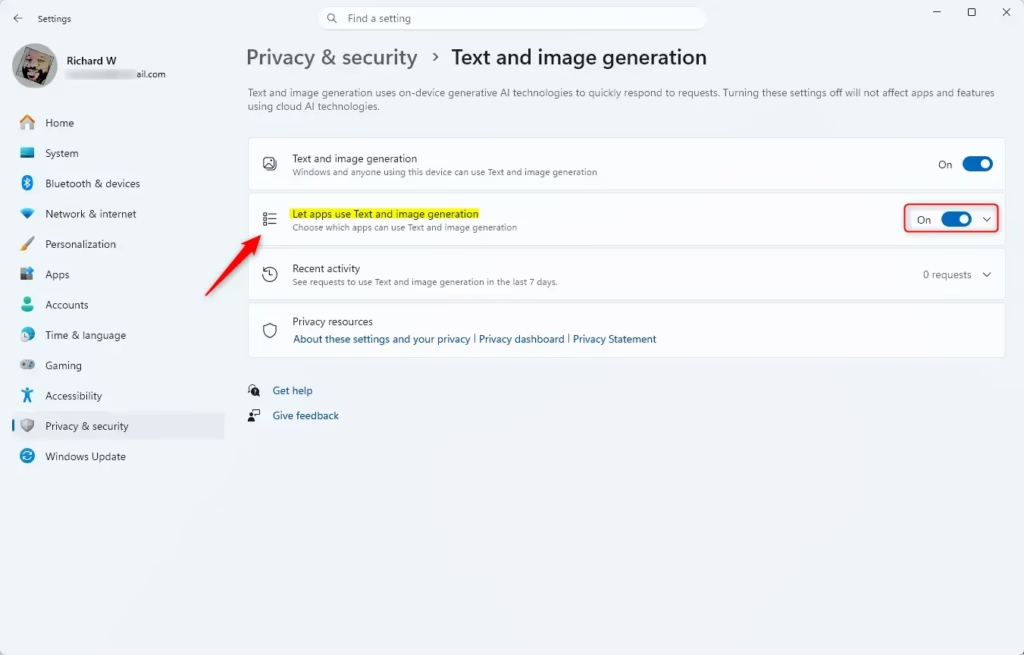
- Close Settings when you’re done.
Option 4Turn On or Off Let Apps Use Text and Image Generation for Your Account Using Registry
Open the Windows Terminal app and run the command below.
Turn On Let Apps Use Text and Image Generation for Your Account
reg add "HKEY_CURRENT_USER\Software\Microsoft\Windows\CurrentVersion\CapabilityAccessManager\ConsentStore\systemAIModels" /v Value /t REG_SZ /d Allow /f
Turn Off Let Apps Use Text and Image Generation for Your Account
reg add “🗝️HKEY_CURRENT_USER\Software\Microsoft\Windows\CurrentVersion\CapabilityAccessManager\ConsentStore\systemAIModels” /v Value /t REG_SZ /d Deny /f
Option 5Turn Specific Apps On or Off to Use Text and Image Generation for Your Account in Settings
If you want to choose which specific apps can use text and image generation for your account in Windows 11, you can manage these permissions in Settings.- Open Settings by pressing
Win+I. - Click Privacy & security on the left side. Then click Text and image generation on the right side under “App permissions“.
- Click Let apps use Text and image generation to expand it if you can.
- Turn On (this is the default) or Off for any apps you see listed.
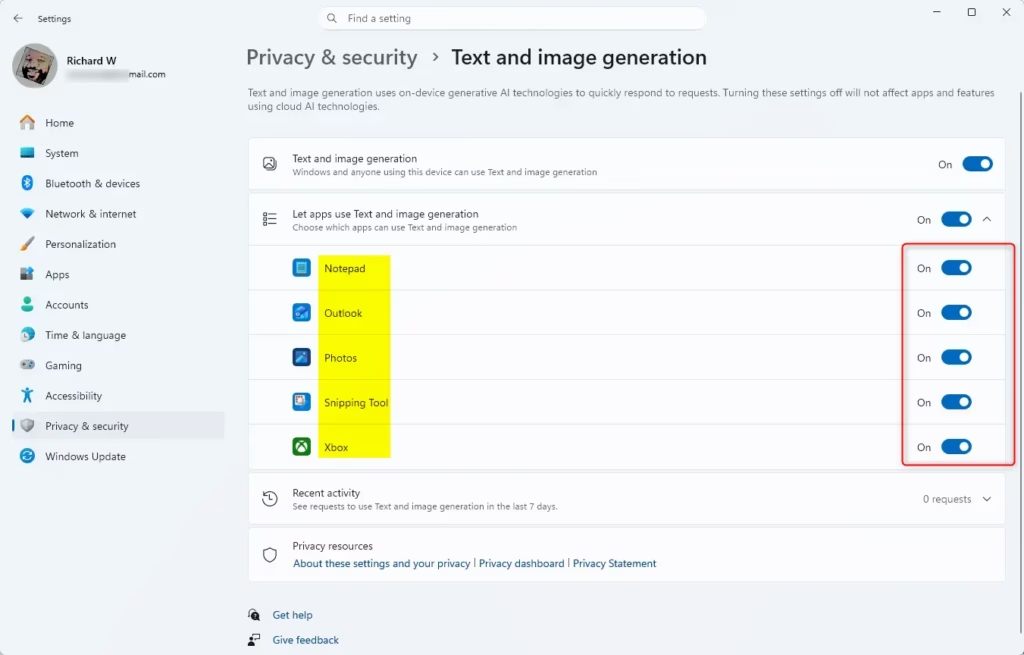
- Close Settings when you’re done.
Option 6Turn Text and Image Generation On or Off for Everyone in Local Group Policy Editor
Windows 11 Pro, Enterprise, and Education users can turn text and image generation on or off for everyone using the Local Group Policy Editor, which requires administrator access.
- Open the Local Group Policy Editor by typing
gpedit.mscin the search box. - In the left pane, go to this location:
Computer Configuration > Administrative Templates > Windows Components > App Privacy
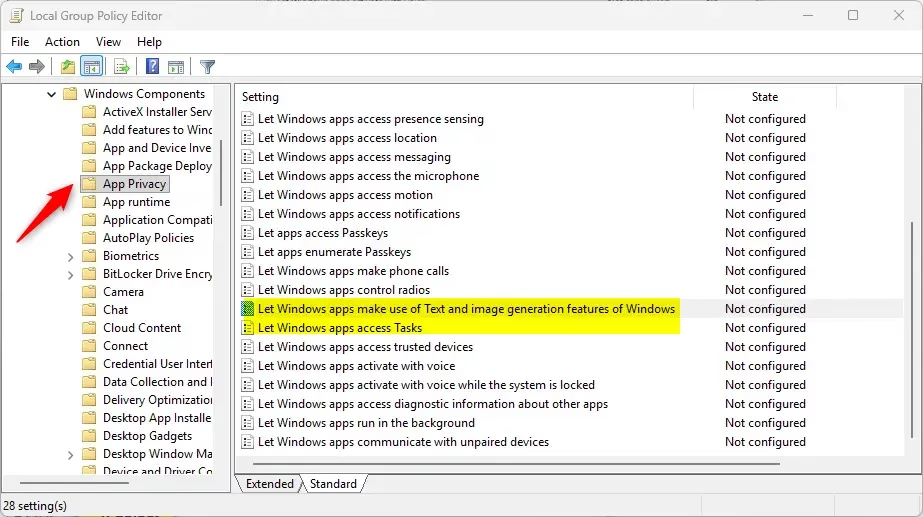
- In the right pane, double-click Let Windows apps make use of Text and image generative features of Windows to open it.
Always Turn On Text and Image Generation for Everyone
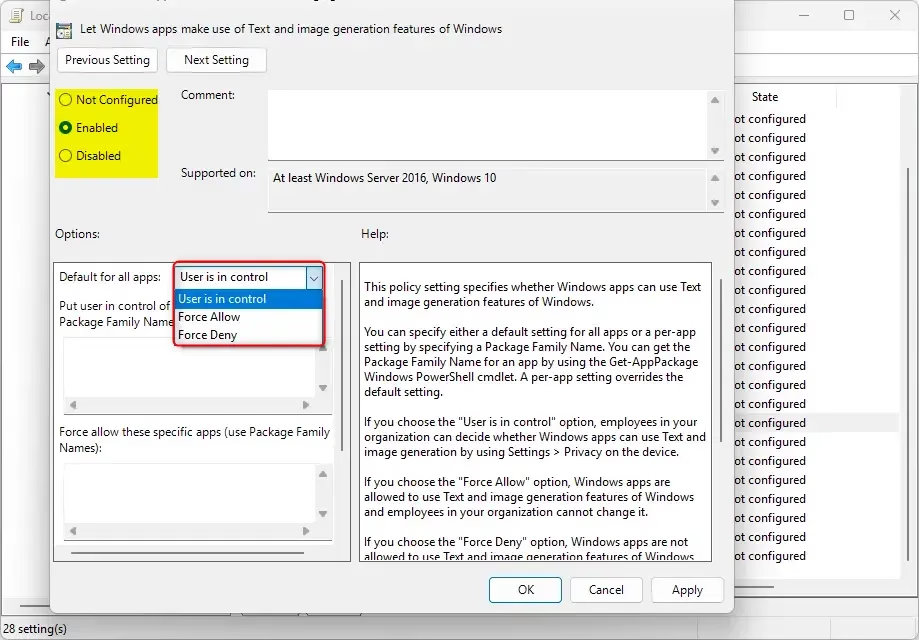
- Select the Enabled radio button.
- In the Options section, select Force Allow from the “Default for all apps” dropdown menu.
- Click OK and go to step 8 below.
Turn Off Text and Image Generation for Everyone
- Select the Enabled radio button.
- In the Options section, select Force Deny from the “Default for all apps” dropdown menu.
- Click OK and go to step 8 below.
Let Users Choose Text and Image Generation Settings
- Select the Not Configured radio button.
- Click OK and go to step 8 below.
- Close the Local Group Policy Editor when you’re done.
Summary
Windows 11 offers multiple straightforward ways to manage text and image generation for apps, letting you choose settings for everyone, just your account, or specific apps.
What is text and image generation in 🪟 Windows 11?
This new Windows 11 build also introduces a new entry in the "Settings > Privacy & security > Text and image generation" dialog. This shows which third-party applications have recently utilized Windows’ generative AI models, and it lets you control which apps are allowed to use them.
Does Windows have a scribble feature?
Technology. So the first thing that we do, let’s set it full screen so we can take advantage of the entire real estate available. Double tap to start writing on your document.
Was this guide helpful?

About the Author
Richard
Tech Writer, IT Professional
Richard, a writer for Geek Rewind, is a tech enthusiast who loves breaking down complex IT topics into simple, easy-to-understand ideas. With years of hands-on experience in system administration and enterprise IT operations, he’s developed a knack for offering practical tips and solutions. Richard aims to make technology more accessible and actionable. He's deeply committed to the Geek Rewind community, always ready to answer questions and engage in discussions.




No comments yet — be the first to share your thoughts!