How to Enable or Disable Show Recommended Section in File Explorer Home in Windows 11

Want to make File Explorer on Windows 11 work better for you? You can choose whether or not to show the ‘Recommended’ section.
The ‘Recommended’ section lives in File Explorer’s Home view. When it’s on, it takes the place of the old ‘Quick access’ area. This section smartly shows files you’ve recently accessed and folders you use often.
It helps you jump back into your work with your most relevant documents. This is a core part of the new Windows 11 File Explorer interface, which was added in recent updates.
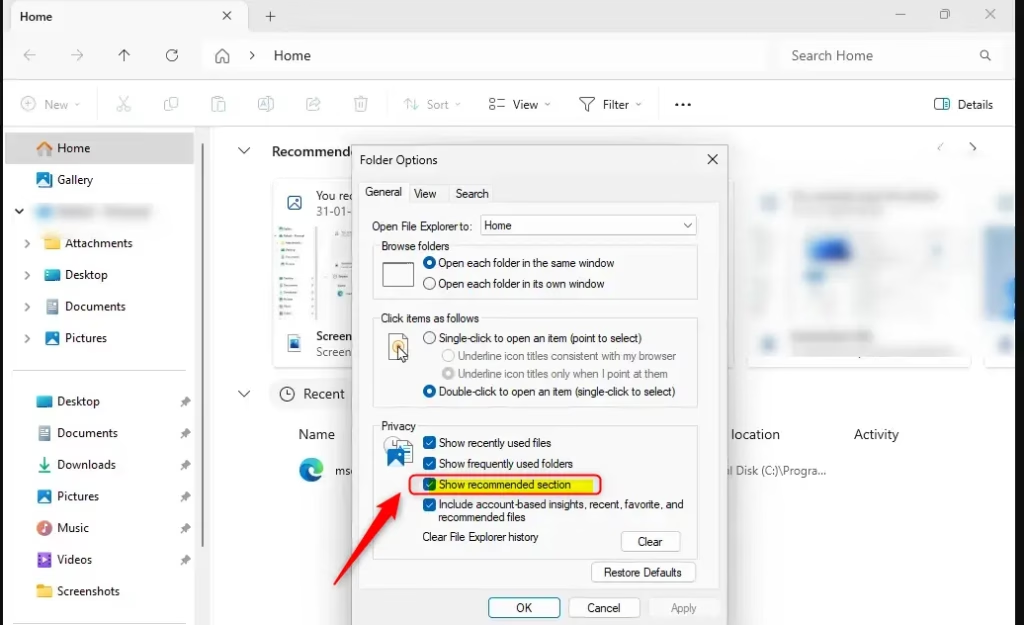
To enable or disable the “Show recommended” section, open File Explorer, click the three-dot menu, select Options, and go to the General tab. Check or uncheck “Show recommended section” under Privacy, then click OK.
What is File Explorer Home?
File Explorer Home gives you a central spot for all your files and folders. You’ll see things like:
- Quick access = Shows up to 13 folders you pinned or opened often
- Favorites = Files you pinned
- Recent = Shows up to 25 files you opened most recently
Why Use the Recommended Section?
The Recommended section in Windows 11’s File Explorer helps you quickly find files you’ve used recently or downloaded, making it easier to get back to your work. This feature is designed to save you time by showing you the most relevant documents right on your File Explorer Home screen.
If you’re signed in with a work or school account, File Explorer shows people icons in the Activity column. Hover over these icons to see Microsoft 365 Live Persona Card information. This shows who the person is and how they connect to your file.
Windows Insiders with a Microsoft account now see people icons in the Activity column on File Explorer Home. When you hover or click on these icons, you’ll see the Windows People Card. This card tells you who recently worked on the file and lets you start a chat or call through your apps.
What Happens When You Enable the Recommended Section?
When you turn on the Recommended section, it replaces the Quick access section on your File Explorer Home page.
Method 1Use Folder Options
To Turn On the Recommended Section
This setting is on by default.
- Open Folder Options.
- Go to the General tab.
- Under Privacy, check the box for Include account-based insights, recent, favorite, and recommended files.
- Under Privacy, check the box for Show recommended section.
- Click OK.
To Turn Off the Recommended Section
- Open Folder Options.
- Go to the General tab.
- Under Privacy, uncheck the box for Show recommended section.
- Click OK.
Method 2Use Windows Terminal
⚠️ You’ll need administrator access for this.
Open Windows Terminal with administrative rights, and then run the commands below.
To Turn On the Recommended Section
This setting is on by default.
reg add "HKEY_CURRENT_USER\Software\Microsoft\Windows\CurrentVersion\Explorer" /v ShowCloudFilesInQuickAccess /t REG_DWORD /d 1 /f
reg add "HKEY_CURRENT_USER\Software\Microsoft\Windows\CurrentVersion\Explorer" /v ShowRecommendations /t REG_DWORD /d 1 /f
To Turn Off the Recommended Section
reg add "HKEY_CURRENT_USER\Software\Microsoft\Windows\CurrentVersion\Explorer" /v ShowRecommendations /t REG_DWORD /d 0 /f
Summary
The Recommended section in File Explorer Home is a handy feature that shows you files you use often or have downloaded recently, making them super easy to find. You can turn this feature on or off using either Folder Options or Windows Terminal commands, and when it’s on, it replaces Quick access on your File Explorer Home page.
What is recommended in File Explorer?
The Recommended section in File Explorer Home on Windows 11 shows you files you use a lot or have downloaded recently, helping you quickly access your most important documents. It acts as a central spot for your recent activity and cloud files, and when it’s active, it replaces the usual Quick access view.
How to disable recommended in File Explorer 🪟 Windows 11?
To turn off the Recommended section in File Explorer on Windows 11, open File Explorer and click the three-dot menu icon in the top toolbar, then choose Options. In the Folder Options window, go to the General tab and uncheck the box for ‘Show recommended section’ under Privacy, then click Apply or OK.
How do I change the File Explorer view back to normal?
To change your File Explorer view back to normal, you can go to the Folder Options menu by clicking the three-dot icon in the toolbar. On the General tab, you can turn off the ‘Show recommended section’ setting, and you can also set ‘Open File Explorer to’ to ‘This PC’ instead of Home.
How do I disable Microsoft recommendations?
You can turn off Microsoft recommendations in File Explorer by opening the Folder Options menu, which you can find by clicking the three-dot icon in the toolbar and choosing Options. Then, on the General tab, simply uncheck the ‘Show recommended section’ box in the Privacy area to remove these suggestions from your File Explorer Home.
Was this guide helpful?

About the Author
Richard
Tech Writer, IT Professional
Richard, a writer for Geek Rewind, is a tech enthusiast who loves breaking down complex IT topics into simple, easy-to-understand ideas. With years of hands-on experience in system administration and enterprise IT operations, he’s developed a knack for offering practical tips and solutions. Richard aims to make technology more accessible and actionable. He's deeply committed to the Geek Rewind community, always ready to answer questions and engage in discussions.

No comments yet — be the first to share your thoughts!