Enable/Disable Screen Reader in Ubuntu Linux


Orca is the built-in screen reader in Ubuntu Linux. It reads text and button names aloud so you can navigate the screen without relying on the display. Ubuntu 22.04 LTS and later versions include it by default, so you do not need to download extra software.
You can turn the screen reader on or off with a keyboard shortcut. On a default Ubuntu desktop (GNOME) the shortcut is Super+Alt+S, where Super is the Win. If the shortcut does nothing, it may have been changed or removed in the keyboard shortcut settings. The steps below use the Settings app, which always works.
Orca is the built-in Ubuntu screen reader, included by default in Ubuntu 22.04 LTS and later. To turn it on or off, open Settings, go to Accessibility Seeing, and flip the switch next to Screen Reader. On a default GNOME desktop, the keyboard shortcut is Super+Alt+S, where Super is the Win.
How to enable or disable Screen Reader in Ubuntu Linux
The Ubuntu screen reader is a built-in tool that reads on-screen text aloud. It helps if you have trouble seeing the display. You turn it on or off in Settings Accessibility Seeing, using the switch next to Screen Reader. You can change it at any time, and no restart or logout is needed.
Ubuntu keeps most of its settings in one place. You manage system settings, user accounts, and updates from the System Settings panel. The accessibility options are in the same app.

- Click the System menu at the top-right corner of the top bar. This is the area with the network, volume, and power icons.
- Select Settings, as highlighted below. The Settings window opens.

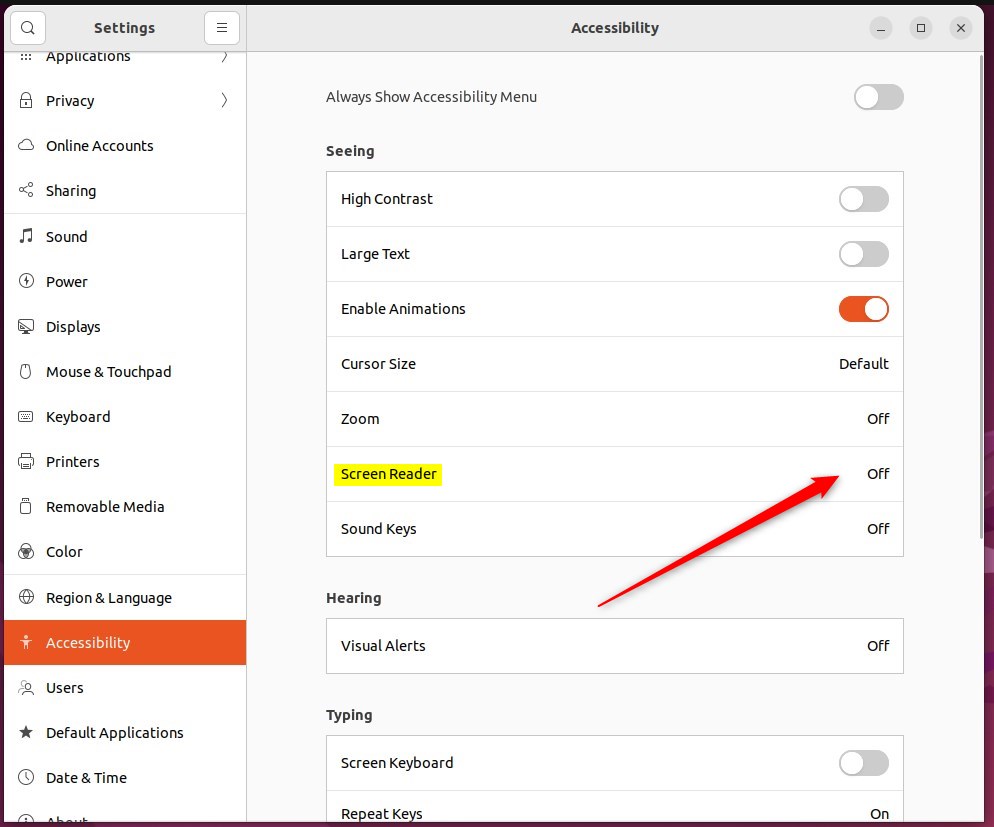
- In the Settings window, find the Accessibility tile in the sidebar or list and click it. The Accessibility panel opens on the right.
If your window is narrow, the sidebar may be hidden. Widen the window or use the back arrow to return to the list of categories.

- In Settings Accessibility, find the Seeing section.
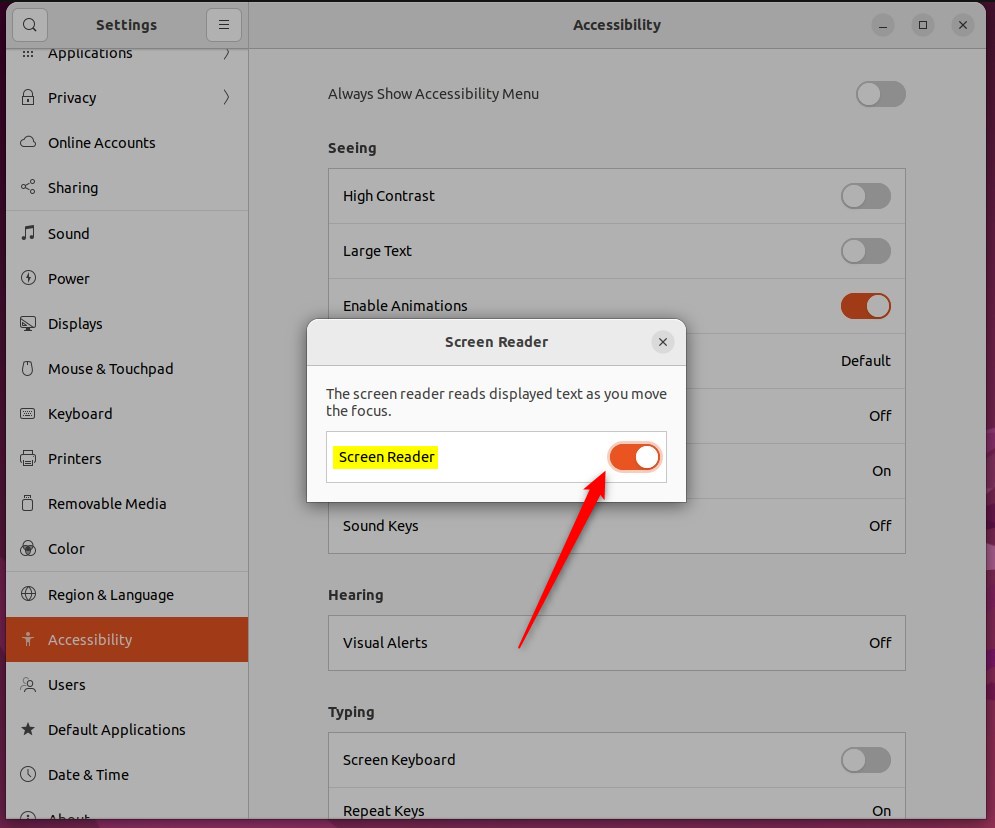
- Select the Screen Reader tile. Its options expand, including the on/off switch.
- To enable the screen reader, move the switch to the On position. Orca starts and begins speaking, so check that your volume is turned up.
- To disable it, move the switch back to Off. The speech stops.
Once the screen reader is enabled, you can also switch it from the top bar:
- Click the accessibility icon in the top bar.
- Select Screen Reader from the menu that appears. This toggles Orca on or off.
The accessibility icon only shows up when an accessibility feature is active. If it is missing, use the Settings steps above or the keyboard shortcut instead.

Your setting is now applied. You can close the Settings app.
You now know how to control the screen reader from the desktop interface or with the keyboard shortcut. To undo the change at any time, return to Settings Accessibility Seeing and flip the Screen Reader switch the other way.
Please use the comment form below if you find any errors above or have something to add.
- Enabling Screen Reader in Ubuntu Linux provides accessibility to users with limited vision or difficulty in reading text on the screen.
- The feature can be easily enabled or disabled through the System Settings panel under Accessibility.
- Once enabled, the Screen Reader can be controlled through the accessibility icon in the top bar, allowing for convenient toggling on and off.
- The tight integration of the Orca screen reader with Ubuntu Linux reflects the platform’s commitment to enhancing accessibility for all users.
Have a question about this guide?
Answered by AI from this guide. Good questions may be added to this page — please don't include personal details.
Did this guide fix your problem?

About the Author
Richard
Tech Writer, IT Professional
Richard is a writer at Geek Rewind who turns complex IT tasks into clear, step-by-step guides. He draws on years of hands-on experience in system administration and enterprise IT operations, focusing on Windows, Linux and WordPress: the problems people actually run into, and the fixes that work. His server and WordPress guides come from systems he runs himself. Richard builds and maintains the platform behind Geek Rewind, from its Ubuntu servers and Nginx configuration to its custom WordPress plugins. Many new tutorials start with readers' questions, and he's always glad to answer them in the comments.
No comments yet — be the first to share your thoughts!