How to Enable or Disable Safeguard Holds in Windows 11

This tutorial will show you how to enable or disable safeguard holds for feature updates in Windows 11.
Feature updates are new versions of Windows that are released via Windows Update twice a year. Usually they come out around spring and fall.
Safeguard holds stop a device with a known issue from getting a new operating system version. Microsoft removes the hold once a fix is found and tested. Holds help ensure customers have a good experience when moving to a new version of Windows.
On devices that use Windows Update (but not Windows Update for Business), you will see a message on the Windows Update page. The message says a feature update is on its way. But it’s not ready for your device yet. Instead of a download button, you will see a “Learn more” message. If you see this message, one or more holds affect your device.
Hold times vary. It depends on how long it takes to investigate and fix an issue. Microsoft works hard to find, develop, and test a fix. Then they offer it to affected devices. Microsoft watches quality and compatibility data. They check that a fix is complete before removing the hold. Once Microsoft removes the hold, Windows Update will offer new operating system versions to your device again.
Why might you want to disable safeguard holds? If you want, you can enable the “Disable safeguards for Feature Updates” Group Policy. This allows Feature Updates without any safeguard holds blocking them.
What happens when you opt out of a safeguard hold? Opting out can put your device at risk from known performance issues. Microsoft recommends opting out only in an IT environment and for testing purposes only. You can also test an upcoming Windows feature update without safeguards. Use the Release Preview channel of the Windows Insider Program for Business. Disabling safeguards does not guarantee your device will update successfully. The update might still fail. You will likely have a bad experience since you are bypassing protection against known issues.
⚠️ Admin Required: You must be signed in as an administrator to enable or disable safeguards for feature updates. After your device installs a new Windows version, the “Disable safeguards for Feature Updates” Group Policy will automatically go back to “not configured” (which means safeguards are enabled). This happens even if you previously enabled it. Microsoft does this to make sure you consciously choose to disable protection from known issues for each new feature update.
References:
KB5006965: How to check information about safeguard holds affecting your device – Microsoft Support
Windows Update for Business reports overview – Windows Update for Business reports
Option One
Enable or Disable Safeguards for Feature Updates in Local Group Policy Editor
Enable or disable safeguard holds in Windows 11 by opening Local Group Policy Editor (gpedit.msc), navigating to Computer Configuration > Administrative Templates > Windows Components > Windows Update > Manage updates offered from Windows, then selecting the safeguard holds policy and choosing your preferred setting.
- Open the Local Group Policy Editor (gpedit.msc).
- Navigate to the policy location below in the left pane of the Local Group Policy Editor.
Computer Configuration>Administrative Templates>Windows Components>Windows Update>Manage updates offered from Windows Updates
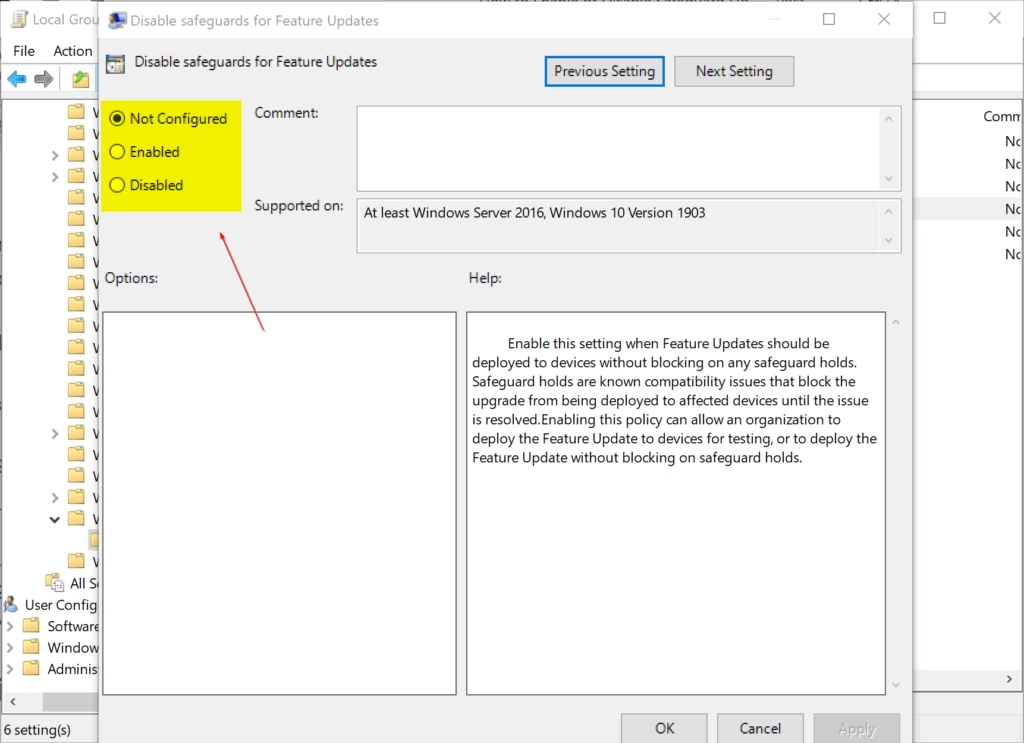
- In the right pane of “Manage updates offered from Windows Updates” in the Local Group Policy Editor, double click on the “Disable safeguards for Feature Updates” policy to edit it.
To Enable Safeguards for Feature Updates
This is the default setting.
- Select (dot) “Not Configured”, click on “OK”.
To Disable Safeguards for Feature Updates
- Select (dot) “Enabled”, click on “OK”
- You can now close the Local Group Policy Editor if you like.
Option Two
Enable or Disable Safeguards for Feature Updates using Registry
⚠️ Admin Required: Open the Windows Terminal app as an administrator and run the commands below.
To Enable Safeguards for Feature Updates
This is the default setting.
reg add "HKEY_LOCAL_MACHINE\SOFTWARE\Policies\Microsoft\Windows\WindowsUpdate" /v DisableWUfBSafeguards /t REG_DWORD /d 0 /f
To Disable Safeguards for Feature Updates
reg add "HKEY_LOCAL_MACHINE\SOFTWARE\Policies\Microsoft\Windows\WindowsUpdate" /v DisableWUfBSafeguards /t REG_DWORD /d 1 /f
Summary
Safeguard holds are safety measures Microsoft uses to prevent your device from installing Windows updates that might cause problems. When Microsoft finds an issue, they hold back the update until they fix it. You can see if your device has a hold by checking Windows Update in Settings. If you see a “Learn more” message instead of a download button, your device has a hold.
You can disable safeguard holds using either the Local Group Policy Editor (in Windows 11 Pro, Enterprise, and Education) or the Windows Terminal with registry commands. However, Microsoft warns that disabling holds is risky and can cause update failures and performance problems. Only do this if you are testing in an IT environment. After each new Windows version installs, safeguards automatically turn back on to keep your device protected.
Why are people leaving 🪟 Windows 11?
Users may leave Windows 11 due to strict hardware requirements, such as the need for TPM 2.0, or dissatisfaction with the redesigned interface and taskbar limitations. Others cite concerns over increased telemetry, mandatory Microsoft account integration, or performance issues on older hardware that previously ran Windows 10 without any significant problems.
How do I disable Safeguard?
You can disable safeguard holds by using the Group Policy Editor. Navigate to Computer Configuration, Administrative Templates, Windows Components, and Windows Update. Locate 'Manage end user experience' and enable the 'Disable Safeguard for Feature Updates' policy. This allows your device to bypass known compatibility blocks when installing new Windows 11 feature updates.
Was this guide helpful?

About the Author
Richard
Tech Writer, IT Professional
Richard, a writer for Geek Rewind, is a tech enthusiast who loves breaking down complex IT topics into simple, easy-to-understand ideas. With years of hands-on experience in system administration and enterprise IT operations, he’s developed a knack for offering practical tips and solutions. Richard aims to make technology more accessible and actionable. He's deeply committed to the Geek Rewind community, always ready to answer questions and engage in discussions.



No comments yet — be the first to share your thoughts!