How to Enable Networking in Windows 11 Sandbox

You enable networking in Windows 11 Sandbox by editing its configuration file.
Windows Sandbox is a lightweight desktop environment you can use to run untrusted software safely. By default, it blocks internet access to maintain maximum isolation from your host system.
Enabling networking allows your Sandbox instance to connect to the internet or your local network, which is essential if you need to download files or test web applications. This is particularly useful for tasks like testing browser vulnerabilities or downloading software installers within a safe, isolated space.
You’ll typically find yourself modifying the Sandbox configuration file, often using a `.wsb` extension, to achieve this. This setup is crucial for many testing scenarios, but remember it reduces the Sandbox’s isolation, so proceed with caution.
Enable networking in Windows 11 Sandbox by editing Group Policy, using a .wsb file, or modifying the Registry. Navigate to Computer Configuration > Administrative Templates > Windows Components > Windows Sandbox and enable “Allow networking in Windows Sandbox” via Group Policy, or set 🗝️HKEY_LOCAL_MACHINE\SOFTWARE\Policies\Microsoft\Windows\Sandbox\AllowNetworking to 1 in the Registry.
How to turn on or off networking with Sandbox in 🪟 Windows 11
You can easily turn networking on or off for your Windows Sandbox to let it access the internet or keep it more secure.
By default, networking is turned off to keep your computer secure. If you need to access the internet, you can change this.
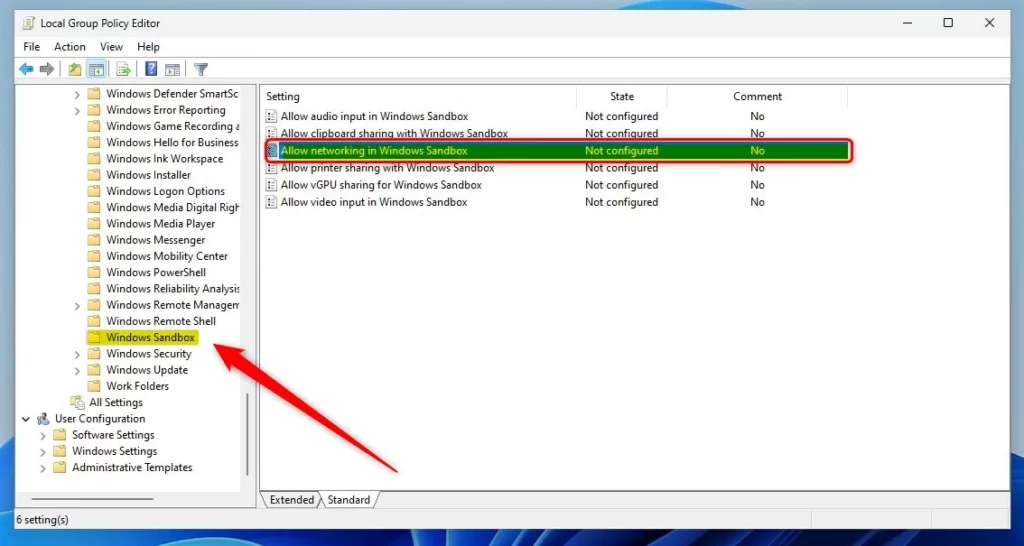
First, open the Local Group Policy Editor. You can do this by clicking the Start Menu and searching for “Edit group policy.”
Once it’s open, navigate through the left folder tree:
Computer Configuration > Administrative Templates > Windows Components > Windows Sandbox
Look for the setting called “Allow networking in Windows Sandbox” and double-click it.
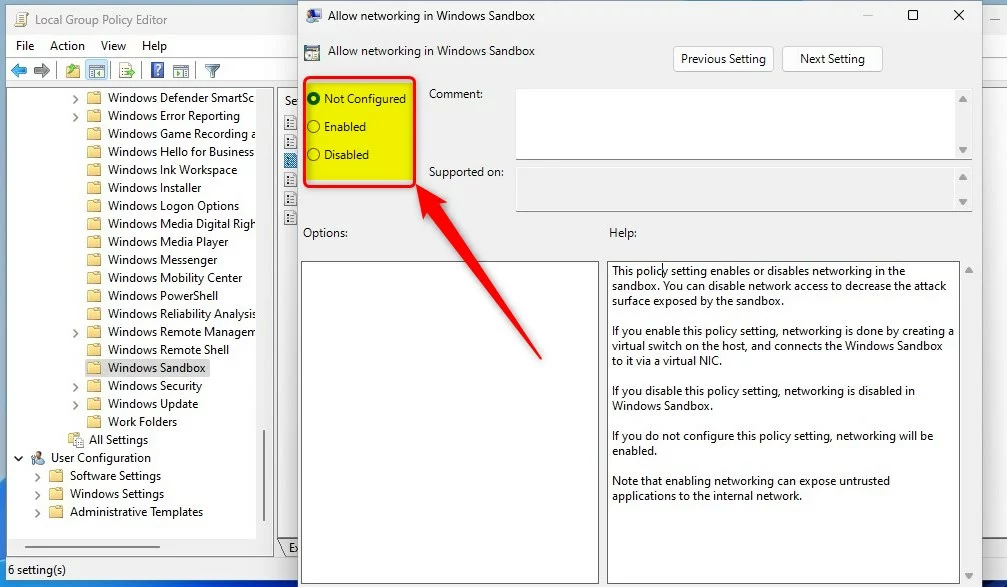
Then, select your preference:
- Not Configured: The default setting (Networking is off).
- Enabled: Allows the Sandbox to connect to the network.
- Disabled: Explicitly turns off all networking.
Using a .wsb file to enable networking
Using a simple .wsb file is a great way to make sure networking is turned on every time you open your Windows Sandbox.
<Configuration>
  <Networking>Enable</Networking>
</Configuration>
Save the file with a .wsb extension (for example: MySandbox.wsb). Double-clicking this file will launch the Sandbox with networking turned on.
Enable or disable networking with Sandbox via Windows Registry
If other methods don’t work, you can turn networking on or off for your Windows Sandbox by changing settings in the Windows Registry.
Open the Windows Registry and go to this path:
🗝️HKEY_LOCAL_MACHINE\SOFTWARE\Policies\Microsoft\Windows\Sandbox
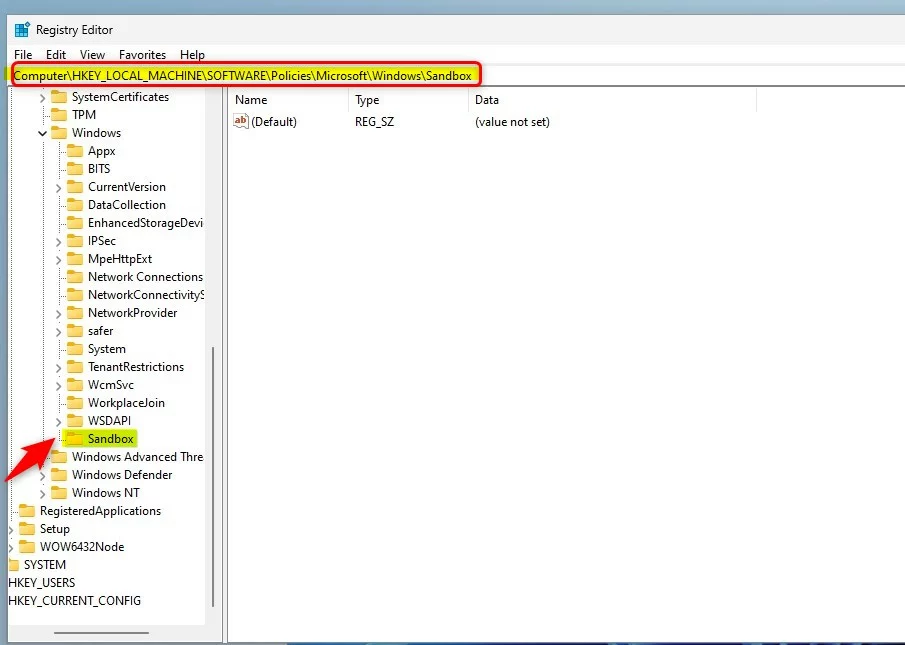
If you do not see a folder named “Sandbox,” right-click the “Windows” folder, select New, then Key, and name it “Sandbox.”
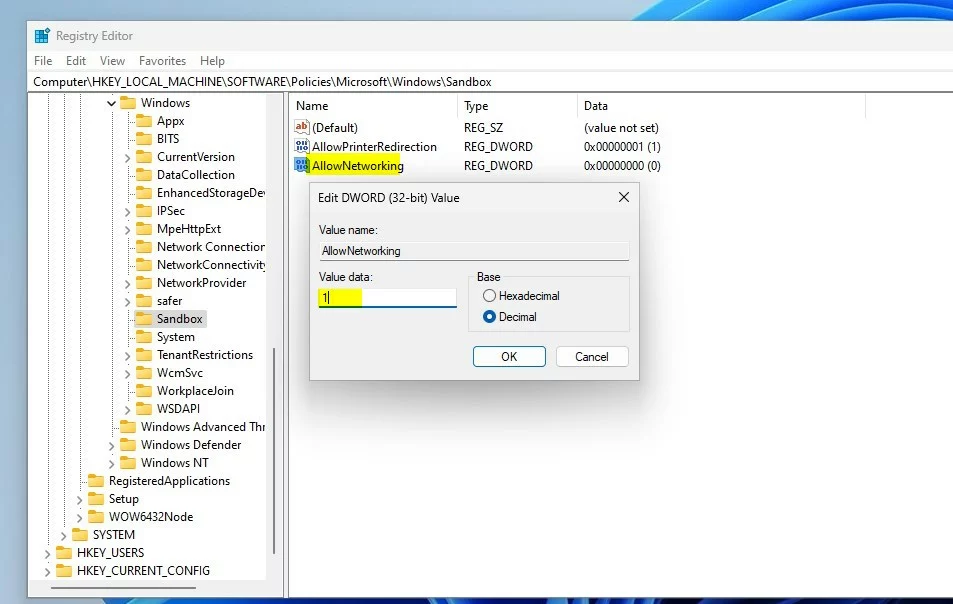
Right-click in the empty space on the right, select New, then DWORD (32-bit) Value. Name it AllowNetworking.
Double-click AllowNetworking and change the “Value data” to 1 to turn networking on. Change it to 0 to turn it off.
That’s all there is to it!
Reference: Microsoft.com
Was this guide helpful?

About the Author
Richard
Tech Writer, IT Professional
Richard, a writer for Geek Rewind, is a tech enthusiast who loves breaking down complex IT topics into simple, easy-to-understand ideas. With years of hands-on experience in system administration and enterprise IT operations, he’s developed a knack for offering practical tips and solutions. Richard aims to make technology more accessible and actionable. He's deeply committed to the Geek Rewind community, always ready to answer questions and engage in discussions.




No comments yet — be the first to share your thoughts!