Manage File History in Ubuntu Linux

You manage File History in Ubuntu Linux by controlling the display of recently used files and folders.
Ubuntu’s “recent files” feature creates a quick access list of documents and applications you’ve opened, typically appearing in your file manager’s sidebar.
This built-in tool helps you find your work faster, but you might want to disable it for privacy reasons. You can easily toggle this feature on or off directly within the Ubuntu Settings application.
Manage File History in Ubuntu by opening Settings, navigating to Privacy, and then selecting File History & Trash. Toggle the File History switch to enable or disable the feature and set its duration.
How to enable or disable file history in Ubuntu Linux
As we’ve covered, Ubuntu Linux keeps track of recent files and folders you open, making them easy to find later.
If you prefer not to see recently used files, the steps below will guide you through disabling or enabling them.
Ubuntu Linux keeps most of its settings in one place. You can manage everything from system configurations to user creation and updates within the System Settings panel.

Alternatively, click the System menu in the top-right corner of your desktop’s top bar.
Then, select Settings from the menu, as shown below.

Click the Privacy tile to open its panel in the Settings app.
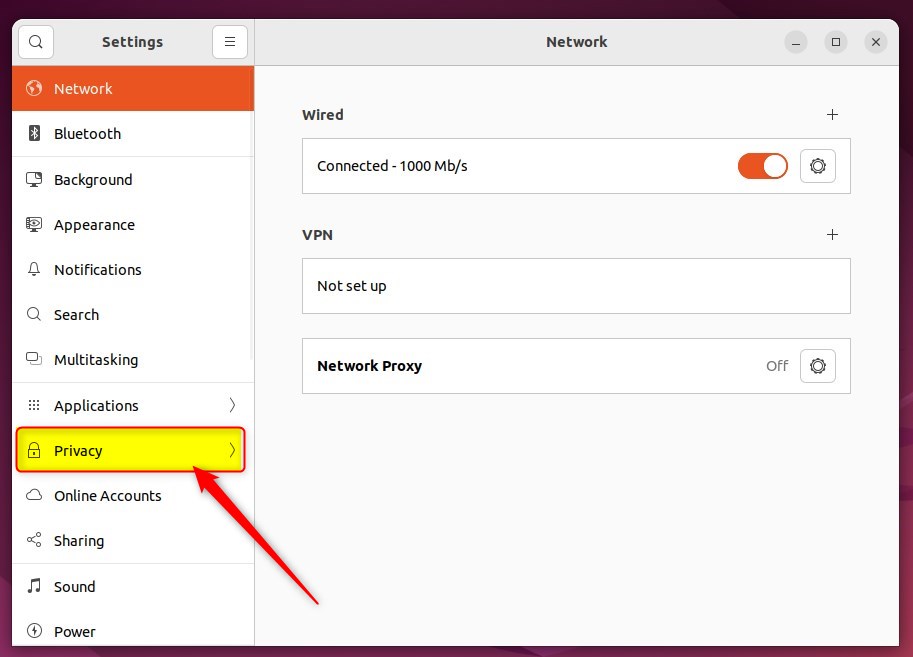
In the System Settings -> Privacy panel, select File History & Trash to open that section.
In the System Settings -> Privacy -> File History & Trash settings pane, toggle the File History switch to the Off position to disable it.
To re-enable this feature, simply switch the File History toggle back to On.
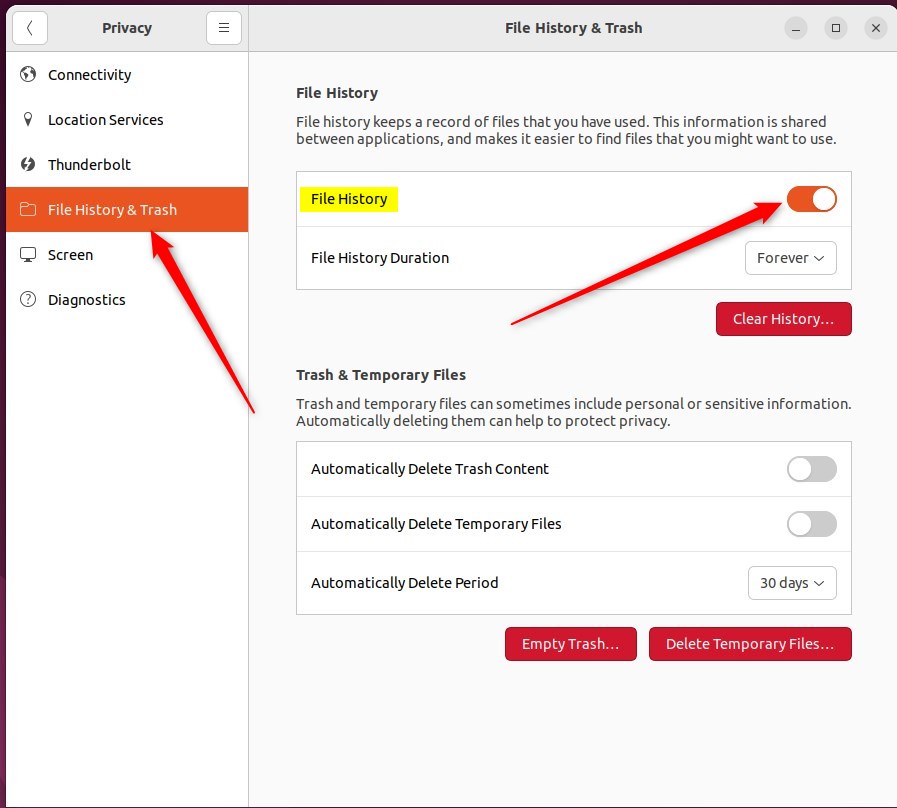
Under File History Duration, you can choose how long to keep your file history. Your options are 1 day, 7 days, 30 days, or Forever.

You can also use the Clear History… button to remove your history right away.
Please note, this setting won’t affect how your web browser stores information about the sites you visit.
That’s all there is to it! You can now close the Settings app.
Conclusion:
- Disabling or enabling the file history in Ubuntu Linux can help you manage your privacy and access to recent files and folders effectively.
- Following the simple steps outlined in this post, you can easily customize the file history settings to suit your preferences.
- Remember that this setting does not affect how your web browser stores information about the websites you visit, so consider additional privacy measures if needed.
- Understanding and controlling these settings empowers you to balance convenience and privacy while using Ubuntu Linux.
By following the steps here, you can customize your file history settings to match what you prefer and manage your privacy in Ubuntu Linux.
Was this guide helpful?

About the Author
Richard
Tech Writer, IT Professional
Richard, a writer for Geek Rewind, is a tech enthusiast who loves breaking down complex IT topics into simple, easy-to-understand ideas. With years of hands-on experience in system administration and enterprise IT operations, he’s developed a knack for offering practical tips and solutions. Richard aims to make technology more accessible and actionable. He's deeply committed to the Geek Rewind community, always ready to answer questions and engage in discussions.



No comments yet — be the first to share your thoughts!