How to Enable or Disable Fast User Switching in Windows 11

Want to let multiple people use your Windows 11 PC without interrupting each other? Fast User Switching is the key. It lets multiple people stay logged in at once. This means you can switch between their profiles without fully logging out.
This feature is particularly useful on shared PCs, letting each person access their own files and settings instantly. To manage this setting, you typically access it through Local Group Policy Editor (gpedit.msc) or Registry Editor (regedit).
Enable or disable Fast User Switching in Windows 11 via Local Group Policy Editor or Registry Editor. This allows multiple users to stay logged in and switch between accounts without logging out. You need administrator privileges to make these changes.
Why Use Fast User Switching?
Fast user switching in Windows 11 lets multiple people use the same computer without logging each other out.
Normally, you would sign out before another person signs in. But with Fast User Switching, multiple people can be signed in at the same time. You can switch between accounts without closing your programs. When you switch back to your account, your applications and internet connections stay exactly where you left them. It’s like both users are using the computer at the same time.
What You Need
🔒 Admin privileges required: You must be signed in as an administrator to change this setting.
Option 1Using Local Group Policy Editor
If you have Windows 11 Pro, Enterprise, or Education, you can turn fast user switching on or off using the Local Group Policy Editor.
- Open the Local Group Policy Editor by typing
gpedit.mscin the search box and pressing Enter. - In the left pane, navigate to this location:
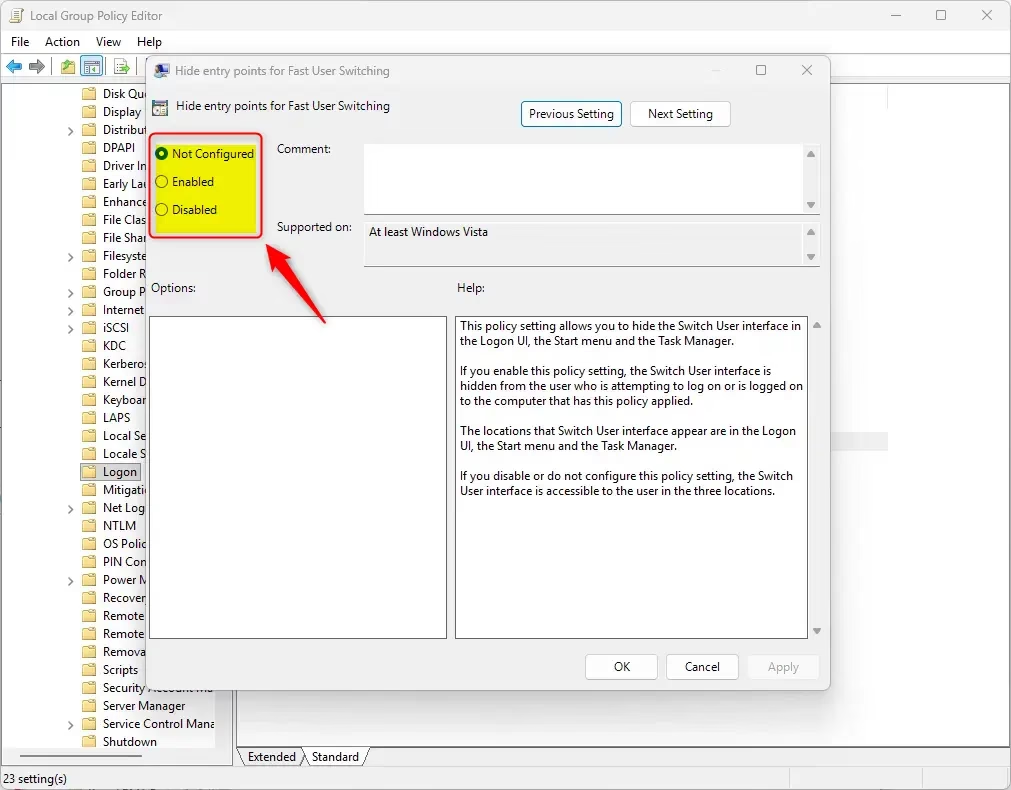
Computer Configuration > Administrative Templates > System > Logon - In the right pane, find the policy called Hide entry points for Fast User Switching and double-click it.
- To enable Fast User Switching (turn it on):
Select the dot next to Not Configured, then click OK. This is the default setting.
- To disable Fast User Switching (turn it off):
Select the dot next to Enabled, then click OK.
- You can now close the Local Group Policy Editor.
Option 2Using Registry Commands
You can change fast user switching settings on any Windows 11 version, even if you don’t have the Pro edition, by using Registry commands.
- 🔒 Admin privileges required: Right-click on Windows Terminal and select Run as administrator.
- To enable Fast User Switching (turn it on):
Copy and paste this command, then press Enter:
reg delete “🗝️HKEY_LOCAL_MACHINE\SOFTWARE\Microsoft\Windows\CurrentVersion\Policies\System” /v HideFastUserSwitching /fThis is the default setting.
- To disable Fast User Switching (turn it off):
Copy and paste this command, then press Enter:
reg add “🗝️HKEY_LOCAL_MACHINE\SOFTWARE\Microsoft\Windows\CurrentVersion\Policies\System” /v HideFastUserSwitching /t REG_DWORD /d 1 /f
Summary
Fast user switching in Windows 11 lets everyone stay signed in and switch between accounts without closing programs.
How to quickly switch between users on 🪟 Windows 11?
To switch between users in Windows 11, click the Start button, select your profile icon, and choose the account you want to switch to from the list. Alternatively, press the Windows key + L on your keyboard to lock your screen, then select the desired user account from the login screen.
Does 🪟 Windows 11 have fast user switching?
Yes, Windows 11 includes a Fast User Switching feature that allows multiple users to remain signed into the computer simultaneously. This enables you to switch between different accounts without closing your open applications or signing out, ensuring that your work and internet connections remain exactly where you left them.
How to quickly switch between Windows in 🪟 Windows 11?
To quickly switch between open windows in Windows 11, use the keyboard shortcut Alt+Tab to view and select from your active applications. You can also use the Task View button on the taskbar or press Windows key + Tab to see a thumbnail overview of all your currently open windows.
How to disable fast user switching in Windows?
To turn off fast user switching in Windows 11 Pro, Enterprise, or Education, you can use the Local Group Policy Editor.
Was this guide helpful?

About the Author
Richard
Tech Writer, IT Professional
Richard, a writer for Geek Rewind, is a tech enthusiast who loves breaking down complex IT topics into simple, easy-to-understand ideas. With years of hands-on experience in system administration and enterprise IT operations, he’s developed a knack for offering practical tips and solutions. Richard aims to make technology more accessible and actionable. He's deeply committed to the Geek Rewind community, always ready to answer questions and engage in discussions.




No comments yet — be the first to share your thoughts!