How to Add or Remove the Sign Out Button in Windows 11

You can add or remove the Sign Out button in Windows 11 to control user access and enhance PC security.
The Sign Out button safely ends your current user session, closing all applications before returning you to the login screen.
This tutorial shows you how to manage its visibility, whether you want to prevent accidental logouts on a shared PC or ensure quick access on your personal device.
For instance, you can completely hide the Sign Out button using the Group Policy Editor on Windows 11 Pro and Enterprise, restricting who can initiate a sign-out.
This change removes the button from your Start menu and power options, giving you greater control over your account’s accessibility.
You can add or remove the Sign Out button in Windows 11 using the Group Policy Editor or Registry Editor. Navigate to Start Menu and Taskbar settings in Group Policy or specific registry keys and modify the ‘Remove Logoff’ or ‘StartMenuLogOff’ values to enable or disable the button.
Alternative Ways to Sign Out
You can still sign out of Windows 11 even if the button isn’t visible on your Start menu by using a few simple keyboard shortcuts or by right-clicking the Start button.
- Right-click the Start button: Hover over ‘Shut down or sign out’ to see the ‘Sign out’ option.
- Ctrl+Alt+Del: Press these keys together and select ‘Sign out’ from the screen.
- Alt+F4: On your desktop, press Alt+F4 to open the shutdown dialog and select ‘Sign out’ from the dropdown menu.
- Desktop Shortcut: Right-click your desktop, select New > Shortcut, and type
shutdown.exe /l. Name it ‘Sign Out’ and click Finish.
Using the Local Group Policy Editor
You can control the visibility of the sign out button in Windows 11 using the Local Group Policy Editor, but you’ll need administrator access to make these changes.
- Search for ‘Edit group policy’ in the Start menu and open it.
- Go to: User Configuration > Administrative Templates > Start Menu and Taskbar.
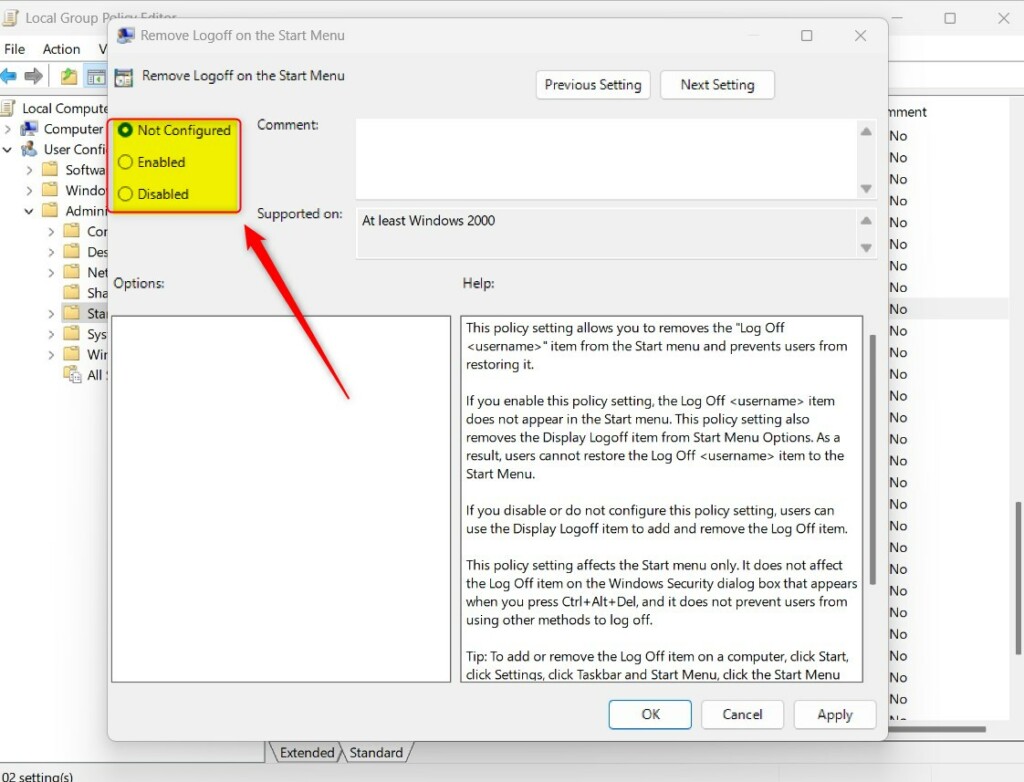
- Find ‘Remove Logoff on the Start Menu’ and double-click it.
Choose ‘Enabled’ to hide the button, or ‘Disabled’ to show it. Click OK.
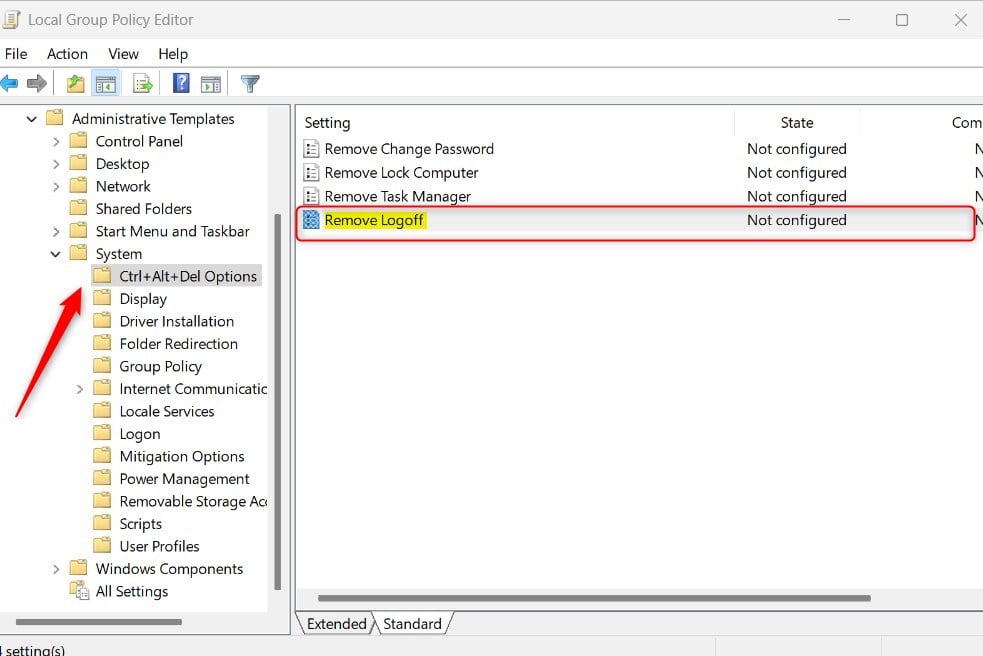
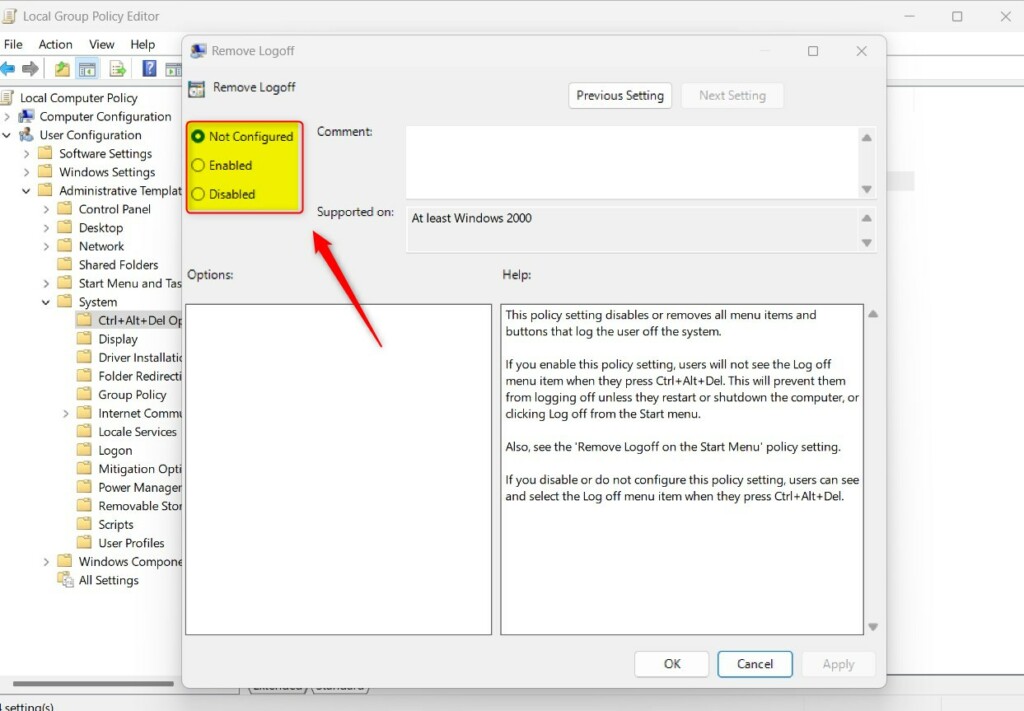
To change the sign-out option for the Ctrl+Alt+Del menu, go to: User Configuration > Administrative Templates > System > Ctrl+Alt+Del Options. Double-click ‘Remove Logoff’ and select your preferred setting.
Using the Windows Registry Editor
Modifying the Windows Registry lets you add or remove the sign out button in Windows 11, though it’s important to be careful as mistakes can cause system problems, and you’ll need admin rights.
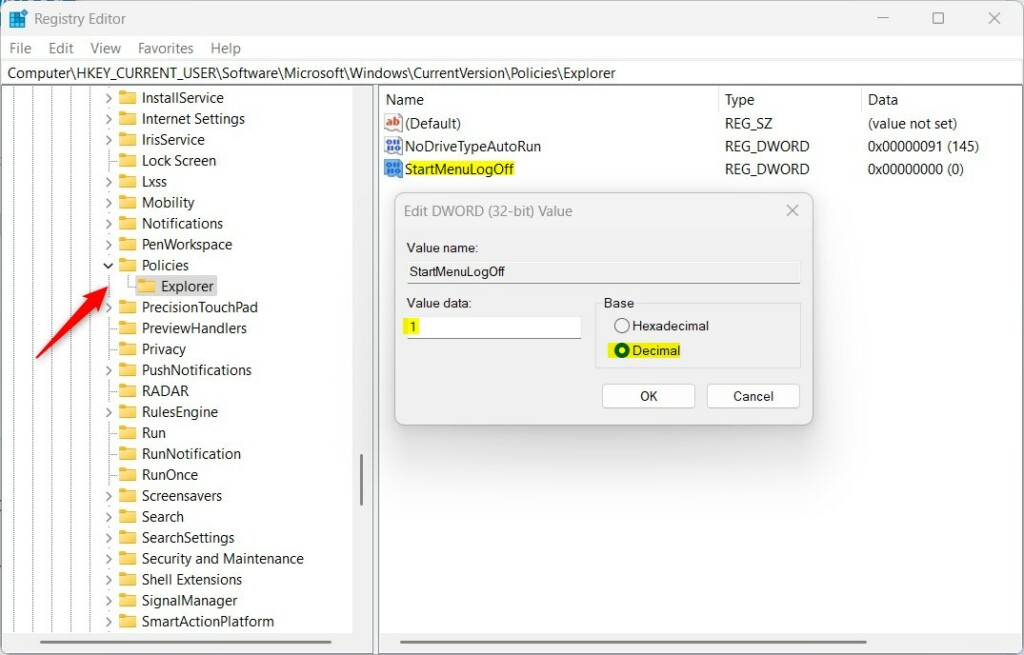
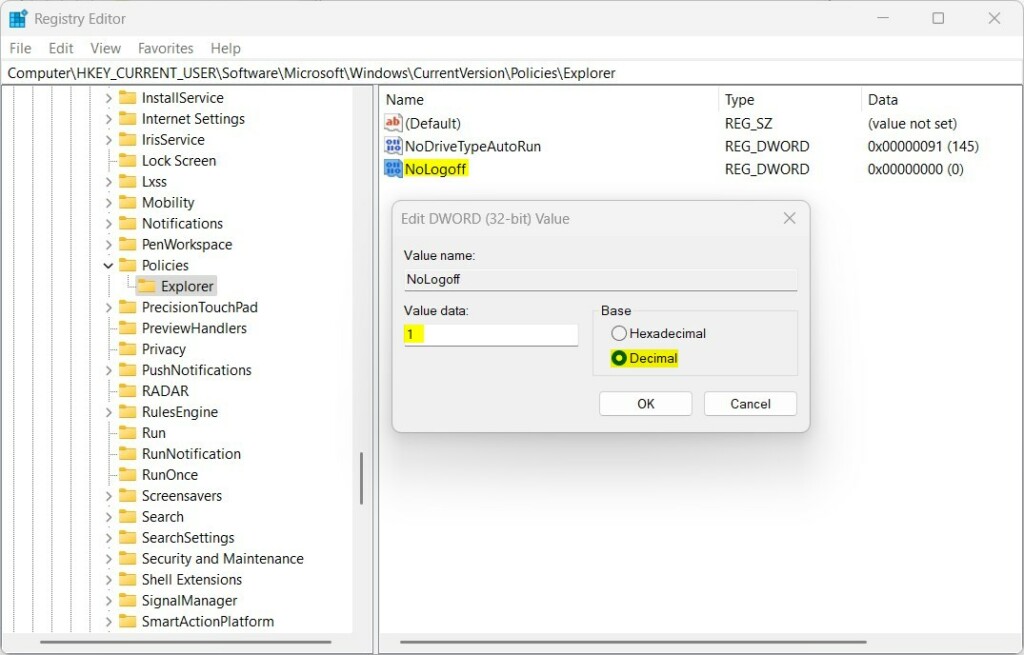
Navigate to: HKEY_CURRENT_USER\Software\Microsoft\Windows\CurrentVersion\Policies\Explorer (this is a path in the Windows Registry, which is a database that stores settings for your operating system).
Double-click StartMenuLogOff. Set the value to 1 to hide the button. If you don’t see this item, right-click a blank space, choose New, and then select DWORD (32-bit) Value. Name it StartMenuLogOff.
Next, go to: HKEY_CURRENT_USER\Software\Microsoft\Windows\CurrentVersion\Policies\Explorer
Double-click NoLogoff. Set the value to 1 to hide the button. If you don’t see it, create a new DWORD (32-bit) Value named NoLogoff. Restart your computer to apply changes.
Summary
Managing the Sign out button Windows 11 shows on your Start menu is possible through the Group Policy Editor or Registry Editor, offering control over how users sign out.
Is removing the Sign Out option reversible without admin rights?
No, modifying the Group Policy or Registry to hide the sign-out button requires administrator privileges. A standard user account cannot reverse these changes without the necessary permissions. Always ensure you have administrative access before attempting to modify system-level settings to avoid being locked out of configuration tools.
Does removing the Sign Out option prevent users from using other methods like Ctrl+Alt+Del?
No, simply removing the sign out button from the Start menu in Windows 11 doesn’t stop users from signing out using other methods like Ctrl+Alt+Del.
Can this be managed remotely via IT management software?
Yes, enterprise IT teams can manage these settings remotely using Group Policy Objects (GPO) or Mobile Device Management (MDM) tools like Microsoft Intune. This allows administrators to enforce sign-out restrictions across an entire organization’s fleet of computers simultaneously, ensuring consistent security policies are applied to all user accounts.
Was this guide helpful?

About the Author
Richard
Tech Writer, IT Professional
Richard, a writer for Geek Rewind, is a tech enthusiast who loves breaking down complex IT topics into simple, easy-to-understand ideas. With years of hands-on experience in system administration and enterprise IT operations, he’s developed a knack for offering practical tips and solutions. Richard aims to make technology more accessible and actionable. He's deeply committed to the Geek Rewind community, always ready to answer questions and engage in discussions.




No comments yet — be the first to share your thoughts!