How to Enable CTRL+ALT+DEL for Windows 11 Sign-in

You enable Ctrl+Alt+Del for Windows 11 sign-in to add an extra security layer to your login process.
This feature requires you to press Ctrl+Alt+Del before Windows 11 presents the password prompt, ensuring the login screen is legitimate and not a spoofed attempt to steal your credentials.
This is a well-established security practice, especially common in enterprise environments, that forces the use of trusted Windows security components for authentication.
By default, Windows 11 doesn’t mandate this combination, but you can easily configure it through a simple setting.
To enable Ctrl+Alt+Del for Windows 11 sign-in, use secpol.msc on Pro/Enterprise editions by setting “Interactive logon: Do not require Ctrl+Alt+Del” to Disabled. Home users can achieve this by setting the DisableCAD registry value to 0 in 🗝️HKEY_LOCAL_MACHINE\SOFTWARE\Microsoft\Windows NT\CurrentVersion\Winlogon.
What happens when done?
Once you enable this, your computer won’t show the password box immediately. You’ll need to press Ctrl+Alt+Del first. This confirms you’re physically at the computer and ready to log in securely.
Method 1Local Security Policy (For Pro, Enterprise, and Education editions)
You can turn on the Ctrl+Alt+Del requirement for Windows 11 sign-in using the Local Security Policy tool if you have the Pro, Enterprise, or Education versions of Windows.
1. Open the Start Menu and search for ‘secpol.msc’ to open the Local Security Policy editor.
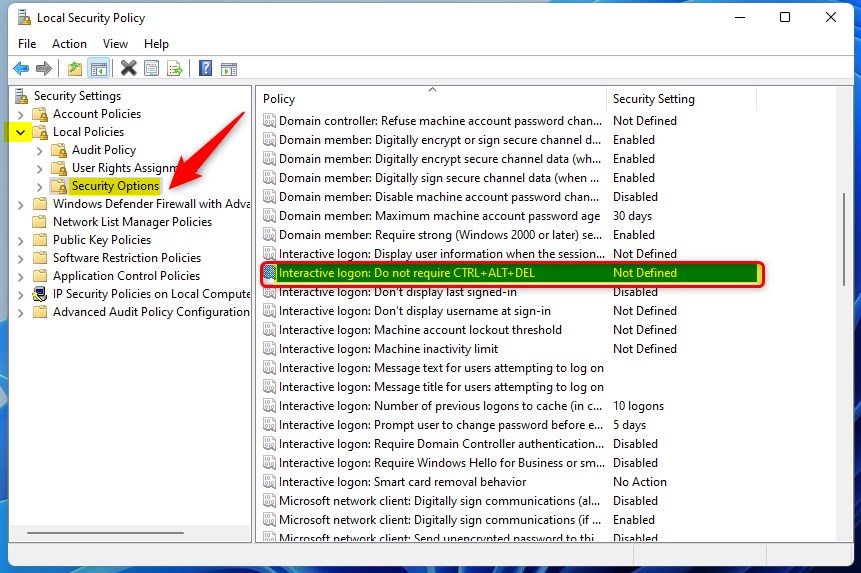
2. In the left-hand menu, click on ‘Local Policies,’ then choose ‘Security Options.’
3. On the right side, find and double-click the setting called: ‘Interactive logon: Do not require Ctrl+Alt+Del.’
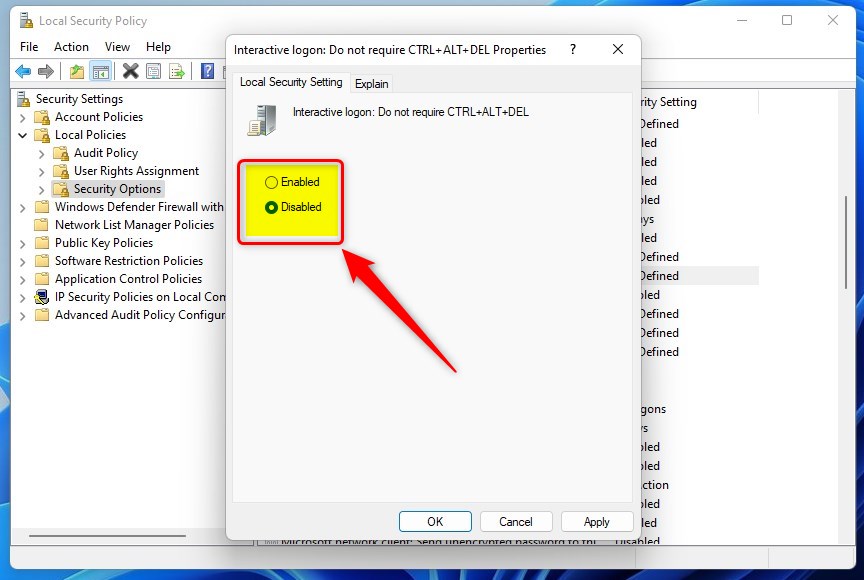
4. To turn on the security check, select ‘Disabled.’ To turn it off, choose ‘Enabled.’ Click ‘OK’ when you’re done.
Method 2Windows Registry (For Home edition)
Windows 11 Home users can turn on the Ctrl+Alt+Del requirement for signing in by making a simple change in the Windows Registry.
Windows 11 Home doesn’t come with the Local Security Policy editor, so you’ll use the registry to make this change instead.
- Press the Windows key + R, type ‘regedit,’ and hit Enter.
- Navigate to this path in the address bar:
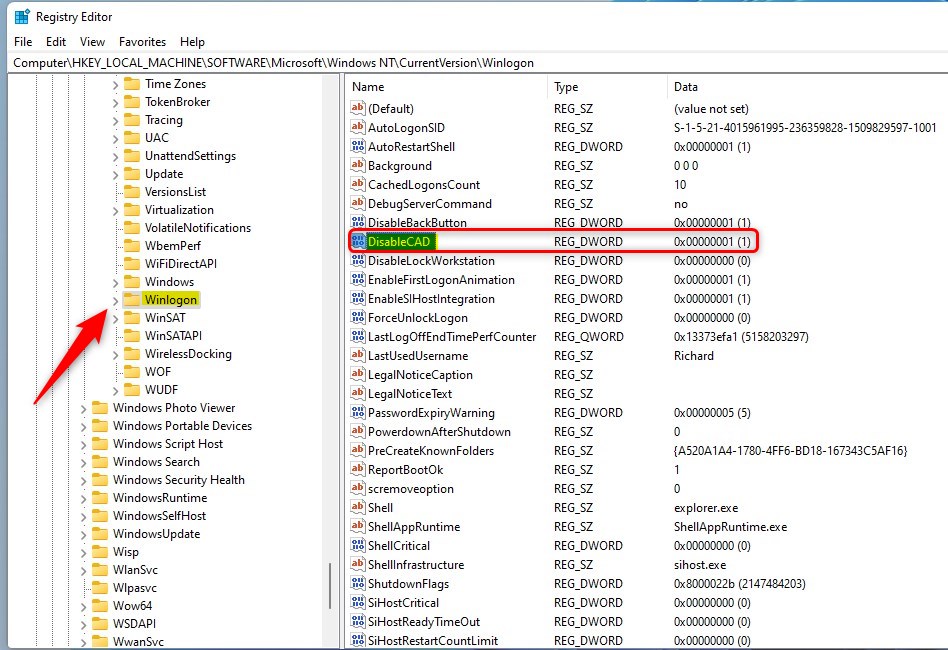
HKEY_LOCAL_MACHINE\SOFTWARE\Microsoft\Windows NT\CurrentVersion\Winlogon
3. Look for a value on the right side named ‘DisableCAD’. If it’s not there, right-click in an empty space, select ‘New,’ choose ‘DWORD (32-bit) Value,’ and name it ‘DisableCAD.’
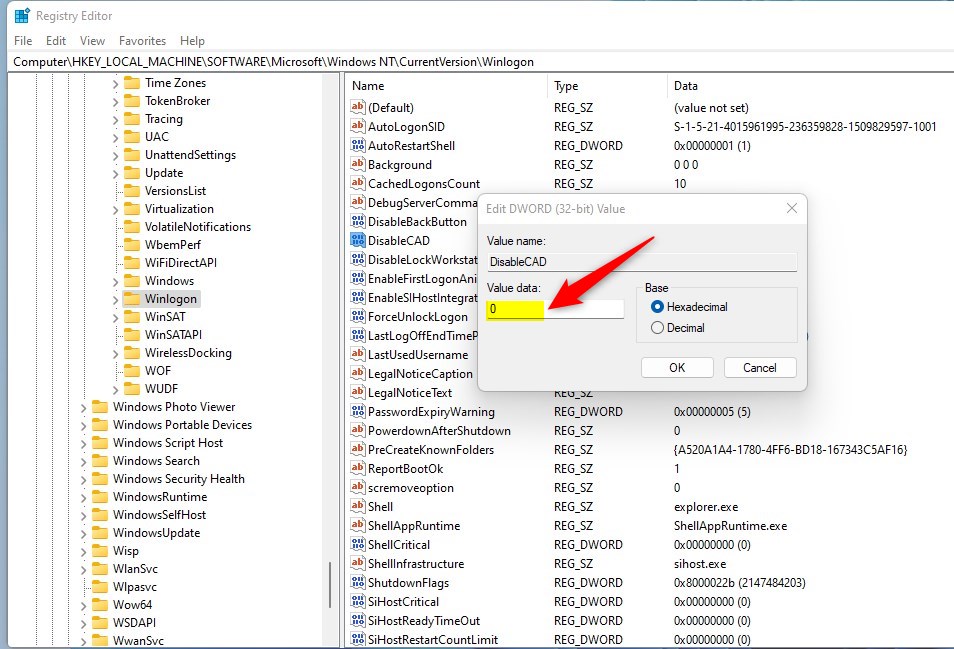
4. Double-click ‘DisableCAD’ and set the value to ‘0’ to require the keys, or ‘1’ to disable the requirement. Click ‘OK.’
Method 3PowerShell Automation
Note: You’ll need administrator privileges for this.
IT administrators can use this script to enable secure sign-in across multiple machines:
Set-ItemProperty -Path 'HKLM:\SOFTWARE\Microsoft\Windows NT\CurrentVersion\Winlogon' -Name 'DisableCAD' -Value 0
Summary
Enabling Ctrl+Alt+Del adds a ‘secure sign-in’ layer to your Windows 11 PC. While Pro users can use the Local Security Policy, Home users can modify the registry. This protects you from fake login screens and is a recommended security best practice.
Why does 🪟 Windows 11 sometimes ignore the Ctrl+Alt+Del command?
If the command is ignored, it may be due to a keyboard driver issue or a third-party application intercepting the signal. Ensure your keyboard is connected properly and check for pending Windows updates. If the setting is enabled but not working, verify the registry value is set to 0.
Does secure sign-in affect biometric login (Windows Hello)?
No, enabling Ctrl+Alt+Del doesn’t disable Windows Hello. You’ll still be able to use your fingerprint or facial recognition to sign in after you’ve pressed the required key combination. It simply adds an extra step before the biometric scanner activates.
Was this guide helpful?

About the Author
Richard
Tech Writer, IT Professional
Richard, a writer for Geek Rewind, is a tech enthusiast who loves breaking down complex IT topics into simple, easy-to-understand ideas. With years of hands-on experience in system administration and enterprise IT operations, he’s developed a knack for offering practical tips and solutions. Richard aims to make technology more accessible and actionable. He's deeply committed to the Geek Rewind community, always ready to answer questions and engage in discussions.



No comments yet — be the first to share your thoughts!