How to Enable or Disable Ctrl+Alt+Delete Secure Sign-in on Lock Screen in Windows 11

You can enable or disable the Ctrl+Alt+Del secure sign-in prompt on the Windows 11 lock screen to control your login security.
This feature makes you press Ctrl+Alt+Del before typing your password or PIN. It’s an extra layer of protection against people trying to access your computer without permission.
This requirement is handled directly by Windows itself, stopping bad software from grabbing your login details. For instance, it helps protect against certain forms of malware that might try to spoof the login screen.
By default, this setting is often enabled in enterprise environments but may be disabled on personal computers.
You can enable or disable the Ctrl+Alt+Del secure sign-in prompt in Windows 11 using the User Accounts tool (netplwiz). Open netplwiz, go to the Advanced tab, and check or uncheck “Require users to press Ctrl+Alt+Del” to enable or disable it.
Why This Matters
The Ctrl+Alt+Del secure sign-in feature on your Windows 11 lock screen is an important security step. It makes sure you’re signing into the real Windows login screen, not a fake one made by malware trying to steal your password.
Enabling secure sign-in adds extra protection. It forces users to press Ctrl+Alt+Del before signing in. This prevents fake sign-in screens created by malware from stealing your password.
What You Need
You must be signed in as an administrator to change this setting.
Option 1Use the User Accounts Tool
- Open the User Accounts tool (netplwiz).
- Click the Advanced tab.
- Check the box next to Require users to press Ctrl+Alt+Del to turn it on. Uncheck it to turn it off.
- Click OK.
Option 2Use Local Security Policy
You can change the Windows 11 secure sign-in setting using the Local Security Policy tool. Just remember, this option is only available if you have Windows 11 Pro, Enterprise, or Education versions.
- ⚙️ Admin Required: Open Local Security Policy by typing
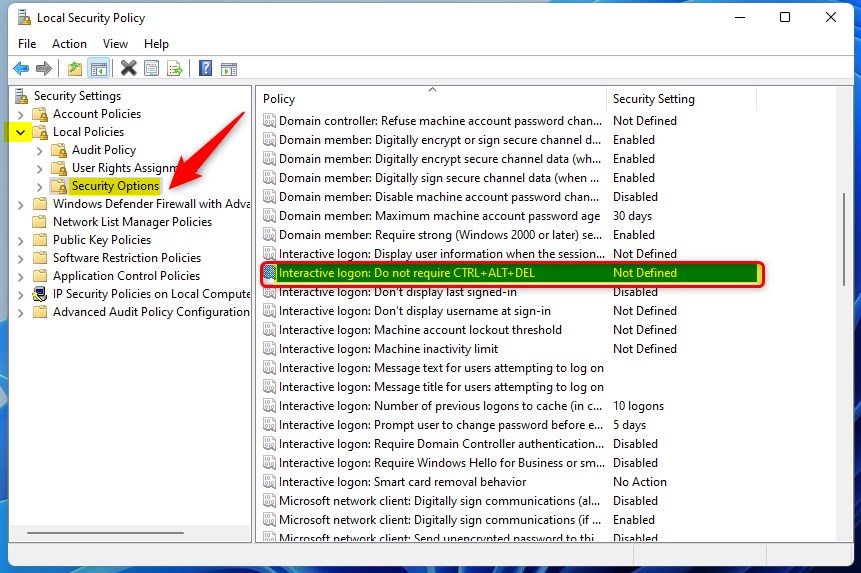
secpol.mscin your search bar. - In the left pane, click Local Policies, then click Security Options.
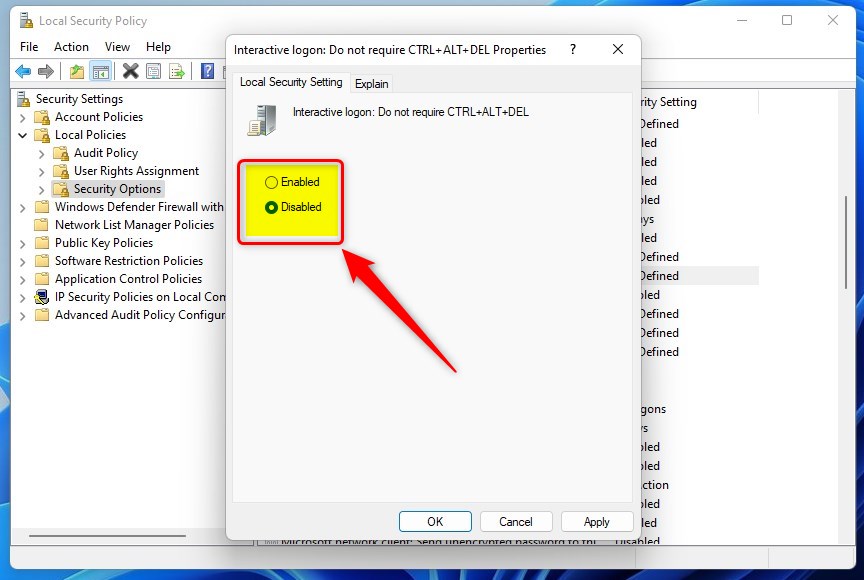
- In the right pane, double-click Interactive Logon: Do not require Ctrl+Alt+Del.
- Select Enabled to turn off secure sign-in. Select Disabled to turn it on.
- Click OK.
- Close Local Security Policy if you want.
Option 3Use the Registry
⚙️ Admin Required: The registry is a more advanced area of Windows. Be careful when making changes, as mistakes can sometimes cause issues.
To Turn On Secure Sign-in
Turning on the Ctrl+Alt+Del secure sign-in requirement in Windows 11 means making a small change in the Windows Registry. This process ensures that the secure sign-in prompt is active every time you log in.
reg add "HKLM\SOFTWARE\Microsoft\Windows NT\CurrentVersion\Winlogon" /v DisableCAD /t REG_DWORD /d 0 /f
reg delete "HKCU\Software\Microsoft\Windows NT\CurrentVersion\Winlogon" /v DisableCAD /f
reg add "HKLM\SOFTWARE\Microsoft\Windows\CurrentVersion\Policies\System" /v DisableCAD /t REG_DWORD /d 0 /f
reg delete "HKCU\Software\Microsoft\Windows\CurrentVersion\Policies\System" /v DisableCAD /f
To Turn Off Secure Sign-in
If you want to turn off the Ctrl+Alt+Del secure sign-in prompt on your Windows 11 lock screen, you can adjust a setting in the Windows Registry. This change will remove the extra step before you can sign in.
Set the entry:
reg add "HKLM\SOFTWARE\Microsoft\Windows NT\CurrentVersion\Winlogon" /v DisableCAD /t REG_DWORD /d 1 /f
reg delete "HKCU\Software\Microsoft\Windows NT\CurrentVersion\Winlogon" /v DisableCAD /f
reg delete "HKLM\SOFTWARE\Microsoft\Windows\CurrentVersion\Policies\System" /v DisableCAD /f
reg delete "HKCU\Software\Microsoft\Windows\CurrentVersion\Policies\System" /v DisableCAD /f
Summary
In summary, you can easily control the Windows 11 secure sign-in feature using the User Accounts tool, Local Security Policy, or the Registry to prevent fake sign-in screens.
Was this guide helpful?

About the Author
Richard
Tech Writer, IT Professional
Richard, a writer for Geek Rewind, is a tech enthusiast who loves breaking down complex IT topics into simple, easy-to-understand ideas. With years of hands-on experience in system administration and enterprise IT operations, he’s developed a knack for offering practical tips and solutions. Richard aims to make technology more accessible and actionable. He's deeply committed to the Geek Rewind community, always ready to answer questions and engage in discussions.




No comments yet — be the first to share your thoughts!