

This article explains how to turn on or off a shortened time and date display on the taskbar in Windows 11.
A hidden feature in Windows 11 build 22635.3790 (Beta Channel) found in the latest Windows build lets you turn on or off the shortened time and date on the taskbar.
The shortened time and date format uses short versions to show time and date information. For example, shortened time might show “1:59” instead of “1:59 PM.” Shortened date might show “6/22” instead of “6/22/2024.”
Why would you want this? It saves space on your taskbar and gives you a cleaner look.
What happens when you enable it? Your taskbar will display time and date in a shorter format.
This feature is hidden in the beta version of Windows. You need to use the ViveTool, which turns hidden features on and off in Windows.
The command to turn it on is vivetool /enable /id:48525682.
Enable or Disable Shortened Time and Date on the Taskbar in Windows
As mentioned, users can turn on a hidden feature in Windows to display a shortened version of the date and time on the taskbar.
Here’s how to do it.
First, read the post below to install ViVeTool on Windows 11.
Unlock Hidden Features in Windows 11 with ViVeTool
Once you have downloaded ViVeTool, run the command below to turn on the hidden feature that displays a shortened version of the date and time.
vivetool /enable /id:48525682
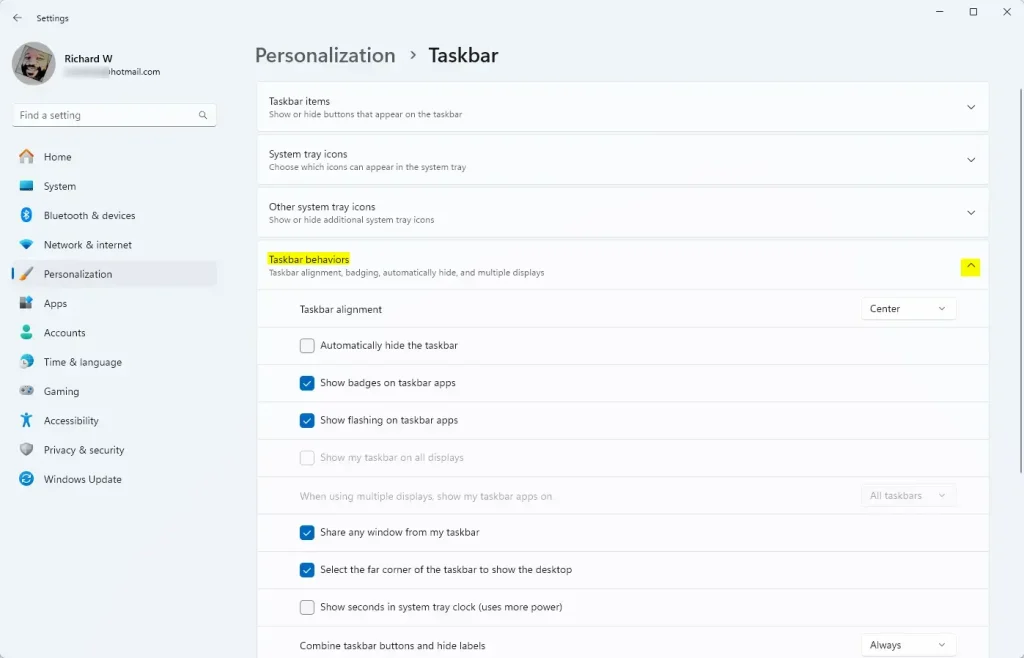
Go to Settings > Personalization and select the Taskbar tile on the right when enabled.

Select the Taskbar behaviors tile in the Taskbar settings pane to expand it.
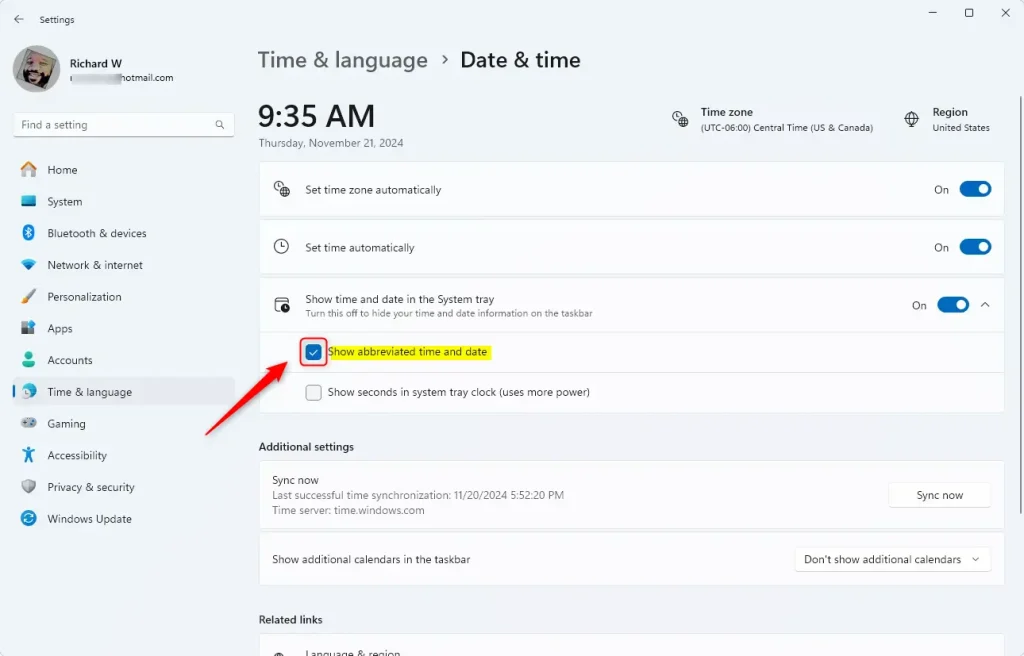
Next, expand the “Show time and date in the System tray” tile. Check or uncheck the box next to “Show abbreviated time and date” to turn it on or off.
Close the Settings app when you are done.
Show Shortened Time and Date on Taskbar Using Windows Registry
Another way to display shortened time and date on the taskbar is to use the Windows Registry Editor.
First, open the Windows Registry editor as administrator. [Requires Admin Privileges]
Then, navigate to the registry key below.
Computer\HKEY_CURRENT_USER\Software\Microsoft\Windows\CurrentVersion\Explorer\Advanced
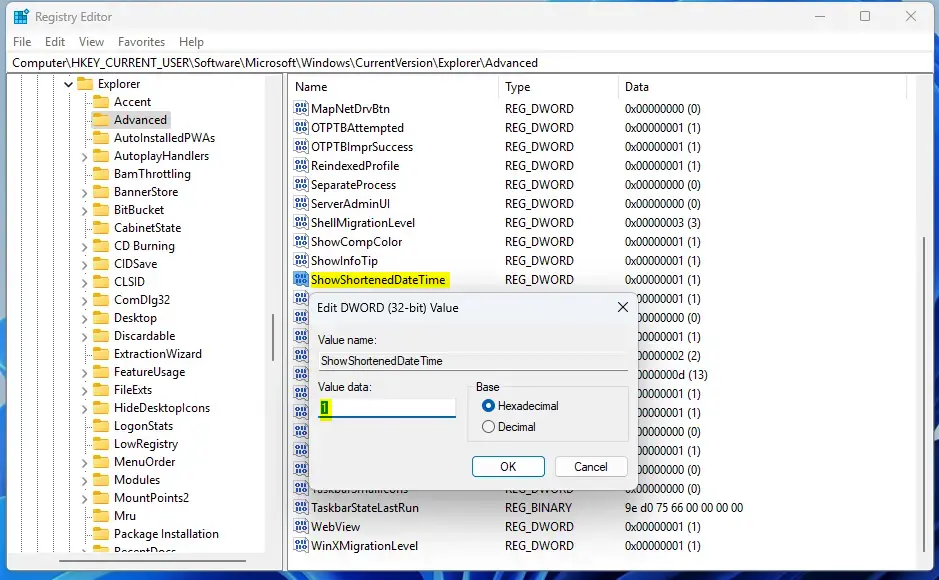
Next, double-click the ShowShortenedDateTime (REG_DWORD) name in the Advanced key’s right pane to open it.
Then, type 1 to show shortened time and date on the taskbar. Type 0 to display standard time and date format on the taskbar.
If you do not see the “ShowShortenedDateTime” item, right-click a blank area and create a new DWORD (32-bit) registry item.
Then, type the name “ShowShortenedDateTime” and enter 1 or 0 to turn it on or off.
You may have to restart your computer to apply the changes.
That should do it!
Summary
Windows 11 build 22635.3790 (Beta) introduces a hidden feature to turn on or off the display of shortened time and date on the taskbar.
Users can use ViVeTool to turn on this feature with the command vivetool /enable /id:48525682.
You can also use the Windows Registry Editor to change the shortened time and date display on the taskbar. Change the ShowShortenedDateTime value in the registry path HKEY_CURRENT_USER\Software\Microsoft\Windows\CurrentVersion\Explorer\Advanced.
Whether you use ViVeTool or the Windows Registry, this guide gives you the steps you need to customize the time and date display on your Windows 11 taskbar.
Frequently Asked Questions
How do I enable shortened time on the Windows 11 taskbar?
Can I disable the shortened time display on the taskbar?
What is the purpose of the ShowShortenedDateTime registry key?
Is the shortened time feature available in all Windows 11 versions?
Do I need to restart my computer after changing the registry settings?



Leave a Reply