
Do you copy text from Windows Terminal a lot? There’s a helpful feature that can save you time. It’s called “Automatically copy selection to clipboard”. When you turn it on, any text you select in Terminal gets copied right away. You don’t have to right-click and pick “Copy.”
What is Windows Terminal?
Windows Terminal is a modern app where you can use command-line tools like Command Prompt, PowerShell, or Linux commands through Windows Subsystem for Linux (WSL). You can change many things in Terminal. You can adjust the language, window size, how it starts up, and more. One useful option is turning the automatic copy feature on or off.
Why Use Automatic Copy?
Turn it ON if you copy text often from Terminal. Just highlight text and it copies automatically.
Turn it OFF if you want to be careful about what gets copied. This is helpful if you work with sensitive information.
How to Turn On or Off Automatic Copy in Windows Terminal
Follow these simple steps:
- Open Windows Terminal: Click the Start menu button (the Windows icon). Type Terminal in the search box. Click on Windows Terminal from the results.

- In the Terminal window, click the down arrow next to the tabs at the top. Choose Settings. (Or press
Ctrl + ,on your keyboard.)

- In the Settings window, click on Interaction in the left menu.
- Find the option called “Automatically copy selection to clipboard”.
- Toggle the switch On to enable it or Off to disable it.
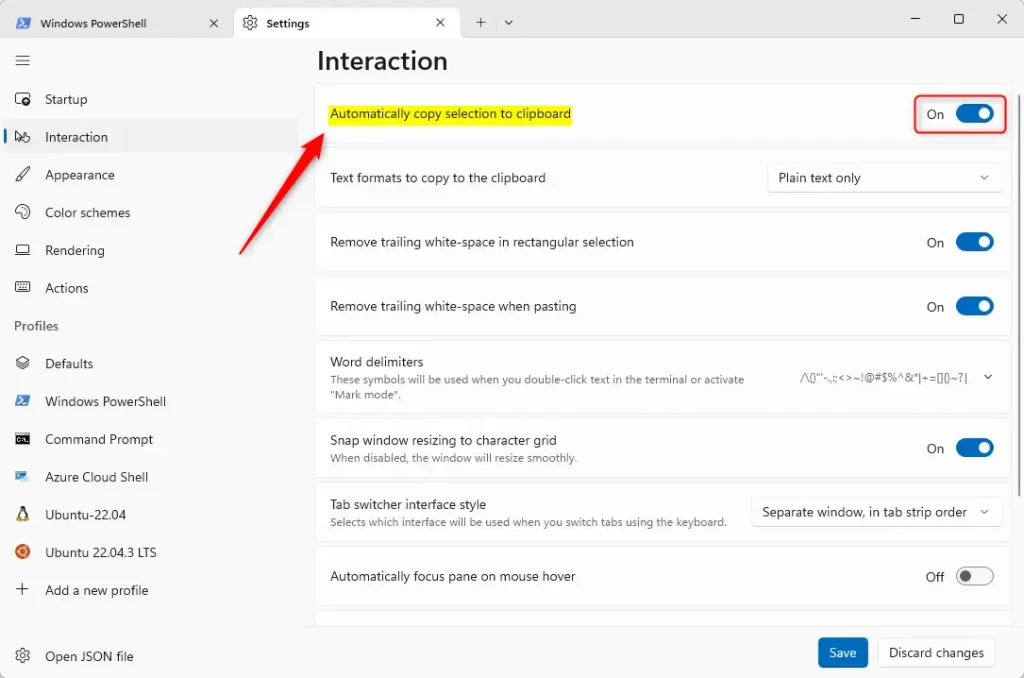
- After you make your choice, click the Save button at the bottom to apply your changes.
That’s it! Now you can enjoy easier copying. Or you can have more control when working in Windows Terminal.
Summary
Automatic copy saves time when you select text in Terminal. The text copies right away without extra steps.
Turning it off gives you more control. You only copy what you want.
You can always change this setting anytime. Just go to Terminal’s Settings > Interaction tab.
Do you have questions or tips? Please leave a comment below!


Leave a Reply