
Do you use Windows 11? Do you want to pick up where you left off on your phone? There’s a great feature called Apps Resume that can help you do this! This guide will show you how to turn it on in simple steps.
What is the Apps Resume Feature?
Apps Resume lets you start working on your PC right where you stopped on your phone. For example, if you were editing a Word document on your iPhone or Android phone and then unlock your PC within 5 minutes, you’ll see a notification on your computer. Click that notification, and the same document opens on your PC automatically! Why use this? It saves you time searching for files.
This feature works with files stored in OneDrive. These files include Word documents, Excel sheets, PowerPoint slides, OneNote pages, and PDFs.
Important: You need to be signed into OneDrive on both your phone and PC with the same Microsoft account. Also, your PC must be running Windows 11 Build 22635.4515 or newer (Beta Channel).
How to Turn On Apps Resume Using Windows Settings
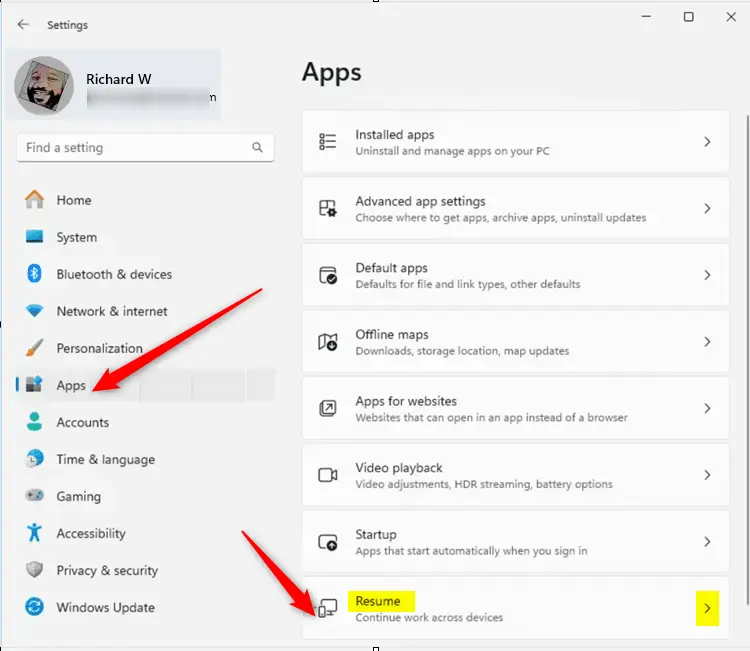
- Open Settings on your PC. You can do this by clicking the Start menu and selecting Settings, or by pressing the Windows key + I on your keyboard. Settings app
- In Settings, click Apps on the left side.
- Look for the Resume tile on the right and click it to open.
- Toggle the switch to On to enable the Apps Resume feature.
- Under Resume, find the OneDrive option and toggle it On to allow resuming work on OneDrive files from your phone.
- When done, simply close the Settings app.
How to Turn Off or On Apps Resume Using the Windows Registry (Advanced)
If you like a more hands-on approach, you can also enable or disable Apps Resume through the Windows Registry. What is the Registry? It’s where Windows stores settings. Be careful, as changing the registry can affect your PC if done incorrectly.
- FLAG: Admin privileges may be required. Open the Registry Editor by typing
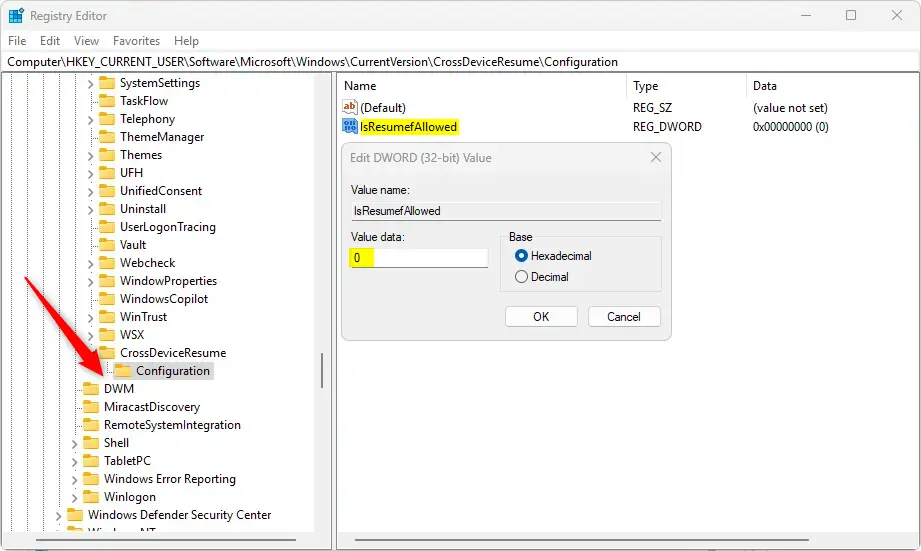
regeditin the Start menu search and pressing Enter. Windows Registry Editor - Navigate to this folder:
Computer\HKEY_CURRENT_USER\Software\Microsoft\Windows\CurrentVersion\CrossDevice\Resume\Configuration - Right-click on Configuration, then choose New > DWORD (32-bit) Value.
- Name the new DWORD
IsResumeAllowed. - Double-click the new value and set it to:
1to turn Apps Resume On0to turn it Off
- You can also control specific apps by creating DWORDs like this:
IsOneDriveResumeAllowed- Set to
1to allow OneDrive to resume or0to block it.
- Set to
- Close the Registry Editor when finished.
What Happens After You Enable Apps Resume?
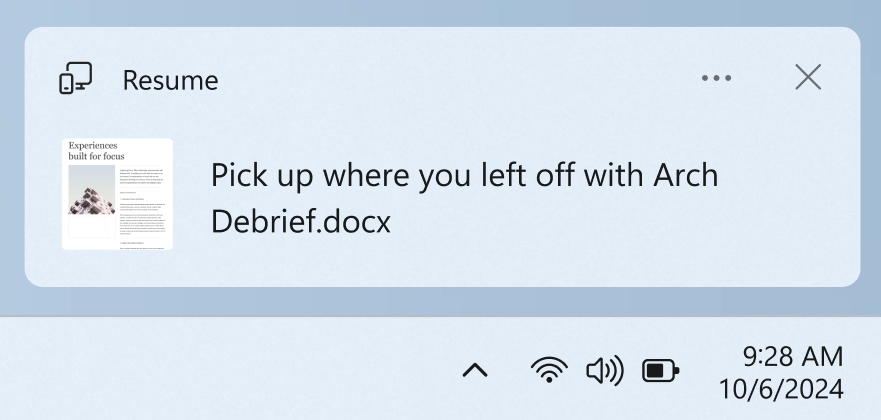
When you open a OneDrive file on your phone and then unlock your PC within 5 minutes, you will see a notification on your screen. What happens next? Click the notification, and the same file will open in your PC’s web browser, so you can continue working without searching for it.
Summary
- Apps Resume lets you continue working on OneDrive files from your phone right on your Windows 11 PC.
- You need Windows 11 Build 22635.4515 or newer (Beta Channel) and the same Microsoft account on both devices.
- Supported files include Word, Excel, PowerPoint, OneNote, and PDFs.
- You can turn Apps Resume on or off in Windows Settings or by editing the Registry.
- By turning on Apps Resume, you can save time and keep your work moving smoothly between your phone and PC!
For more information, read the official Microsoft announcement here.
Frequently Asked Questions
What is the Apps Resume Feature?
What Happens After You Enable Apps Resume?



Leave a Reply