How to Check WinSxS Folder Size in Windows 11

You check the WinSxS folder size in Windows 11 to understand how much disk space the Windows Component Store occupies on your PC.
The WinSxS folder, officially known as the Windows Component Store, stores multiple versions of system files and components. This is crucial for Windows Update, enabling feature installations and system rollbacks.
This vital component can grow considerably; for instance, a standard Windows 11 installation often features a WinSxS folder exceeding 10 gigabytes (GB).
Understanding its current size empowers you to manage your C: drive storage more effectively and determine if cleanup actions are warranted.
Open Windows Terminal as administrator, select PowerShell or Command Prompt, and run the command dism /online /cleanup-image /analyzecomponentstore. This displays the actual size of the component store and recoverable space.
How to Check WinSxS Folder Size in 🪟 Windows 11
You can check the actual WinSxS folder size in Windows 11 using a simple command, which is important because the folder can grow quite large and a regular file explorer view shows an inaccurate number.
What will you see after running the command? You will see an accurate report showing how much space the folder really uses, including how much of that space can actually be cleaned up.
Warning: Do Not Delete the WinSxS Folder Manually
Never delete files or folders inside the WinSxS folder yourself, as it’s the Windows Component Store and deleting anything will break your computer and stop it from starting up.
Follow these steps to get an accurate report of your storage usage:
- Open Windows Terminal as administrator. (Note: This requires admin privileges).
- Select either Windows PowerShell or Command Prompt.
Once the window is open, type or copy the following command and press Enter:
dism /online /cleanup-image /analyzecomponentstore
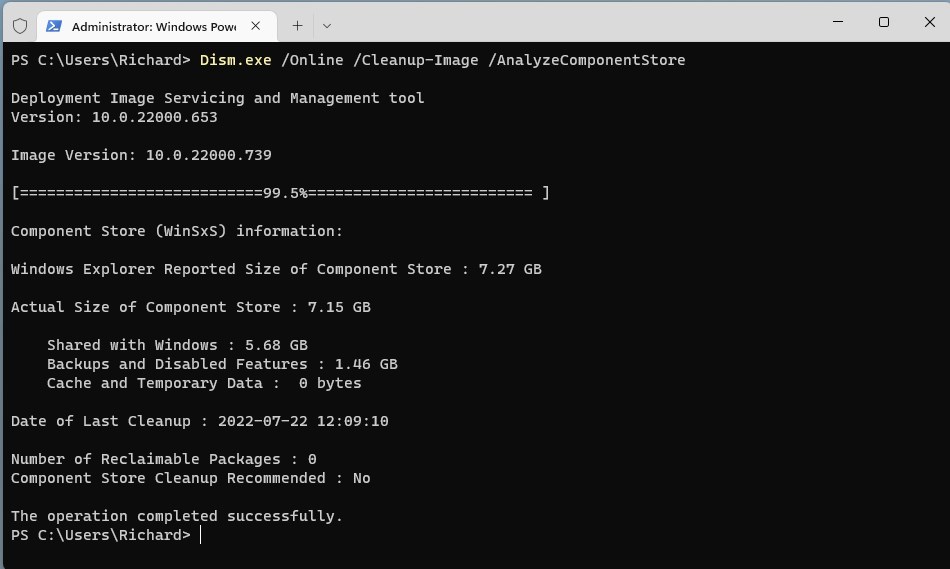
The tool will take a moment to scan your system. Once finished, it will display a table with detailed information about the folder size, including:
- Actual Size of Component Store: The real amount of space used, accounting for hard links.
- Backups and Disabled Features: Components kept for recovery or optional features.
- Cache and Temporary Data: Files used to speed up system updates.
- Component Store Cleanup Recommended: Tells you if you can safely shrink the folder size.
Safe Methods to Clean Up the Component Store
If the analysis reveals you can free up space, Windows has built-in tools to safely remove unneeded files. These methods are supported by Microsoft and will not damage your system.
1Using the StartComponentCleanup Command
Using the StartComponentCleanup Command: Telling Windows to Remove Old Components. This command tells Windows to remove superseded versions of components that are no longer needed. Note: This requires admin privileges.
dism /online /cleanup-image /startcomponentcleanup
2Using the ResetBase Switch
Using the DISM command with the /ResetBase switch offers a more thorough cleanup by removing all older versions of components, but you won’t be able to uninstall updates afterward.
dism /online /cleanup-image /startcomponentcleanup /resetbase
3Using Task Scheduler
Windows 11 automatically runs a cleanup task when the system is idle. You can trigger this manually via Task Scheduler by navigating to Microsoft\Windows\Servicing\StartComponentCleanup and running the task.
Summary
The WinSxS folder is vital for your system, but it can grow large, and regular file checks show incorrect sizes because of Windows hard links; using the DISM command gives an accurate view and allows safe management via /StartComponentCleanup.
Is it safe to clear the WinSxS folder?
Yes, but only if you use the official DISM commands provided by Microsoft. Never delete files manually in File Explorer. Using the /StartComponentCleanup command safely removes old, unneeded system files while keeping your computer stable and ensuring that future Windows updates and system recovery features continue to work perfectly.
How do I know if my WinSxS folder is too big?
You can determine if the folder is too large by running the DISM /AnalyzeComponentStore command. The output will explicitly state whether a cleanup is recommended. If your disk space is low and the report shows several gigabytes of reclaimable space, it is a good time to perform a cleanup.
Was this guide helpful?

About the Author
Richard
Tech Writer, IT Professional
Richard, a writer for Geek Rewind, is a tech enthusiast who loves breaking down complex IT topics into simple, easy-to-understand ideas. With years of hands-on experience in system administration and enterprise IT operations, he’s developed a knack for offering practical tips and solutions. Richard aims to make technology more accessible and actionable. He's deeply committed to the Geek Rewind community, always ready to answer questions and engage in discussions.


No comments yet — be the first to share your thoughts!