
If you use Windows 11, you might have noticed a feature called Recall & Snapshots. This feature takes quick pictures (snapshots) of your screen so you can easily find things you saw before. But these snapshots can take up space on your computer. This guide will show you how to delete snapshots from a specific time period to free up space.
What are Recall Snapshots?
Recall Snapshots are like photos your computer takes of what’s on your screen at different times. Windows saves these snapshots so you can search for things you’ve seen or worked on before. You can learn more about this feature here: Recall & Snapshots explained.
Windows automatically deletes the oldest snapshots when your storage gets full, but sometimes you want to delete some yourself. Below are easy steps to delete snapshots from the last hour, day, week, or month.
Steps to Delete Recall Snapshots from a Specific Timeframe
Follow these simple steps to delete snapshots and free up space:
- Open the Settings app: You can do this by clicking the Start menu (Windows icon at the bottom left) and choosing Settings, or just press Windows key + I on your keyboard.
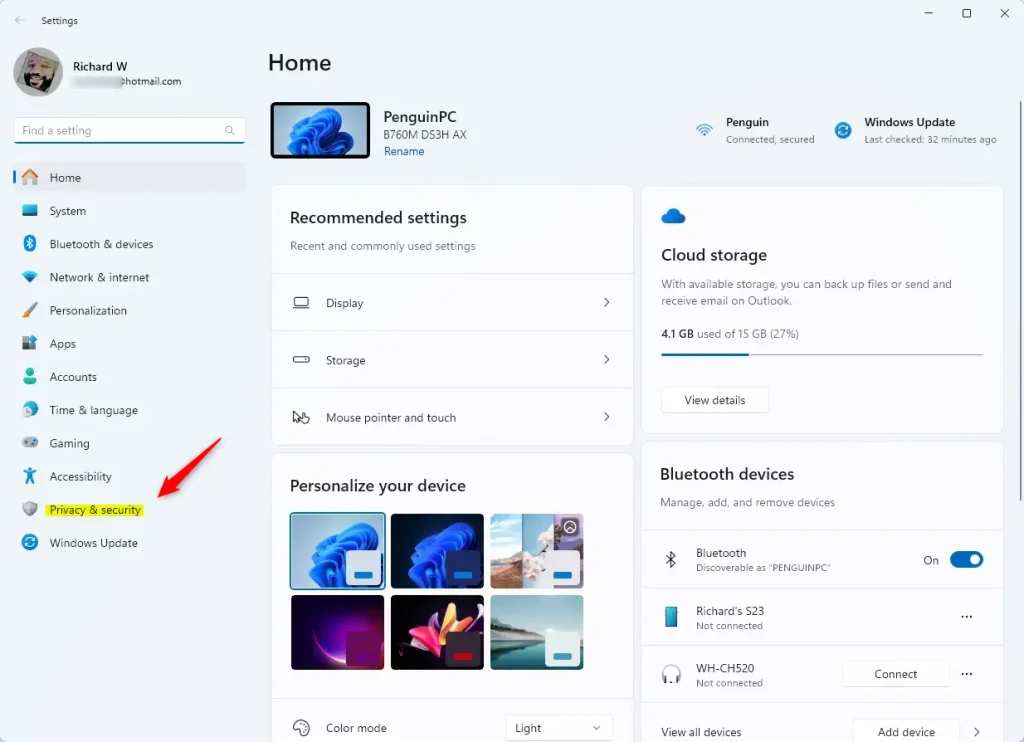
- Go to Privacy & Security: In the Settings window, look at the left side menu and click Privacy & security.
- Open Recall & Snapshots settings: On the right side, find and click Recall & snapshots.
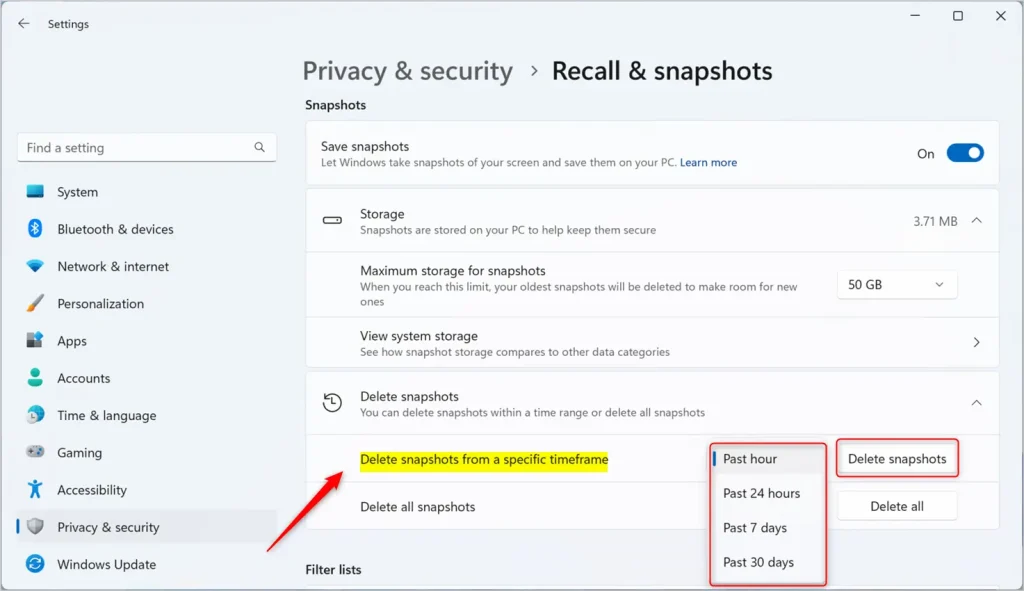
- Delete snapshots: Scroll down to the Storage section and click Delete snapshots to expand it.
- Choose a timeframe: Click on Delete snapshots from a specific timeframe. You can pick from these options:
- Past hour
- Past 24 hours
- Past 7 days
- Past 30 days
- Confirm deletion: Click the Delete snapshots button after choosing the timeframe. The snapshots from that period will be removed.
Here is what the Privacy & Security menu looks like in Windows 11:
And this is the screen where you delete snapshots from a specific timeframe:
That’s it! You have now deleted Recall snapshots for the timeframe you selected.
Need More Help?
You can visit Microsoft’s official page about Recall and your data here: Microsoft Support – Recall and Your Data
Summary
- Recall Snapshots save pictures of your screen to help you find things later.
- You can delete snapshots from the last hour, day, week, or month to free up space.
- It’s easy to manage this in the Windows 11 Settings under Privacy & Security.
- Following these steps helps keep your computer storage under control.
We hope this guide helped you manage your Recall snapshots in Windows 11!


Leave a Reply