How to Delete Bing Search History in the Cloud

You delete your Bing search history in the cloud by visiting the Microsoft privacy dashboard and removing specific search queries or clearing all activity.
Bing search history, stored within your Microsoft account, tracks your queries made through the Bing search engine and the Windows search bar. Clearing this data helps you maintain privacy and prevents personalized suggestions based on your past searches.
Microsoft retains this activity data linked to your account, allowing you to manage it directly through their privacy settings. This process removes your search queries from Microsoft’s servers, ensuring your browsing habits remain confidential.
For instance, by default, Microsoft may store your Bing search history for up to 3 years. You can take control of this data at any time.
How to Clear Your Search History
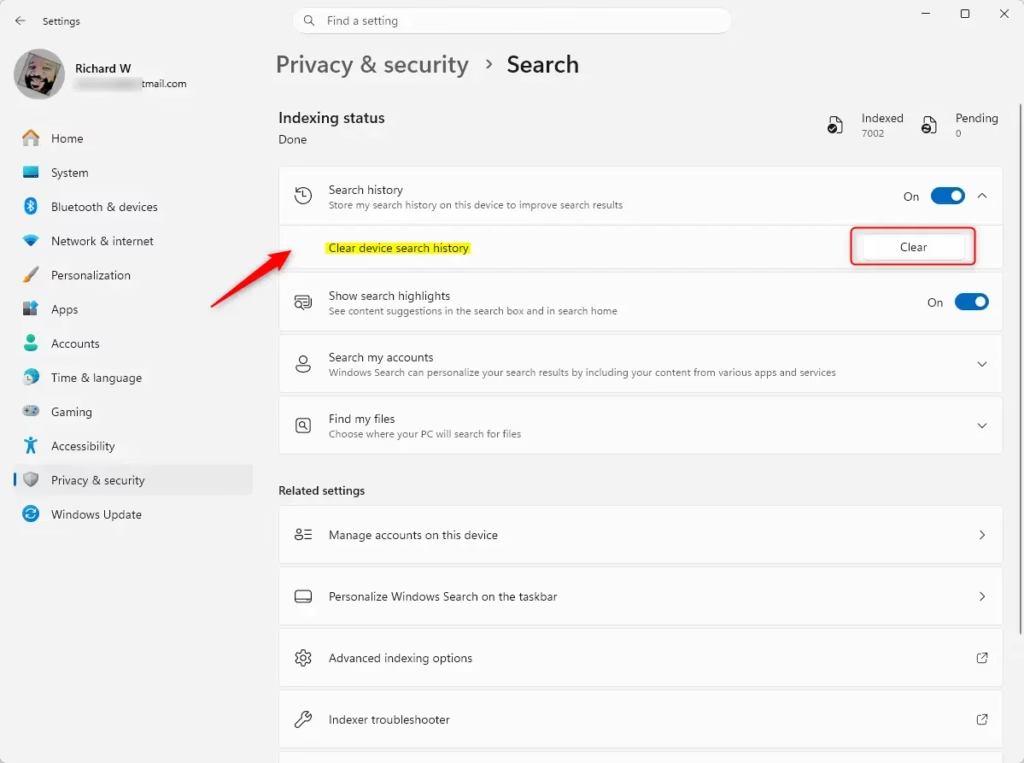
- Open your Settings menu by pressing the Windows key + I on your keyboard.
- Click on Privacy & security on the left side of the screen.
- Select Search on the right side.
Open Search permissions settings
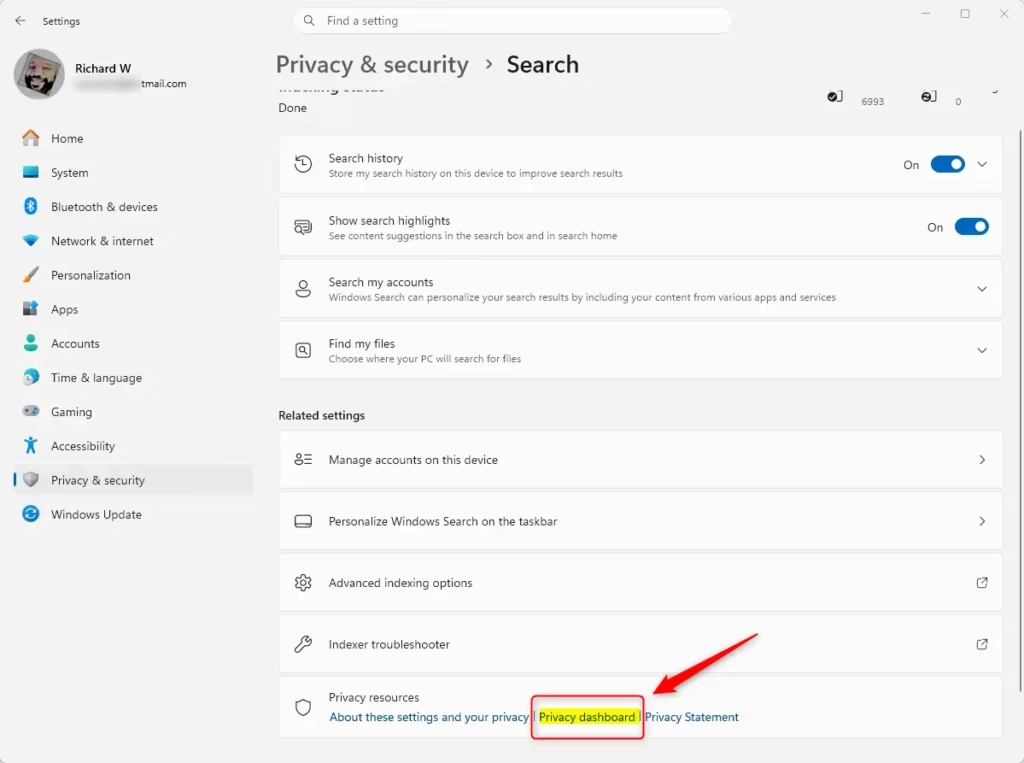
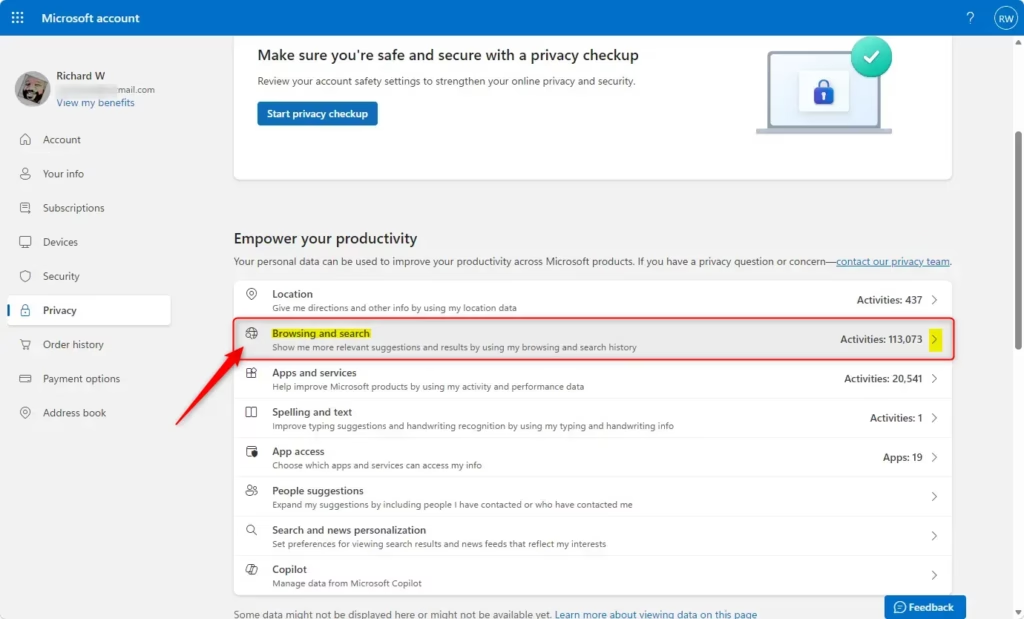
Clear Recent Searches
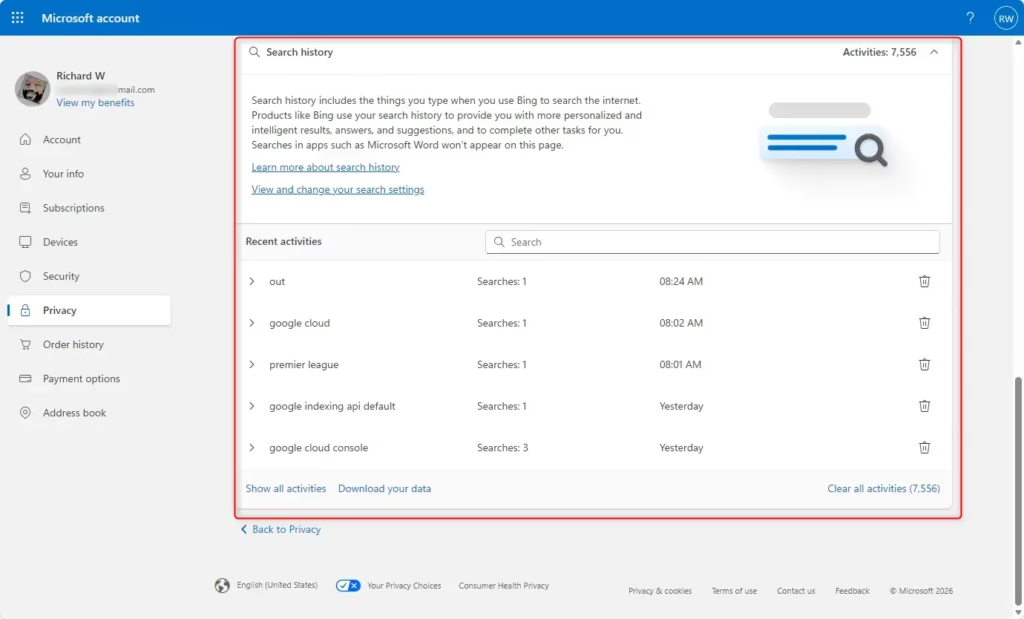
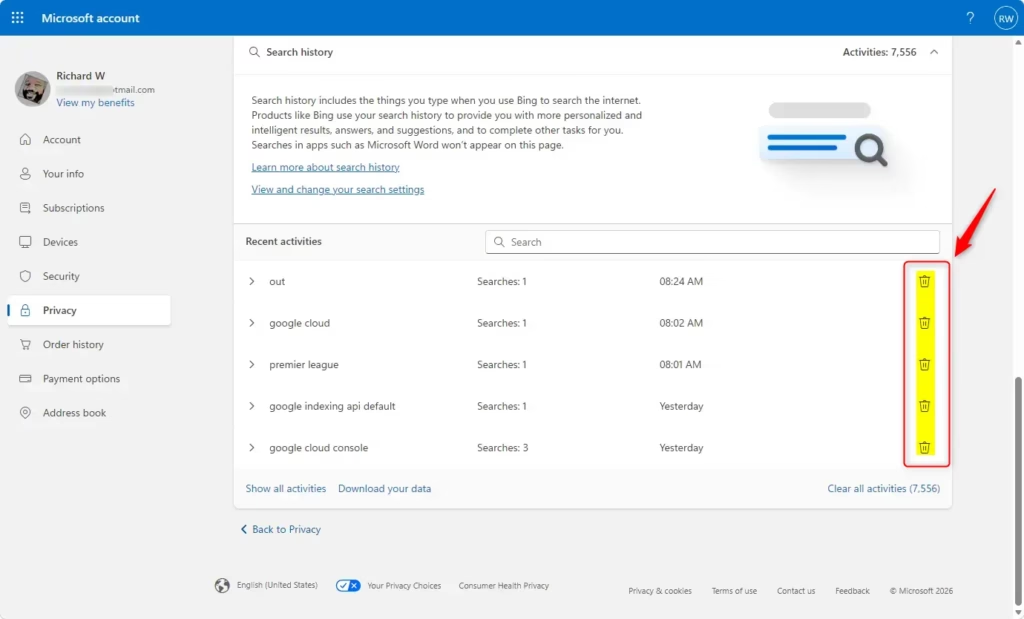
- On your privacy dashboard, click to expand the Search history section.
- Click the Recycle Bin icon next to any recent item to delete it.
Clear Specific Searches
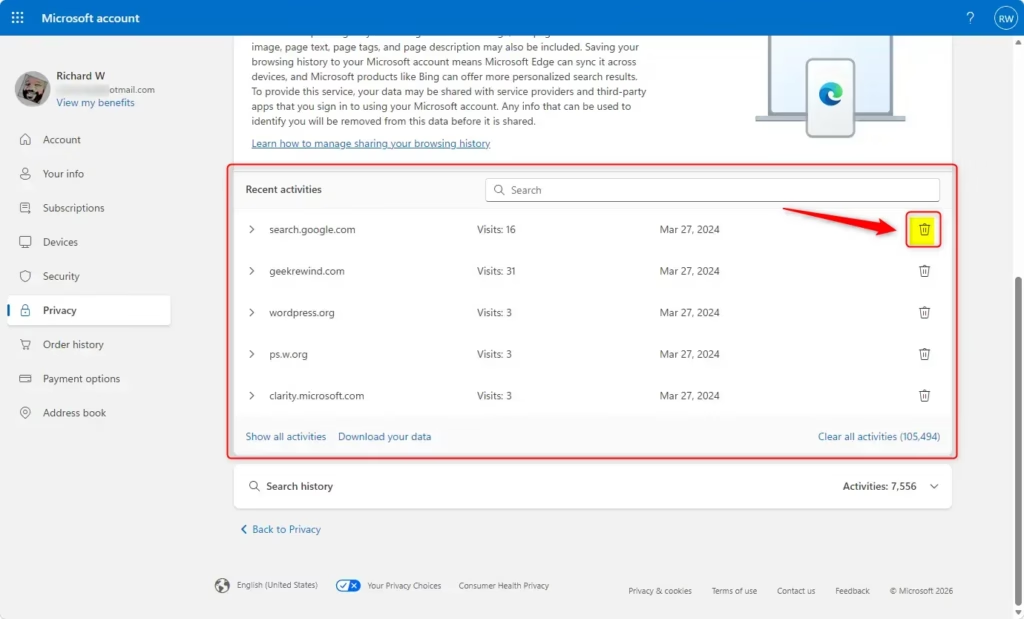
- Expand the Search history section on your dashboard.
- Click the Show more link under your recent history.
- Click the Recycle Bin icon next to the specific items you want to remove.
- Click Close when you are finished.
Clear All Search History
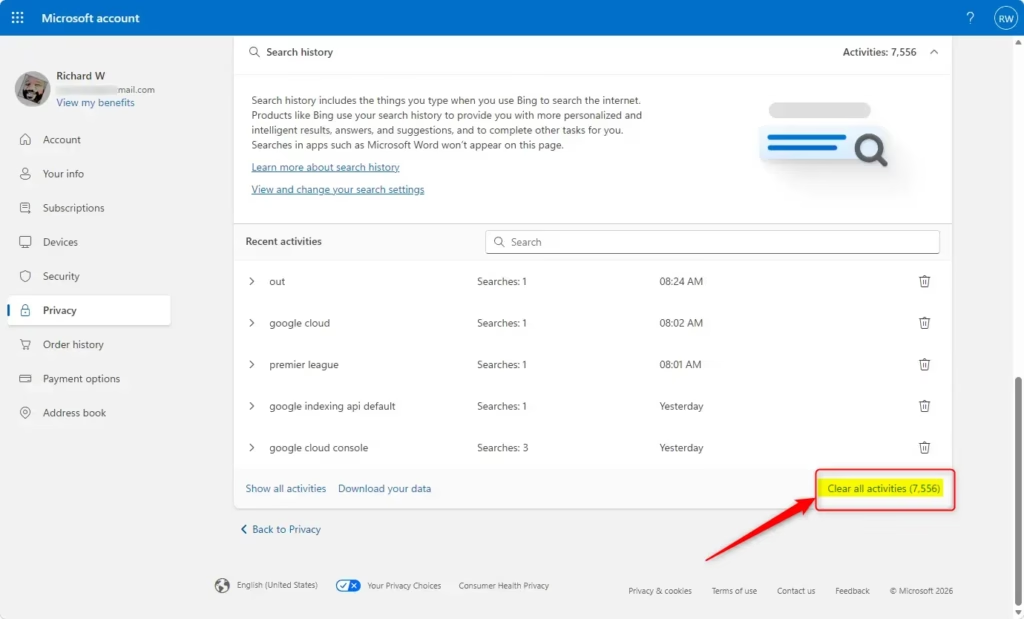
- Expand the Search history section on your dashboard.
- Click the Clear all search history link.
- Click Clear to confirm your choice.
Windows Search can personalize your results using your content from OneDrive, SharePoint, Outlook, Bing, and other services. If you use the web, you can also earn Microsoft Rewards points when you search with Bing. Windows Search can save and use your web search history with your Microsoft account. To view history for a work or school account, go to the Bing Search History page. Starting with Windows 11 build 262100.6725 (24H2), Microsoft is updating how these settings are accessed.
Summary
You can manage and delete your Bing search history through the Microsoft Privacy dashboard. By following the steps above, you can remove recent items, specific searches, or your entire search history to ensure your browsing data remains private.
References:
Windows Search and privacy – Microsoft Support
Search history on the privacy dashboard – Microsoft Support
View your data on the privacy dashboard – Microsoft Support
How do I erase search history on Bing?
To erase your Bing search history, navigate to the Microsoft Privacy Dashboard. Log in with your account credentials, locate the 'Search history' section, and click the 'Clear' or 'Delete' options. This action removes your stored search data from Microsoft's servers, ensuring your past queries are no longer linked to your profile.
What is the fastest way to clear your search history?
The fastest way to clear your search history is by accessing the Microsoft Privacy Dashboard directly. Once logged in, you can select the 'Clear all' option within the Search history tab. This method instantly wipes your entire search record from the cloud, rather than deleting individual entries one by one manually.
How do I delete Bing search history on my iPhone?
To delete Bing search history on an iPhone, open the Bing app or visit the Microsoft Privacy Dashboard in your mobile browser. Log in to your account, navigate to the 'Search history' section, and select the items you wish to remove or choose the option to clear your entire search history.
Can I delete my search history all at once?
Yes, you can delete your entire Bing search history at once. By visiting your Microsoft Privacy Dashboard, you can access the 'Search history' section and select the 'Clear all' or 'Delete all' button. This permanently removes every saved search query associated with your Microsoft account from their cloud servers immediately.
Was this guide helpful?

About the Author
Richard
Tech Writer, IT Professional
Richard, a writer for Geek Rewind, is a tech enthusiast who loves breaking down complex IT topics into simple, easy-to-understand ideas. With years of hands-on experience in system administration and enterprise IT operations, he’s developed a knack for offering practical tips and solutions. Richard aims to make technology more accessible and actionable. He's deeply committed to the Geek Rewind community, always ready to answer questions and engage in discussions.



No comments yet — be the first to share your thoughts!