How to Delete Bing Search History in the Cloud

Your computer tracks what you search for to give you better results. This data is saved to your Microsoft account. You can clear this history to keep your information private.
Why should you do this?
Clearing your search history helps protect your privacy. It removes the list of things you have searched for on Bing and through your Windows search bar.
What happens when you are done?
Once you finish, your search history is removed from Microsoft’s servers. Personalized suggestions based on your past searches will be reset.
Follow these steps to manage your data.
How to Clear Your Search History
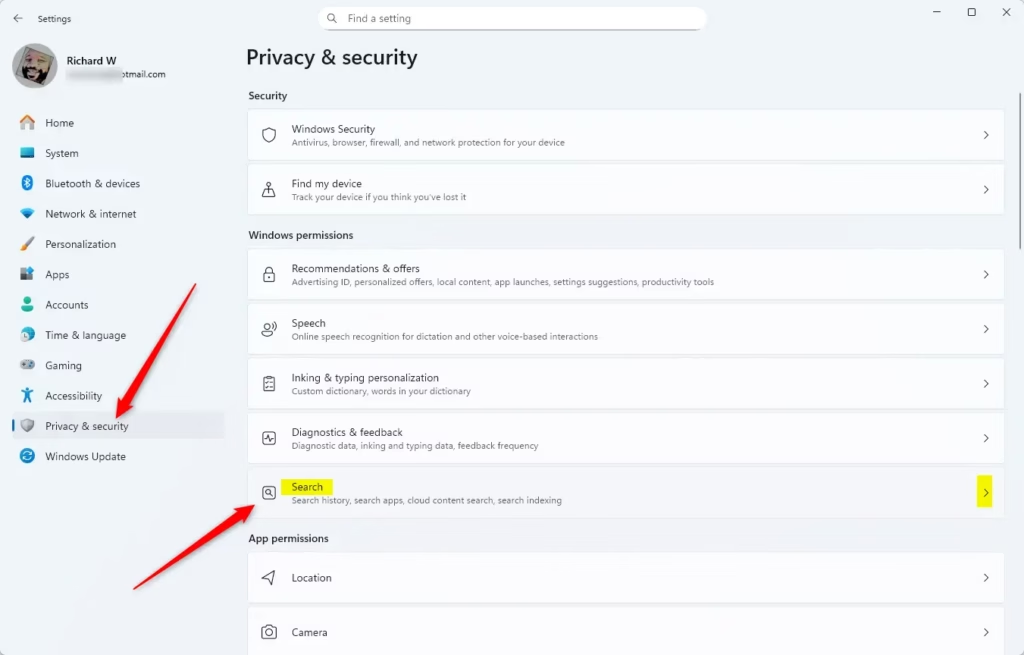
- Open your Settings menu by pressing the Windows key + I on your keyboard.
- Click on Privacy & security on the left side of the screen.
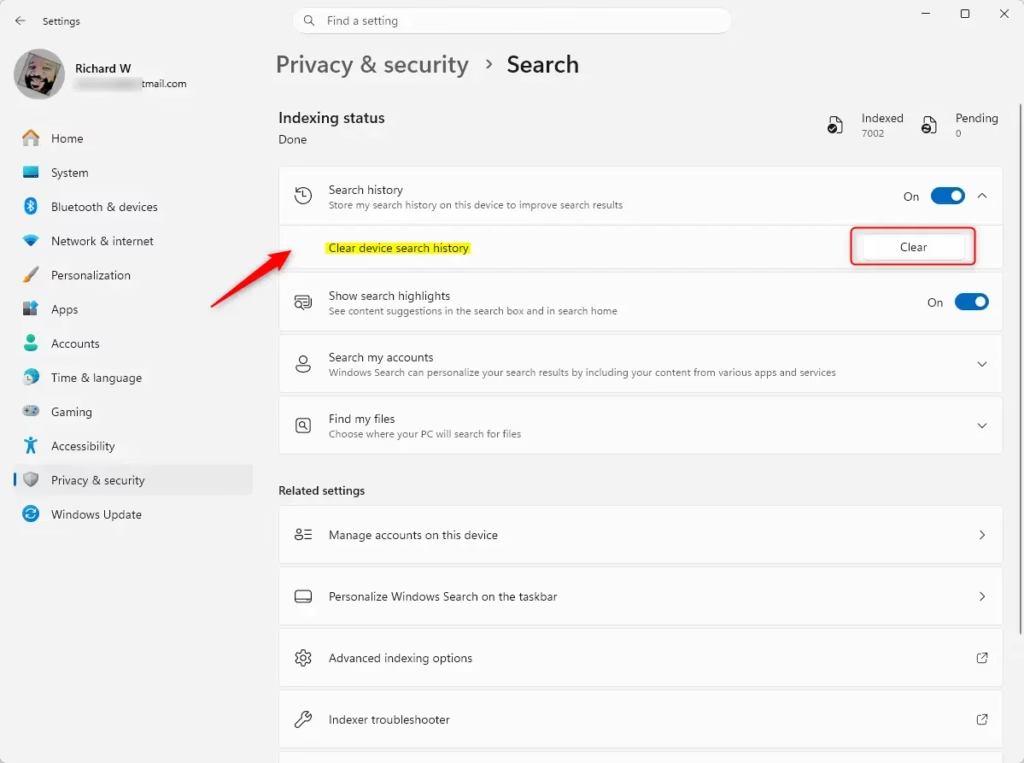
- Select Search on the right side.
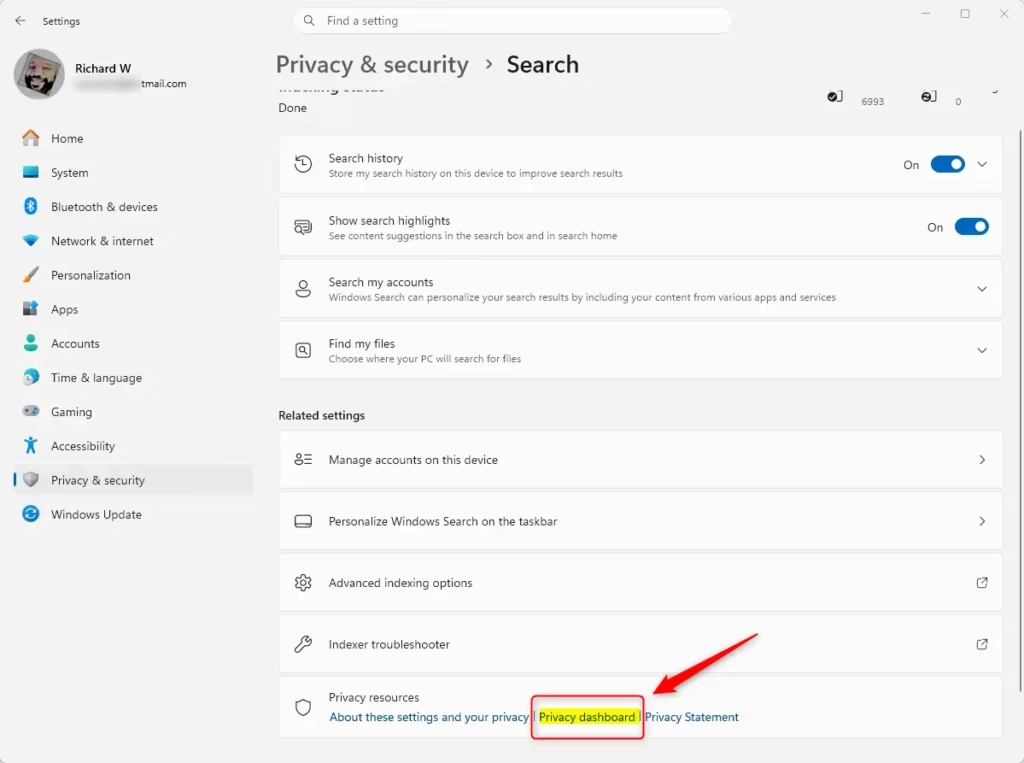
- Click the Privacy dashboard link found under the Search history in the cloud section.
- Log in to your privacy dashboard using your generic Microsoft account credentials.
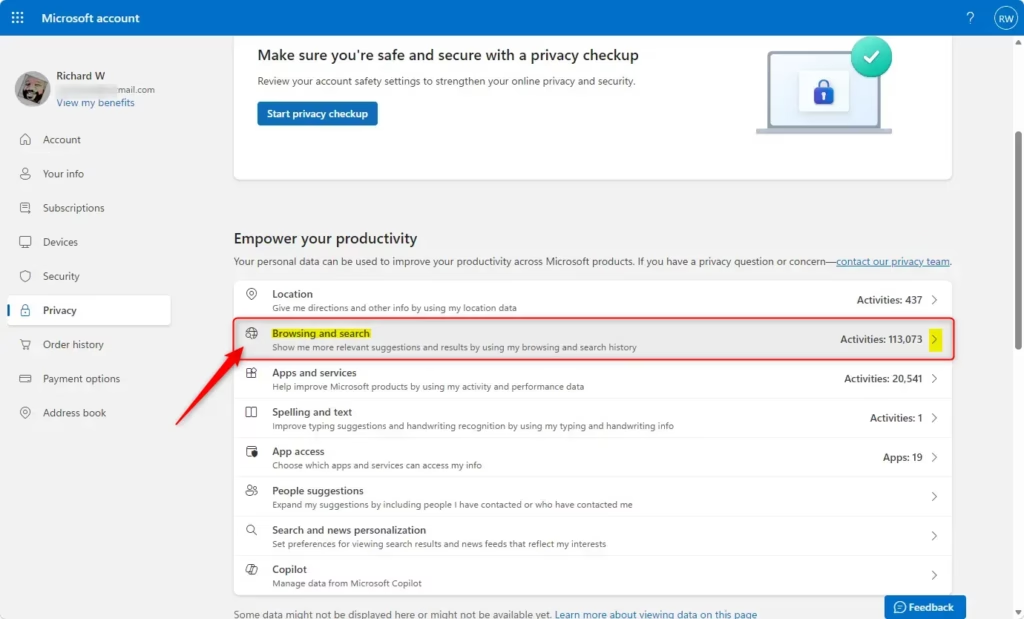
Open Search permissions settings
Clear Recent Searches
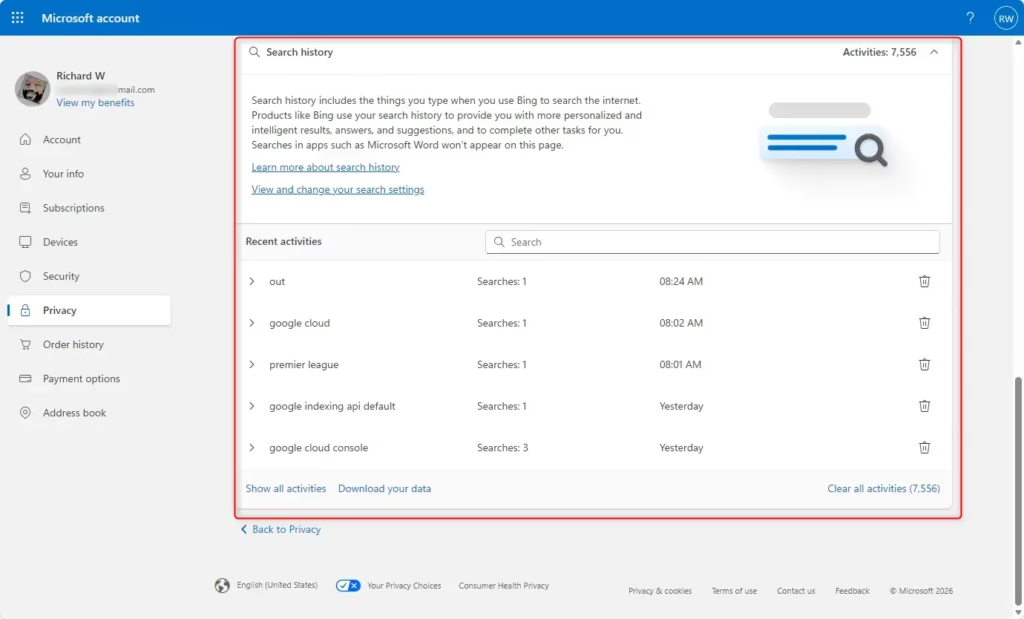
- On your privacy dashboard, click to expand the Search history section.
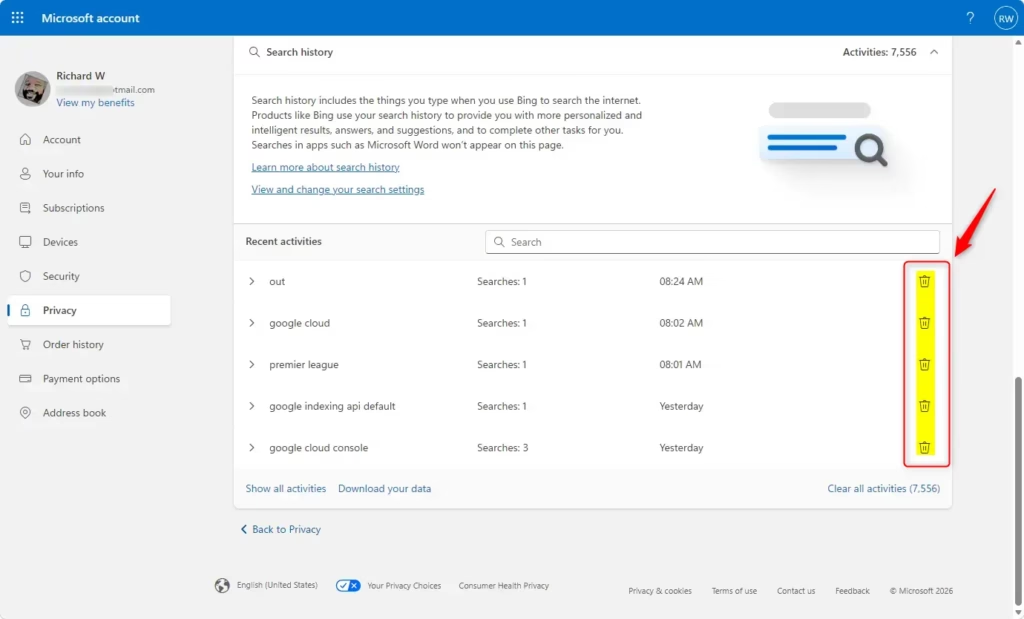
- Click the Recycle Bin icon next to any recent item to delete it.
Clear Specific Searches
- Expand the Search history section on your dashboard.
- Click the Show more link under your recent history.
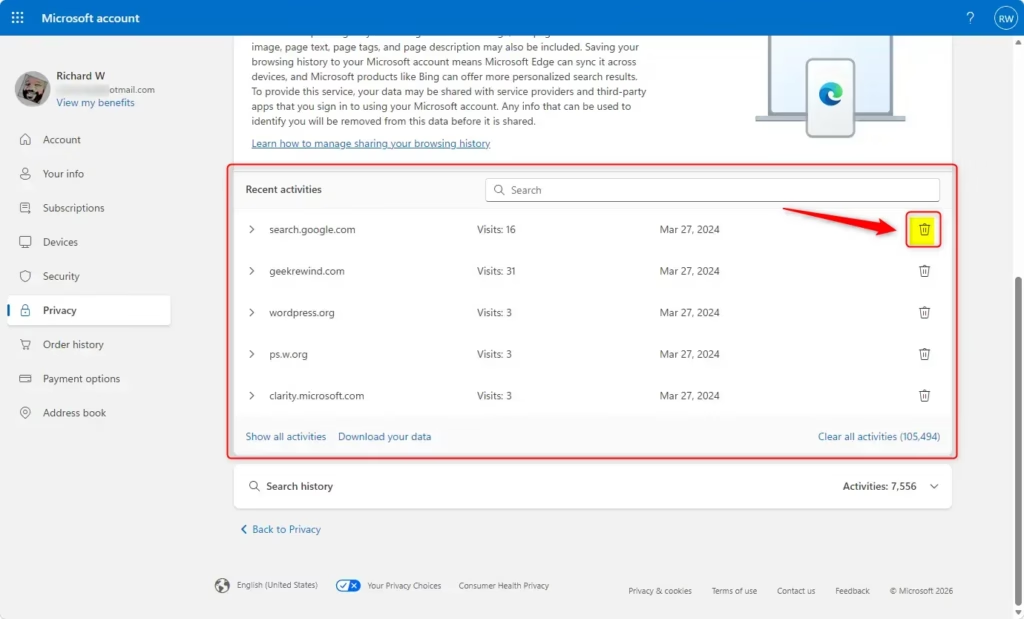
- Click the Recycle Bin icon next to the specific items you want to remove.
- Click Close when you are finished.
Clear All Search History
- Expand the Search history section on your dashboard.
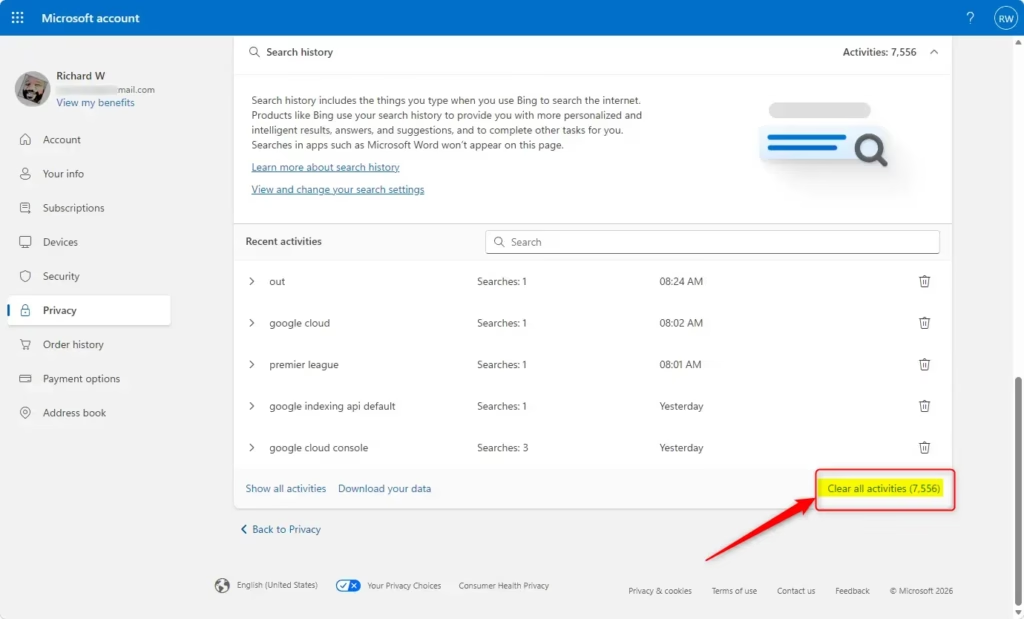
- Click the Clear all search history link.
- Click Clear to confirm your choice.
Windows Search can personalize your results using your content from OneDrive, SharePoint, Outlook, Bing, and other services. If you use the web, you can also earn Microsoft Rewards points when you search with Bing. Windows Search can save and use your web search history with your Microsoft account. To view history for a work or school account, go to the Bing Search History page. Starting with Windows 11 build 262100.6725 (24H2), Microsoft is updating how these settings are accessed.
Summary
You can manage and delete your Bing search history through the Microsoft Privacy dashboard. By following the steps above, you can remove recent items, specific searches, or your entire search history to ensure your browsing data remains private.
References:
Windows Search and privacy – Microsoft Support
Search history on the privacy dashboard – Microsoft Support
View your data on the privacy dashboard – Microsoft Support
Was this guide helpful?



Leave a Reply Cancel reply