How to Defragment Windows 11 for Better Performance

You defragment Windows 11 by optimizing your hard drive, which reorganizes fragmented data to improve system speed.
File fragmentation happens when parts of a file are scattered across your storage drive. This scattering forces your PC to work harder to locate and access them, slowing down operations.
Defragmentation consolidates these scattered file pieces, allowing Windows 11 to read and open files much faster. This process directly boosts your PC’s overall performance.
For example, performing this optimization on a traditional Hard Disk Drive (HDD) can significantly reduce file access times. Even modern Solid State Drives (SSDs) benefit from Windows 11’s built-in optimization, though the process differs.
Defragment Windows 11 by opening Settings, navigating to System > Storage > Advanced storage settings > Drive optimization. Select your drive and click Optimize to reorganize fragmented files for better performance.
How to Defragment Your System Drive
You can optimize your drive through the Windows Settings menu.
- Open the Settings app by pressing Windows key + I or by clicking Start and selecting Settings.
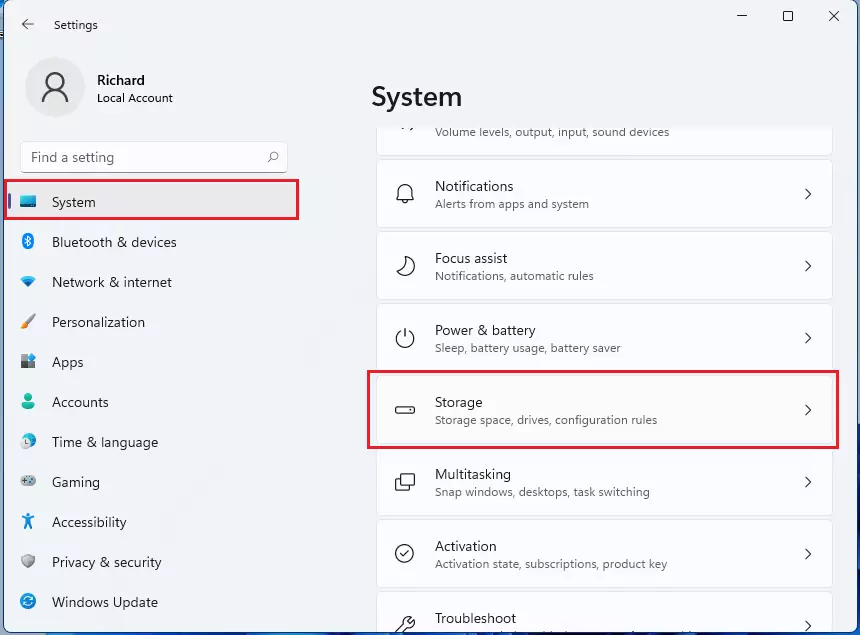
- Click on System, then select Storage on the right side of the screen.
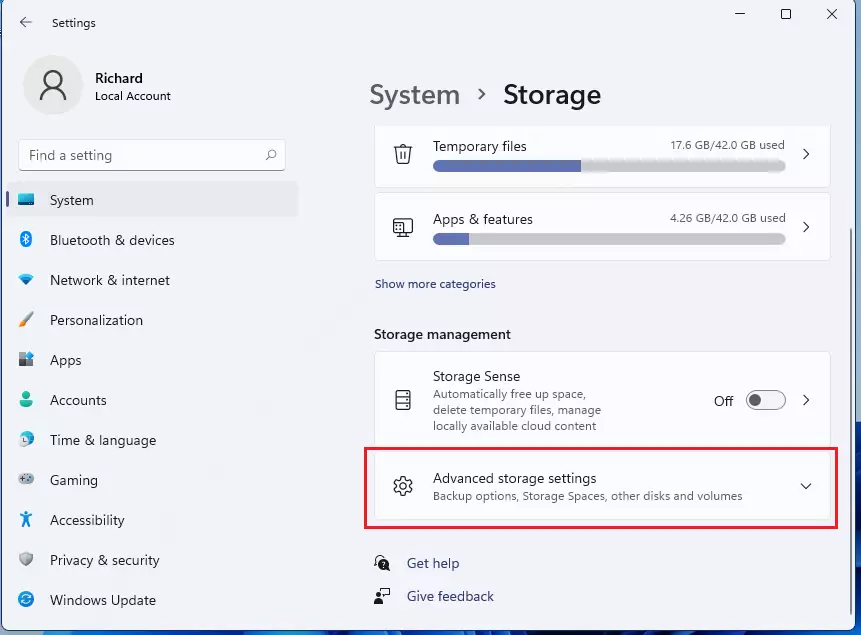
- Click on Advanced storage settings.
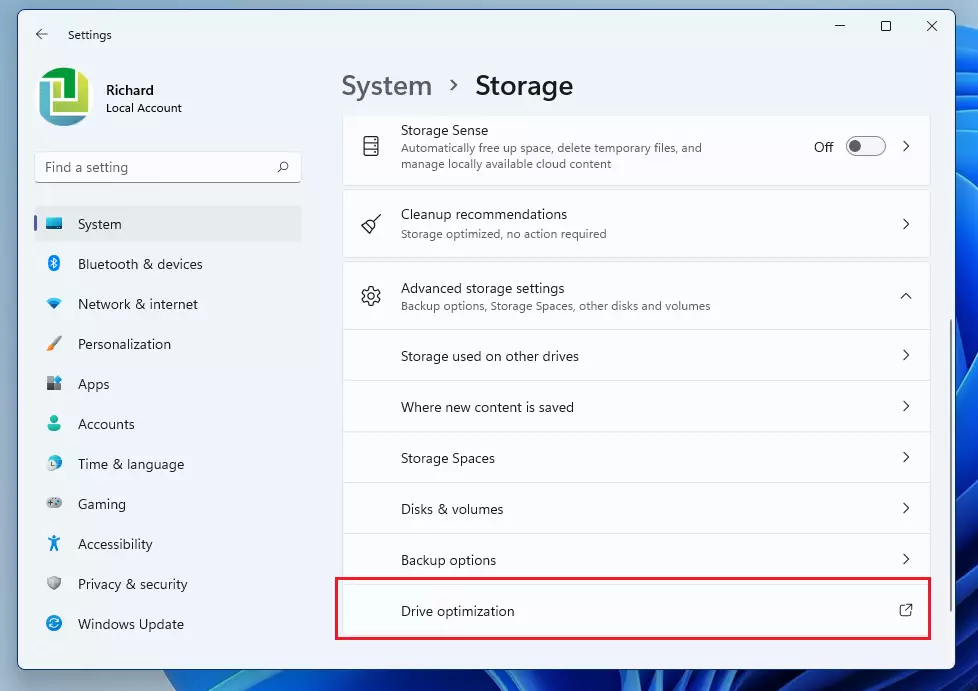
- Select Drive optimization from the menu.
- You will see a list of your drives and their current status.
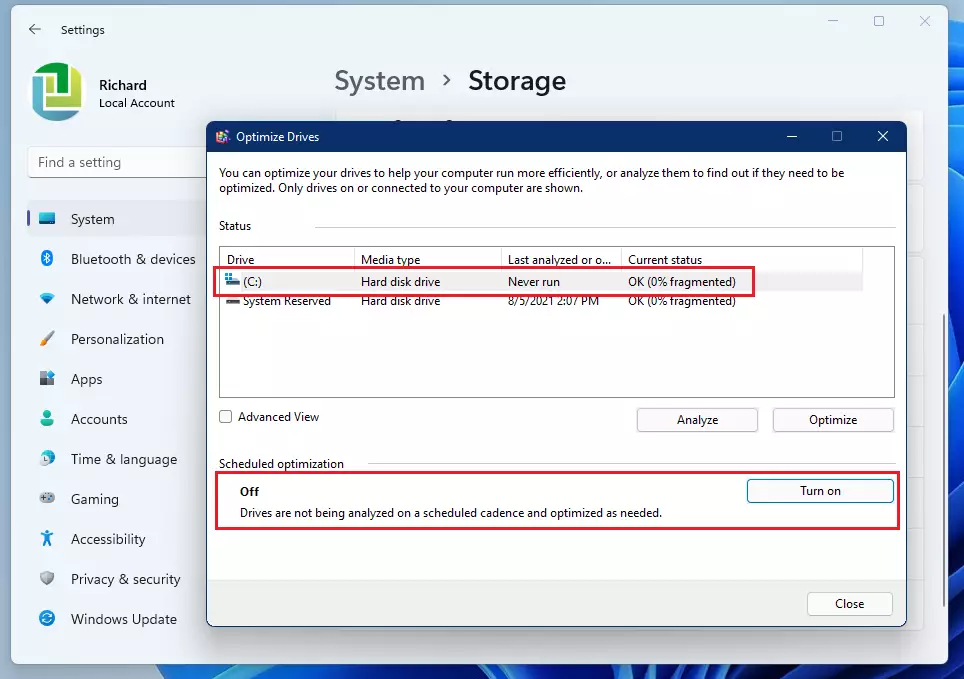
If you want to set a specific time for this to run, make sure Schedule optimization is turned off by clicking Change settings.
How to Schedule Defragmentation
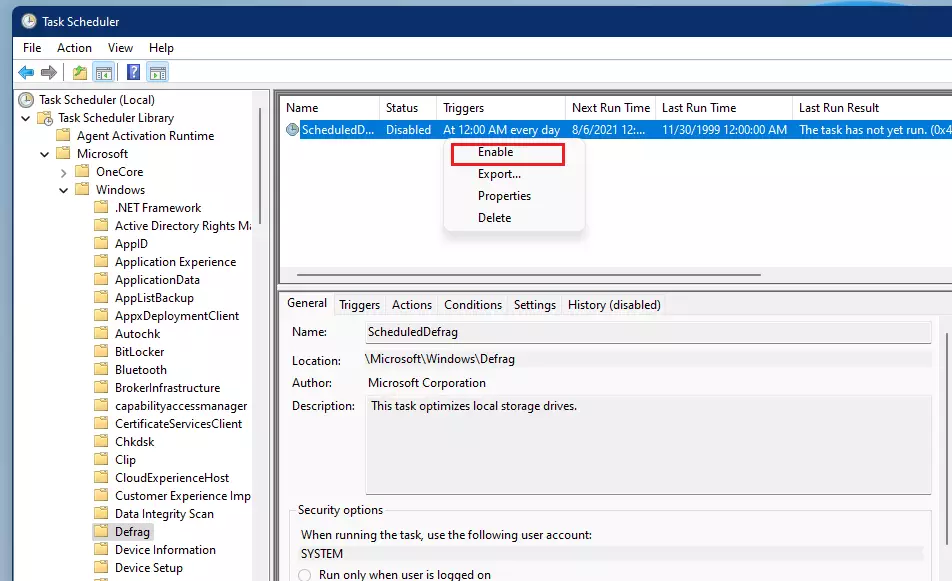
Windows usually handles this automatically, but you can use the Task Scheduler to pick a specific time.
Note: This process requires admin privileges.
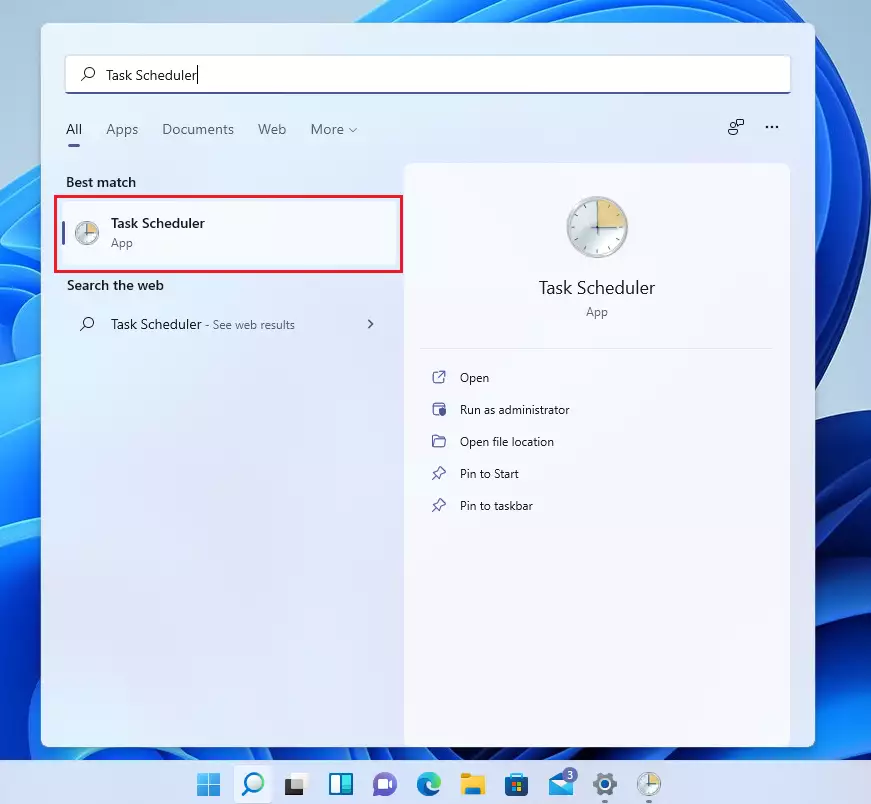
- Search for Task Scheduler in the search bar and open the app.
- In the menu on the left, go to Task Scheduler Library %📂%LNK0%% > Microsoft > Windows > Defrag.
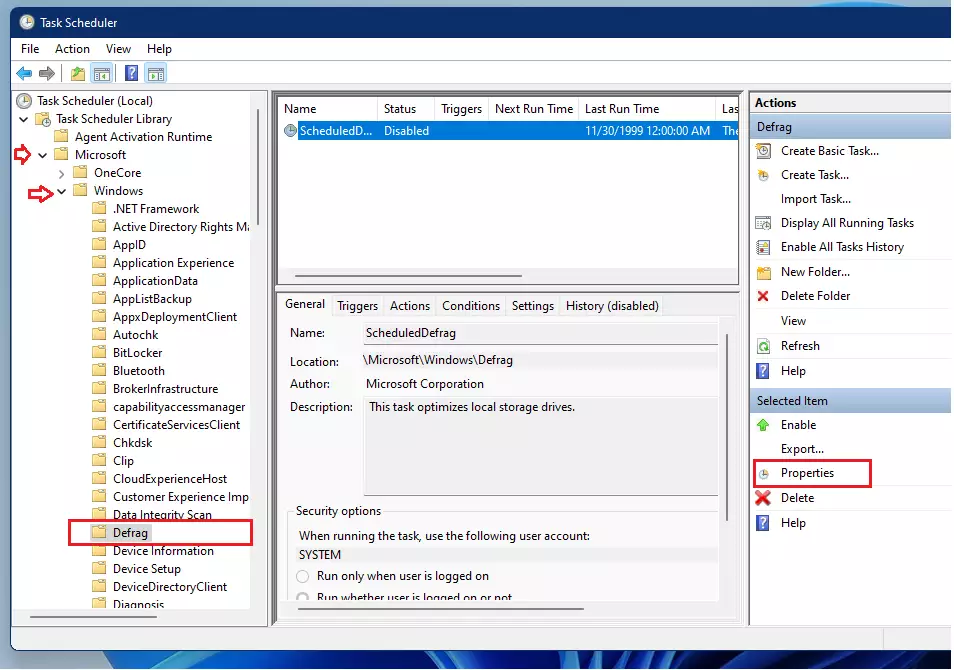
- Double-click the defrag schedule or click Properties on the right side.
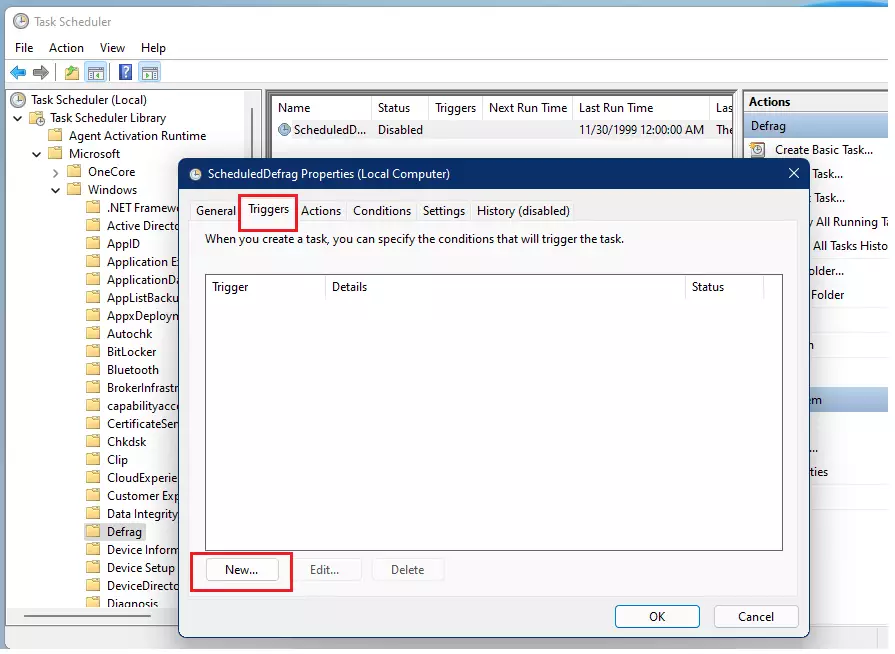
- Click the Triggers tab and click New to choose your preferred time and frequency.
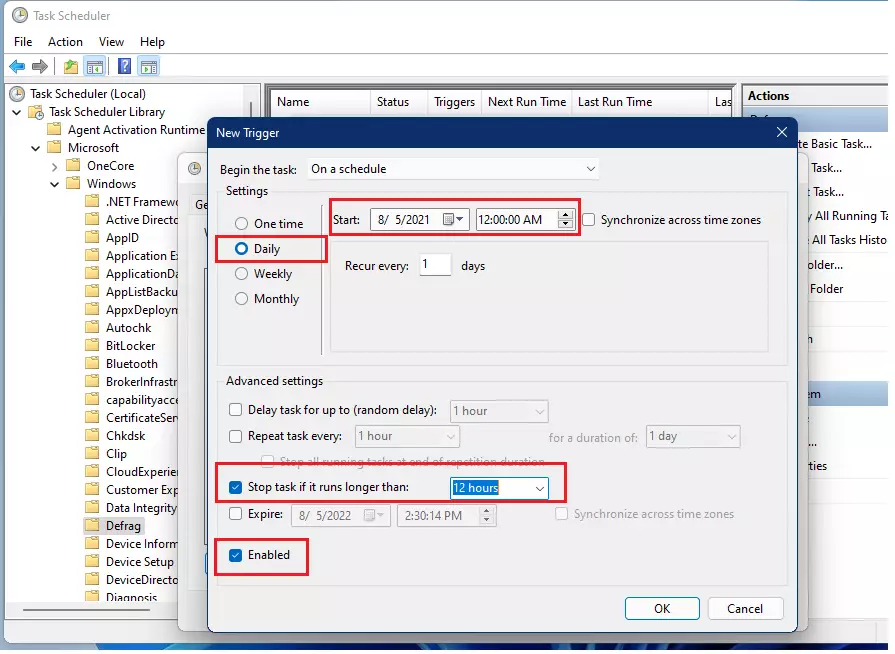
- Click OK to save your settings. Finally, right-click the task and select Enable to turn it on.
Summary
Defragmenting organizes your files so your computer can find them faster. By using the built-in Windows 11 tools, you can keep your system running smoothly. While Windows manages this automatically, using the Task Scheduler allows you to pick exactly when the maintenance happens, such as during the night, to avoid any disruption to your work.
Was this guide helpful?

About the Author
Richard
Tech Writer, IT Professional
Richard, a writer for Geek Rewind, is a tech enthusiast who loves breaking down complex IT topics into simple, easy-to-understand ideas. With years of hands-on experience in system administration and enterprise IT operations, he’s developed a knack for offering practical tips and solutions. Richard aims to make technology more accessible and actionable. He's deeply committed to the Geek Rewind community, always ready to answer questions and engage in discussions.


No comments yet — be the first to share your thoughts!