
Want to see useful information on your Windows 11 lock screen? This guide will show you how to pick which app shows detailed information on your lock screen. It’s easy and helps you get quick updates without signing in.
What is the Lock Screen?
The lock screen is the first screen you see when you turn on your computer or lock it. To lock your screen, press the Windows key + L. It shows things like the date, time, and some app information before you enter your password or PIN.
You can also customize your lock screen background with pictures, slideshows, or Windows Spotlight. Windows Spotlight automatically shows beautiful images. Learn more here:
How to set a Slideshow Background
In the latest Windows 11 update, Microsoft added a weather feature on the lock screen. You can hover over the weather information to see more details. If you don’t want that, you can switch it off by changing the lock screen status to None.
How to Choose Which App Shows Information on Your Lock Screen
Follow these simple steps:
- Open Settings: Click the Start menu and select Settings. Or press the Windows key + I on your keyboard to open the Settings app.
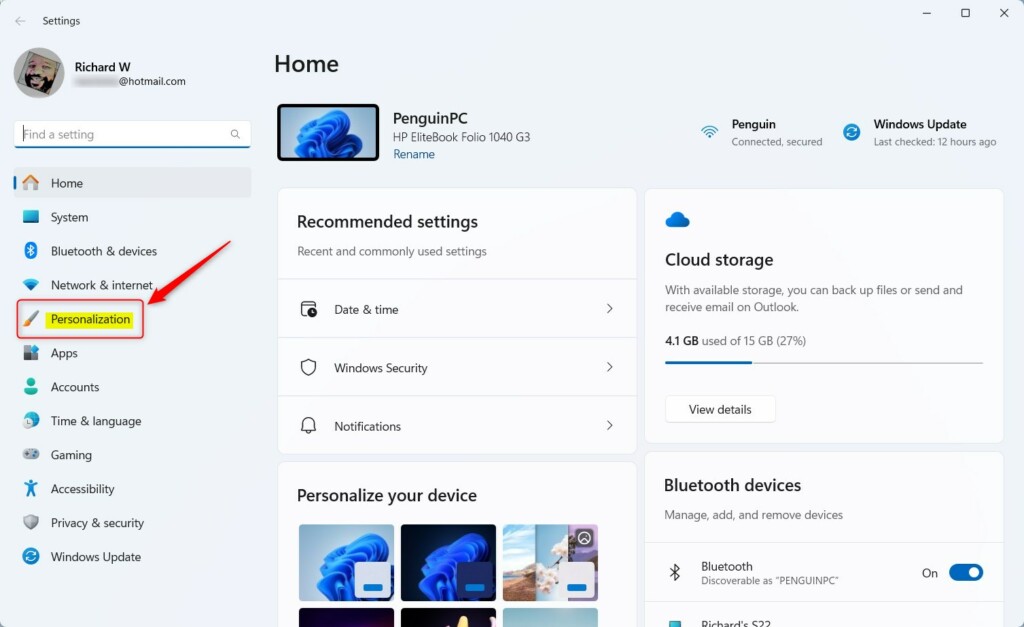
- Go to Personalization: In the Settings window, click Personalization on the left side.
Open Lock Screen settings: On the right side, click the Lock screen option.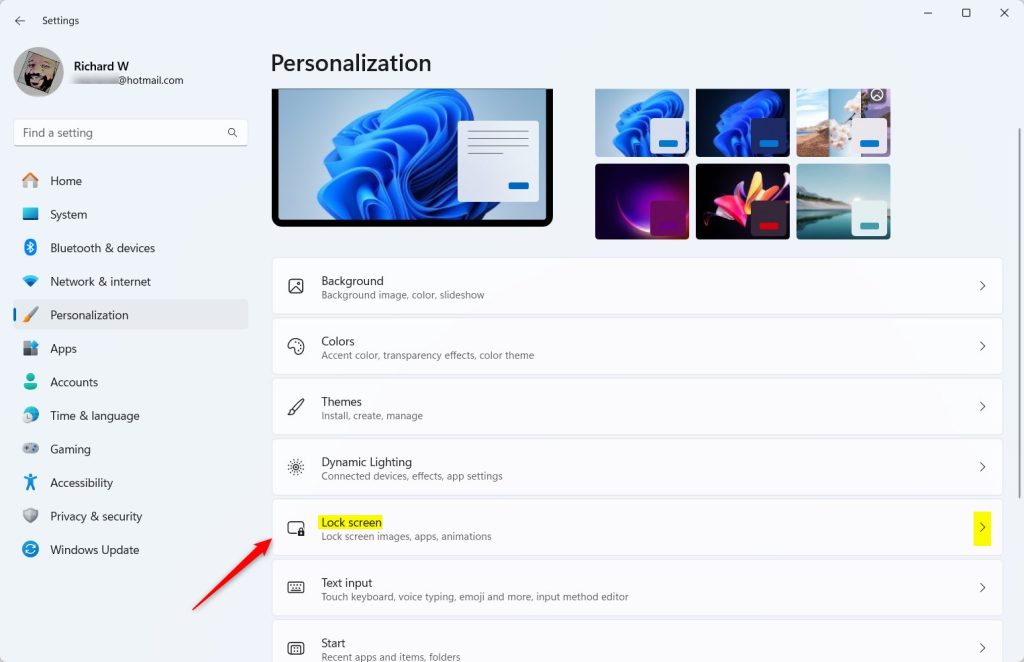
Pick your Lock Screen Status app: Find the Lock screen status setting and click it. A list will appear where you can pick an app to show detailed information on your lock screen.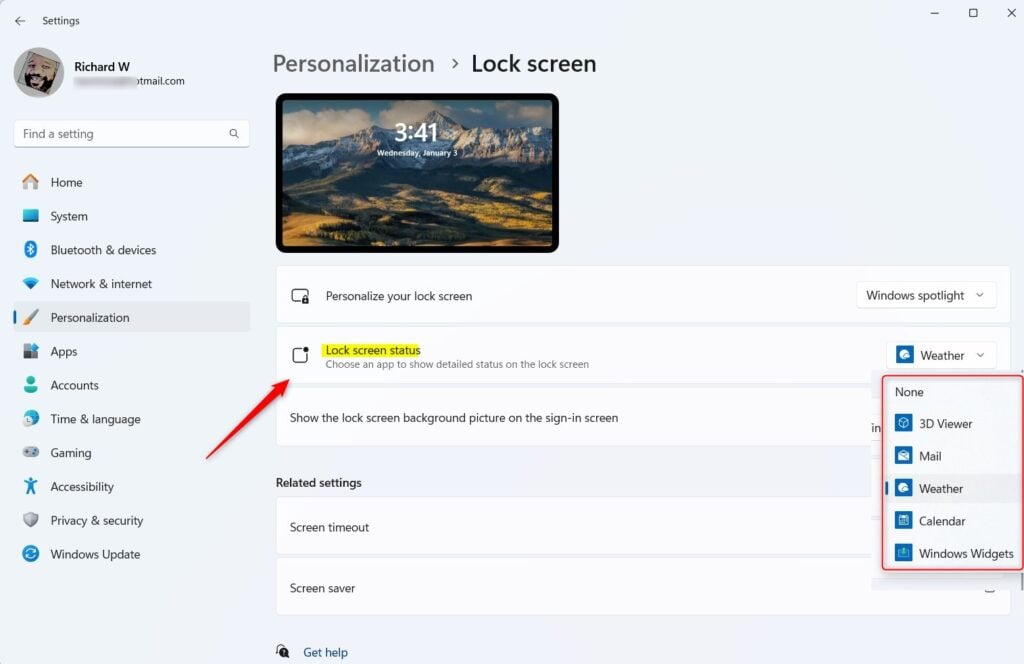
- Choose one from the list:
- None – no detailed app information shown
- 3D Viewer
- Mail – see your email notifications
- Weather – get weather updates
- Windows Widgets
Close the Settings app when you’re done. Your choice will save automatically.
That’s it! Now your lock screen will show details from the app you chose. You can get quick information without unlocking your computer.
Why Customize Your Lock Screen Status?
- You can see important information at a glance. For example, weather or email updates.
- It helps you stay informed without having to sign in every time.
- You can pick the app that fits your needs best.
- It’s easy to change anytime you want.
Enjoy your personalized Windows 11 lock screen!
Summary
Customizing your Windows 11 lock screen status lets you see important app information right away. Simply open Settings, go to Personalization, select Lock screen, and choose which app shows detailed information. You can pick from options like Weather, Mail, 3D Viewer, Windows Widgets, or None. Your choice saves automatically, and you can change it anytime you want.



Leave a Reply