
What is Dynamic Lighting?
Dynamic Lighting is a Windows 11 feature that controls the LED lights on your keyboard, mouse, or PC case. You can change colors, brightness, and effects right from the Settings app.
Why Change Your Device’s Lighting?
- Make your computer setup look cool and match your personal style.
- Create a fun or relaxing atmosphere while you work or play games.
- Use different colors to help you focus or unwind.
How to Change Color Themes and Effects
Follow these easy steps to customize your LED lights:
- Open Settings: Click the Start menu, then select Settings. Or press Windows key + I on your keyboard to open Settings quickly.
- Go to Personalization: In the Settings window, click on Personalization on the left side menu.
- Find Dynamic Lighting: On the right side, click the Dynamic Lighting tile to open its options.

Once you’re in the Dynamic Lighting settings:
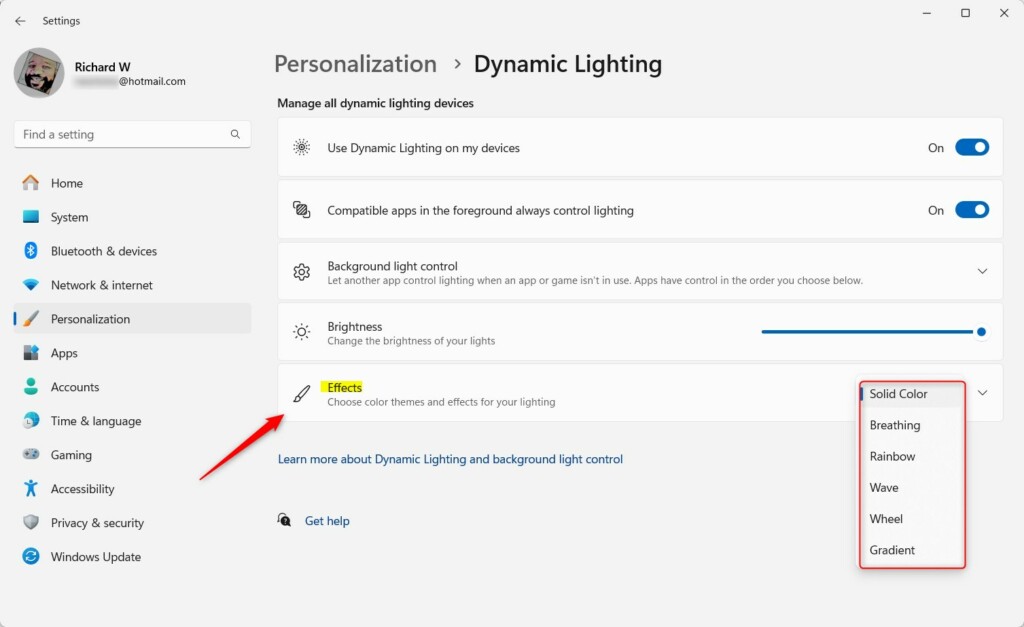
- Choose the “Effects” tile.
- Pick the color theme or effect you want from the dropdown menu.
Popular Effects You Can Try
- Solid Color: One steady color.
- Breathing: Lights gently fade in and out.
- Rainbow: Colors shift through the rainbow.
- Wave: Colors move across your device like waves.
- Wheel: Colors circle around in a wheel pattern.
- Gradient: Smooth color transitions.
After picking an effect, you can also:
- Adjust the speed of the effect.
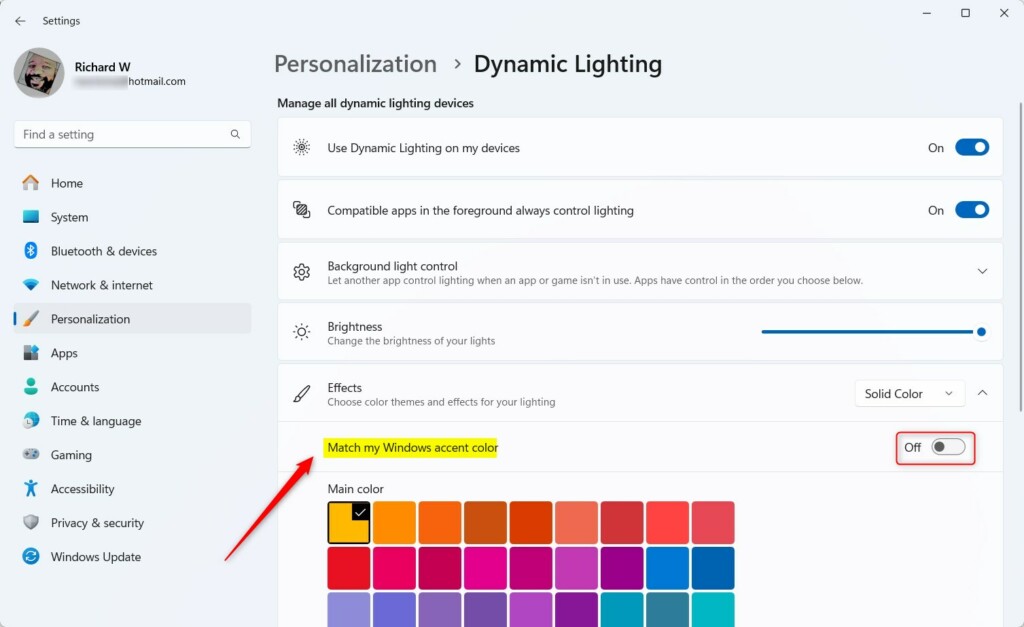
- Pick a main color if the effect allows it.
- Turn on Match my Windows accent color to sync your device lighting with your Windows theme color.
When you’re done, just close the Settings app. Your devices will keep using the new lighting settings.
Summary
- Dynamic Lighting lets you personalize your LED devices easily in Windows 11.
- Choose from many cool lighting effects like Solid Color, Breathing, Rainbow, and more.
- You can match your device colors with your Windows theme color.
- Customize lighting to fit your mood, work, or game setup.
- Try it out and make your computer setup uniquely yours! If you have questions or want to share your favorite lighting style, leave a comment below.

Leave a Reply