
Want to keep your computer neat and organized? Creating folders in Windows 11 helps you group your files together. This makes it easier to find what you need and keeps your desktop clean.
Why should you create folders? Folders act like boxes where you store related files together. This saves you time when searching for a document or photo. It also makes your computer look tidy and professional.
What happens when you organize with folders? You’ll find files faster. Your desktop won’t look cluttered. You’ll know exactly where everything is.
Learning how to make folders is simple and useful for everyone, whether you use your PC for work or fun.
1. Create a Folder Using the Right-Click Menu
This is the fastest way to make a new folder anywhere on your PC.
- Go to the spot where you want the folder — your Desktop, inside another folder, or on a drive.
- Right-click on an empty space (not on a file or icon).
- From the menu, hover over New.
- Click Folder.
- You will see a new folder pop up, ready for you to name it. Just type the name you want and press Enter.
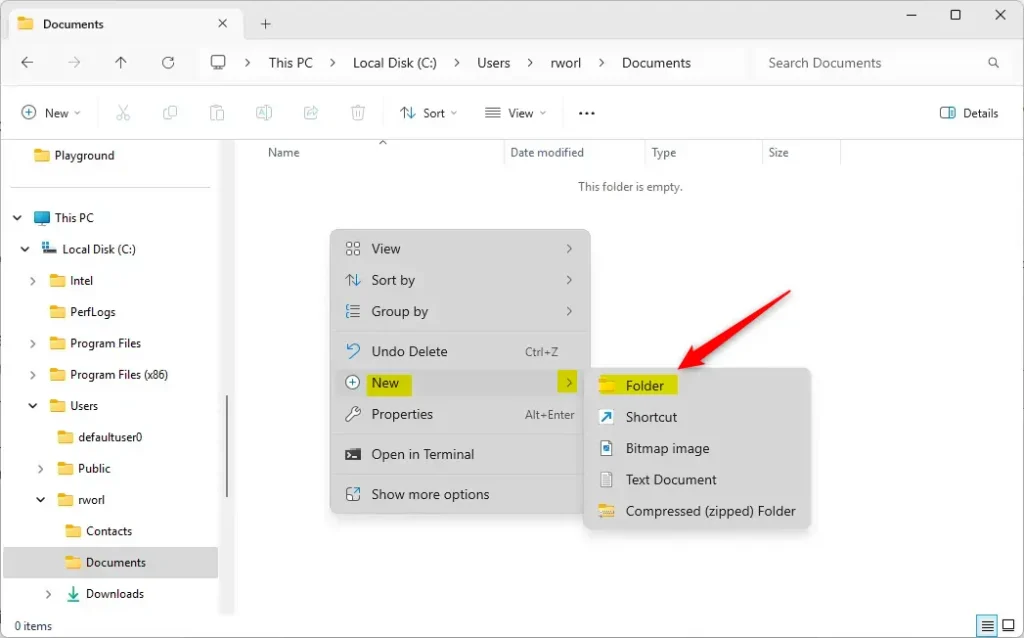
Right-click, choose New, then Folder.
2. Create a Folder Using File Explorer’s Command Bar
File Explorer is where you manage all your files. It has a button to create folders easily.
- Open File Explorer by clicking its icon on the taskbar or pressing
Win + Eon your keyboard. - Go to the place where you want the new folder.
- Click the New button near the top.
- Select Folder from the dropdown.
- Type a name for your folder and press Enter.
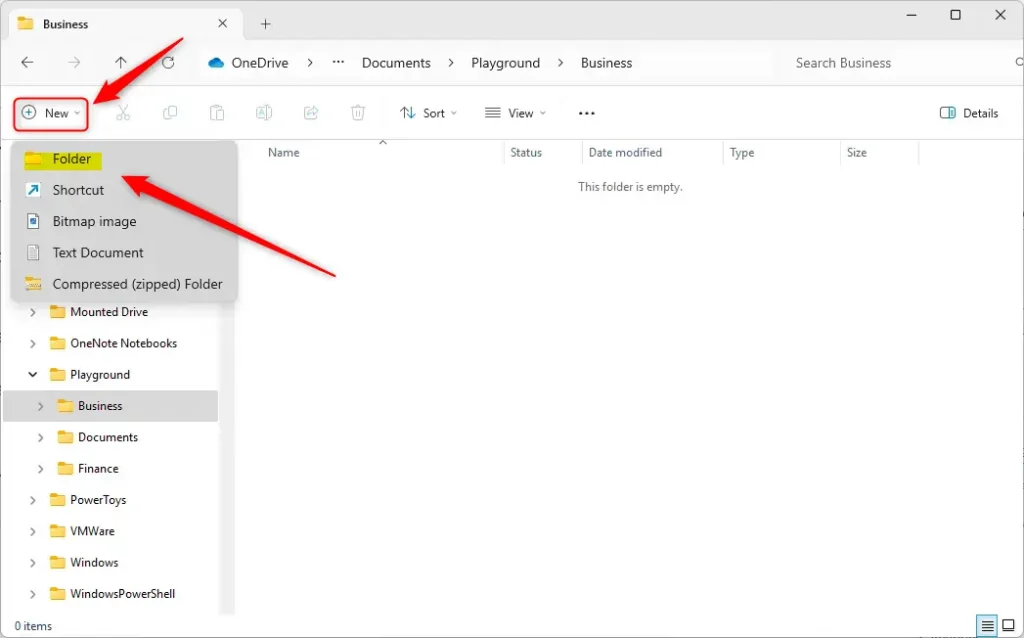
Click “New” then “Folder” in File Explorer.
3. Create a Folder Using a Keyboard Shortcut
If you like using the keyboard, this is a quick way to make a folder.
- Open the location where you want the new folder (like Desktop or inside File Explorer).
- Press
Ctrl + Shift + Nat the same time. - A new folder will appear. Just type the name and press Enter.
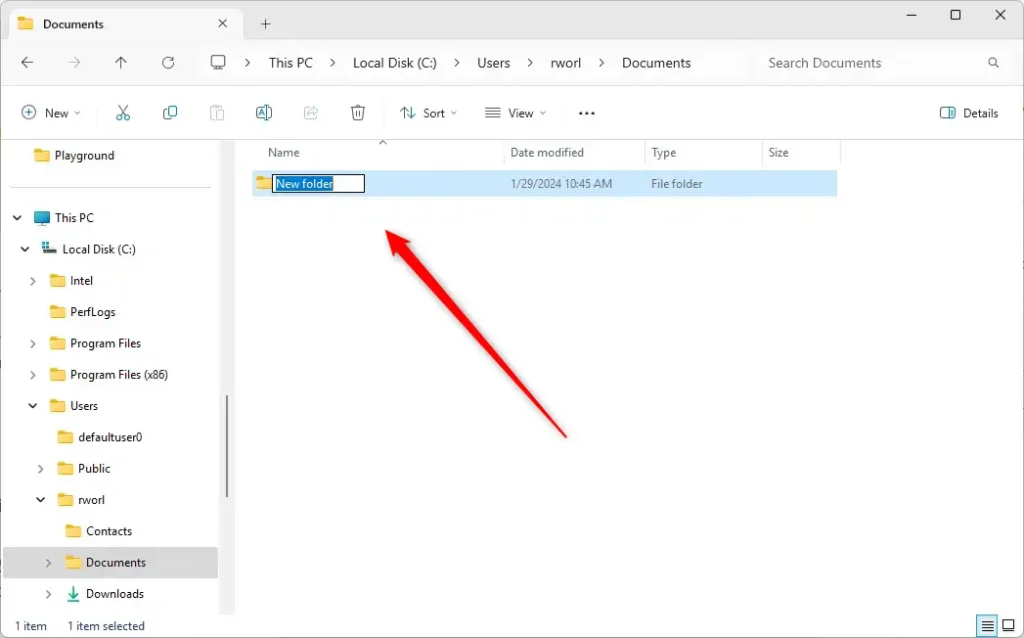
Folder is ready to be named after pressing Ctrl + Shift + N.
4. Create a Folder Using Windows Terminal (Command Prompt)
You can also create folders by typing commands. Don’t worry, it’s easy!
- Open Windows Terminal or Command Prompt by typing
cmdin the search box and clicking the app. - Type
cd Documents(or another folder path) and press Enter. This moves you to the folder where you want the new folder. - Type
mkdir NewFolderand press Enter. ReplaceNewFolderwith your folder name. - The folder will be created in that location.
cd Documents
mkdir NewFolder
5. Create a Folder Using Windows PowerShell
PowerShell is another tool for typing commands to manage files.
- Open Windows PowerShell by searching in the Start menu.
- Use
cdto go to the folder where you want your new folder. - Type this command and press Enter:
New-Item -Type Directory -Name "FolderName"Replace FolderName with your folder’s name.
Quick Tips
- Give your folders clear names so you know what’s inside.
- Keep your desktop and files organized for easier access.
- Try different ways and pick what feels easiest for you!
Summary
- Folders help keep your files neat and easy to find.
- You can create folders by right-clicking, using File Explorer, keyboard shortcuts, or commands.
- Using descriptive folder names makes your computer more organized.
- Knowing how to make folders is a helpful skill for everyone who uses a Windows PC.
Now you know several easy ways to create folders in Windows 11. Give it a try and keep your computer clean and organized!



Leave a Reply